pi-hud
Persistent HUD extension for Pi showing project, context, MCP, git, and subagent status.
Package details
Install pi-hud from npm and Pi will load the resources declared by the package manifest.
$ pi install npm:pi-hud- Package
pi-hud- Version
0.4.1- Published
- May 24, 2026
- Downloads
- 1,622/mo · 1,622/wk
- Author
- ludevdot
- License
- MIT
- Types
- extension, skill
- Size
- 769.7 KB
- Dependencies
- 0 dependencies · 3 peers
Pi manifest JSON
{
  "extensions": [
    "./extensions"
  ],
  "skills": [
    "./skills"
  ],
  "image": "https://cdn.jsdelivr.net/npm/pi-hud/assets/pi-hud.jpeg"
}
Security note
Pi packages can execute code and influence agent behavior. Review the source before installing third-party packages.
README

pi-hud


Persistent right-side HUD for Pi, published as a Pi package at pi.dev/packages/pi-hud.
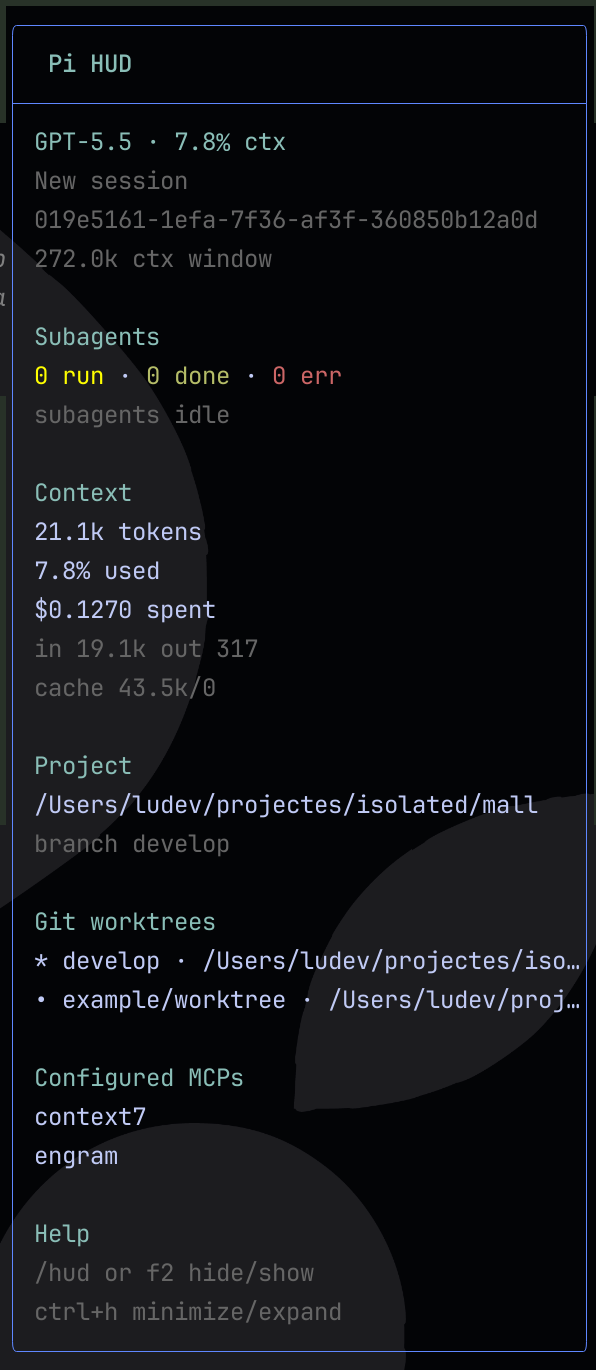
It shows the current session, model/context usage, subagent activity, project path, and git branch without stealing focus from the editor.
Features
- Starts visible by default when the extension is installed.
- Shows a startup notice with the loaded HUD entry, toggle shortcut, and once-per-version packaged release notes.
/hudtoggle command./hud-settingsconfiguration command.- Default hide/show keyboard shortcut:
ctrl+shift+h. - Default minimize/expand keyboard shortcut:
ctrl+h. - Non-blocking TUI overlay: keep typing while the hud is visible.
- Live subagent status:
- running/done/error counts;
- active task label;
- elapsed time;
- token/context count when available.
- Session context usage and cost.
- Project path and current git branch.
- Registered git worktrees when the repository has more than one worktree.
- Configured MCP server names when
pi-mcp-adapteris installed.
Install
pi install npm:pi-hud
For project-local install:
pi install -l npm:pi-hud
First 60 seconds
Use this quick path to confirm pi-hud is installed and responding:
Install it globally or for the current project:
pi install npm:pi-hud
# or: pi install -l npm:pi-hud
Start a new Pi session, or reload the current one:
/reloadConfirm the HUD appears on the right side. If it is hidden, toggle it:
/hudTry one safe setting change:
/hud-settings position bottom-right
Global settings are stored in ~/.pi/agent/settings.json; project-local settings live in .pi/settings.json and override global values.
Try locally
From this repository, isolate the development extension from any globally installed pi-hud package:
pi --no-extensions -e .
To load only the HUD extension file while iterating:
pi --no-extensions -e ./extensions/hud.ts
From the Pi monorepo checkout during development:
./pi-test.sh --no-env -e /path/to/pi-hud
The HUD opens automatically on session start. Inside Pi, run:
/hud
Run /hud again, or press ctrl+shift+h, to hide or show it. Press ctrl+h to minimize or expand it.
Commands
| Command | Description |
|---|---|
/hud |
Toggle the hud. |
/hud-settings |
Configure position, shortcuts, startup notification, auto-compact, sizing, and Modules visibility. |
Settings
pi-hud reads a hud object from Pi settings. Global settings live in ~/.pi/agent/settings.json; project settings in .pi/settings.json override them.
Defaults:
{
  "hud": {
    "position": "top-right",
    "shortcut": "ctrl+shift+h",
    "minimizeShortcut": "ctrl+h",
    "autoCompactWhileStreaming": true,
    "startupNotification": true,
    "expandedWidth": 42,
    "compactWidth": 26,
    "minTerminalWidth": 90,
    "margin": { "top": 1, "right": 1, "bottom": 1 },
    "visibility": {
      "context": true,
      "project": true,
      "worktrees": true,
      "mcps": true
    }
  }
}
Supported position values are center, top-left, top-right, bottom-left, bottom-right, top-center, bottom-center, left-center, and right-center.
startupNotification controls the startup message rendered when pi-hud loads in an interactive session. It defaults to true, skips /reload, and can be disabled when you want a quieter startup. When packaged release metadata is available, the startup notice includes the latest release commits once per version and records that marker in Pi's user state directory.
visibility controls optional HUD modules from the /hud-settings → Modules visibility toggle list. All visibility items default to true; set an item to false to hide it in expanded HUD and any compact equivalent. The toggle list includes Default settings to restore every configurable module to visible. Supported keys are context, project (project path + branches), worktrees, and mcps. Subagents is intentionally not toggleable and remains visible when applicable. After changing module visibility, run /reload for the change to take effect.
Examples:
/hud-settings position bottom-right
/hud-settings shortcut ctrl+shift+h
/hud-settings minimizeShortcut ctrl+h
/hud-settings autoCompactWhileStreaming off
/hud-settings startupNotification off
/hud-settings visibility worktrees off
/hud-settings visibility context on
Shortcut format
Write shortcuts as modifier+key, using lowercase names. Multiple modifiers can be combined with +.
| User-facing keys | Write in settings | macOS equivalent | Example |
|---|---|---|---|
| Control + key | ctrl+key |
Control (⌃) + key |
ctrl+h |
| Alt + key | alt+key |
Option (⌥) + key |
alt+h |
| Shift + key | shift+key |
Shift (⇧) + key |
shift+f2 |
| Control + Shift + key | ctrl+shift+key |
Control (⌃) + Shift (⇧) + key |
ctrl+shift+h |
| Alt + Shift + key | alt+shift+key |
Option (⌥) + Shift (⇧) + key |
alt+shift+h |
| Function key | f1-f12 |
Function key, sometimes fn + key |
f2 |
| Command + key | Not recommended for terminal shortcuts | Command (⌘) + key |
Prefer ctrl+key or alt+key |
For macOS users, write Option shortcuts as alt+key, not option+key. Command shortcuts are usually reserved by macOS or the terminal app, so they are not portable for HUD bindings.
macOS note: Function keys such as
f2can be intercepted by macOS, terminal emulators, keyboard settings, or multiplexers before Pi receives them. The defaultctrl+shift+havoids function keys and is usually more portable. If your terminal collapsesctrl+shift+hintoctrl+h, use another shortcut such asctrl+alt+hand run/reload.
Recommended profiles
These profiles are copy-paste examples for your Pi settings file. They are documented examples, not built-in runtime presets. Each snippet is a partial override; unspecified HUD settings keep their default or previously configured values.
Minimal / low-noise HUD
Use this when screen space matters but you still want the HUD available.
{
  "hud": {
    "expandedWidth": 32,
    "compactWidth": 20,
    "autoCompactWhileStreaming": true,
    "minTerminalWidth": 80
  }
}
Small terminal
Use this for narrow terminals. The HUD is still hidden when the terminal is narrower than minTerminalWidth.
{
  "hud": {
    "expandedWidth": 30,
    "compactWidth": 18,
    "minTerminalWidth": 60,
    "margin": { "top": 0, "right": 0, "bottom": 0 }
  }
}
Bottom-right placement
Use this when top-right content conflicts with the HUD.
{
  "hud": {
    "position": "bottom-right",
    "margin": { "right": 1, "bottom": 1 }
  }
}
No auto-compact
Use this if layout changes during assistant turns are distracting. Manual minimize/expand still works with minimizeShortcut.
{
  "hud": {
    "autoCompactWhileStreaming": false
  }
}
Wider expanded panel
Use this on wide monitors to reduce truncation in the expanded HUD.
{
  "hud": {
    "expandedWidth": 56,
    "compactWidth": 26,
    "minTerminalWidth": 110
  }
}
Shortcut changes require /reload because shortcuts are registered when the extension loads. Do not bind HUD shortcuts to enter, return, alt+m, ctrl+m, ctrl+shift+m, ctrl+j, or ctrl+shift+j; those conflict with Pi or terminal input keys.
Notes
- Configured MCP servers are shown only when Pi has
pi-mcp-adapterinstalled; config files alone do not enable the section. - Subagent status is based on Pi extension events and
pi-subagentstool/result shapes when available. - The HUD auto-compacts for the full assistant turn and expands when the turn ends, instead of changing state on each reasoning update.
- The overlay is hidden on narrow terminals under the configured
minTerminalWidth.
Known limitations
MCP connection status
The HUD shows configured MCP server names, not live connection status. It reads global and project MCP config paths and renders the configured names when pi-mcp-adapter is installed.
| Situation | What the HUD shows | Where to check live status |
|---|---|---|
pi-mcp-adapter is not installed |
No MCP section | Install the adapter before checking MCP state in Pi. |
| Adapter installed and MCP configs exist | Configured server names | Use mcp({}) or /mcp. |
| Server configured but not connected | The server name can still appear | Use mcp({}) or /mcp. |
| Connected, failed, cached, or auth state | Not currently available in the HUD | Use mcp({}) or /mcp. |
For example, a project-local .mcp.json can make a server appear in the HUD even when that server is not currently connected. Use mcp({}) or /mcp for live MCP status.
pi-mcp-adapter does not currently expose a public cross-extension status API for pi-hud to consume. If such an API becomes available, pi-hud can show live states such as connected, cached, failed, needs-auth, or not connected.
Release notes
User-facing changes are tracked in CHANGELOG.md. Maintainer release steps are documented in RELEASING.md.
The package also ships a pi-hud-release skill so installed Pi agents can follow the project release workflow with the same checklist without colliding with generic release skills.
Inspiration
pi-hud is inspired by sub-agent-statusline.
License
MIT