@firstpick/pi-package-webui
Pi Web UI companion package with a local browser UI CLI plus /webui-start and /webui-status commands.
Package details
Install @firstpick/pi-package-webui from npm and Pi will load the resources declared by the package manifest.
$ pi install npm:@firstpick/pi-package-webui- Package
@firstpick/pi-package-webui- Version
0.11.0- Published
- Oct 1, 2026
- Downloads
- 2,636/mo · 744/wk
- Author
- firstpick
- License
- MIT
- Types
- extension
- Size
- 21 MB
- Dependencies
- 2 dependencies · 4 peers
Pi manifest JSON
{
  "image": "https://raw.githubusercontent.com/Firstp1ck/pi-coding-agent-forge/main/pi-package-webui/images/Webui_MainWindow_v0.4.8.png",
  "extensions": [
    "./index.ts",
    "./session-summary.ts"
  ]
}Security note
Pi packages can execute code and influence agent behavior. Review the source before installing third-party packages.
README
Pi Web UI
Run Pi in a local browser with multi-session tabs, streaming output, model controls, file uploads, Git workflows, and optional companion features.




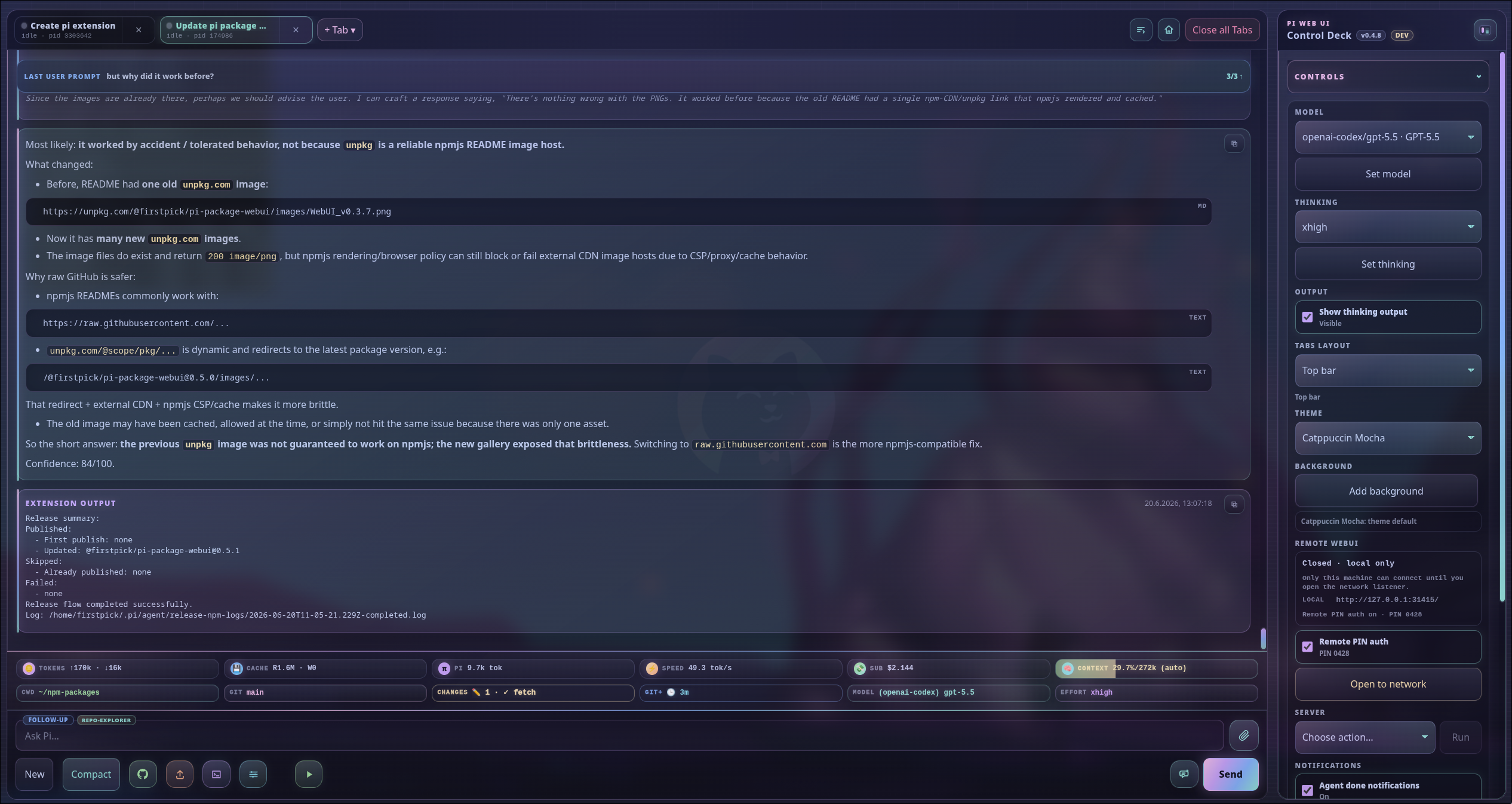
Optional feature needed: None — the main window is included in Pi Web UI core. Companion widgets appear only when their packages are installed.
Pi Web UI keeps the normal Pi agent experience while giving you more room to manage sessions, inspect work, and control common workflows. It listens on localhost by default, runs alongside Pi, and can be opened from Pi or with a standalone launcher.
What you can do
| Area | Highlights |
|---|---|
| Sessions and workspaces | Run several isolated Pi sessions, resume prior work in a new terminal without replacing the current one, switch projects, preserve per-tab drafts, add another tab directly from the tab strip, and create branch worktrees. |
| Live agent work | Follow streaming Markdown with syntax highlighting for code blocks, grouped consecutive thinking, tool output, queues, todo progress, managed agent runs, and direct agent-to-agent conversations without leaving the browser. |
| Models and controls | Change models and thinking effort, manage scoped models, configure tools and skills, and use the command palette. |
| Files and prompts | Upload or paste files and images, edit text attachments, use slash-command suggestions, browse project files, and reference project paths with @. |
| Git workflows | Inspect changes, switch branches, review diffs, stage work, generate commit messages with an optional one-shot fallback model, push, and prepare pull requests through guided steps. |
| Project utilities | Launch detected app runners, manage working directories, search files and transcripts, and customize themes. |
| Companion features | Add stats, remote access, voice, /btw, richer Git status, themes, release tools, and other supported Pi packages. |
| Desktop and mobile | Use a full desktop workspace with resizable left and right side panels, or a compact phone layout with touch-friendly navigation and controls. |
| Customizable controls | Hide optional workspace, Control Deck, composer, workflow, attachment, and input-tag controls while keeping Send available. |
Quick start
Requirements
- Node.js 22.19 or newer
- Pi coding agent installed and configured
- A modern browser
Install into Pi
pi install npm:@firstpick/pi-package-webuiRestart Pi, then run:
/webui-startOpen the printed address, usually http://127.0.0.1:31415/. The browser normally opens automatically.
Check the server at any time with:
/webui-status
/webui-status detailed
Your first session
- Start the Web UI with
/webui-start. - Confirm the working directory in the footer or choose another project. You can paste or type a full path in the picker; on Windows, use a rooted drive path such as
C:/orD:/project. From a drive root, choose Parent to open This PC and select another available drive. - Select a model and thinking effort.
- Enter a prompt, attach context if needed, and follow the live response. The prompt grows to a bounded height, then scrolls vertically so every line stays reachable.
- Open the Control Deck for sessions, Git, app runners, themes, updates, and optional features. Under Controls → Interface, choose Top bar or Sidebar for terminal tabs, then choose Right, Left, or Both for the Control Deck. In Sidebar, Both is unavailable; choosing Right or Left swaps the Control Deck and terminal/tabs rails across the chat.
- On desktop, drag the workspace-facing edge of any visible Control Deck—or the terminal/tabs rail in Sidebar—to choose a comfortable width. In Both, resize the left and right Control Decks independently; widths return on your next visit.
The completed response replaces the live draft, including thinking the provider corrects or removes. On older Pi releases, tool arguments may appear only after the tool is identified, so Intercom content stays out of the main transcript.
When session history is loading, a small status overlay floats directly above the Git footer without resizing the transcript. It names the current step, such as Checking for new messages…, Loading conversation history…, or Preparing your conversation…. Existing transcript content and controls remain available; no popup interrupts your work.
Open Events to see bounded tool activity details such as status, duration, a safe target when available, and a shortened call ID. Use Show to isolate errors and failures, warnings, tool activity, or rows with Tree… available; All events restores the full browser-held history. Select a row to jump to its chat card. Right-click any row, or use its keyboard context-menu shortcut, to switch between Detailed and Compact display. Compact keeps the timestamp and summary while hiding secondary metadata; tool rows retain a colored lifecycle accent. Eligible tool rows also offer Tree… to confirm navigation to that exact point in the session; use /tree to navigate back. Repeated successful subagent Auto-Clear activity stays in one row whose finished-run count increases.
Tracked skills appear as compact tags above the composer. Select a named tag to open its skill file; when space is limited, select the +X tag to expand the remaining selectable tags upward.
To simplify the interface, right-click a supported button or empty space in a marked toolbar, Control Deck header/footer, or composer area, then choose Open setup. The setup groups every optional control and input-tag type in one scrollable dialog; clear or select a checkbox to save that change immediately. You can still choose Hide for one button, use Show all or Reset defaults, or run the matching recovery actions from the command palette. Visibility is global across Web UI workspaces and browsers. Unavailable controls may stay hidden, and Send always remains available.
Open Subagents to follow agent runs launched by managed extensions or registered SDK, RPC, JSON, print, interactive, tmux, workflow, schedule, gate, and custom integrations. Runs linked to an open WebUI terminal stay in that terminal’s group; other registered runs appear under External agents. Each agent row shows its launch source and lifecycle, and only offers output or controls that its owner supports. A pi-subagents workflow appears as a collapsible Workflow header with its model-powered agents nested inside, rather than as another agent row. Starting or restarting the server reconnects active runs without reopening stale, lost, or already-finished rows from an earlier server run.
Use Agent models in the Subagents panel to choose the default model and thinking level for each built-in role. WebUI applies those defaults when a subagent or subagent_gate launch omits its model, including children started by runs.run and runs.all workflow scripts. An explicit reviewer model that does not match its configured slot is blocked rather than silently replaced; omit the model or correct it before retrying. Only after you explicitly authorize the exact exception may Pi use approve_subagent_model_deviation; the tool shows you the exact occurrence and model in a confirmation dialog before creating a short-lived, one-use local permit. Save model changes, then reload the active Pi tab.
Independent Pi processes do not appear automatically. Start them through pi-webui agent run, attach a persisted session with pi-webui agent attach, or use a cooperating registration adapter. See TECHNICAL.md for supported commands and limitations.
When agents exchange direct Intercom messages or use native subagent-supervisor coordination, one compact tag per conversation appears beneath the composer. The tags start at the right edge and extend toward the middle, using up to half of the prompt width. Each tag has a bounded width. If they do not fit, WebUI keeps complete tags visible and replaces the rest with a +X tag. Select +X to open the remaining conversations above the composer. Long names still shorten with an ellipsis when one name exceeds the available space, while the full name remains available to assistive technology and on hover. Select a conversation to open a read-only chat view showing the two agent names or IDs and their messages. Generic Intercom transport calls and received Intercom records stay out of the main agent-output transcript, while attachments, tool output, and reasoning remain excluded from the chat view.
Useful shortcuts:
Ctrl/Cmd+Kopens the command palette.Ctrl/Cmd+Lopens the model selector.Ctrl/Cmd+Fsearches the active file, transcript, or subagent output and highlights every match.Alt+Enterqueues the composer as a follow-up.- Hold
Esc(or the Abort button) for about a second to abort active work; a quick tap shows the hint instead. - In the composer,
Enteraccepts a highlighted/,@, or!suggestion; once the token is complete,Entersends.Ctrl/Cmd+P,Ctrl/Cmd+T,Ctrl/Cmd+O, andShift+Tab(model cycle, thinking output, tool output, thinking level) act only while the composer has focus. - Warnings and errors appear as short-lived notices at the bottom of the window and count up on the Events section header; the Events log keeps the full history.
- In the Control Deck, use
Alt+Up/Alt+Downto reorder a section. In Both, useAlt+Left/Alt+Rightto move it between sides.
Feature gallery
Screenshots below show the v0.4.8 interface. Newer releases may contain additional controls while keeping the same core workflows.
Sessions and workspace
Workspace dashboard

Optional feature needed: None — included in Pi Web UI core.
See the active project, model, context, Git state, queue, sessions, and common actions in one place.
Control panel
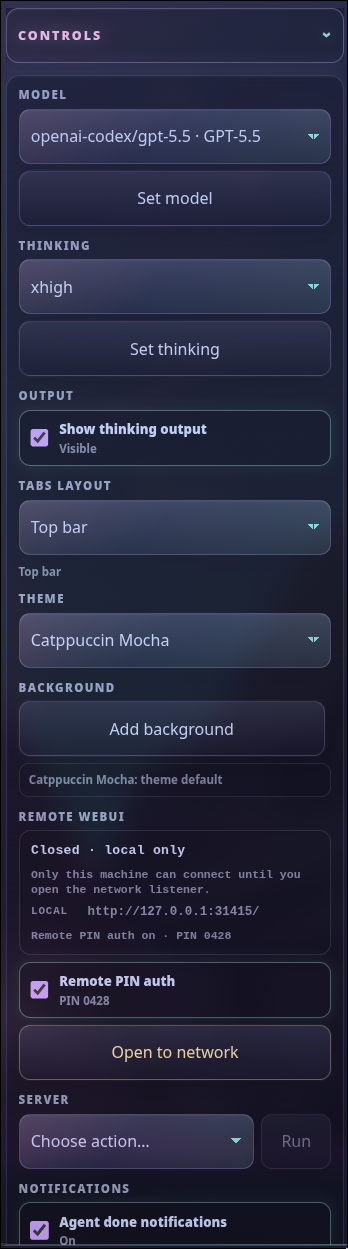
Optional feature needed: None — the control panel is included in Pi Web UI core. Companion-specific sections require their corresponding packages.
Manage the current session, workspace, model, theme, notifications, updates, usage, and optional packages. The Controls section keeps each setting on one compact name/value row; point to or focus a setting name for plain-language help.
Working-directory picker
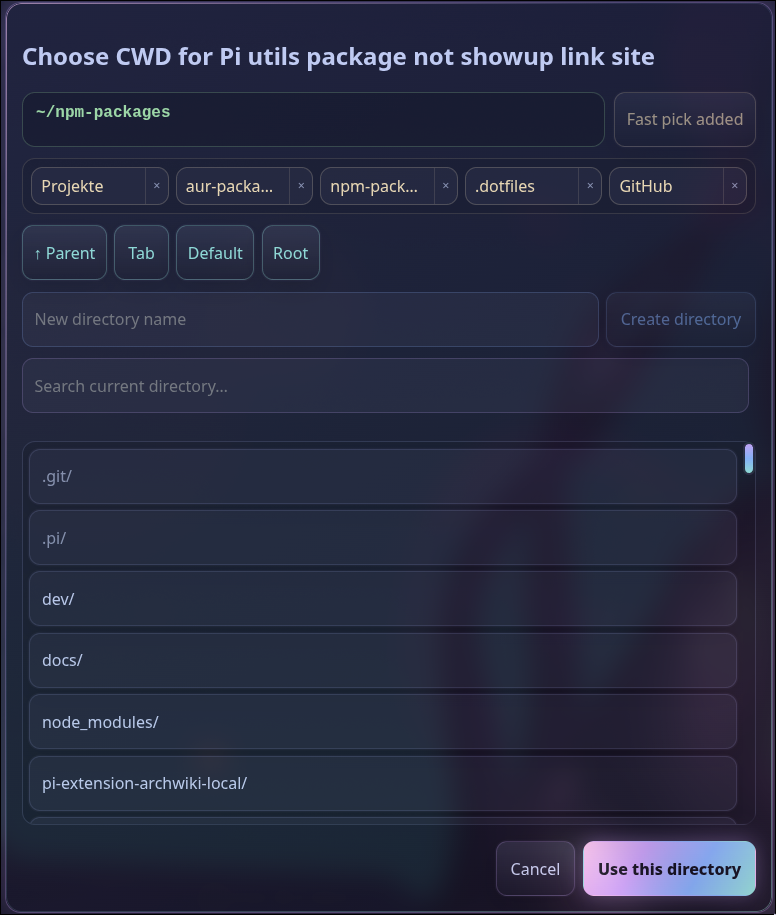
Optional feature needed: None — included in Pi Web UI core.
Browse, search, save, or create project directories and open them in the active Pi tab.
Files panel
Optional feature needed: None — the Files panel is included in Pi Web UI core.
Browse and search the files of the active project, open them in the viewer, and use the row menu for file actions. The viewer edits text, previews Markdown, and displays PNG, JPEG, GIF, WebP, and AVIF images read-only. In a Git repository, files and folders that Git ignores stay listed and fully usable, but appear greyed out so generated output such as node_modules or build folders is easy to tell apart. Point at a greyed row to see the “Ignored by Git” hint in its tooltip.
Queue manager
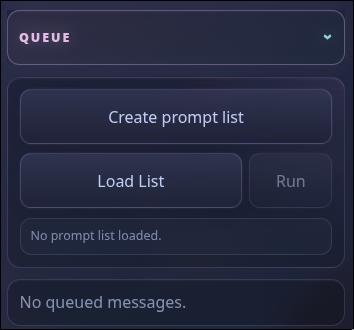
Optional feature needed: None — queues and prompt lists are included in Pi Web UI core.
Review follow-ups, steering messages, user-bash work, and prompt lists while a tab is busy.
Models, tools, and skills
Thinking effort
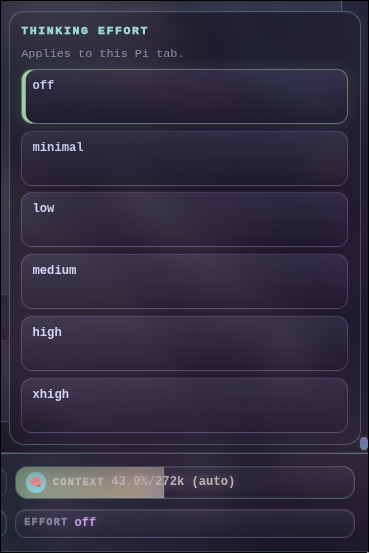
Optional feature needed: None — included in Pi Web UI core.
Choose the supported reasoning effort before sending the next prompt. Local models that return tagged <think>…</think> reasoning keep that content in the Thinking card, including literal tag examples inside the reasoning.
Scoped models
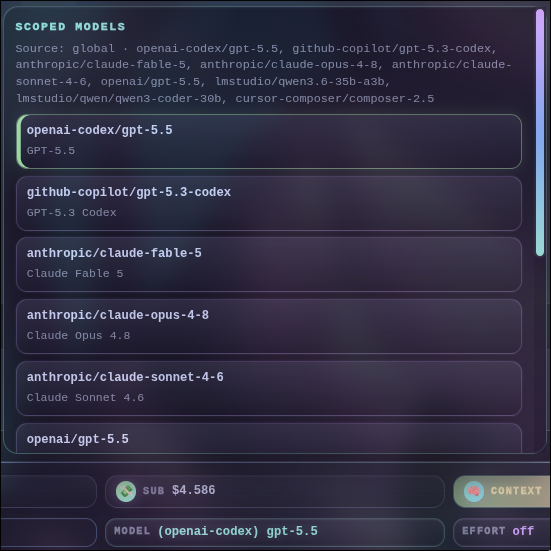
Optional feature needed: None — included in Pi Web UI core.
Search available models and control project or global model scope and cycling order.
For a long scoped-model list, right-click the Git footer Model box and choose Toggle advanced. The picker groups models into alphabetized provider columns. Drag a model within its provider column, or use Alt+Up / Alt+Down, to change that provider's cycling order. Models cannot move between providers. Use the arrow keys to navigate, Enter or Space to select, and Escape to close. On desktop the picker grows with the provider count, can overlay the side panels, and stops at the viewport edge with internal scrolling. Choose Toggle Simple to return to the flat list.
Tools setup
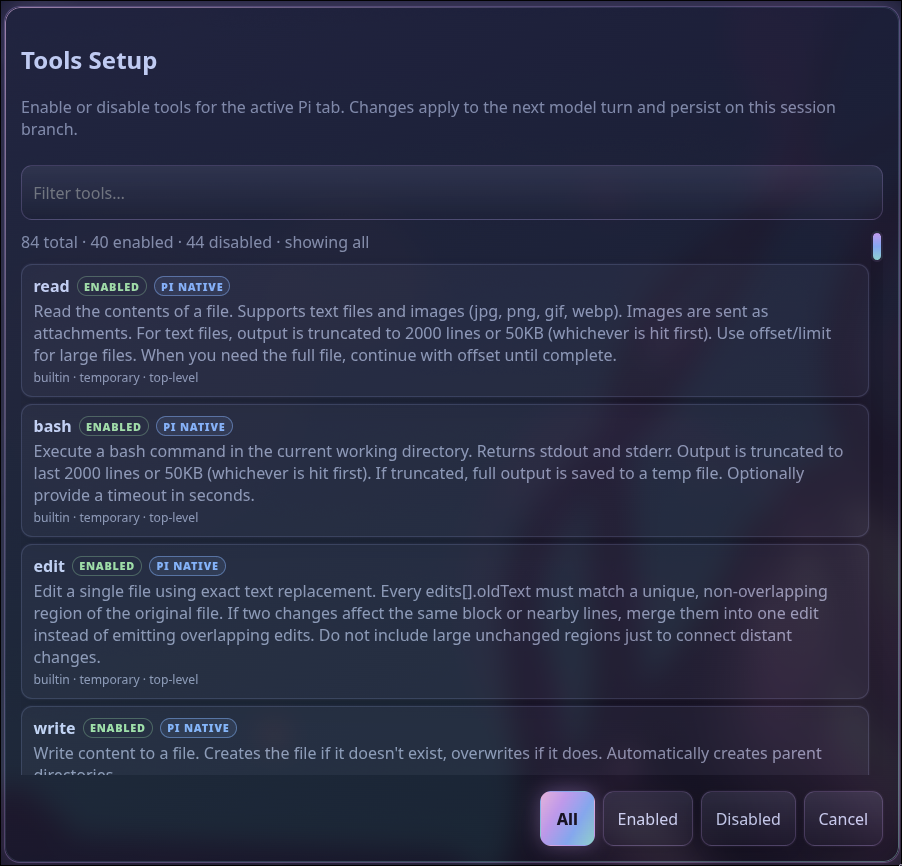
Optional feature needed: None — the browser tools setup is included in Pi Web UI core.
Enable tools for the current session, save a global default, or configure an exact model profile. Selecting a configured model automatically applies its tool profile unless the session has its own tool selection. Pi's TUI /tools command belongs to the optional @firstpick/pi-extension-tools companion and uses the same Session, Global, and Model scopes; WebUI does not register a competing command.
Skills setup
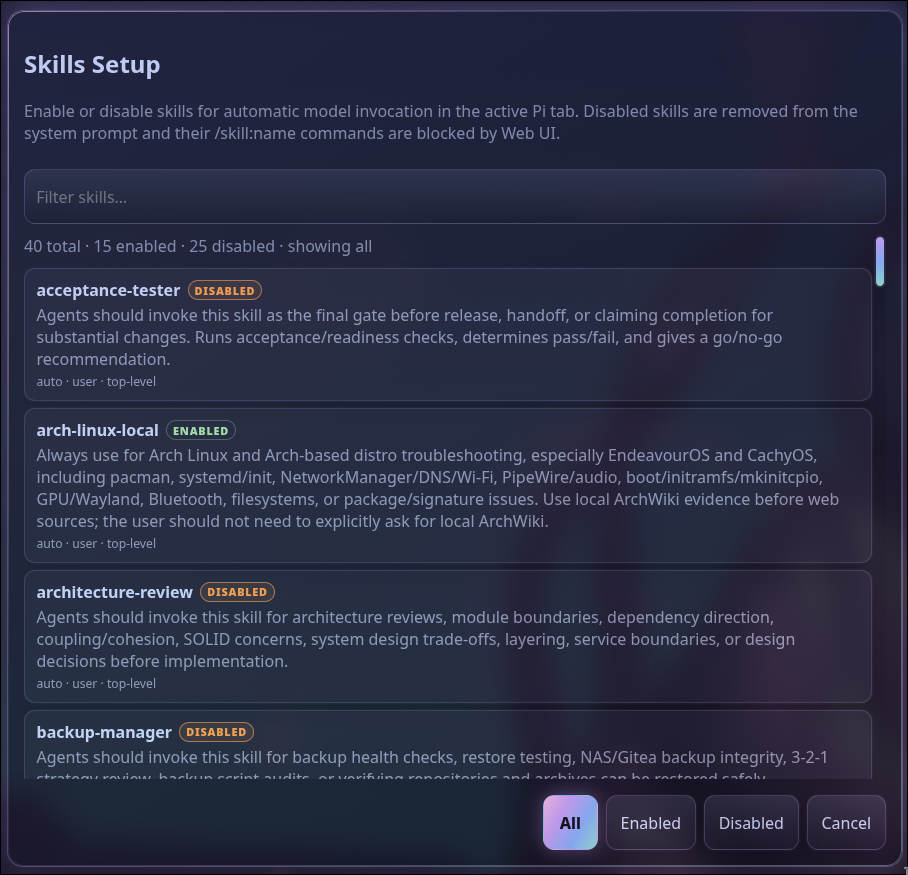
Optional feature needed: None — the browser skills setup is included in Pi Web UI core.
Find installed skills and manage session, global, or exact-model activation. Selecting a configured model automatically applies its skill profile unless the session has its own skill selection. Pi's TUI /skills command belongs to the optional @firstpick/pi-extension-setup-skills companion and uses the same Session, Global, and Model scopes; WebUI does not register a competing command.
Append-system prompt picker
Optional feature needed: None. It is included in Pi Web UI core.
Choose one APPEND_SYSTEM.md file as a global append-system prompt for WebUI-managed Pi tabs. Open Common Pi options, choose Feature Setup, then select Append-system Prompt. You can also open the command palette and run /append-system. The picker shows files found by a bounded scan below your home ~/.pi folder and the active tab's working directory, ready to filter and select. It follows file and folder links, including links to locations outside those two folders, while keeping the visible linked path in the list. The current choice is marked, and Use Pi default discovery removes the override again. Pi's exact global default file, ~/.pi/agent/APPEND_SYSTEM.md, is represented by that default choice rather than a duplicate file row. Other files below ~/.pi, including nested alternatives, remain selectable. Scan diagnostics explain when limits omit results; TECHNICAL.md lists the limits. The picker only shows file paths; it never edits or displays prompt file contents.
Saving the choice does not change a running Pi session by itself. After a changed save, the Web UI asks whether to restart the active Pi tab now; cancel keeps the saved choice for the next manual reload or new tab. Because the choice is global, it also applies to every new tab you open afterward. Pick files and links carefully: a followed link can scan or load a prompt from anywhere the Web UI process can read, and an append prompt changes Pi's high-priority instructions.
Hover a terminal tab to see the effective WebUI-selected non-default APPEND_SYSTEM.md visible path. Tabs using Pi's default discovery omit this line. Existing tabs keep their launch-time information until their Pi process is fully restarted or the tab is recreated, and the tooltip never reads or shows prompt contents.
Project automation and Git
App runners
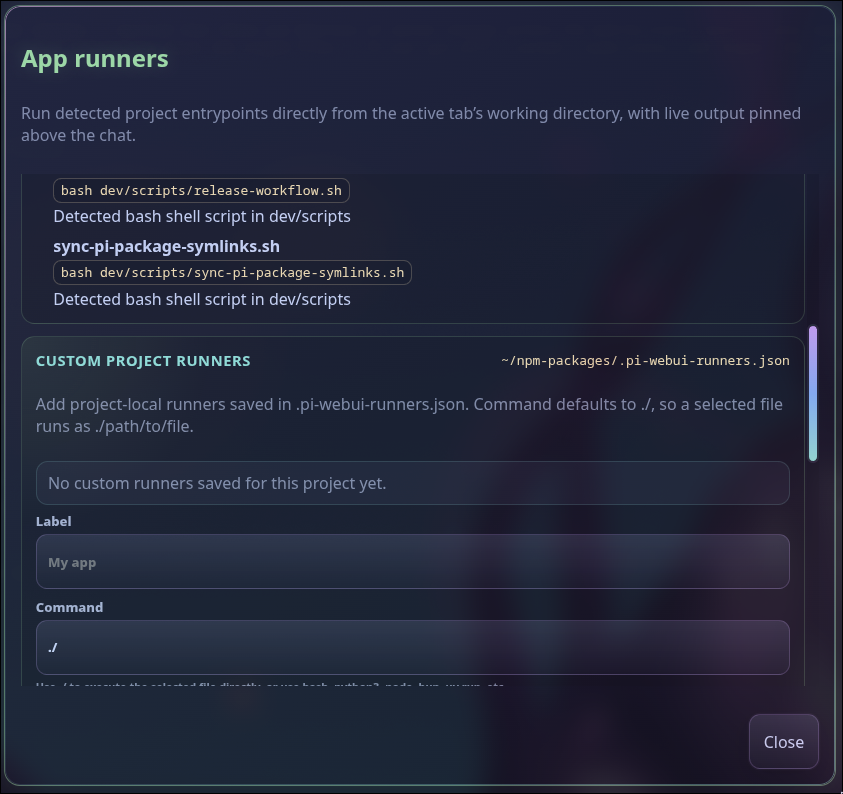
Optional feature needed: None — app runners are included in Pi Web UI core.
Launch detected development servers, tests, builds, scripts, and project-defined runners with pinned live output. ANSI colors are rendered safely, while progress written with carriage returns updates in place instead of filling the log with duplicate status lines.
Guided Git workflow
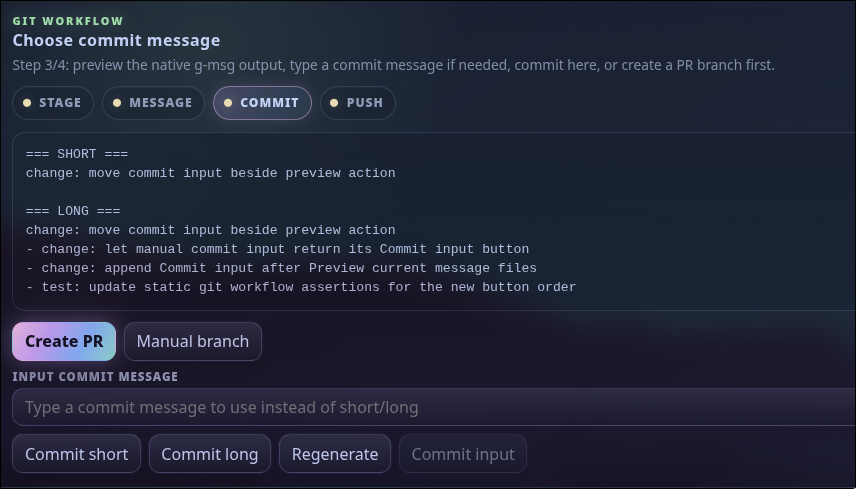
Optional features needed: @firstpick/pi-extension-git-guided-workflow provides /git-guided-workflow plus native /git-staged-msg, /git-branch-name, and /pr generation commands. @firstpick/pi-extension-aur-review optionally adds the staged-review gate. The Optional features panel installs and audits the Guided Git extension as one complete feature.
Run /git-guided-workflow in the browser composer or use the Guided Git workflow button. The extension starts the workflow in the originating tab without sending a repository path, diff, or Git data in its activation request. Browser generation requires the extension-owned RPC commands and does not fall back to same-named prompt templates.
Move through review, staging, commit-message generation, commit, push, and pull-request steps with explicit confirmations. If a repository has no remote, choose Public or Private from the visibility dropdown and confirm publication. Guided Git uses the local Git root directory name, runs the authenticated system gh command, adds origin, and pushes the current branch.
In Guided Git Setup, choose the model and reasoning effort used for generated Git text. Guided Git calls that model independently without changing the parent tab’s active model or effort. You can optionally choose a fallback model and its own reasoning effort; after a final primary generation failure, Guided Git tries the fallback once and reports the change in the workflow. Large staged diffs use multiple model requests; a fallback attempt sends the complete staged evidence again to the configured fallback provider and can nearly double the request count and cost. Validation failures, cancellation, Git command failures, and a stopped Pi process do not trigger fallback.
Git branch picker
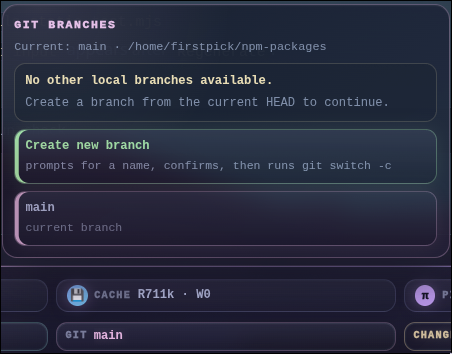
Optional feature needed: None — branch and worktree controls are included in Pi Web UI core.
Switch branches, create a branch, or create a parallel branch worktree for isolated work.
Git diff viewer
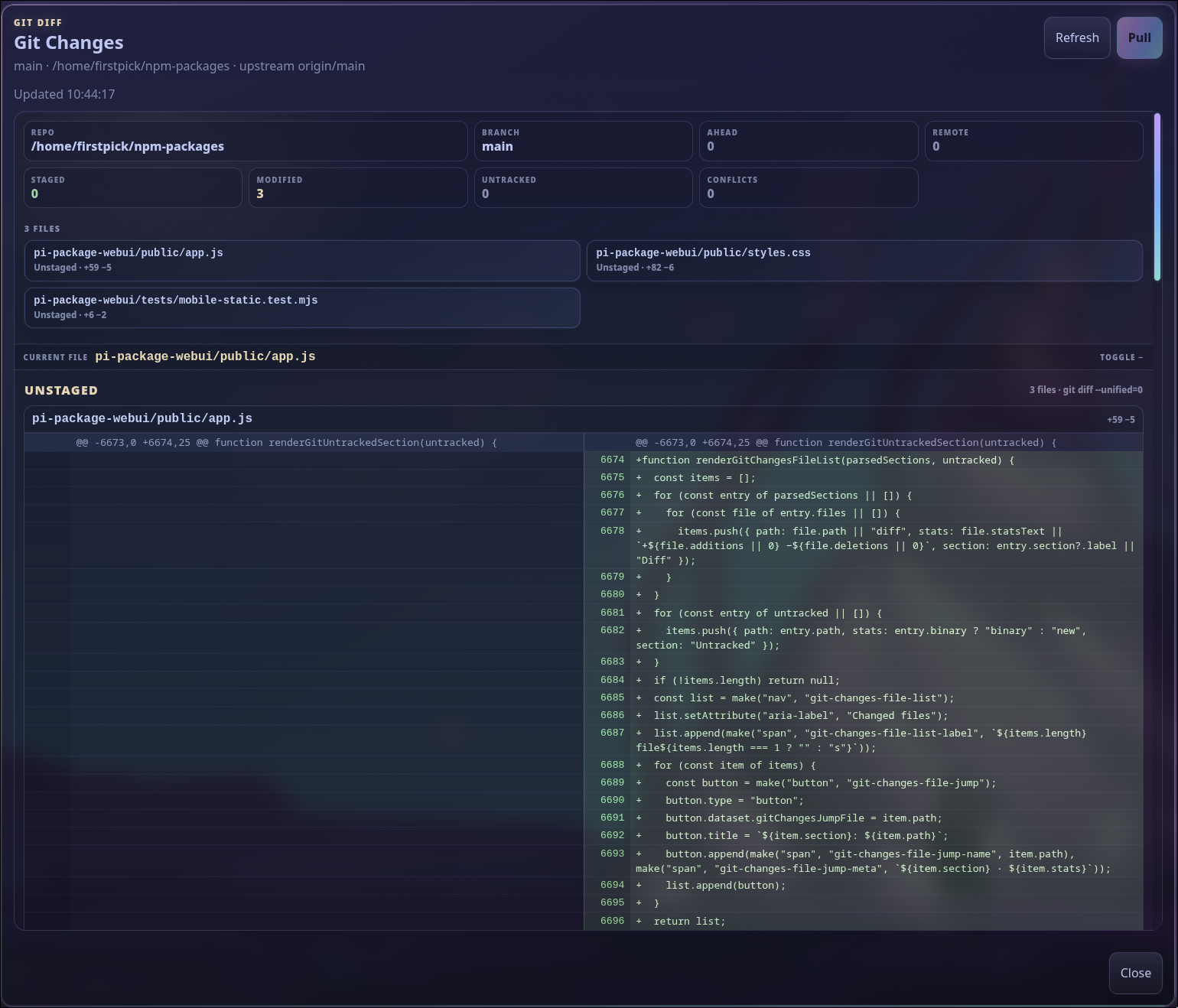
Optional feature needed: None — the Git status and diff viewer are included in Pi Web UI core.
Inspect staged, unstaged, untracked, and incoming changes before asking Pi to commit or publish them.
Optional companions and usage
Optional features
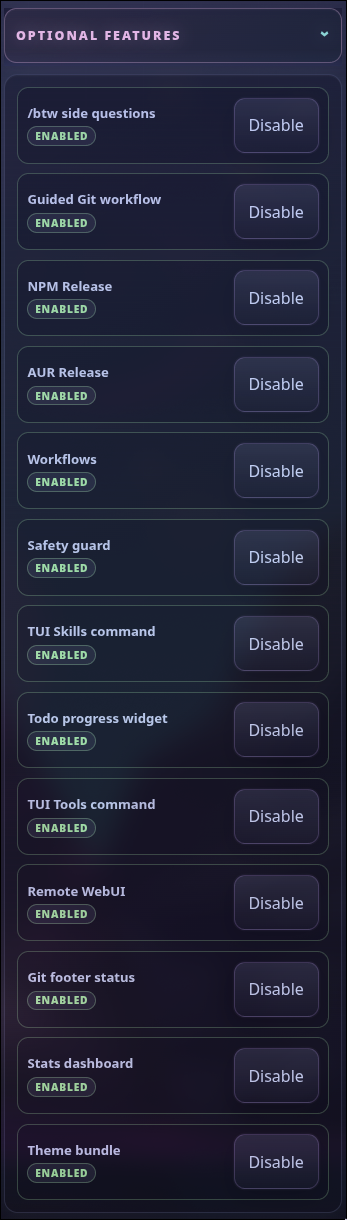
Optional feature needed: None — the package manager panel is included in Pi Web UI core; each listed companion is installed separately.
Install, update, enable, disable, or configure supported companion packages from one panel. Each row shows its system-prompt impact: + adds to the initial system prompt, +... can add system-prompt text while the session is running, and - means no measured system-prompt text.
/btw side questions

Optional feature needed: @firstpick/pi-extension-btw.
Ask a quick side question without derailing the main agent flow, then transfer useful context back when needed.
Codex usage
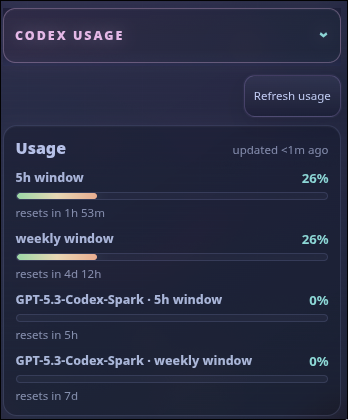
Optional feature needed: None for usage reporting, which is included in Pi Web UI core for supported Codex authentication. The Normal/Fast/Ultrafast selector requires @firstpick/pi-extension-codex-fast-mode.
Monitor subscription usage windows and reset times. With the companion enabled, choose a speed under Codex Usage and click Apply. Ultrafast is offered only for subscription-backed GPT-6 Astra and asks for cost confirmation.
Ultrafast costs more: it requires Pro $500 or eligible Enterprise/Edu access and uses 8× Standard included usage or 6× purchased-credit/pay-as-you-go usage. Workspace terms may differ. The selector shows your preference, not confirmation of upstream acceptance.
Pi stats
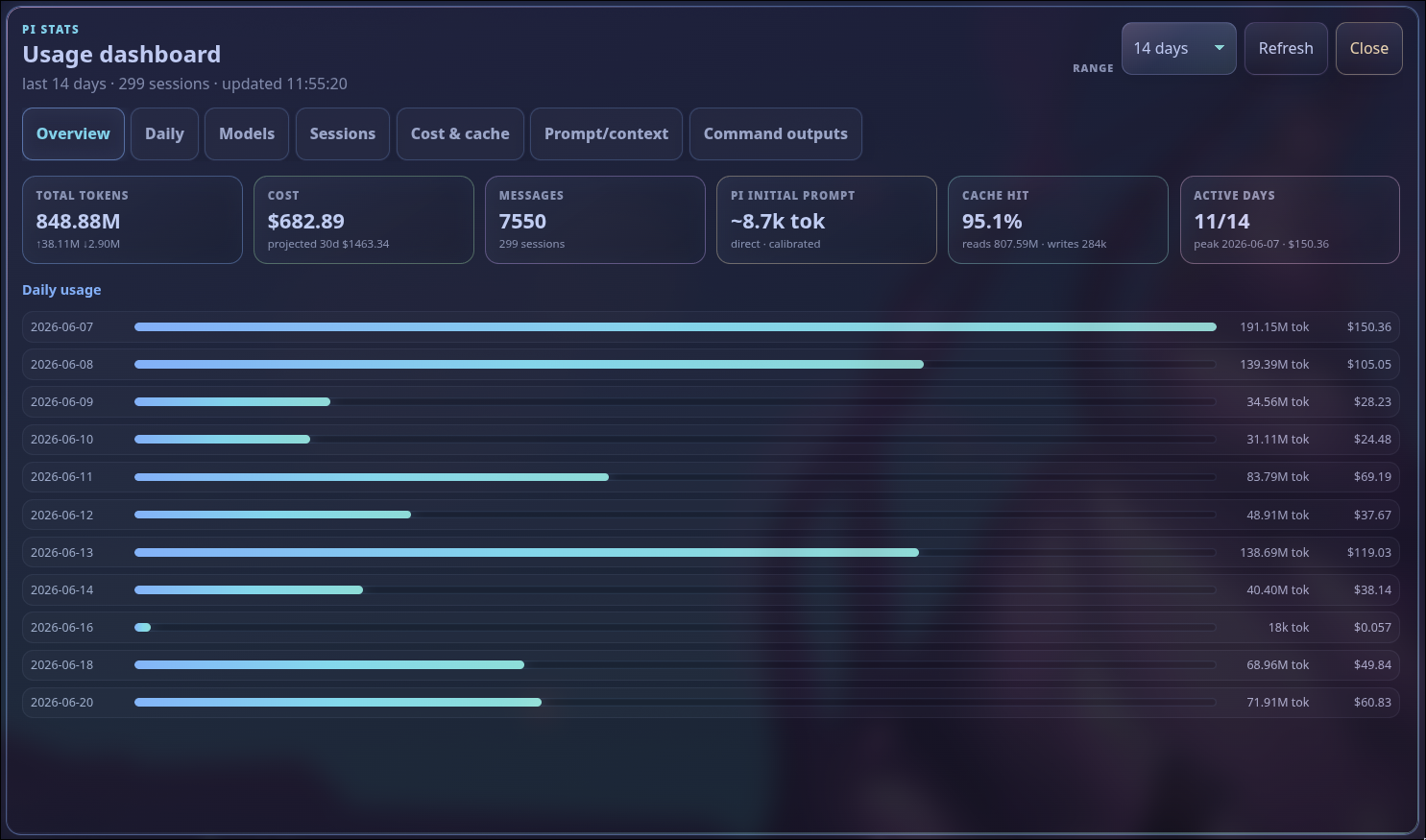
Optional feature needed: @firstpick/pi-extension-stats.
Explore token, cost, cache, model, session, and daily usage through the optional stats companion.
Optional features
Open Optional features in the side panel to discover Web UI-aware companions. Configurable companions expose separate Enable/Disable and Setup actions, so configuration remains available without forcing a feature on. The loaded TUI Skills command and TUI Tools command rows provide Setup buttons for the browser-native Skills Setup and Tools Setup dialogs.
Popular additions include:
- Remote Web UI for trusted-LAN access and PIN protection
- Pi stats and richer Git/footer status
- Natural Conversation Mode and voice controls
/btwside questions- Additional themes, release workflows, safety controls, and prompt tools
Optional companions are installed separately and remain governed by normal Pi package settings.
Standalone launcher
You can start the browser UI without opening terminal Pi first:
npm install -g @firstpick/pi-package-webui
pi-webui
Choose a project immediately:
pi-webui --cwd ~/src/my-projectIf you omit --cwd, the browser asks which project to open first.
Keep it private
[!WARNING] Pi Web UI can do anything the connected Pi session is allowed to do. It listens only on
127.0.0.1by default. Do not expose it directly to an untrusted network.
Use the optional Remote Web UI package when you need trusted-LAN access and PIN protection. Treat that PIN as a convenience for a trusted network, not as hardened multi-user authentication.
Technical details
To update, select Update Pi or Update Web UI in the Control Deck. Read the preview of installations and commands, including skipped installations, before confirming. Only localhost can start an update. Finish work in affected tabs first; native package updates may run lifecycle scripts under your existing configuration and cannot be automatically rolled back. The small activity indicator and command results remain available after reconnect. If the status is unknown, check the host before trying again.
Before downgrading: stop the Web UI and back up
~/.pi/webui/settings.json. Older releases do not understand the two-sided Control Deck layout and can overwrite it. Re-upgrade before restoring the backup.
See TECHNICAL.md for complete commands, configuration, update and rollback behavior, session continuity, security, compatibility, mobile behavior, and troubleshooting.
Contributor-only architecture, API, and testing information lives in DEVELOPMENT.md.