pi-better-harness
Pi extension bundle for a write sandbox, subagents, background tasks, SSH, Goals, and Todo lists.
Package details
Install pi-better-harness from npm and Pi will load the resources declared by the package manifest.
$ pi install npm:pi-better-harness- Package
pi-better-harness- Version
0.61.1- Published
- Nov 29, 2026
- Downloads
- 13.9K/mo · 3,749/wk
- Author
- exoulster
- License
- MIT
- Types
- extension
- Size
- 36.3 MB
- Dependencies
- 11 dependencies · 2 peers
Pi manifest JSON
{
  "image": "https://raw.githubusercontent.com/1aboveio/pi-better-harness/main/docs/images/package-gallery/pi-better-harness.png",
  "extensions": [
    "extensions/sandbox/index.ts",
    "extensions/subagents/index.ts",
    "extensions/background-tasks/index.ts",
    "extensions/ssh/index.ts",
    "extensions/goal/index.ts",
    "extensions/task-context/index.ts",
    "extensions/project-context/index.ts",
    "extensions/minimal-output/index.ts",
    "extensions/tool-call-guard/index.ts",
    "extensions/recap/index.ts",
    "extensions/supervisor/index.ts",
    "extensions/settings/index.ts",
    "extensions/harness-instructions/index.ts"
  ]
}
Security note
Pi packages can execute code and influence agent behavior. Review the source before installing third-party packages.
README
pi-better-harness
pi-better-harness is a Pi meta package for an opt-in foreground write sandbox, delegated subagents, durable background tasks, synchronous SSH commands, goal tracking, and Goal & Todo.
Quick Answer
Use pi-better-harness when you want the full working set for Pi. It manages:
pi-better-sandboxfor an opt-in write sandbox around Pi's foreground tools.pi-better-subagentsfor detached, sandboxed subagent runs.pi-better-background-tasksfor durable shell tasks and watchers.pi-better-sshfor short remote commands over reusable SSH connections.pi-better-goalfor explicit triggers, pause/resume, and background-aware continuation.- Harness-owned Goal & Todo for session context and checklist progress. Saved work appears in the panel. Automatic Goal execution defaults to Off.
pi-better-read-aloud is intentionally not included yet.
Goal & Todo
The Goal records what the user wants to achieve. Its Todo lists the steps. The
panel shows checklist progress on the left and Goal status on the right. A
saved Goal has a Start Goal button. Click it or press Alt+G to start work
with the existing checklist. Use /goal pause to interrupt
foreground work and hold continuation. Both commands use the current Todo,
including checklists saved before a Goal was attached.
/harness-settings has one Goal setting, Auto-start Goals (default Off).
Turn it on to start a newly saved Goal with acceptance criteria, restart explicitly
reopened work, or bind a Goal when invoking /skill:rush-issues or
/skill:resolve-issues. Changing the switch takes effect on the next such action.
With it off, use /goal resume to start saved work manually.
The panel shows goal saved before execution starts and goal active with a
clock while it runs. Use /todo to reveal the panel and /todo expand to see
all steps. get_todo returns the full Goal and Todo, including acceptance criteria
and boundaries. Completing a step updates checklist progress. The Goal stays
open until its completion is recorded.
Use update_todo({ goal: { objective, doneWhen, boundaries }, todo }) to save
work. Any of doneWhen, boundaries and todo may be omitted. Set
newTask: true for an unrelated task. Existing session records, settings and
clients using the legacy outcome field remain supported.
Todo uses the same workflow view for a bound task plan and a dynamic workflow.
The task list and diagram start at equal widths. Drag their divider in fullscreen Pi
or enter /todo split 3:2 to give the task list three fifths of the available width.
The session remembers the ratio across reloads. Use /todo split 1:1 to restore equal columns.
Below 36 terminal columns, the diagram follows the task list. Stage counts use the task symbols, so Implement ●2 shows two tasks in progress. A pending stage shows ○. In a mixed stage, !1 ●2 shows one blocked task and two running.
Existing Plan session histories restore as Todo. Workflow task-plan files and revision checks continue to govern workflow-owned plans. See the usage guide.
Dynamic workflows
Run /dynamic-workflow to plan the current task once. In /harness-settings,
Automatic dynamic workflows (Beta) defaults to Off. With On, Pi handles
simple requests directly and can plan a workflow for dependencies, role handoffs
or repeated review. Existing Adaptive settings are treated as On.
The command works with either setting and keeps your saved preference.
The agent records an objective, acceptance criteria, required outputs and task
dependencies. When the steps form a single chain in list order, the task list
uses the full width. Parallel branches, joins and review loops keep their
diagram as work progresses. The list uses full task titles. The diagram uses
short step or stage labels such as Code review and UX review.
Task icons distinguish ready (○), working (●), waiting (·), optional standby (–),
failed (×), and completed (✓) steps. In mouse-enabled Pi, click a task to highlight
its stage and inspect its latest result. Use /todo expand to show every task.
Independent tasks can run together. A join waits for each prerequisite's output.
If a reviewer requests changes, the revision opens and the revised artifact
returns to review. Delivery waits for approval of the current version.
The agent can select an inspected catalog role or named agent for a step. The ordinary subagent launch applies the catalog skills and current permissions. Harness associates the returned assignment and its verified result with the step. Resume the session branch to continue from its saved outputs. A bound Goal also requires evidence for its objective. A standalone workflow can finish on its own.
The separate Project work ledger setting enables a durable project-scoped
record of the overall outcome, boundaries, and high-level items. It stays off by
default; turning it off removes ledger views and hints without deleting records.
The same update_todo / get_todo interface carries optional ledger payloads and
selectors for create, update, attach, detach, list, and read. Updates require the
current revision, preserve completed evidence and history, and never associate old
work with a new session automatically. Use /ledger attach <id> (or an explicit
update_todo ledger attach) to continue the same record; /ledger list,
/ledger switch, and /ledger detach manage the reference without copying it. A
resumed session keeps its reference, a fresh session stays unassociated, and
bounded recovery reminders after compaction or resume are rebuilt from durable
state. Workflow-owned rows keep their canonical stage/status rendering; the
ledger adds context, not a second execution model. See
usage.
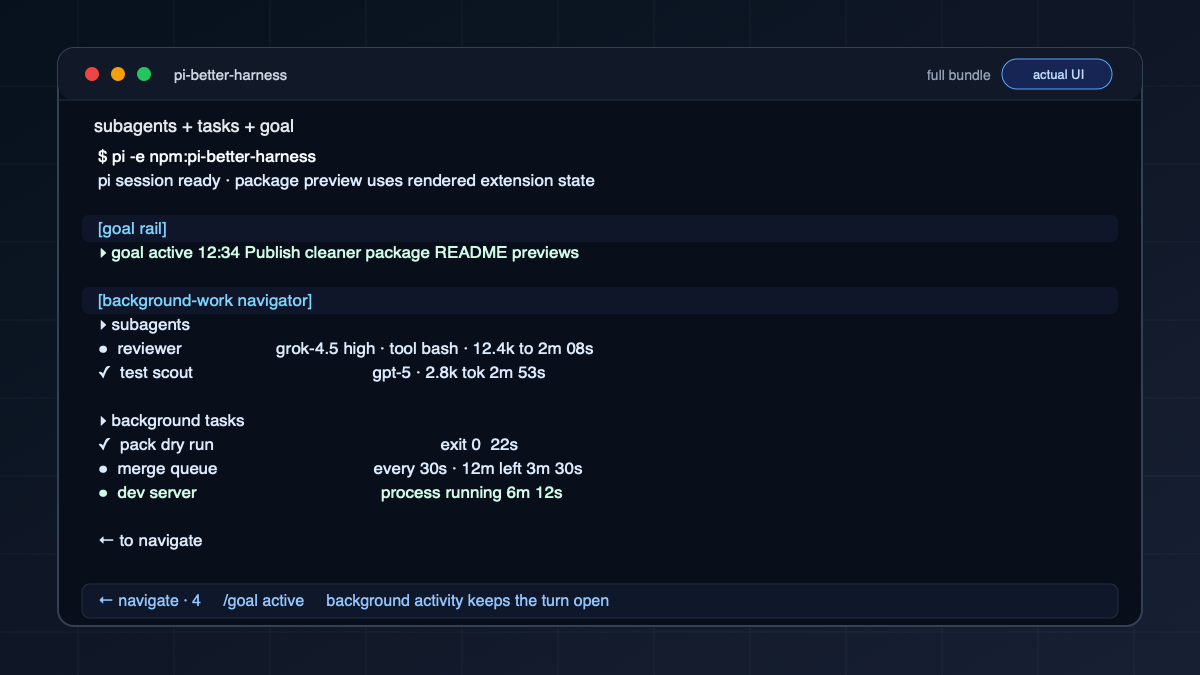
Subagent and background-task rows can be clicked to open their existing navigator
details. Enter and keyboard controls remain available, and editor input stays
passive. Harness packages do not write to Pi's status bar. Goal holds and resume
instructions remain available through /goal; permission checks are unchanged.
Screenshots
Install
Install the extensions as standalone Pi packages, so Pi displays and manages each by its own package name:
npx pi-better-harness installFor project-local Pi settings:
npx pi-better-harness install --localThe installer also registers Harness with filters for its own settings, minimal output, and Goal & Todo extensions. It removes an old pi-better-plan registration in the selected scope. The component packages keep their separate identities. Pi's normal installation prompts and errors still apply.
The single-bundle installation remains available:
pi install npm:pi-better-harnessTo add model routing, run pi install npm:pi-better-model-router and select
router/deepseek-flash-auto in /model. The router package includes the Ollama
Cloud provider and requires Pi's registerVirtualModel API.
After a normal bundle install or pi update, Harness masks any separately loaded
pi-better-plan package before Pi registers its tools, /plan command, widgets,
or prompt hooks. This applies in either load order. The old registration and cached files may remain, but are inactive while
Harness is loaded. Settings and session history are not rewritten. The explicit
installer above removes the old registration in its selected scope instead.
Ordinary Startup
You keep launching Pi the way you always have:
piThe foreground write sandbox starts inactive. Use /sandbox on for the current
session or /sandbox default on to persist opt-in across startup, new session,
resume, fork, and reload. There is no launcher.
While it is on, Pi's built-in bash, write, and edit tools, your own ! / !! commands, local background tasks, and subagents can write only under the directory you launched Pi from, minus the packaged deny paths (.git/hooks, .env, .env.local).
Reads and network access are unrestricted — this sandbox limits writes only. Writes are confined for those integrated first-party execution paths; Pi's own process, arbitrary pi.exec calls, and unrelated third-party extension code are not confined. Confinement is also per surface: each integrated surface denies its own control plane, not every other surface's, so with several first-party surfaces installed a confined process on one can still write another's control plane.
Sandbox state is human-only: /sandbox, /sandbox on, /sandbox off,
/sandbox default on|off, /sandbox deny ..., and /sandbox rules are slash
commands with no tool equivalent. /sandbox off and /sandbox default off
need interactive confirmation. Full policy: pi-better-sandbox.
Minimal Tool Output
The bundled harness provides Tool output with Normal and Compact in
/harness-settings. /tool-output minimal, /tool-output normal, and
/tool-output (toggle) remain compatibility shortcuts to the same preference.
Minimal mode folds each tool call into a single-line header, including running
calls. The tool-specific icon and tool name share a state color: accent while
running, muted when completed, and error-colored when failed. In fullscreen Pi, a soft highlight travels through the entire visible running tool name and its
inline command/path details; details stay dim between highlight passes. Scrollback terminals keep static state colors.
Choose Tool progress animation set to Off in /harness-settings for static running headers.
Running and failed calls retain text labels so state never depends on color or
motion alone. Tool rows are indented two columns past
the assistant text padding. Long
headers are truncated to the terminal width; result bodies,
images, boxes, and tool spacers are hidden. Built-in, extension, and MCP calls
are included. Tools without a custom call renderer use a generic icon and a
compact argument hint. Compaction summaries also collapse to one quiet row with
the pre-compaction token count; Ctrl+O reveals their original summary.
Custom transcript messages from any extension also fold to a quiet disclosure
row with the message type and first content line. This includes background
completion batches and subagent health/timing alerts. Ctrl+O or a fullscreen
click reveals the original content and any custom renderer. Direct UI notices
are unchanged.
Execution, sandboxing, and agent-facing payloads are unchanged.
When a foreground run ends, each consecutive block of tool calls folds further
into one disclosure row showing the call count and any failures. Only the failure
count uses the error color; the disclosure and total stay muted. Assistant text
stays visible, and restored history uses the same folded view. In newer Pi
fullscreen mode, click a block disclosure to reveal its call rows, then click a
call to expand its original details. Hover highlights compact call and disclosure
rows using the selection background (reverse video for themes without one), and
tool icons sit centered in a three-column gutter. Click the disclosure again to refold the
block; native expanded call/result clicks collapse individual details. Regular
terminals keep mouse input for terminal selection and scrollback; Ctrl+O expands
all original tool details in both modes and folds them again on the next toggle.
/tool-output normal restores ordinary rendering. Error result bodies are also
hidden in minimal mode and remain available when expanded.
Minimal mode also covers Harness tools: Subagents, Background Tasks, Goal, Todo, catalog inspection, and SSH. Compact calls retain the run or task ID, launch name and task, background command, goal action, or plan summary without showing result bodies. Finished calls fold into the same disclosure blocks as built-in tools; expanding them restores their original package renderers. Goal and Todo widgets and the background-work navigator are independent UI surfaces and remain visible.
Normal mode is the initial default. Changing tool output saves the choice in
global settings.json under piBetterHarness.toolOutput, as well as the current
session. New sessions inherit it; resumed branches retain their own saved choice.
This is a version-sensitive internal TUI adapter,
tested with Pi 0.82.1, 0.99.1, and the bundled Pi 1.0.4 CLI; incompatible APIs
produce a warning and leave ordinary output enabled. Print/RPC output and
exported transcripts are unchanged.
The installer includes this Harness-owned extension. To run it directly from a checkout:
pi -e ./packages/pi-better-harness/extensions/minimal-output/index.tsHarness Settings
Open /harness-settings to browse settings by function. Use the up and down
keys to move between settings. Each row shows its current value, a › for a
page, or Edit… for a prompt editor. Enter or Space activates the focused
row. Escape returns from a child page to the row that opened it.
Agents & permissions includes the settings pages of loaded Sandbox and
Subagents packages and the Agent catalog shortcut. Standalone installations
also provide /sandbox, /subagents settings, /agents, and /goal settings.
Navigator layout selects Flat list (the default) or Tree. Flatten keeps the Subagents
and Background Tasks groups and includes tasks launched by subagents. Tree puts
Main and subagents at the same level, with each agent's background tasks indented
beneath it. Switching applies immediately and saves piBetterHarness.navigatorView.
Worker-owned tasks expose status and logs; their execution remains managed by the
owning agent. Older worker tasks appear when a retained assignment wait proves
their parent, so unrelated sessions are never inferred from a reused conversation.
Pin work panels controls the shared navigator used by Goal & Todo,
Subagents, and Background Tasks. On (the default) keeps it above the input;
Off places it in the conversation so it scrolls with chat. Changes apply
immediately and save under piBetterHarness.navigator for future sessions.
Package controls and detail views remain available in either mode. Standalone
packages use the same shared navigator and saved preference.
The hub includes Tool output and Tool progress animation when the bundled renderer
extension is loaded. Changes apply immediately and save the default for future
sessions. The animation preference is stored in piBetterHarness.toolAnimation;
normal output and expanded tool details are never animated.
The hub also owns Completion delivery, shared by Subagents and Background
Tasks. Choose When idle (the default) or During run. Changes
apply immediately and autosave to the current session branch, including across
reloads. Press Ctrl+S to save the current choice as your default for future
Pi sessions; changing a session afterward does not change that saved default.
Saving a default leaves already-open sessions unchanged, including when
navigating to a branch without a session override.
The user default is stored in
<agent-dir>/settings.json under piBetterHarness.callbacks and also applies
when either callback package is loaded standalone. The former
PI_BETTER_CALLBACK_WHILE_BUSY environment variable is no longer supported.
All Harness-owned defaults use the piBetterHarness section of global
~/.pi/agent/settings.json (or PI_CODING_AGENT_DIR/settings.json): tool output,
Subagents configuration, callback delivery, Goal controls, and Sandbox activation,
permissions, and deny-rule templates. Existing preference files migrate on first
use after validation; global choices take precedence, and old files remain intact.
Updates preserve Pi's own settings and other packages' choices. SSH profiles,
plans, run records, and role/agent definitions remain in their existing stores:
they are session data or reusable definitions, not global UI defaults.
In /agents, model and effort edits are session-local until Ctrl+S saves them
to the user or trusted project's agents/settings.json. Markdown definitions
remain unchanged, so bundled prompt updates keep applying. The Settings,
Instructions, and Files tabs keep configuration separate from prompts.
Reset to bundled in Settings restores model/effort without changing the
prompt; in Instructions, it restores the prompt while preserving model/effort.
A user Markdown override is archived when its prompt is reset. Saved defaults
survive sessions and upgrades.
OpenAI native compaction
Turn on OpenAI native compaction under Recaps & instructions in /harness-settings to use the provider’s native compressor for manual /compact and automatic compaction. The switch defaults to Off and applies to future compactions. It supports GPT models on OpenAI Responses and Codex Responses routes. If the standalone endpoint is unavailable, Harness tries the Responses compaction trigger. Routes without either capability use Pi’s summary.
Pi saves the complete compacted window in the session journal alongside the boundary of the recent messages it kept. Restarting before that write leaves the previous history available for retry. After the write, Pi can reopen the session and reuse the saved window. Switching to another route restores the original Pi history for that route.
The first request with a newly compacted prefix can be cold. Later turns reuse the same prefix, including across a restart. Cache hit rate depends on the length of the reusable input and the provider. To run the metered acceptance check, set PI_NATIVE_COMPACTION_LIVE=1 and run node --import tsx --test --test-name-pattern 'live GPT' packages/pi-better-harness/test/native-compaction.test.mjs from the repository root with a configured OPENAI_API_KEY. The check reports each turn and requires more than 95% cached input on each of three warm follow-ups.
Session recap
Enable Session recap in /harness-settings to show a summary below the corresponding answer. The default is Off. The summary wraps after ↳ Recap:. An agreed next step appears on its own line under the summary, marked Next:. Saved recaps scroll with the conversation and reappear on their original branch.
Recap waits for the foreground turn and queued messages to settle and for the session’s background workers to drain. If a Goal exists, it must be paused or complete. A later pause or worker completion can produce the recap without another turn. Work that resumes during generation cancels the pending summary.
Recap prompt changes the instructions for the next summary. Clear the prompt to restore the default. Each recap uses a separate request to the answering model with bounded recent conversation text. Saved recaps stay outside the main model’s context. Generation requires a Pi host with configured model streaming and transcript entry renderers.
Harness instructions
Open /harness-settings and toggle Harness instructions from Off to
On. Choose Instructions prompt → Edit to edit the current Markdown.
Saving updates the Harness block and stores the text in the global Pi settings
under piBetterHarness.instructionsPrompt. Turning the switch off removes the
block. Turning it back on restores the saved text. Changes apply on the next
startup or explicit /reload.
The CLI manages the same switch. To enable it from the command line:
npx pi-better-harness instructions enableBy default, Harness renders the ordered Markdown modules in
extensions/harness-instructions/AGENTS.md into a marked block in
<agent-dir>/APPEND_SYSTEM.md. It preserves text outside the markers,
including blocks owned by other extensions. To use your own Markdown, set
piBetterHarness.instructionsFile in the global Pi settings.json to an
absolute path or a path relative to the agent directory (normally
~/.pi/agent), then run instructions sync. A prompt saved in the editor takes precedence
over this file. Remove instructionsPrompt and sync to use the file again.
| Command | Effect |
|---|---|
npx pi-better-harness instructions preview |
Print the selected modular prompt. |
npx pi-better-harness instructions enable |
Create or refresh the block. |
npx pi-better-harness instructions sync |
Refresh an existing block after editing the source or changing its path. |
npx pi-better-harness instructions disable |
Remove the block and preserve the surrounding file. |
A global Harness CLI install refreshes an enabled block. A global CLI uninstall
removes it. If you remove the package directly with Pi, disable the block first.
Setting instructionsFile to false removes the block on the next sync.
The CLI stops on missing or duplicate delimiters in an existing block.
Keep other extensions' content outside the Harness markers.
Pi loads the file as a system prompt addendum. Ordinary turns and compaction
retain the loaded text. A new Pi process or an explicit /reload reads the
current file. Pi gives a trusted project's .pi/APPEND_SYSTEM.md precedence
over the global file. Explicit --append-system-prompt sources also take
precedence over automatic discovery.
Try a prompt edit
The Web UI is off by default. Run PI_HARNESS_WEB_UI=1 pi-better-harness web
to inspect the local server, sessions and inventories. To open Prompts → Edit
directly, run PI_HARNESS_WEB_UI=1 pi-better-harness instructions web.
To use the browser actions from Pi, start PI_HARNESS_WEB_UI=1 pi and
choose Open in browser in /harness-settings → Prompt manager. All use
the current Pi agent directory (PI_CODING_AGENT_DIR). The CLI prints a
private loopback URL and opens the browser. Set BROWSER=none to print
the URL only. Stop the CLI to close the server.
Each bundled module retains its package original and position. Edit its local override, toggle inclusion, or use Reset to original. Turning a slot off retains its override for the next time it is enabled. User modules have separate names, text and order, including when a user module shares a name with a bundled module. Enabled bundled modules render first. Package updates retain the toggles and user text. Historical snapshots keep their original rendering. The manager shows the scope of matching upstream validation or says when evidence is missing.
Select a revision, edit the local composition and save a candidate. Review the parent and active diffs before publishing. Manual publication and rollback appear in activation history. Reload Pi to load the installed revision. Off, saved-text and custom-file configurations retain their source.
To evaluate a complete session, run /prompt-task-capture <manifest.json>
before the task. The manifest specifies the number of user turns, required
workspace files and expected final file contents. In Replay → Evaluate
sessions, review the recommended tasks from connected sessions and their
expectation sources. Each arm restores the starting Git checkout and working
files. A later user turn runs when the preceding reply matches the historical
one, or when the reviewed manifest explicitly lists that turn in
independentTurns. The report includes each file check and the reason for
any unscored session.
To compare a candidate on one response, capture it with /prompt-capture or load
a reviewed suite with /prompt-import. The TUI can use its current session
directly. For the browser, choose Connect browser in the TUI and select
the named Pi session on the page. The connection lasts until disconnect,
reload or session shutdown. Select a captured request or a suite and model
in Replay and choose the two saved revisions. Results and judgments stay in the agent directory and
can be reopened from either interface. Promotion requires a reviewed result
for the displayed baseline and candidate.
Enable the modular instructions and reload Pi. For existing overrides, remove
instructionsPrompt and instructionsFile from the global Harness settings
before syncing. Use a streaming openai-completions model for response replay.
- Run
/prompt-capture, then send the writing request you want to evaluate, for example "Unit checks passed and deployment verification is pending. Can we close delivery?" - Ask the agent to list modules, read
bundled:verification, and useprompt_editto create auser:verificationmodule requiring the pending check in the first sentence. To replace a bundled rule, turn it off in the manager. - Ask it to run
prompt_replaywith the case and candidate IDs, inspect both new responses, and useprompt_compareto record the rubric and judgment. - Request
prompt_promotefor those revisions and the evaluation ID. Confirm the change in Pi. Use/reloadto adopt it in the working session. - Request
prompt_rollbackwith the current and former active IDs. Confirm and reload to use the previous rendering.
Capture holds one pre-answer provider payload in session memory until another
capture or reload. Replay sends two requests to the captured model endpoint.
A capture uses Pi's before_provider_request hook. Load the experiment extension
after any extension that rewrites the request body so capture sees those edits.
A requested tool ends that arm and is reported for turn replay. Comparisons
and revision history are saved under <agent-dir>/harness-prompt-revisions.
The offline walkthrough runs with node --test packages/pi-better-harness/test/harness-instructions.test.mjs from the repository root.
Replay a turn or task
After /prompt-capture, let the original turn finish. Ask for
prompt_turn_replay with the case ID, candidate ID and generation budget
(1 through 64 per arm). Each requested tool must match the next recorded
name and arguments. The result includes the assistant actions, returned tool
data and the first divergence, cancellation or budget stop.
For a multi-turn file task, run /prompt-task-capture task.json from the Git
repository root before sending the first task input. For example:
{
  "turns": 2,
  "required": ["notes.txt"],
  "omit": ["node_modules"],
  "checks": [{ "path": "notes.txt", "equals": "Ready for review.\n" }]
}
Capture records the starting commit and working files, including untracked
and uncommitted inputs. Use omit for paths outside the task. Send the
declared number of user turns and request prompt_task_replay with the same
arguments as turn replay. Each arm restores a private checkout, shares its
budget across the turns and reports its diff and file-equality checks.
The fixture supports whole-file read and write on restored regular files.
Other actions, including shell commands and external writes, stop that arm
with a trace. Reload or start another capture to release the saved checkpoint.
Evaluate cases and propose edits
Run prompt_evaluate with a sample count (1 through 16) and an optional
candidate ID. The default suite pairs narrow status questions with a delivery
question that needs a qualification. Each case has expected behavior, a
counterexample and a case-insensitive required/forbidden phrase rubric.
The report includes every response and its score or reason it could not be scored.
After a response replay, /prompt-export path.json opens its captured input
for review and redaction. Add the rubric and examples before saving the new
file. In another session, /prompt-import path.json loads the reviewed suite.
An empty import argument restores the bundled cases.
To use evaluated cases for an edit, enable /prompt-learning on. Ask the
agent to select two distinct baseline failures with the same failure category
and one passing counterexample. With prompt_propose, it supplies those IDs
and a user module edit. Inspect the before/after samples, then use
prompt_judge_proposal and prompt_promote or clear the pending proposal
with /prompt-learning discard. Learning is disabled in a fresh session.
Run node --test packages/pi-better-harness/test/prompt-experiments.test.mjs
from the repository root for the offline turn, task and historical-case fixtures.
Next-prompt inference is deferred pending safe public auth/header resolution in Pi's SDK. It is not loaded by the bundle, has no toggle or preference store in this version, and makes no auxiliary model requests. The integration blocker is issue #426.
The hub is TUI-only and is included by the installer. To load the settings extension directly from the checkout:
pi -e ./packages/pi-better-harness/extensions/settings/index.tsAgent Supervisor
In /harness-settings, use Supervisor scenarios to choose which scenarios to run. Supervisor mode turns that selection on or off. You can edit the selection while the mode is off. First use starts with an empty selection. Settings apply to sessions sharing the Pi agent directory. Turning the mode off preserves the selection and lets existing tasks continue.
| Scenario | What the owner receives |
|---|---|
| CI observation recovery | A suggestion to resume observation of the original GitHub run when its local watcher exits and a fresh check confirms the run is active. Use supervisor_consult for the managed observer. |
| Diagnose stalled Goals | A diagnostic review after repeated identical successful repository reads return the same evidence throughout the stall interval. |
| Review Goal scope | A review of changed Todo steps against the latest user instruction and Goal. The owner chooses which steps to keep or prune. Use supervisor_review for an on-demand review. |
| Shared daemon fault diagnosis | A shared read-plane diagnosis with an owner-specific verification step when a runtime read fails and the daemon confirms degraded or rebuilding inventory. |
| Consolidate authorization requests | Owners in a trusted workspace can use supervisor_request_decision for the same proposal. The dialog shows the reference, operation, host, resource, side effect, workspace and validity period. Execution still needs the permissions normally required by the tool. |
| Follow up on recovery commitments | Use supervisor_followup to record the action, expected verification and actual tool results. Read progress with /supervisor-followup. Request one reminder with /supervisor-followup remind <id> <minutes>. |
When To Use
Use the installer when you want every core extension with standalone package identities. Install an individual package instead when you only need the sandbox, subagents, shell task supervision, synchronous SSH, goal tracking, or model routing. Goal & Todo is available through Harness.
Compatibility
| Requirement | Support |
|---|---|
| Pi | Required |
| Recommended install | npx pi-better-harness install |
| Write sandbox on macOS | Seatbelt (sandbox-exec), ships with the OS |
| Write sandbox on Linux | Bubblewrap — install bubblewrap |
| Linked-worktree project context | A Pi host that applies systemPromptOptions after before_agent_start (Pi 1.x); older hosts keep the loaded prompt |
| Development runtime | Node.js 22+ |
Update Or Remove
Remove every standalone package:
npx pi-better-harness uninstallAdd --local to remove them from project-local settings. This also removes the filtered Harness registration in that scope.