@d3ara1n/pi-ask-user
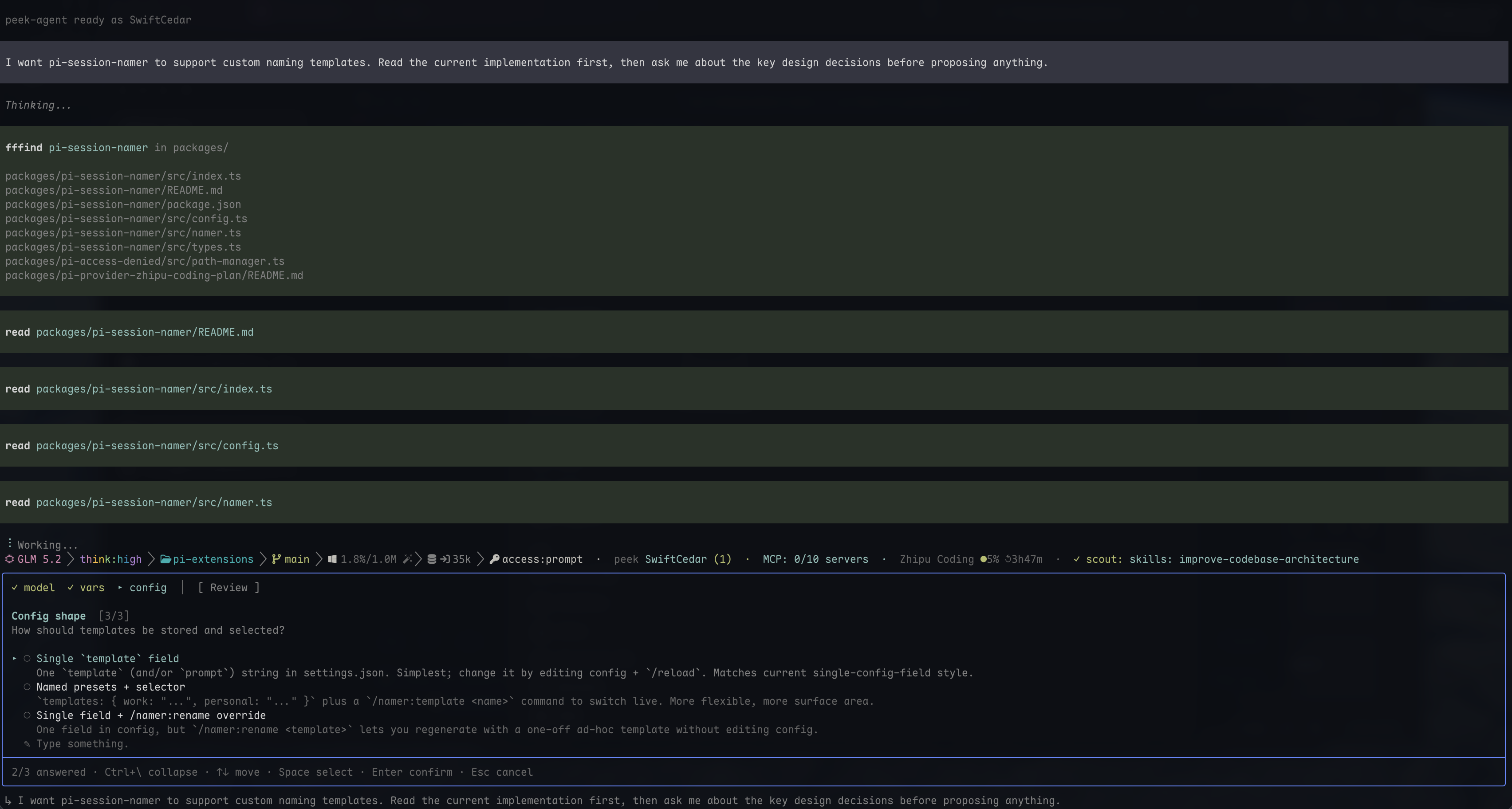
Ask-user tool for pi — renders in the bottom editor slot (not a screen overlay), so the transcript stays visible and scrollable above the panel while you decide
Package details
Install @d3ara1n/pi-ask-user from npm and Pi will load the resources declared by the package manifest.
$ pi install npm:@d3ara1n/pi-ask-user- Package
@d3ara1n/pi-ask-user- Version
2.5.2- Published
- Oct 1, 2026
- Downloads
- 507/mo · 62/wk
- Author
- d3ara1n
- License
- MIT
- Types
- extension
- Size
- 768.4 KB
- Dependencies
- 0 dependencies · 2 peers
Pi manifest JSON
{
  "image": "https://raw.githubusercontent.com/d3ara1n/pi-extensions/main/packages/pi-ask-user/preview.png",
  "extensions": [
    "./src/index.ts"
  ]
}
Security note
Pi packages can execute code and influence agent behavior. Review the source before installing third-party packages.
README
@d3ara1n/pi-ask-user



When the agent needs a decision from you — picking an approach, confirming a direction — a panel slides up from the bottom of pi and waits. The transcript above stays visible, so you can read the agent's reasoning while you choose instead of answering blind.
Why this panel
Most ask-user tools slide in as a full-screen overlay that covers the transcript, so you choose without seeing the analysis that should inform your choice. This one doesn't — the panel lives in pi's bottom area and the conversation stays right above it, scrollable the whole time.
That matters most in pi's "regular" TUI mode with pi-powerline-footer: once that extension loads, the terminal's native scrollback stops working, so an overlay panel becomes a dead end — it hides a transcript you then can't scroll back through. This panel keeps the transcript in the content area, so it stays reachable even alongside pi-powerline-footer, exactly where overlay tools break. Under pi's fullscreen default (1.0+) the same layout holds: the transcript scrolls in-app and stays visible above the panel.
Press Ctrl+\ any time to collapse the panel to a single status row, freeing even more of the screen while you think.
Dependencies
None.
Installation
pi install npm:@d3ara1n/pi-ask-userOr add to ~/.pi/agent/settings.json:
{
  "extensions": [
    "/absolute/path/to/pi-extensions/packages/pi-ask-user"
  ]
}
## Configuration

The collapse/expand toggle key is configurable via the `askUser` block in
`~/.pi/agent/settings.json` (or a project-level `.pi/settings.json`, which
replaces the global block entirely):

```jsonc
{
  "askUser": {
    "toggleKey": "ctrl+\\"
  }
}
toggleKey uses the same key format as ~/.pi/agent/keybindings.json (e.g.
ctrl+\\, alt+\\, f1, shift+tab). An invalid value silently falls back
to the default. Changes apply on the next ask_user call — no reload needed.
All other panel keys (↑ ↓, Space, Enter, Tab, Esc) are fixed.
Symbols
Symbols
The panel uses three glyphs:
○a single-select option — fills to◉once you commit□a multi-select option — fills to▣once checked▸the cursor — marks where you are, independent of what's selected
Moving ↑/↓ only moves the cursor; committing a choice is a separate step.
Answering questions
Single-select — Space marks an option without leaving the question, so you can look it over before committing; Enter commits and moves to the next question.
Multi-select — Space toggles a checkbox on each option; Enter commits every checked option at once and moves on.
Always type your own answer. Every question shows a "Type something." row that can't be turned off, so you're never forced into options you dislike. Space on it opens a text editor; after submitting, the row shows your committed text (◉ ✎ your text). Space again reopens the editor prefilled, so you can tweak rather than retype. Esc discards the edit and keeps the old answer; Enter saves the change.
In multi-select, your typed text is an extra entry kept alongside the checked options — it never overwrites them. You can check several options, then type a custom value, and both come back together. Submitting an empty custom value clears only the typed entry; any checks remain.
Required questions. Some questions can't be skipped — you can't move forward until you've answered. The "Type something." row still works, so you're never trapped by the offered options. You can always go back to earlier questions.
Option side panels
Some options carry extra detail — an ASCII layout sketch, a code skeleton, a pros/cons breakdown, or the reasoning behind the option. When any option in a question has that, the panel splits into two columns: the option list on the left, the focused option's detail on the right. Moving the cursor updates the right pane, so you can compare details side by side before choosing.
The review screen
After the last question, a review screen lists every question with your answer (skipped questions show (skipped)):
 ▸ 1. Which layout?
      Sidebar
   2. Which database?
      Postgres

   ✎  Note to agent
      (optional — Space to add a note)
Space on any question jumps back to it (and returns to the review afterwards); Enter submits everything. Enter always means "submit" here — never "edit" — so you can't accidentally send by double-tapping while trying to edit. Use Space to edit.
Note to agent. The last entry is a free-form note about anything beyond the specific questions — overall direction, pacing, a correction to the premise. The agent can't request or pre-fill it; it's yours. Space opens the editor, Enter saves (empty = no note), Esc returns without saving. Because the note can reframe or override your answers, the agent treats it as high-priority context.
Keys
| Key | Action |
|---|---|
↑ ↓ / PgUp PgDn |
Move cursor / scroll |
Space |
The "interact" key: select (single) / toggle (multi) / edit (open custom input, edit a review entry, or open the note) |
Enter |
Confirm & advance (single) / commit checked (multi). On the review screen, submit everything. Never enters edit mode — that's Space |
Tab / Shift+Tab |
Next / previous question, cycling (last → first) |
→ / ← |
Next / previous question, but stop at the boundary (no cycle) — safer when there are many questions |
Esc |
Cancel (or exit the custom-input editor without saving) |
Ctrl+\ |
Collapse / expand the panel (configurable — see Configuration) |
Non-TUI sessions (RPC / ACP)
The panel is built on pi's TUI-only ctx.ui.custom() API. In RPC/ACP sessions (e.g. via pi-acp in Zed) the tool degrades to plain dialogs through pi's extension UI sub-protocol, and the JSON result contract stays identical:
- Single-select → one
select()dialog per question; descriptions fold inline into option labels; a trailing "✎ Type something…" option opens a text input (dismissing it returns to the menu); a trailing skip option appears unless the question setsallowSkip: false - Multi-select → one confirm dialog per option (full multi semantics, just more clicks); an all-no run commits as
{answers: []}, same as the panel's empty commit - Cancelling any select() cancels the whole call (
{cancelled: true}), same as Esc in the panel - The note is only offered after a free-text input has succeeded at least once in the call — hosts that don't answer text inputs (e.g. current
pi-acpauto-cancels them) never get polled, so no unsupported-request spam
Lost versus the TUI panel: the review screen (degraded mode asks questions strictly in sequence), option previews/description layout, mid-multi-select dismissal (confirm-no means "exclude", not "cancel"), and the note when the host can't do text inputs. In print/JSON mode no host answers dialogs at all, so every call resolves to {cancelled: true}.
Why this floor: ACP's only agent→client interaction primitive is session/request_permission, whose options carry free-form names/ids — so any multiple-choice question maps natively onto select(), but free-form text input has no protocol carrier at all (not an adapter gap). The tool therefore promises exactly the select/confirm intersection and treats input() as a progressive enhancement.