@d3ara1n/pi-ask-user
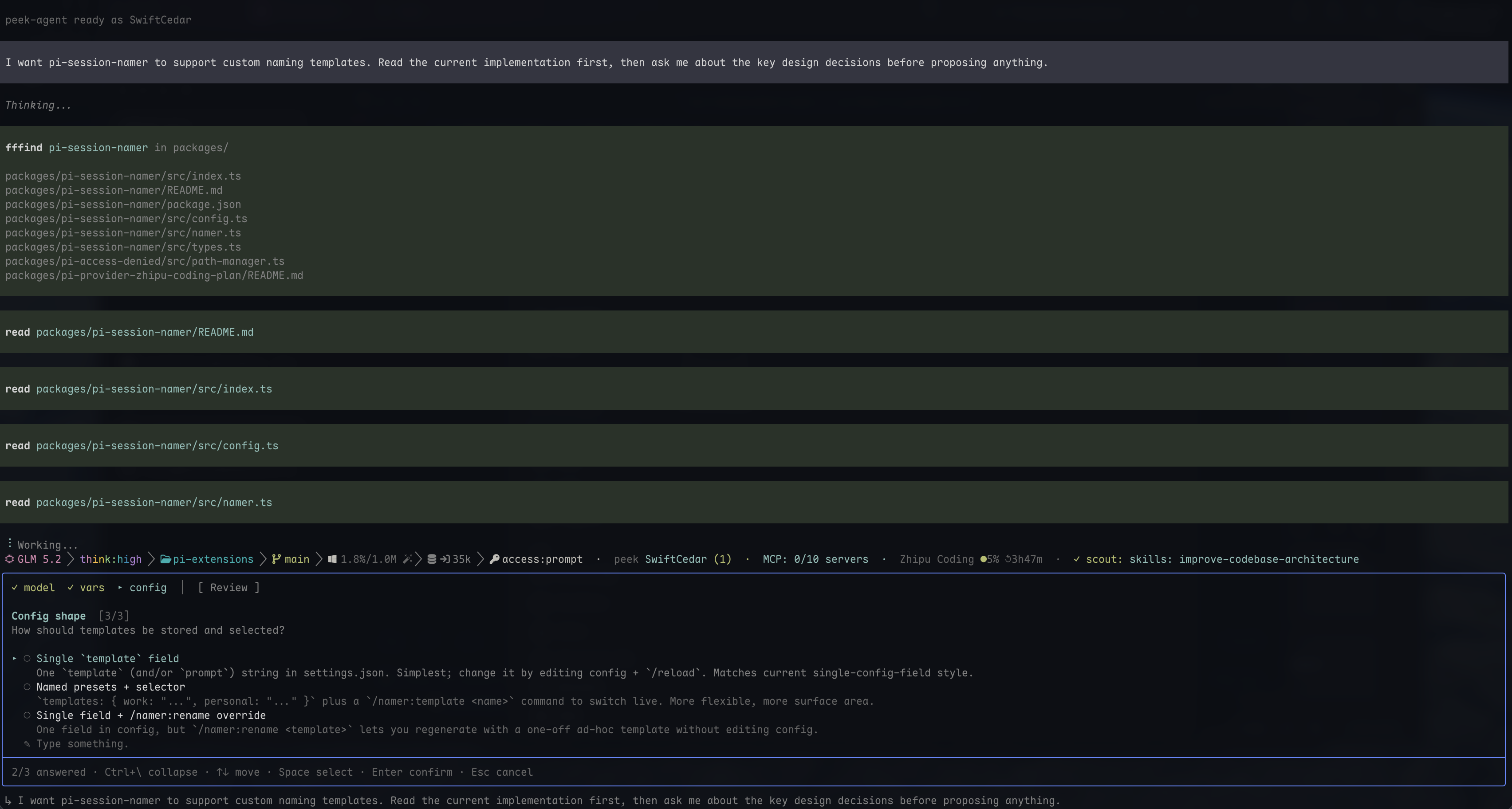
Ask-user tool for pi — renders in the bottom editor slot (not a screen overlay), so the transcript stays visible and scrollable above the panel while you decide
Package details
Install @d3ara1n/pi-ask-user from npm and Pi will load the resources declared by the package manifest.
$ pi install npm:@d3ara1n/pi-ask-user- Package
@d3ara1n/pi-ask-user- Version
2.3.0- Published
- Jul 30, 2026
- Downloads
- 1,289/mo · 222/wk
- Author
- d3ara1n
- License
- MIT
- Types
- extension
- Size
- 748.9 KB
- Dependencies
- 0 dependencies · 2 peers
Pi manifest JSON
{
  "extensions": [
    "./src/index.ts"
  ],
  "image": "https://raw.githubusercontent.com/d3ara1n/pi-extensions/main/packages/pi-ask-user/preview.png"
}
Security note
Pi packages can execute code and influence agent behavior. Review the source before installing third-party packages.
README
@d3ara1n/pi-ask-user
When the agent needs a decision from you — picking an approach, confirming a direction — a panel slides up from the bottom of pi and waits. The transcript above stays visible, so you can read the agent's reasoning while you choose instead of answering blind.
Why this panel
Most ask-user tools slide in as a full-screen overlay that covers the transcript, so you choose without seeing the analysis that should inform your choice. This one doesn't — the panel lives in pi's bottom area and the conversation stays right above it, scrollable the whole time.
That matters most with pi-powerline-footer: once that extension loads, the terminal's native scrollback stops working, so an overlay panel becomes a dead end — it hides a transcript you then can't scroll back through. This panel keeps the transcript in the content area, so it stays reachable even alongside pi-powerline-footer, exactly where overlay tools break.
Press Ctrl+\ any time to collapse the panel to a single status row, freeing even more of the screen while you think.
Dependencies
None.
Installation
pi install npm:@d3ara1n/pi-ask-user
Or add to ~/.pi/agent/settings.json:
{
  "extensions": [
    "/absolute/path/to/pi-extensions/packages/pi-ask-user"
  ]
}
Symbols
The panel uses three glyphs:
○a single-select option — fills to◉once you commit□a multi-select option — fills to▣once checked▸the cursor — marks where you are, independent of what's selected
Moving ↑/↓ only moves the cursor; committing a choice is a separate step.
Answering questions
Single-select — Space marks an option without leaving the question, so you can look it over before committing; Enter commits and moves to the next question.
Multi-select — Space toggles a checkbox on each option; Enter commits every checked option at once and moves on.
Always type your own answer. Every question shows a "Type something." row that can't be turned off, so you're never forced into options you dislike. Space on it opens a text editor; after submitting, the row shows your committed text (◉ ✎ your text). Space again reopens the editor prefilled, so you can tweak rather than retype. Esc discards the edit and keeps the old answer; Enter saves the change.
In multi-select, your typed text is an extra entry kept alongside the checked options — it never overwrites them. You can check several options, then type a custom value, and both come back together. Submitting an empty custom value clears only the typed entry; any checks remain.
Required questions. Some questions can't be skipped — you can't move forward until you've answered. The "Type something." row still works, so you're never trapped by the offered options. You can always go back to earlier questions.
Option side panels
Some options carry extra detail — an ASCII layout sketch, a code skeleton, a pros/cons breakdown, or the reasoning behind the option. When any option in a question has that, the panel splits into two columns: the option list on the left, the focused option's detail on the right. Moving the cursor updates the right pane, so you can compare details side by side before choosing.
The review screen
After the last question, a review screen lists every question with your answer (skipped questions show (skipped)):
 ▸ 1. Which layout?
      Sidebar
   2. Which database?
      Postgres

   ✎  Note to agent
      (optional — Space to add a note)
Space on any question jumps back to it (and returns to the review afterwards); Enter submits everything. Enter always means "submit" here — never "edit" — so you can't accidentally send by double-tapping while trying to edit. Use Space to edit.
Note to agent. The last entry is a free-form note about anything beyond the specific questions — overall direction, pacing, a correction to the premise. The agent can't request or pre-fill it; it's yours. Space opens the editor, Enter saves (empty = no note), Esc returns without saving. Because the note can reframe or override your answers, the agent treats it as high-priority context.
Keys
| Key | Action |
|---|---|
↑ ↓ / PgUp PgDn |
Move cursor / scroll |
Space |
The "interact" key: select (single) / toggle (multi) / edit (open custom input, edit a review entry, or open the note) |
Enter |
Confirm & advance (single) / commit checked (multi). On the review screen, submit everything. Never enters edit mode — that's Space |
Tab / Shift+Tab |
Next / previous question, cycling (last → first) |
→ / ← |
Next / previous question, but stop at the boundary (no cycle) — safer when there are many questions |
Esc |
Cancel (or exit the custom-input editor without saving) |
Ctrl+\ |
Collapse / expand the panel |