@firstpick/pi-extension-safety-guard
Interactive guardrails for dangerous bash commands and protected file edits in Pi.
Package details
Install @firstpick/pi-extension-safety-guard from npm and Pi will load the resources declared by the package manifest.
$ pi install npm:@firstpick/pi-extension-safety-guard- Package
@firstpick/pi-extension-safety-guard- Version
0.3.0- Published
- Sep 17, 2026
- Downloads
- 846/mo · 261/wk
- Author
- firstpick
- License
- MIT
- Types
- extension
- Size
- 572 KB
- Dependencies
- 3 dependencies · 3 peers
Pi manifest JSON
{
  "image": "https://unpkg.com/@firstpick/pi-extension-safety-guard/images/safety_guard_v0.1.9.png",
  "extensions": [
    "./index.ts"
  ]
}Security note
Pi packages can execute code and influence agent behavior. Review the source before installing third-party packages.
README
Safety Guard for Pi
Adds confirmation and path protection around commands and edits that could cause serious damage.
What you can do
- Prompts for matched risk patterns, not simply for unfamiliar shell syntax.
- Protects important files and its own settings from unapproved edits.
- Shows all detected operations and risks in one confirmation for a compound command.
- Can optionally request a second model review for risky actions.
- Saves approvals with their scope: current directory, EVERYWHERE, or the current Pi session, including reload/resume.
Install
Install it through Pi:
pi install npm:@firstpick/pi-extension-safety-guard
Restart Pi if the package does not appear in your current session.
How to use it
Safety Guard works automatically.
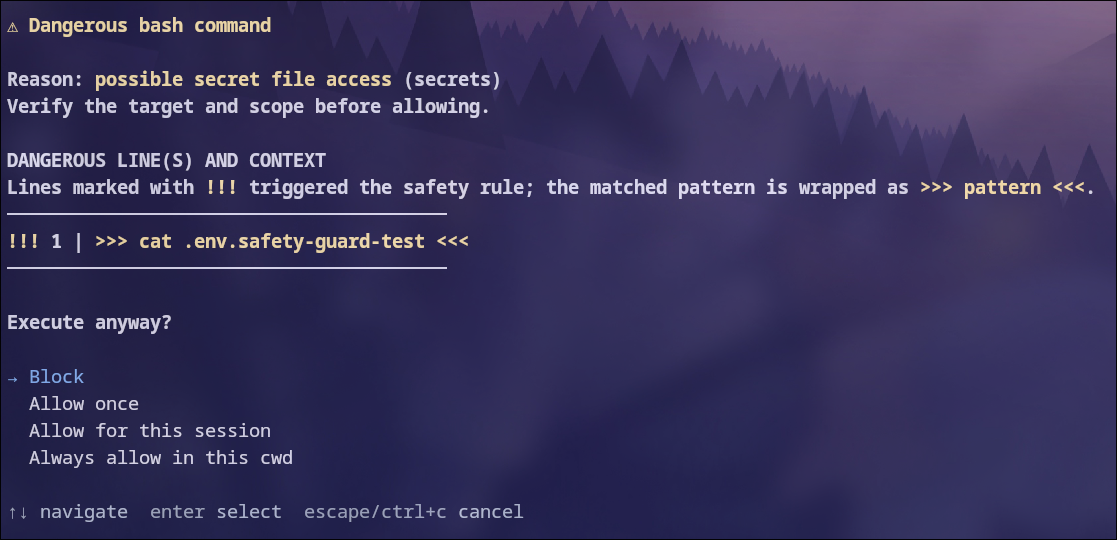
- Read the Command section. It shows the full command with risky text marked as
>>> ... <<<. Overlapping matches share one highlight and a concise risk summary. When reusable operation permissions are available, separate rows distinguish already-approved operations from those needing approval. Otherwise, the prompt explains why approval must cover the whole command. In the terminal, use Page Up / Page Down to read details that do not fit on screen. - Choose
Allow once, or an option that explicitly names both what to remember and for how long. A short note beneath the terminal selection list explains the highlighted option's scope and effect. - Choose
Blockif any operation is unclear. Nothing in that invocation runs, and no new permissions are saved.
For example, ask Pi to run git switch -c feature/one && git branch -d old-feature. One prompt shows both operations. Allow the command for the current session remembers those argument lists for later supported commands and chains in the same working directory, called cwd. Different arguments still require approval.
Always allow the command in the current directory remembers the same programs and arguments in the current directory. Changes to their arguments still require approval. When operations cannot be reused safely, the prompt offers only Block and Allow once.
The broader Allow operation types this session option appears for eligible branch creation, non-forced switching, and merged-branch deletion. It permits other simple branch names within those types. Read its warning before choosing it. Always allow operation types here makes that permission permanent in the current directory.
For the same exact operations across projects, choose Always allow the command EVERYWHERE. This saves only the pending argument lists, not all commands of that type. Read the warning under the selected option before confirming.
Approvals are saved separately from Pi's general settings:
| Choice | Location |
|---|---|
| This session | The current Pi session; survives reload/resume, not new or forked sessions |
| Permanently in this cwd | <cwd>/.pi/safety-guard-allow.json |
| Permanently EVERYWHERE | ~/.pi/agent/safety-guard-allow.json |
Run /safety-guard allow-list to inspect the current session, current directory, and global approvals. /safety-guard allow-clear-session revokes the current session's grants durably. /safety-guard allow-clear-permanent clears the current directory and EVERYWHERE grants, leaving other directories untouched.
Run /safety-guard-setup to choose protected command groups and paths. Optional second-model review is available but remains off until you enable it. While the guard is enabled, direct write/edit changes to its active settings file always require a fresh human decision. Stored permissions and model review cannot approve those changes.
Before you start
No setup is required. Automatic review is off by default.
Existing directory approvals migrate when you next use that directory. The guard saves a private backup first and leaves old records intact if migration fails. Project approval files are Git-ignored and need a matching user-owned verification record; a file copied from a repository cannot grant permission on its own. Do not edit these files to add approvals. Use the prompt.
Remembered approvals skip future prompts and model review within their scope. EVERYWHERE applies across directories permanently. The same relative path can target different files, and executables or hooks may differ between projects. Prefer directory-scoped approval unless you intend to trust those operations everywhere. Git operations change your checkout or branches and may run hooks.
Commands without a matching enabled risk pattern run without a guard prompt. This includes routine Git checks, TypeScript checks, test logging, and diagnostic Node scripts. When a risk does match and individual operations cannot be analyzed, approval covers the complete command. If parsing is unavailable, the complete input is checked, including heredocs; harmless examples containing dangerous command text may then prompt. Existing permissions are not automatically broadened.
File prompts show the resolved destination. Paths such as @.env, symbolic links, and links in parent directories cannot disguise a protected target. A destination that changes while approval is open is blocked. The guard does not provide an operating-system-level guarantee against a concurrent filesystem change after its check.
Commands launched through wrappers such as busybox, setsid, or ssh retain checks for dangerous arguments. Familiar text-output and search commands avoid treating quoted words as execution, including diagnostics such as journalctl -g "reboot" | head -5. When a pipeline or shell heredoc may execute matched text, approval covers the complete invocation, not just its producer. Common Git and Docker global options and quoted arguments retain risk checks. Force removal, forced Git checkout, and long-form Git branch deletion are also checked.
Safety Guard is a pattern checker, not a sandbox. Scripts, imported modules, and indirect execution can hide dangerous actions from its checks. Review unfamiliar code before running it.
Technical details
See TECHNICAL.md for complete commands, configuration, compatibility, security, and troubleshooting information.