@firstpick/pi-extension-tools
Interactive active-tool manager for Pi.
Package details
Install @firstpick/pi-extension-tools from npm and Pi will load the resources declared by the package manifest.
$ pi install npm:@firstpick/pi-extension-tools- Package
@firstpick/pi-extension-tools- Version
0.2.3- Published
- Sep 7, 2026
- Downloads
- 1,090/mo · 290/wk
- Author
- firstpick
- License
- MIT
- Types
- extension
- Size
- 437.6 KB
- Dependencies
- 1 dependency · 1 peer
Pi manifest JSON
{
  "image": "https://unpkg.com/@firstpick/pi-extension-tools/images/tools_v0.1.2.png",
  "extensions": [
    "./index.ts"
  ]
}Security note
Pi packages can execute code and influence agent behavior. Review the source before installing third-party packages.
README
Tools for Pi
Choose which tools Pi can use for a session, by default, or with a specific model.
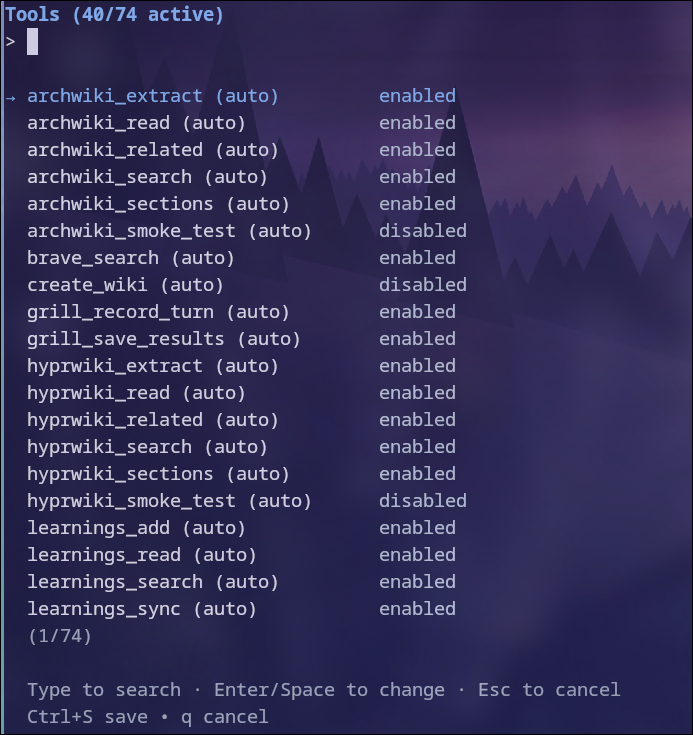
What you can do
- Lists available tools, searches names first, and sorts by status or discovery keywords.
- Saves a selection for the current session branch.
- Sets a global default or an exact provider/model profile.
- Applies model profiles when the active model changes.
- Keeps WebUI and TUI resource choices in sync.
Install
pi install npm:@firstpick/pi-extension-tools
Restart Pi if the package does not appear in your current session.
How to use it
Run /tools, then choose where the selection applies:
- Session only changes the current session branch.
- Global default applies when no session or model selection overrides it.
- Model default applies to one exact provider/model pair.
The resource list has separate Name, Discovery, and Status columns. Discovery shows how Pi found the tool, such as auto, while Status shows enabled or disabled. The selected tool's description appears below the list. Type to fuzzy-search by name, discovery value, or description. Name matches appear first, then source matches, then description matches. Use the arrow keys to move, press Enter to toggle, Ctrl+X to disable all matching tools, Ctrl+A to enable all matching tools, and Ctrl+S to save. Escape returns to the previous setup screen. From the scope screen it closes the setup flow. Ctrl+C closes the entire setup flow immediately.
To keep all tools visible but move a group to the top, enter enabled, disabled, auto, or Pi built-in as the whole search. The first two sort by Status; the others sort by Discovery. In these sort-only modes, Ctrl+A and Ctrl+X affect all tools, not just the group at the top.
Before you start
This extension is the sole owner of the TUI /tools command. WebUI presents the same saved scopes in its browser interface without registering another command.
Technical details
See TECHNICAL.md for scope precedence, storage, compatibility, and troubleshooting information.