@llblab/pi-telegram
Telegram runtime adapter for Pi
Package details
Install @llblab/pi-telegram from npm and Pi will load the resources declared by the package manifest.
$ pi install npm:@llblab/pi-telegram- Package
@llblab/pi-telegram- Version
0.50.0- Published
- Sep 18, 2026
- Downloads
- 18.2K/mo · 4,989/wk
- Author
- llblab
- License
- MIT
- Types
- extension, skill
- Size
- 6.7 MB
- Dependencies
- 0 dependencies · 4 peers
Pi manifest JSON
{
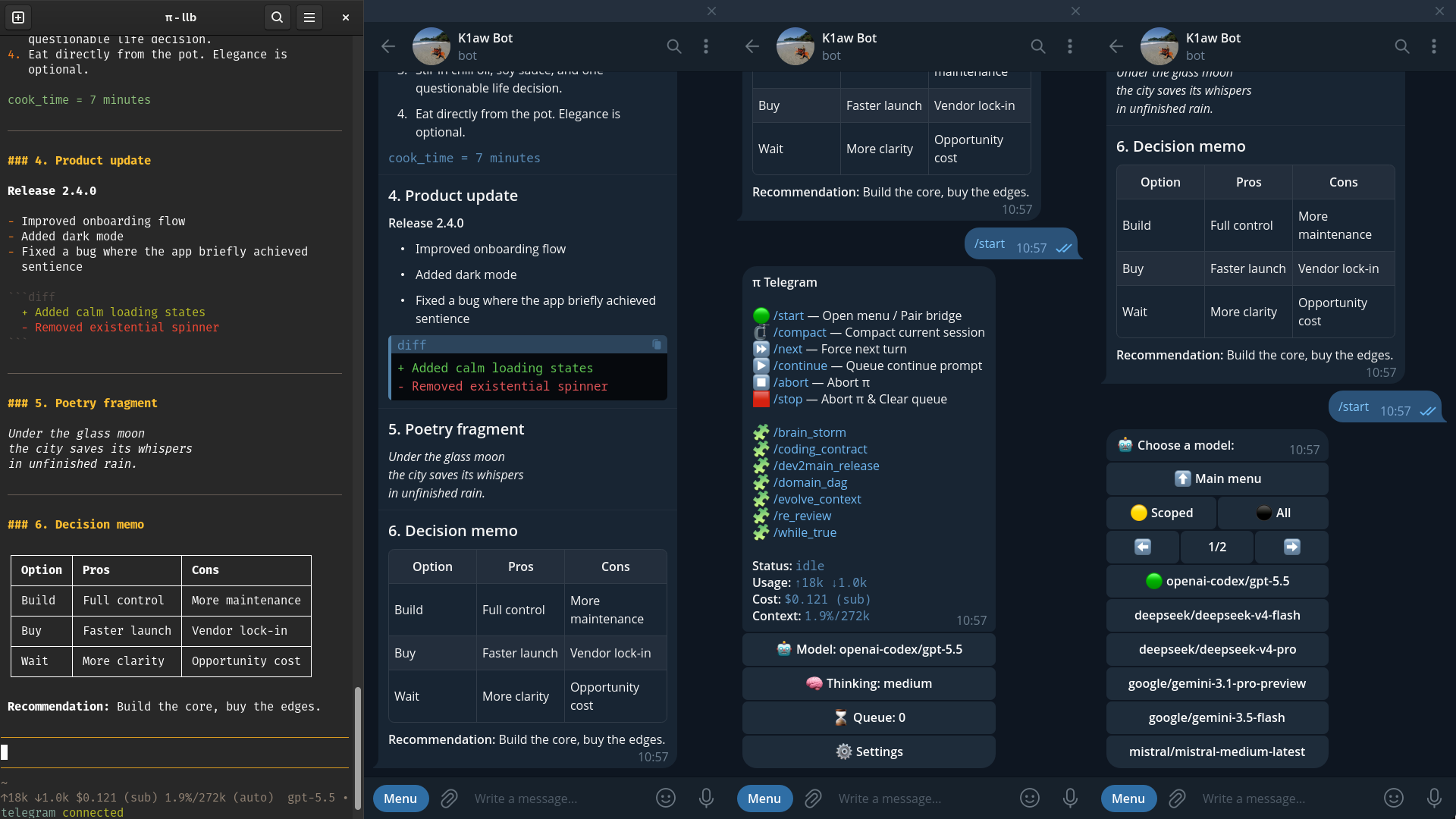
  "image": "https://raw.githubusercontent.com/llblab/pi-telegram/main/screenshot.png",
  "skills": [
    "./dist/skills"
  ],
  "extensions": [
    "./dist/pi-telegram/index.js"
  ],
  "sourceSkills": [
    "./skills"
  ],
  "sourceExtensions": [
    "./index.ts"
  ]
}
Security note
Pi packages can execute code and influence agent behavior. Review the source before installing third-party packages.
README
pi-telegram
A Telegram companion hub for live Pi sessions.
pi-telegram turns a private Telegram DM into a mobile operator surface for Pi. It accepts prompts, queues work, streams readable previews, delivers final replies and files, exposes safe controls, and lets companion extensions add Telegram-native capabilities without owning a second bot loop.
It is a runtime adapter, not a remote terminal. Start or supervise work in the Pi TUI, then continue from Telegram while away from the keyboard. In Threaded Mode, a durable Workspace binding uses Pi's stable public session identity to restore the same Telegram Thread when that session resumes; live instance ownership and the exact Telegram target still authorize routing. The bridge preserves Pi session semantics instead of pretending Telegram is a PTY, shell, process launcher, or session browser. That boundary is the product: Telegram gets safe runtime handles, not raw terminal power.
Every completed intermediate commentary block from a Telegram-originated turn is delivered once as its own message before the existing final reply. While Telegram is connected, local, autonomous, and unclassified extension follow-up work also projects visible checkpoints and the final answer to the authorized Telegram target once and in order, preserving assistant-authored telegram_button comments as interactive prompt buttons. This connected companion projection is always active rather than configurable. Neither path mirrors local prompts, thinking, tool traffic, token deltas, or stale-generation work. The separate Activity setting defaults to verbose so new installations discover collapsed provider-exposed thinking and tool evidence immediately; operators can narrow it to one class or choose quiet. See Outbound and the configuration reference.
This repository is an actively maintained standalone fork of badlogic/pi-telegram. It started from upstream commit cb34008 and has since diverged substantially.
Install
From npm:
pi install npm:@llblab/pi-telegram
From git:
pi install git:github.com/llblab/pi-telegram
The 0.21 extension platform requires Pi 0.80.6 or newer. Its Activity API uses the public agent_settled lifecycle event to keep retries/continuations under one activity identity and release that identity only after the run fully settles.
Pi is the primary and only officially supported host. Narrow host-neutral adapters preserve ordered prompt blocks and normalize synchronous or asynchronous legacy/generic settings services for Pi-compatible hosts, but this is best-effort compatibility rather than an OMP support guarantee. Alternate-host shims must still reproduce required Pi lifecycle semantics—especially agent_settled—and their maintainers own ongoing validation.
Quick Start
1. Create a Telegram bot
- Open @BotFather. BotFather's chat commands and Mini App are different surfaces; Telegram Desktop supports the Mini App through Open App / Menu in the BotFather profile.
- Run
/newbot. - Pick a name and username.
- Copy the bot token.
2. Configure Pi
Run this inside Pi:
/telegram-setup
Paste the bot token. If ~/.pi/agent/telegram.json already contains a saved token, setup offers it as the default. If no saved token exists, setup prefills the first supported alias (TELEGRAM_BOT_TOKEN, TELEGRAM_BOT_KEY, TELEGRAM_TOKEN, or TELEGRAM_KEY) as an environment reference such as $TELEGRAM_BOT_TOKEN, validates the resolved value, and persists the reference instead of copying the secret. Bot/session identity persists under profiles.default; shared handlers and assistant/voice/time settings remain top-level. /telegram-setup default and /telegram-connect default are exact aliases for the bare commands. Use /telegram-setup <name> only when you want an additional bot profile. Cancelling or failing named-profile token validation leaves the currently active profile and polling runtime unchanged; setup reports the profile as saved and connected only after polling startup succeeds.
3. Connect this Pi instance and its active session
/telegram-connect
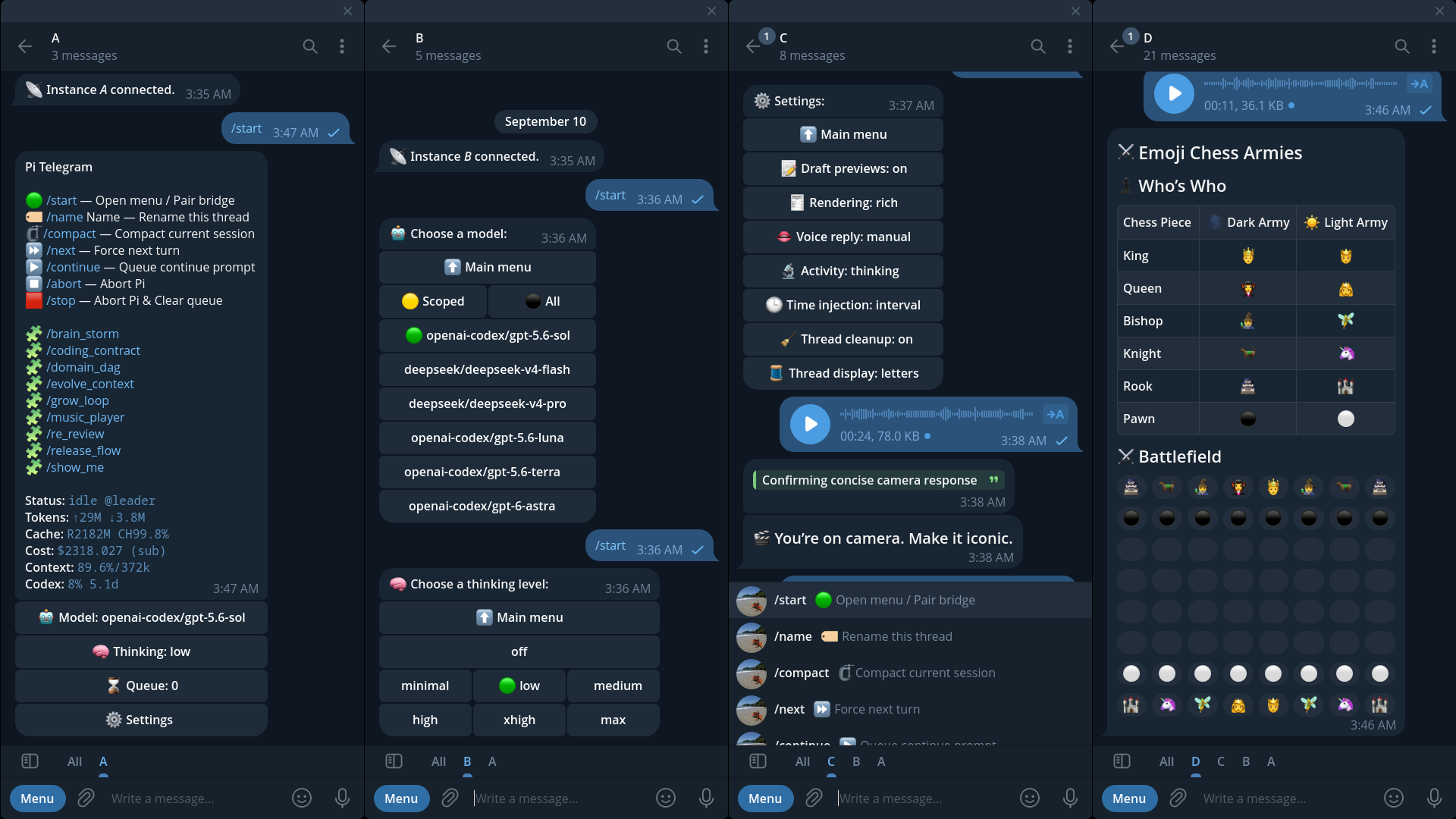
The connected Pi instance owns Telegram polling. Use /telegram-connect <profile> to activate a named profile, and optionally append as=Name to name a fresh Workspace Thread. Each profile is a parallel bot runtime with isolated polling, diagnostics, Threaded Mode state, and local bus transport; the default profile keeps unsuffixed runtime paths. In classic mode each profile uses a singleton lock. When Telegram private-chat Threaded Mode is available, one live instance becomes the profile's leader and later visible Pi instances register as followers. Reopening or resuming the same Pi session restores its remembered Thread at session startup; a distinct session in the same directory has its own binding and still requires explicit /telegram-connect when no remembered binding exists.
After an unclean computer shutdown, /telegram-connect detects truncated or structurally invalid temporary ownership/routing files, quarantines only the damaged files under tmp/telegram/recovery/, and retries once. A journal snapshot removed by older broad temp cleanup is rebuilt when its complete segment history proves an empty result, while a revisionless snapshot is repaired from the first surviving segment's exact predecessor when the reconstructed tail validates. Otherwise the snapshot and segments are quarantined as recovery evidence, a fresh journal is published, and startup continues with an informational diagnostic instead of requiring manual JSON repair. Unsupported journal versions block recovery without rewriting or quarantining the retained files; use a compatible runtime rather than deleting journals. Saved telegram.json configuration and runtime diagnostics remain intact. Recovery never replaces a verifiable live owner; if safe automatic recovery cannot complete, the command gives one explicit Pi-restart instruction instead of requiring deletion of the whole tmp/ directory.
Persistent competing getUpdates clients cause a bounded transport stand-down rather than endless retries. Accepted local work remains queued/executable, but Telegram delivery stops. Inspect /telegram-status --debug, stop the competing client, then reconnect. See Runtime Ownership.
4. Pair your Telegram account
Open the bot DM and send:
/start
The first Telegram user successfully paired with the bot becomes the allowed owner. Pairing is saved before the candidate is authorized in memory; a failed save remains unpaired and can retry without overwriting an already configured owner. Other users are ignored. This is a first-contact security boundary: keep the bot private and send /start immediately after connecting. For stricter setup, restrict access to your account in the BotFather Mini App when that control is available, or preconfigure your numeric Telegram user id as profiles.default.allowedUserId in the existing ~/.pi/agent/telegram.json before connecting (preserve the saved botToken and any other settings):
{
  "profiles": {
    "default": {
      "botToken": "<existing-token>",
      "allowedUserId": 123456789
    }
  }
}
After required pairing state is persisted, /start is admitted independently from best-effort menu rendering and BotFather command-list synchronization, so either Telegram side effect can fail or remain in flight without stopping later inbound updates.
5. Enable optional bot capabilities in BotFather
Enable the optional capabilities the bridge needs in the @BotFather Mini App. On Telegram Desktop, open the BotFather profile and use Open App / Menu, select the configured bot, open Settings, and toggle Threaded Mode there rather than relying only on the inline chat-command interface. The bridge does not fail loudly when a capability is off; the feature simply never triggers.
- Enable guest mode so the bot can answer mentions and replies in chats where it is not a member.
- Enable private-chat Threaded Mode; when it is available, one live instance becomes the profile's leader and later visible Pi instances register as followers. Without it, the bridge stays in classic single-owner DM mode.
- Make the bot an administrator in any chat where the queue reaction shortcuts should work. Reaction updates require admin rights, so the shortcuts silently do nothing in non-admin chats; private chats deliver reactions without admin rights.
What It Feels Like
- Start a task in the terminal, walk away, and keep supervising it from your phone.
- Send another prompt while Pi is busy; it becomes a queued Telegram turn instead of interrupting the active run.
- Open
/startto inspect status, model, thinking, settings, prompt templates, and queue controls. - Send voice, images, files, replies, edits, or media groups; the bridge turns them into Pi context.
- Ask for an artifact;
telegram_attachreturns it before the turn's separate final text, or through explicit direct Telegram delivery. - In Threaded Mode, run multiple visible Pi instances through one bot, each with its own Telegram thread.
- Configure named profiles to run independent Telegram bots from the same Pi agent directory without sharing transport or routing state.
Product Model
| Lens | What pi-telegram owns |
|---|---|
| Operator companion | A phone-width control surface for the active session of a running Pi instance |
| Runtime adapter | Telegram targets mapped to Pi instances, then into each instance's current session lifecycle, queueing, previews, final replies, and artifacts |
| Telegram UI harness | Menus, settings, callbacks, Rich Markdown, drafts, active status, buttons, voice, and files |
| Multi-instance organism | One leader plus explicit visible followers routed through Telegram private-chat threads |
| Extension platform | Commands, sections, status rows, update handlers, inbound/outbound handlers, and voice providers |
| Safety boundary | No hidden Pi processes, no fake terminal, no PTY tricks, no arbitrary TUI slash-command forwarding |
Feature Showcase
pi-telegram is intentionally broad: it is a Telegram-shaped runtime surface, not only a message relay. This catalogue keeps the practical feature surface visible while detailed contracts stay in /docs.
| Surface | What you can do | Why it matters |
|---|---|---|
| Prompt intake | Send text, replies, edits, images, files, albums, voice notes, forwards with adjacent comments, and handler output into Pi. | Telegram becomes a real mobile input surface; one forward-plus-comment gesture stays one attributed prompt even for photo-only forwards. |
| Queue control | Inspect waiting turns, keep or skip stale work, promote important prompts, continue, abort, stop, or force the next queued item. | Long Pi tasks keep running while new mobile prompts stay visible and controllable instead of interrupting or disappearing. |
| Operator menu | Use /start for status, prompt templates, model, thinking, settings, queue, extension sections, and diagnostics. |
The bot is an operator panel, not a command cheat sheet. |
| Prompt templates | Run Pi prompt templates as Telegram-safe commands such as /fix_tests. |
Reusable local workflows become phone-accessible without exposing arbitrary terminal commands. |
| Model and thinking | Switch model or thinking level from Telegram through safe continuation flows. | Mobile control can adjust execution strategy without tearing down the current session. |
| Compaction | Confirm /compact, show native active status during compaction, and preserve Telegram-owned turn semantics. |
Context maintenance is visible and safe from the phone. |
| Draft previews | Show Telegram's native …typing indicator whenever the connected instance is doing agent work, or enable Rich Draft previews for streamed answer text. |
Local prompts, Telegram turns, and autonomous continuations remain visibly active while draft visibility stays independent from final rendering. |
| Activity | Keep the default verbose technical surface, show only thinking, show only tools, or select quiet for answer-only delivery. Every instance reloads this shared file-backed choice before a new agent run; thinking accumulates for two seconds and then updates at most every two seconds in a headerless expandable quote, while each tool uses one iconless closed root row containing nested evidence details. |
Persistent collapsed technical activity minimizes chat height and stays bounded, redacted, target-fenced, free of URL previews, and visually separate from semantic assistant answers. |
| Assistant rendering | Choose Native Rich Markdown or legacy Markdown-to-HTML for final assistant replies. | Renderer compatibility is explicit instead of being conflated with draft previews. |
| Bridge UI rendering | Render thinking through headerless expandable HTML with inline emphasis/code, render each tool as an iconless native Rich root details tree with immediately visible arguments and collapsed secondary evidence, and keep menus, queue controls, status, settings, diagnostics, and sections on Telegram HTML/plain UI. | Harness-owned surfaces remain operationally predictable and visually distinct from model-authored answers. |
| Inbound files | Download inbound files to the Pi agent temp directory with size limits. | Screenshots, PDFs, datasets, and artifacts enter Pi as inspectable local files. |
| Outbound artifacts | Return generated files through telegram_attach before separate active-turn text, or by explicit direct delivery. |
Agents send real artifacts in causal order, not as pasted blobs. |
| Voice input | Route audio through configured command-template handlers, programmatic handlers, or STT providers. | Voice notes become usable prompt context. |
| Voice output | Choose manual, mirror, or always; active automatic turns carry one compact [voice] delivery: automatic voice line, while explicit telegram_voice remains available. |
Voice policy stays dynamic and model-legible without duplicating the full action contract in every prompt. |
| Buttons | Use telegram_button comments for footer buttons or fenced blocks for native button rows between paragraphs. |
Assistant-authored choices become native Telegram interactions. |
| Generative Apps | Install or explicitly replace a reviewed .mjs application whose generated JSON button view may mix direct app::method actions with ordinary model prompts. |
Repeated games, controls, tutors, and adapters compile routine interaction without losing selective model interpretation, explanation, or adaptation. |
| Callback routing | Route known callbacks to the owner extension and unknown callbacks back into Pi. | Companion extensions can build UI without polling Telegram themselves. |
| Threaded Mode | Run one leader plus visible follower Pi instances through named private-chat threads. | One bot can host a local multi-instance Pi organism without hidden process spawning. |
| Reroute and restore | Give unknown and command-created temporary threads explicit forward and replace/restore choices. | Forward removes the temporary tab; restore rebinds it and removes only the replaced old tab, so Telegram client state repairs without orphan controls. |
| Extension sections | Add menu sections, commands, status rows, settings, callbacks, and delivery helpers from companion extensions. | pi-telegram becomes a platform surface for other Pi extensions. |
| Runtime diagnostics | Use /telegram-status and recent runtime events for connection, role, negotiated bus protocol/build/capabilities, separate polling and inbound-worker progress, journal depth, local/foreign queue ownership, automatic retry waits, transport, and failures. |
Compatible build skew, foreign semantic authority, a healthy poller, durable backoff and an infrastructure-blocked worker remain distinguishable without hidden logs. |
| Safety and ownership | Pair one owner, lock transport, scope targets, and reject fake terminal behavior. | Remote access remains explicit, bounded, and understandable. |
Core Loop
Telegram message
  -> Telegram turn
  -> queue or active dispatch
  -> Pi agent lifecycle
  -> streaming preview / native active status
  -> final Rich Markdown reply
  -> optional files, voice, buttons, or callback actions
The bridge keeps Telegram responsive without stealing Pi's runtime model. Queueing, model changes, compaction, aborts, final delivery, and direct artifact sends all stay scoped to the Pi instance that accepted the work.
Telegram Controls
Use these in the bot DM.
| Command | Purpose |
|---|---|
/start |
Pair when needed and open the main operator menu |
/name [Name] |
Set a manual Thread title immediately, or open rename/reset controls when Name is omitted |
/new |
Start a new Pi session in the current classic chat or Thread after confirming the bridge is idle |
/compact |
Confirm and run session compaction when safe |
/next |
Dispatch the next queued turn, aborting first if needed |
/continue |
Enqueue a priority continuation prompt |
/abort |
Abort the active run while preserving the queue |
/stop |
Abort the active run and clear waiting Telegram turns |
Hidden compatibility shortcuts: /help, /status, /model, /thinking, /queue, and /settings jump into the same menu system.
Pi Commands
Run these inside Pi.
| Command | Purpose |
|---|---|
/telegram-setup / /telegram-setup default |
Save or update profiles.default |
/telegram-setup <profile> |
Save or update a named-profile bot token |
/telegram-connect / /telegram-connect default |
Activate profiles.default and acquire its transport ownership |
/telegram-connect <profile> |
Activate a named profile and acquire its transport ownership |
/telegram-connect [profile] as=Name |
Give a fresh Workspace Thread one unique capitalized Latin-word identity while connecting |
/telegram-disconnect |
Confirm, then stop polling, release ownership, and delete this instance's Threaded Mode tab; graceful Pi quit always preserves restart ownership and independently deletes the tab only when automatic cleanup is enabled |
/telegram-status |
Inspect connection, mode, separate polling/worker progress, journal depth, queue, transport, automatic retry state, and recent diagnostics |
Named profile identifiers contain only lowercase ASCII letters and digits (maximum 32 characters); default, main, and active remain reserved. If graceful thread deletion was interrupted, a same-profile replacement reuses its still-active thread and cancels the superseded cleanup instead of deleting and recreating the tab during startup.
Main Surfaces
Operator Menu
/start opens the Telegram-native control panel: status, prompt-template commands, model selection, thinking level, settings, queue controls, and extension sections. It is the primary Telegram UI; reaction shortcuts are secondary queue affordances.
Queue Runtime
Messages sent while Pi is busy become queued turns. Queue controls let you inspect, prioritize, keep or skip, and dispatch work without touching the terminal.
Queue policy:
- One prompt is one queue object with exactly one current lane and one current position; it never reserves a shadow place in the other lane. The terminal's yellow
+Nsuffix counts only executable prompts still waiting, never the current run; a dispatched Telegram prompt stops contributing before that run settles. - Priority and Normal are separate FIFO lanes; Priority dispatches first.
- Moving
Normal → Priorityremoves the prompt from Normal and places it at the Priority tail. MovingPriority → Normalremoves it from Priority and places it at the Normal tail; no former position is restored. - Keep/Skip never changes lane position. Skip preserves durable authority while waiting so Keep remains reversible, then settles that authority and drops the prompt without a model turn when dispatch reaches it. Skipped prompts stay visible at their physical queue position with a struck-through ordinal, but are excluded immediately from the executable queue count shown in both the Pi status bar and Telegram main menu. Graceful session shutdown discards all remaining queued authority, so a new session starts empty.
- Reactions control two independent dimensions; changing one category preserves the other:
Positive:👍,⚡️,❤️,🕊,🔥— controls Priority.Negative:👎,👻,💔,💩,🗑— controls Skip.
- Priority and Skip can coexist—for example
👍 + 💩. Skip wins at dispatch, regardless of which negative emoji is selected. - Menu selectors and reactions share queue state, but the bot cannot remove a user's reaction; Keep may clear internal Skip while the user's emoji remains visible until they remove it.
The detailed contract lives in Priority, Reactions, Keep, and Skip. If Pi automatically retries a transient provider failure, the active Telegram turn stays bound until the successful reply arrives or Pi confirms that the run has settled.
Native Rich Markdown
Rich Markdown is the default model-answer membrane. Complete assistant and guest model replies use Telegram's native Rich Message APIs; valid bot commands and URLs retain Telegram's native clickable affordances. Activity thinking uses persistent headerless expandable HTML, while each completed tool uses one iconless native Rich root details node whose arguments open with the root while secondary JSON evidence stays collapsed; thinking, tools, and verbose select the visible classes, while menus, status rows, queue controls, settings, diagnostics, and other operational UI retain explicit Telegram HTML/plain rendering. Three Settings controls keep the layers separate: Draft previews toggles streamed answer drafts, Activity chooses quiet or verbose technical activity, and Assistant rendering chooses final-answer delivery (rich Native Rich Markdown or html legacy Markdown-to-HTML).
Files And Artifacts
Inbound files land under <agent-dir>/tmp/telegram and default to a 50 MiB limit. telegram_attach is the canonical outbound file path. During Telegram-originated turns it attaches to the active reply; during explicit local/TUI delivery it can send to the paired/default chat or routed Threaded Mode target.
Voice And Media
Voice notes, audio, images, PDFs, and other media can pass through configured inbound handlers, programmatic handlers, or registered STT providers. Outbound voice can use configured outboundHandlers or registered TTS providers; pi-telegram owns reply policy and Telegram transport, while providers own synthesis. Configure provider-neutral local/API pipelines and ordered fallbacks through telegram.json command templates. The default manual reply mode still supports intentional voice delivery through explicit telegram_voice actions; mirror and always add automatic voice policy. Explicit actions prefer positional {text}, {text|lang}, or {text|lang|rate} cells and use JSON for multiline content, named fields, or escaping.
Buttons And Callbacks
Assistant replies can place controls between paragraphs using standalone triple-backtick telegram_button blocks, or keep them in the footer using top-level hidden telegram_button comments. Both wrappers accept singleton cells and mixed JSON/CML matrices. Native in-body rows allow up to eight buttons; HTML compatibility moves these rows to the footer. In-body clicks acknowledge without recoloring the Rich body, while footer selection styles remain unchanged. Hidden comments accept a JSON object, adaptive JSON/CML matrix, or positional Compact Matrix Literal (CML). One adaptive matrix may mix named JSON objects with positional CML cells; separators are optional and one trailing comma is tolerated, including inside JSON objects. Top-level cells become full-width rows while nested rows group one or more buttons horizontally without an artificial parser-level width cap; inside a fenced block, adjacent top-level JSON/CML objects may omit the outer array and commas. Generated surfaces default to five columns and use six to eight only for short position-bearing labels. CML uses {value}, {label|prompt}, {|prompt}, or the corresponding three-atom form with selected_style set to primary, success, or danger; omitting the first atom leaves the existing prompt-as-label fallback in charge, while the optional style still requires a non-empty prompt. A fourth atom adds disabled state: {|Next||1} or {|Next||true} disables, 0 or false enables (exact lowercase), and omission stays enabled; the third atom may be empty in this form. JSON uses boolean disabled. Disabled controls require no prompt or selected style: {Next|||1} shows only a label, while {|||1} is a blank disabled cell. Disabled controls remain visible without registering callbacks or invoking prompts/app methods. It trims atom boundaries, preserves non-structural text literally, and decodes only \|, \}, and \\. Prefer one matrix comment for multiple buttons. Buttons use label plus prompt, or the compact value key when both are identical. The bridge strips every assistant-authored HTML comment from Telegram previews and final replies regardless of Markdown position or owning extension, while only recognized top-level comments activate buttons or voice; comment-only output sends no text message and the Pi terminal transcript remains unchanged. It renders valid inline buttons and routes callbacks back into Pi as queued prompts or extension-owned callback actions. Button-only replies receive the standard ☑️ **Choose an option:** heading as automatic visible fallback text. Once a generated prompt button is accepted, only that exact button switches to its optional selected_style (primary blue by default, success green, or danger red) without altering its agent-authored label or emoji; every style still queues the selected prompt.
Threaded Mode And Multi-Instance Bus
Classic private DM mode is the base product mode. When Telegram private-chat Threaded Mode is available, the bridge enables a local leader/follower bus automatically:
- One live leader owns
getUpdates. - Followers are visible Pi processes started by the operator.
- Each connected instance gets a Telegram thread target.
- Queued work for a live follower transfers through authenticated exact-journal handoff rather than replaying under the transport owner.
- Reopening, resuming, or replacing the process for the same Pi session restores its remembered Thread; distinct sessions in one directory keep independent bindings and letter slots.
- Unknown threads are preserved and offered explicit reroute/restore choices.
- Telegram never launches hidden Pi processes.
In Threaded Mode, open Settings → 🧵 Thread display to choose letters (default), names, directory-title, or directory-snake for this bot profile; a retained directories value remains available as an unchanged legacy presentation. Fresh tabs are created with the active mode's title instead of being visibly renamed afterward. Telegram tab titles, Pi terminal status, live Thread choosers/notices, prompt attribution, and named telegram_message targeting use the same acknowledged display name; target IDs and live registrations still own routing. Names shows the generated dictionary name chosen for the slot, such as Anchor for slot A; the directory formats produce api_tools or Api Tools and append _a or A only while two or more authenticated live instances share that exact directory. Dormant retained bindings do not keep those suffixes visible. /name sets a manual Thread display name; Reset to automatic restores the selected automatic projection. Switching preserves Thread IDs, slots, generated recovery identity, and queue ownership. Partial application reports an error and can be retried without recreating Threads.
| Mode | Best for | Runtime shape |
|---|---|---|
| Classic DM | One running Pi instance and its active session controlled from one private bot chat | One polling owner, one queue/runtime surface |
| Threaded Mode | Several visible Pi sessions sharing one bot | One leader owns transport; each private-chat Thread retains one session-qualified Workspace binding |
Environment Configuration
Most controls live in Pi commands or the Telegram menu. Environment variables remain for bootstrap and transport boundaries:
| Area | Variables |
|---|---|
| Bot token bootstrap | TELEGRAM_BOT_TOKEN, TELEGRAM_BOT_KEY, TELEGRAM_TOKEN, TELEGRAM_KEY |
| HTTP proxy | HTTP_PROXY, HTTPS_PROXY, NO_PROXY, plus NODE_USE_ENV_PROXY=1 or Node --use-env-proxy |
| Telegram network family | PI_TELEGRAM_NETWORK_FAMILY=auto, ipv4, ipv6, or ipv4-fallback |
| Agent data root | PI_CODING_AGENT_DIR |
| Inbound file limit | PI_TELEGRAM_INBOUND_FILE_MAX_BYTES, TELEGRAM_MAX_FILE_SIZE_BYTES |
| Outbound attachment limit | PI_TELEGRAM_OUTBOUND_ATTACHMENT_MAX_BYTES, TELEGRAM_MAX_ATTACHMENT_SIZE_BYTES |
Defaults are chosen for ordinary private-bot use: saved config in ~/.pi/agent, inbound temp files in ~/.pi/agent/tmp/telegram, assistant: { rendering: "rich", draftPreviews: true, activity: "verbose", timeInjection: "interval" } for assistant output and activity, and native Telegram active status for long-running turns.
Extension Platform
Companion extensions can integrate with Telegram without owning polling or transport:
- Register Telegram slash commands.
- Add menu sections and settings surfaces.
- Add compact status rows.
- Deliver target-aware operational views and chat actions from companion code.
- Observe normalized assistant, thinking, tool, compaction, and settlement activity without blocking Pi.
- Handle update/callback namespaces.
- Provide inbound preprocessing handlers.
- Provide outbound voice synthesis.
- Use direct delivery helpers for explicit local/TUI sends.
Stable public entrypoints are documented in Public API, Telegram Delivery API, Telegram Activity API, Extension Sections, Inbound Handlers, Outbound Handlers, Updates, and Voice Integration.
Safety Boundaries
Durable inbound admission is a process-crash recovery guarantee. Atomic private-file replacement preserves acknowledged journal authority and its journal-owned acceptedThroughUpdateId polling cursor across ordinary process exit, crash, kill, and replacement, but the extension does not flush files or parent directories for host/kernel/filesystem/device/power-loss durability. telegram.json contains configuration only. Keep ~/.pi/agent on appropriately managed storage and backups if that stronger operational guarantee is required. Before downgrading below 0.37.0, run node scripts/check-downgrade.mjs; any retained cursor-schema journal blocks downgrade because an older runtime could repoll admitted updates. See Durable Admission And Recovery.
pi-telegram intentionally does not:
- Spawn hidden Pi follower processes.
- Pretend Telegram is a terminal or PTY.
- Forward arbitrary Telegram slash commands into the Pi TUI.
- Inject raw TTY input or terminal-control sequences.
- Replace Pi session lifecycle without an official Pi API.
- Let non-owner Telegram users control the bridge.
Telegram is a companion surface around a live Pi runtime, not a second runtime. It can compact the current session, but it cannot create, resume, fork, browse, or switch sessions until Pi exposes safe public extension APIs for those operations.
A Telegram prompt is a normal model turn in the active Pi session and therefore inherits that session's active post-compaction context; the bridge does not make token cost proportional only to the new mobile message. The bundled telegram-bridge Skill owns general agent operation; show-me turns current work and system behavior into truthful phone-width Markdown or focused browser-ready HTML while remaining useful in the terminal; generated-control-surface proactively compiles optional evidence-backed ephemeral controls when model interpretation remains useful; and generative-apps compiles stable repeated interaction into reviewed reusable applications whose bound buttons bypass model inference while ordinary prompt buttons retain it. Generative Apps may own a closed state machine or adapt another authoritative tool, service, Actor Run, or application through bounded methods. Disconnecting removes pi-telegram's delivery tools and transient routing guidance from later requests until direct ownership or follower registration returns, without changing other active Pi tools. Pi session JSONL contains model history; profile-scoped pi-telegram logs*.jsonl contains redacted operational events and is never model context.
Documentation Map
- Architecture — runtime, domains, queue, transport, and Threaded Mode overview.
- Public API — package entrypoints and stable companion-extension contracts.
- Telegram Delivery API — target-aware operational views, logical message handles, and lifecycle-safe transport.
- Telegram Activity API — normalized lifecycle events, source identity, non-blocking delivery contexts, and consumer policy examples.
- Inbound Handlers — Telegram-to-Pi preprocessing pipelines.
- Outbound Handlers — final text/voice/file transformation and delivery.
- Voice Integration — STT/TTS provider model and reply policies.
- Extension Sections — Telegram-native companion UI surfaces.
- Updates — update handler registry and callback interop.
- Multi-Instance Bus — leader/follower routing in Threaded Mode.
- UI Style — menu, emoji, labels, dialogs, and inline keyboard standards.
- Callback Namespaces — callback ownership and routing.
- Command Templates — handler command-template conventions.
- Generative Apps — reusable application identity, state, generated button views, hybrid action routing, replacement, and bounded execution contract.
The docs index lives at docs/README.md.
Development
Pi loads the compiled dist/pi-telegram/index.js entrypoint. After every project change, run npm run build before /reload, restart, or live verification; reloading source without rebuilding can leave the running extension on stale compiled code.
npm run build
npm run typecheck
npm test
npm run audit
npm run pack:check
Full validation:
npm run validate
npm run audit fails closed over dependencies owned and shipped by pi-telegram, omitting Pi host packages declared as peers because the host selects and supplies their dependency graph. Use npm run audit:host separately to inspect the complete installed development graph, including upstream Pi advisories; host findings remain visible without being misattributed to this extension's release artifact.
Project context:
- AGENTS.md — engineering and runtime conventions.
- BACKLOG.md — release-relevant open work.
- CHANGELOG.md — completed delivery history.