@magiusche/pi-webview
WebView UI for the pi coding agent, integrated into the IDE (VS Code first)
Package details
Install @magiusche/pi-webview from npm and Pi will load the resources declared by the package manifest.
$ pi install npm:@magiusche/pi-webview- Package
@magiusche/pi-webview- Version
0.2.24- Published
- Sep 10, 2026
- Downloads
- 6,766/mo · 975/wk
- Author
- magiusche
- License
- MIT
- Types
- extension
- Size
- 2.9 MB
- Dependencies
- 0 dependencies · 0 peers
Pi manifest JSON
{
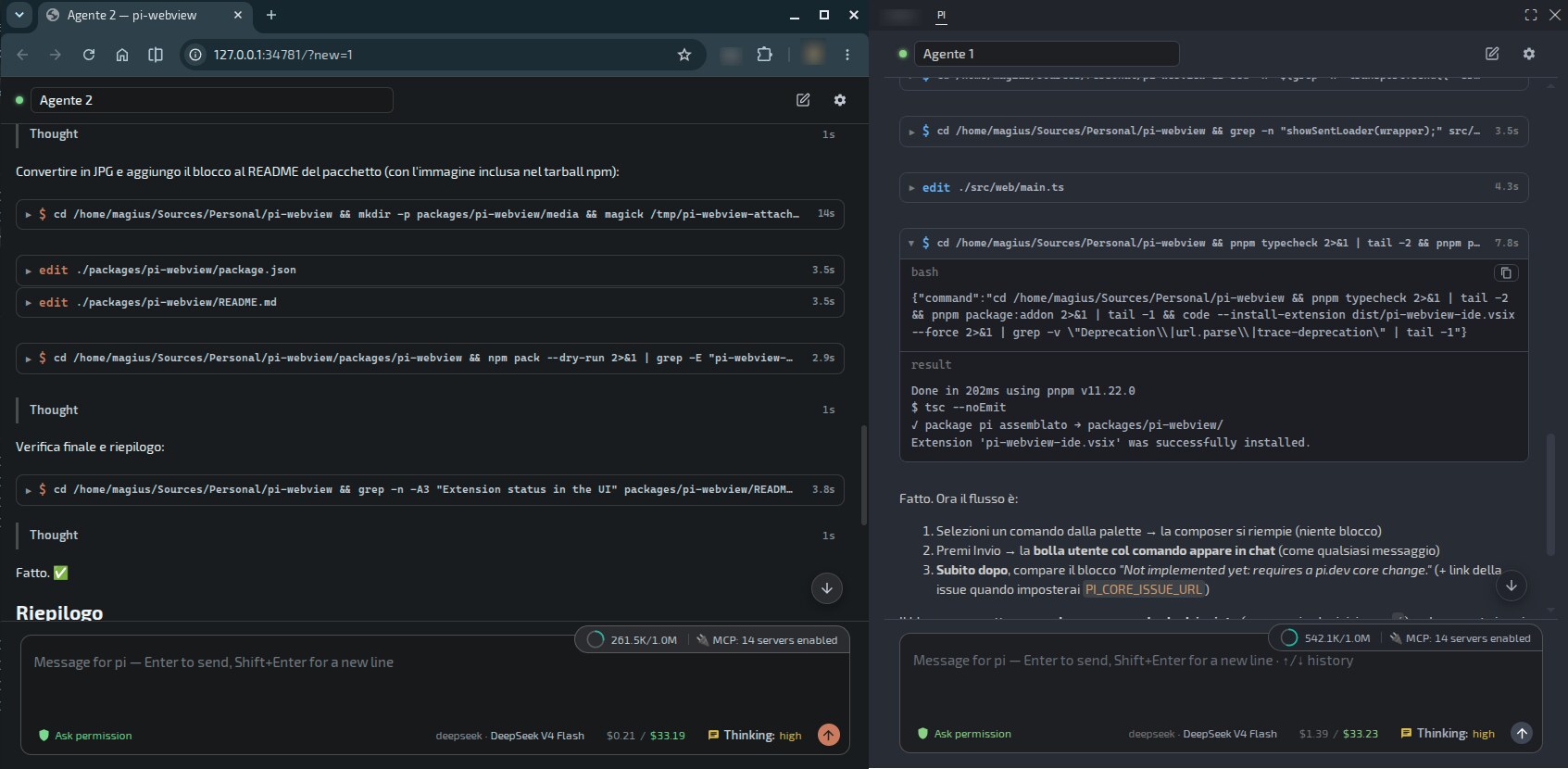
  "image": "https://raw.githubusercontent.com/MagiusCHE/pi-webview/main/media/pi-webview-preview.jpg",
  "extensions": [
    "./dist/extension.js"
  ]
}
Security note
Pi packages can execute code and influence agent behavior. Review the source before installing third-party packages.
README
@magiusche/pi-webview
A rich WebView UI for pi, the coding agent — a modern alternative to running pi in a terminal. Built as a framework-agnostic web app, it works standalone in the browser and inside supported IDE webviews with the same codebase.
⚠️ Experimental. Actively developed. Things can break, change or disappear. Use it for exploration, not production.
Implemented IDE companions
- VS Code
- Visual Studio 2022
- Visual Studio 2026
All three companions are included in the package and are automatically installed or updated when the corresponding IDE is present.
Standalone (browser)
The package also includes the web UI and a local bridge, launchable from the shell with the piw binary (script on Linux/macOS, piw.cmd on Windows):
piw                 # starts the bridge, serves the UI and opens the browser
piw --port 8900     # fixed port (default: random port)
piw --ip 192.168.1.20 # also listens on this IPv4 address and on 127.0.0.1
piw --ip 0.0.0.0    # listens on every IPv4 interface (including loopback)
piw --no-open       # does not open the browser: prints the link to the console
piw --session <id>  # resumes a session (partial id or path)
piw --no-idle       # disables the automatic idle shutdown
piw --background    # starts detached in the background and opens the browser
piw -b              # same as --background
piw -k              # stops the background bridge (same as --kill)
piw resolves pi on the PATH (on Windows the pi.cmd shim), spawns it with --mode rpc and opens http://127.0.0.1:<port>/. A new session starts in the shell directory from which piw was invoked—even when reusing an existing bridge—and falls back to the user home if that directory is unavailable. Exit with Ctrl+C.
The default bind remains loopback-only. --ip <IPv4> (also accepted as --host <IPv4>) adds a specific local address while preserving 127.0.0.1; --ip 0.0.0.0 listens on every IPv4 interface. For a non-loopback bind, piw prints authenticated remote-access links. Treat those links as secrets: anyone who has one can operate pi with your local user permissions. Use this only on a trusted network, preferably behind a host firewall or private VPN. If the active single-instance bridge has a different binding, stop it with piw -k before restarting it with the desired --ip.
A reverse proxy on the same machine may keep piw loopback-only and forward HTTP/WebSocket traffic to it. The bridge trusts X-Forwarded-For and X-Forwarded-Proto only when the direct peer is loopback, so remote token checks remain active and HTTPS proxies receive a wss:// URL.
Browser-local attachments
The paperclip in standalone mode opens the browser’s native file picker. This matters when the browser and bridge run on different machines: the picker shows files from the browser device, never the remote bridge filesystem. The browser reads the selected files and uploads their name, MIME type and bytes; it does not send a local path. The bridge stores a temporary copy so pi and its tools can access it.
Paste, drag and drop, multiple selection and image previews use the same upload path. In VS Code the paperclip continues to use the IDE’s native file dialog.
Public-access QR launcher
The cross-platform piw-public launcher starts piw on a requested port and IPv4 address with idle shutdown disabled, creates a new authentication token, and prints both the complete remote URL and a terminal QR code. The address can be supplied explicitly or detected through Tailscale:
piw-public 7361 --ip 192.168.1.20
piw-public 7361 --tailscale
piw-public 7361 --tailscale --wait # keep a shortcut-launched terminal open
If a managed piw bridge is already active, the launcher shows its port and asks for confirmation before stopping it. Declining leaves the existing bridge untouched; if no bridge is active, no confirmation is shown. A non-interactive invocation never stops an existing bridge because it cannot obtain confirmation. --tailscale requires the Tailscale CLI to be installed and connected; --ip has no Tailscale dependency. QR rendering is built in and does not require qrencode.
The generated URL contains a private bearer credential. Expose the selected address only on a trusted network and do not publish, log, or share the URL.
One bridge per system
piw is single-instance: if a bridge is already running, a new invocation does not start a second one — it just opens a new browser tab (with a new session). The active bridge is recorded in ~/.pi/pi-webview/bridge.json and validated at every startup (pid + health check), so a crash never leaves a stale lock.
Running in the background (fire-and-forget)
piw stays alive while the bridge is running. To detach it from the terminal, use the built-in switch (cross-platform, recommended):
piw --background          # starts the bridge in the background and opens the browser
piw -b                    # same as --background
piw -b --no-open          # background without the browser: prints the link instead
piw -k                    # stops the background bridge (reads the pid from the lock)
On Linux/macOS it re-launches itself detached (setsid-like), on Windows it runs hidden without a console window. The background process shuts down by itself with the automatic idle shutdown (see below).
Manual alternatives (if you prefer to manage it yourself):
- Linux / macOS (bash/zsh):
nohup piw >/dev/null 2>&1 & - Windows (cmd):
start /b piw - Windows (PowerShell):
Start-Process -WindowStyle Hidden piw
To stop a background bridge, the recommended way is the built-in switch:
piw -k # stops the bridge (reads the pid from the lock file and cleans up)
Manually, the pid is in the lock file:
cat ~/.pi/pi-webview/bridge.json   # reads the bridge pid
kill <pid>                          # Linux/macOS — on Windows: taskkill /PID <pid> /F
Automatic shutdown
The bridge shuts down by itself after 1 minute with no open session (no connected tab) — the browser connection is the activity signal, no keep-alive needed. The next piw starts it again. To disable it (debug): piw --no-idle.
Install
pi install npm:@magiusche/pi-webview
⚠️ The companions are checked at every pi start — the check blocks startup until it finishes (pi.dev / the webview never start with a pending install). The check steps are silent while nothing is being done; the first action (install/update/error) flushes the whole trace immediately and the following steps are streamed as they happen — console,
~/.pi/pi-webview/companion-install.logand notifications. When everything is already current the check is totally silent: no log lines, no notifications. The explicit commands/piw install|reinstall|uninstallalways log: every step is streamed and the final recap (one notify) summarizes what was done with a single reload hint per IDE — never one per installed extension. The extension installs/updates the companions from the bundled VSIXes if missing or outdated — idempotent:
- VS Code companion: checked always — the
codeCLI is resolved fromPATHor from the standard install locations, with a last-resort direct extraction into the extensions folder (no CLI needed; silent when VS Code is not installed);- Visual Studio companion (Windows only): detected via
vswhere.exe, installed per instance withVSIXInstaller.exe /quiet /instanceIds:(VS 2022 + 2026; VS 2019 is out of the manifest range) when VS is present; disable the automatic check withPI_WEBVIEW_AUTO_INSTALL=0(explicit commands below are NOT affected). You can also install explicitly with/piw install(or reinstall with/piw reinstall) from a pi terminal: the command reports every step as it runs (e.g. "VS Code: checking code CLI…", "Visual Studio 2026: installing the bundled version (per-user)…"), or manually (code --install-extension companion/pi-webview-ide.vsix/VSIXInstaller /q companion/pi-webview-visualstudio.vsixfrom the package dir), then reload the window / restart Visual Studio.
Try it without installing permanently:
pi -e npm:@magiusche/pi-webview
Launcher links (no install scripts)
This package has no npm install scripts (nothing to approve, no npm warn install-scripts). The piw and piw-public links on your PATH (~/.local/bin/<name>, or %APPDATA%\npm\<name>.cmd on Windows) are created together by the extension at the first pi start and re-created whenever either is missing. So: install the package, start pi once, and both launchers work. If you need them before the first pi start, just start pi or create the links manually.
Uninstalling
pi remove cannot clean up by itself (no uninstall scripts in the package, and pi has no package-removal hook). Run this inside pi (while the extension is still loaded) — it removes everything and then uninstalls the package from pi itself:
/piw uninstall
It removes, in order:
- the IDE companion extension (
magiusche.pi-webview-ide, if installed in VS Code — viacode --uninstall-extension), - the
piwandpiw-publiclinks on yourPATH(~/.local/bin/<name>/%APPDATA%\npm\<name>.cmd— only when they point to this package, never user files), and - the package itself from pi (
pi remove npm:@magiusche/pi-webview— il prefissonpm:è richiesto, come perpi install).
Then restart pi to finish (and reload the VS Code window if the companion was removed).
If pi remove fails, or you already removed the package manually, do it by hand: pi remove npm:@magiusche/pi-webview (the npm: prefix is required). If launcher links remain as dangling symlinks, verify them with ls -la and remove ~/.local/bin/piw and ~/.local/bin/piw-public manually.
How it works
The extension and standalone bridge run the same centralized companion logic (ensureCompanions in src/bridge/companions.ts):
pistart (the extension): (1) checks the VS Code companion against the bundled VSIX (installs/updates if missing or outdated; idempotent; thecodeCLI is resolved fromPATHor known install locations, falling back to direct vsix extraction into the extensions folder when no CLI exists; silent when VS Code is not installed; disable withPI_WEBVIEW_AUTO_INSTALL=0), (2) checks the Visual Studio companion on Windows (vswhere →VSIXInstaller /instanceIds:for each VS 2022/2026 instance, silent when no VS or no bundled vsix) and (3) re-creates thepiwandpiw-publiclinks on yourPATHif either is missing (the package has no install scripts; it never touches user files, only its own links).piwstart (standalone bridge): runs the same check for both companions (VS Code + Visual Studio), printing the outcome to the console.
Every install/update/error is reported — in the pi.dev TUI and in the webview (via ui.notify, pi-webview: …) and on the piw console (piw: …). Only two cases stay silent: the target app is not installed, or the installed companion already matches the bundled VSIX.
The companion can also be installed explicitly:
/piw install
(or code --install-extension companion/pi-webview-ide.vsix from the package dir), then reload the VS Code window — a pi icon appears in the activity bar with the webview chat. Subcommands: status | install | reinstall | uninstall | update.check | update.pi.core.exts (/piw for the list). install installs only what is missing or outdated and ensures both launcher links; reinstall forces a full reinstall of the companions and re-creates both links. uninstall removes the companions and both links.
Updating pi and the extensions
The shield in the header is always visible. Every pi process performs a fresh, non-blocking registry check for pi core and npm-installed extensions; results are not cached:
- blue shield: everything is current. Clicking it runs
/piw update.checkimmediately and refreshes the result in place; - yellow animated shield: updates are available. Clicking it opens a review dialog before running
/piw update.pi.core.exts.
The update command executes pi update --all --approve in a child process. It updates the @earendil-works/pi-coding-agent core package and all installed npm extensions without prompting. Local and git extension sources are intentionally excluded from registry comparisons.
The running process keeps its loaded code until pi is restarted. The reload button in the header restarts pi, resumes the current session and reloads the page or IDE webview. In standalone mode the page reload is local and still happens if the bridge connection has already dropped; restarting pi is best-effort in that case.
The companion spawns pi --mode rpc and bridges the UI via postMessage (same UI and protocol as standalone; editor selection flows directly to the webview).
- Standalone mode: a Node bridge spawns
pi --mode rpcand exposes it over a local WebSocket; open the UI in your browser. - IDE mode: the same UI runs inside a VS Code webview via
postMessageor inside a Visual Studio WebView2 tool window "pi" (virtual hostpiw.local,window.chrome.webview) — transport-agnostic.
Requirements
- Node.js >= 22.6
- VS Code ^1.90 (for the VS Code companion)
- Visual Studio 2022/2026 (for the VS companion, Windows only — the vsix is included in the package)
- pi installed on the same machine
Features
- Full chat UI — streaming Markdown (
marked+DOMPurify), thinking with elapsed time, collapsible tool cards, copy actions and smart auto-scroll - Agentic thinking — optional global presentation mode, disabled by default. It groups each consecutive thinking/tool chain in one collapsible block with a global spinner, elapsed timer and live counters for
thought,read,write(write+edit),bashand othertools. Thinking remains expanded inside the block; individual tools keep their normal collapsible behavior. Visible assistant text,ask_user, compaction and injected steering messages close the current thought/Agentic chain; later internal activity starts a new block. Internal-only messages do not create empty assistant wrappers. Before the first real thought/tool, the live header showsWaiting for responseone second after processing starts; it changes toAgentic thinkingonly when internal activity actually begins - Sessions — switch, rename, delete, filter by folder, fork across workspaces and create new sessions. Confirmed session-changing operations immediately show the loading overlay and lock the complete UI until the refreshed history is ready. Resume summaries include relative activity, compaction count and session-file size. Browser refresh resumes the same session in its saved workspace
- Composer controls — model picker, thinking level and project trust. The trust chip always shows the effective status of the running pi process (trusted / untrusted): pi never prompts in RPC mode, so with no saved decision the project-local resources are ignored. Clicking it opens the same choices as the pi terminal prompt (Trust / Trust parent folder / Trust this session only / Do not trust / Do not trust this session only); a session-only choice is not persisted and starts pi with
--approve/--no-approvefor that process only. A new decision is applied by restarting pi: the restart is automatic on an idle session, otherwise the dialog asks for Restart now / Restart later, and a red!next to the icon marks the pending restart until it happens - Attachments — paperclip picker, paste and drag and drop, multiple files and inline image previews. Browser mode selects files on the browser device and uploads their bytes to the bridge
- Editor selection context — available in the VS Code sidebar. It is intentionally inhibited in editor-area panels because focusing a panel clears the active editor context
- Built-in commands —
/compact,/newand/namemap to their webview actions. Terminal-only commands are blocked locally with an explanatory chat message instead of being sent to the model - Header controls — session picker, connection state, reload and live update shield
- Automatic reconnect (browser) — if the bridge is restarted or disappears, the page retries every 5 seconds while the window/tab is active (and immediately when it becomes visible again). When the bridge is back the status dot turns green again and the same session resumes without a manual page reload
- Extension status —
setStatus/setWidgetoutput rendered in the footer; placement, compactness and hidden sources are configurable - Themes and localization — light/dark/system themes and Italian/English UI
- Settings modal — webview preferences include language, theme, history limit, Agentic thinking, notification defaults, status-bar layout and hidden sources. Staged pi.dev settings include new-session model/thinking defaults and dynamic extension CLI flags
CLI flags are per-session: they are stored as a pi-webview-cli-flags custom entry inside the session .jsonl file, so each session retains its launch configuration. New sessions start without flags; applying flags while a session is still empty takes effect on the immediate restart and is persisted as soon as its JSONL path is materialized. Forks inherit the parent entry. Changing Agentic thinking affects future events only; reloading the session re-renders its complete history without modifying the JSONL.
Security
Pi extensions run with your full system permissions and can execute arbitrary code. Review the source before installing — as you would with any third-party package.
License
MIT. See LICENSE.