@ozancakir/pi-pop
Pop open a floating viewer to read Pi coding agent panels: Shift+Alt+arrow (or /pop) shows any collapsed panel's content without expanding it or snapping the scroll (cross-platform, works over SSH); scroll with the mouse wheel. Ask the agent to "show the
Package details
Install @ozancakir/pi-pop from npm and Pi will load the resources declared by the package manifest.
$ pi install npm:@ozancakir/pi-pop- Package
@ozancakir/pi-pop- Version
0.1.2- Published
- Jul 10, 2026
- Downloads
- 414/mo · 414/wk
- Author
- ozancakir
- License
- MIT
- Types
- extension
- Size
- 34.8 KB
- Dependencies
- 0 dependencies · 2 peers
Pi manifest JSON
{
  "extensions": [
    "./extensions/pi-pop/index.ts"
  ],
  "image": "https://raw.githubusercontent.com/ozancakir/pi-pop/main/screenshots/with-pi-pop.gif"
}
Security note
Pi packages can execute code and influence agent behavior. Review the source before installing third-party packages.
README
pi-pop
Pop open a floating viewer to read Pi's collapsible panels — without your scroll jumping around.
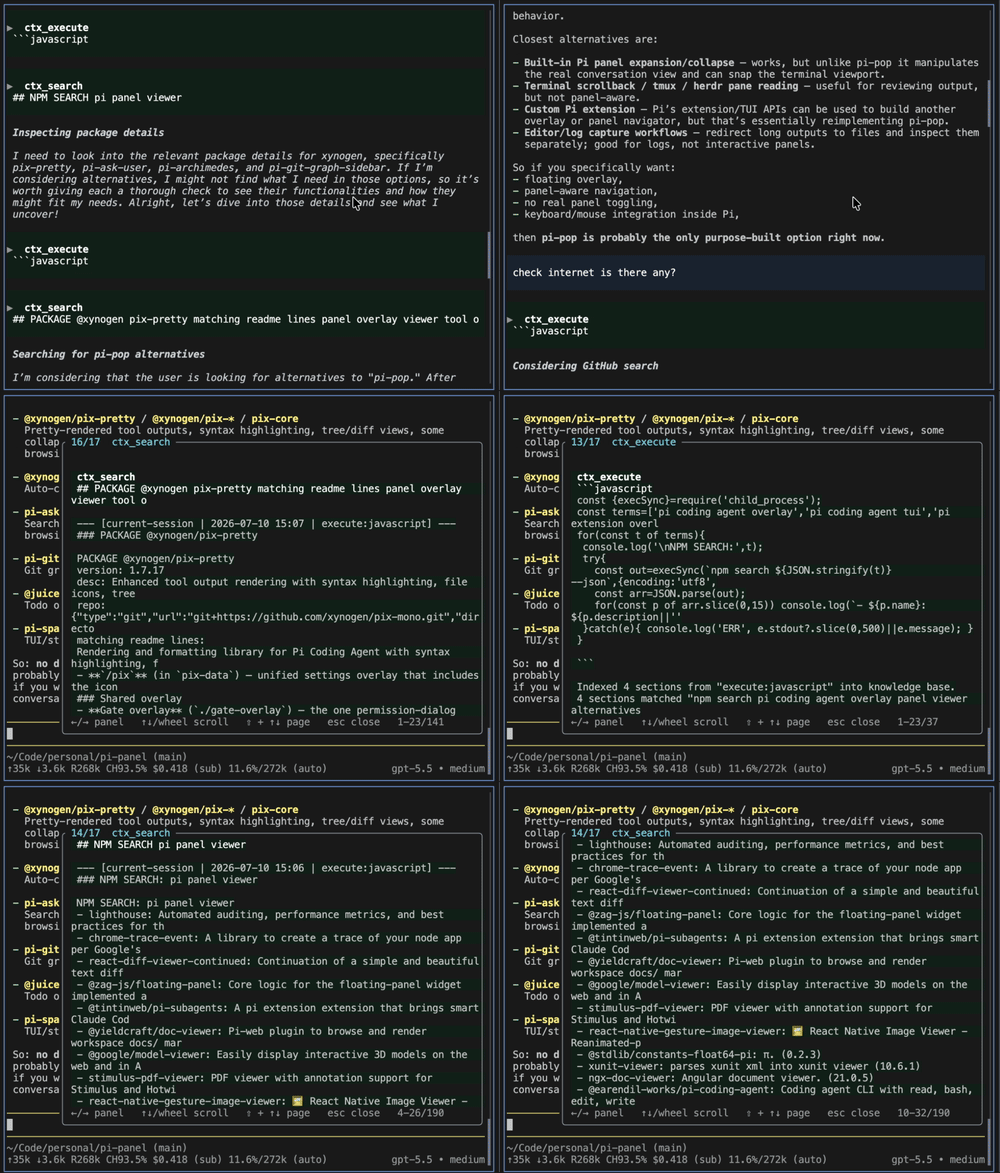
Pi's conversation fills up with collapsible panels (tool calls, outputs, context). pi-pop gives you a pop-up viewer to read the full contents of any of them, right where you are. It shows a panel's expanded content without actually expanding it, so nothing in the conversation moves and your scroll position is never touched.

Install
pi install npm:@ozancakir/pi-pop
Or from git: pi install git:github.com/ozancakir/pi-pop
Pi extensions run with full system access — review the source before installing. pi-pop ships no dependencies and no native code; it's a handful of small files under
extensions/pi-pop/.
Use it
Press Shift + Alt + ↓ or Ctrl + Q (or run /pop) to open the viewer. Inside:
| Key | Action |
|---|---|
| ← / → | previous / next panel |
| ↑ / ↓ or mouse wheel | scroll the content |
| Shift + ↑ / ↓ or PgUp / PgDn | jump a page |
| Esc | close |
Every collapsible panel also gets a dim ▶ / ▼ in the left margin so you can spot what's worth opening.
Ask for a specific panel
Just tell Pi in plain language and it opens the viewer on the panel you mean — it calls the pi-pop-show tool for you:
- "show the hypa result" → opens the newest panel titled hypa
- "show the last python3 output" → opens it in the viewer
Because the agent opens it (no keypress), your scroll position is never touched. Or do it directly:
/pop hypa # open the newest panel whose title matches "hypa"
Choose which panels show up
By default the viewer lists panels that hide content. Change that just by asking Pi in plain language — it calls the pi-pop-config tool for you:
- "show python3 outputs in the panel viewer" → added
- "stop showing grep results in panels" → hidden
Or do it directly:
/pop-config show python3     # force-show panels whose title matches
/pop-config hide Grep        # hide matching panels
/pop-config remove python3   # drop a rule you added
/pop-config maxlines 3       # cap collapsed panels at 3 lines (0 = off)
/pop-config list             # show current config
/pop-config reset            # clear rules
Rules are case-insensitive text or regex matched against a panel's first line, saved to ~/.pi/pi-pop.json.
Keep the conversation tight
Long panels take up a lot of room even when collapsed, so pi-pop caps them at 5 lines by default, with a dim …N more lines (pi-pop) footer — the viewer still reads the full thing. Change the cap:
/pop-config maxlines 3     # or any number
/pop-config maxlines 0     # turn the cap off
Or just ask: "cap collapsed panels at 3 lines".
Change the shortcut
The default is Shift+Alt+↓ and Ctrl+Q — two keys because no single one survives every terminal (macOS Terminal.app strips modifier+arrow combos; VS Code grabs some single Ctrl keys). Use whichever fires in your terminal, or set your own in ~/.pi/pi-pop.json (any of Pi's key specs — restart Pi after editing):
{ "keys": ["shift+alt+down", "ctrl+q"] }
In a stubborn terminal, /pop always works with no key at all.
Why a pop-up?
Pi renders into the normal terminal buffer (so scrollback, copy, and search keep working). The cost: re-drawing an off-screen panel snaps your view to the bottom. Toggling a panel in place — or any in-conversation navigation — hits that.
Without pi-pop, reading a long collapsed panel means scrolling around and getting yanked back to the bottom:

pi-pop sidesteps it entirely: it reads content into a floating overlay and never mutates the conversation, so there is nothing to snap. Works everywhere — any OS, and over SSH.
Why not just click a panel to open it?
Because it can't be made reliable, for the same reason. To know which panel you clicked, the click has to be forwarded to the app — which means turning on terminal mouse reporting. But when the terminal forwards a click to the app while you're scrolled up, it first snaps your viewport to the bottom (that's the terminal's own behavior, before the app ever sees the event — there's no preventDefault in a terminal). So clicking a scrolled-up panel yanks you away from it.
The clicks that don't snap — plain click, Cmd-click, Shift-click — are the ones the terminal handles itself (native selection, opening links) and never sends to the app, so pi can't tell which panel they hit. Forwarded-and-snaps vs native-and-invisible: you can't have both.
This isn't Pi refusing the feature — it's a consequence of Pi rendering into the normal buffer on purpose (so your scrollback and copy keep working) rather than taking over the whole screen. The keyboard shortcut opens the viewer over any panel without a click, so nothing is lost.
License
MIT © Ozan Cakir