@patimweb/pi-cron
Scheduled prompts for the pi coding agent: save a prompt + schedule + tool allowlist as a cron job. Runs inside pi on any OS, keeps configuration and run history, catches up missed and interrupted runs.
Package details
Install @patimweb/pi-cron from npm and Pi will load the resources declared by the package manifest.
$ pi install npm:@patimweb/pi-cron- Package
@patimweb/pi-cron- Version
2.2.0- Published
- Sep 21, 2026
- Downloads
- 633/mo · 23/wk
- Author
- patimwep
- License
- MIT
- Types
- extension
- Size
- 102.9 KB
- Dependencies
- 1 dependency · 3 peers
Pi manifest JSON
{
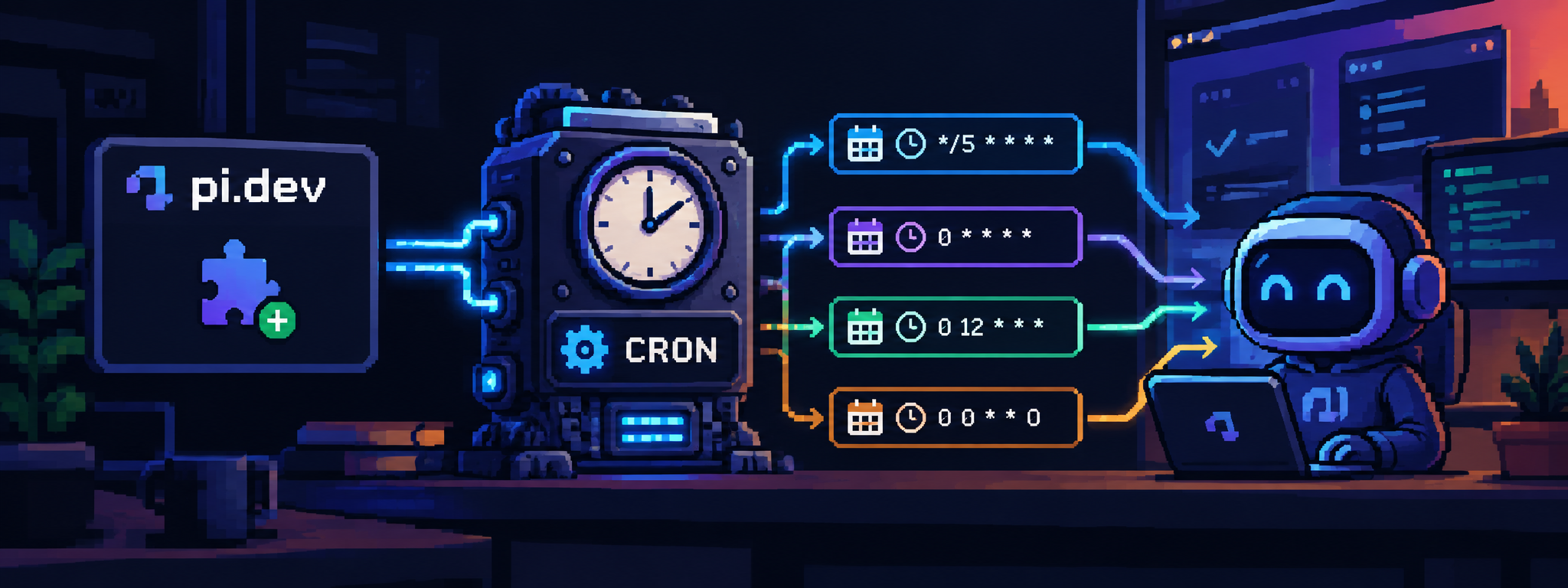
  "image": "https://raw.githubusercontent.com/Smotherer007/pi-cron/main/screenshot.png",
  "extensions": [
    "./index.ts"
  ]
}
Security note
Pi packages can execute code and influence agent behavior. Review the source before installing third-party packages.
README
pi-cron
Scheduled prompts for the pi coding agent, modelled on Hermes Agent's cron jobs.
A job is a prompt + a schedule + the tools the run may use. At the due time a fresh, unattended pi session runs the prompt with exactly those tools, saves the answer, and pi tells you about it.
- Runs inside pi. While pi is open, pi-cron checks every minute using node-cron, a timer inside the Node process. There is no background service or daemon, and nothing is installed into your OS. It works the same on macOS, Linux and Windows.
- Only configuration and history are kept. Jobs and past runs live in
~/.pi/agent/cron/. Nothing runs while pi is closed. - Catches up when you come back. A slot missed while pi was closed runs once at the next start, never once per missed slot. A run that was cut off because pi quit runs again at the next start.
- Least-privilege runs. Each job has its own tool allowlist (
pi --tools), plus optional skills and model. - Isolated sessions. Every run is its own headless pi session with no memory of your chat. The full transcript is kept.

Installation
pi install npm:@patimweb/pi-cron

# or from a local checkout
pi install /path/to/pi-cron
Usage
Tell the agent what you want:
Every weekday at 8:00 check my inbox with email_fetch and summarise what needs an answer today.
The agent calls cron_create:
cron_create:
  name: morning-inbox
  schedule: weekdays 8:00
  tools: ["email_fetch"]
  prompt: Fetch the unread emails in INBOX from the last 24 hours and list the ones that
          need an answer today, most urgent first, one line each.
Or create the job yourself with /cron add.
When a run finishes, pi shows a notice (pi-cron: morning-inbox finished – /cron results morning-inbox).
Schedules
All times are in local time.
| Input | Meaning |
|---|---|
0 8 * * 1-5 |
Cron expression (minute hour day month weekday), parsed by node-cron. @daily etc., L (last day), 1#1 (first Monday) and 5L (last Friday) also work. If day-of-month and weekday are both set, a day matches when either matches (classic cron); a * in one of them combines them with AND, as in cronie. |
every 15m, every 2 hours, every 1d |
Fixed interval (minimum 1 minute) |
daily 9:00, every day at 7am |
Every day |
weekdays 8:30, weekends 10:00 |
Mon–Fri / Sat–Sun |
mon,wed,fri 18:15, monday at 9 |
Specific weekdays |
in 30m, in 2 hours |
Once, relative |
2026-10-01 09:00 |
Once, at a timestamp |
A bare date (2026-10-01) means local midnight.
Start and end
A job can be limited to a window, so it stops on its own instead of being deleted later:
cron_create:
  name: sprint-report
  schedule: weekdays 9:00
  startAt: 2026-10-01
  endAt: 2026-12-31 23:59
prompt: …startAt— no run before this time. A start in the future re-anchors an interval:every 2hwithstartAt15:30 starts at 15:30, not when it was created. A slot exactly atstartAtruns.endAt— no run after this time; a slot exactly atendAtstill runs. Afterwards the job showsdone, keeps its history, andcron_updatewith a laterendAtwakes it again.- Both are local time as
2026-10-01(midnight) or2026-10-01 09:00, or relative (in 3d). Without them a job runs forever. cron_updateclears an end again withendAt: null./cron addasks for both, andEntermeans "no limit".- A window that no slot fits (a Monday job from Tuesday to Wednesday) creates a job that will never fire —
cron_createand/cron addsay so, and the list shows it asdone.
Tools for the model
| Tool | Purpose |
|---|---|
cron_create |
Save prompt + schedule + tool allowlist (+ skills, model, cwd, delivery, run window) |
cron_list |
List jobs, or show one job in full |
cron_update |
Change any field; enabled: false pauses, true resumes |
cron_delete |
Remove a job (its history stays on disk) |
cron_run |
Run a job now in the background |
cron_results |
Recent runs and the latest output |
tools is the allowlist for the run. Leave it out to use pi's default tools, or pass [] for no tools. Tool names are checked against the tools pi knows, so a typo fails when you create the job, not when it runs.
/cron command
/cron                        list jobs
/cron add                    create a job step by step
/cron show <job>             details
/cron run <job>              run now
/cron pause <job>            pause
/cron resume <job>           resume (no backlog of missed runs)
/cron remove <job>
/cron results [job]          recent runs (+ latest output of one job)
/cron status                 who is scheduling, running jobs, next run
/cron telegram <botToken> <chatId>
/cron webhook <url>
When jobs run
| Situation | What happens |
|---|---|
| pi is open | Due jobs start within a minute. |
| pi was closed when a slot came up | At the next start the job runs once (catchUp: true, the default). With catchUp: false the missed slot is skipped. Nothing starts after endAt: neither such a missed slot nor the repeat of an interrupted run. |
| You quit pi while a job is running | The run is stopped and recorded as aborted, and the job runs again at the next start. |
| pi crashed or was killed | At the next start the run is recorded as crashed, any leftover child process is stopped, and the job runs again. |
| Several pi windows are open | One of them schedules (lease in scheduler.json). If it quits, another open window takes over within a minute. |
pi -p / non-interactive pi |
Does not schedule. Only a pi with a UI runs jobs. |
Delivery
Every run writes a Markdown file and shows a notice in pi. A job's deliver list adds more channels:
| Target | What happens |
|---|---|
notify |
Desktop notification (macOS osascript, Linux notify-send, Windows tray balloon) |
telegram |
Message from your bot. Set it up with /cron telegram <botToken> <chatId> |
webhook |
JSON POST with job, status and output. Set it up with /cron webhook <url> |
For email, give the job an email tool (for example pi-email's email_send) and ask for the email in the prompt.
How it works
pi (interactive)
 └─ pi-cron scheduler: at start, then every minute (node-cron "* * * * *")
      ├─ scheduler.json: is this pi the one scheduling?
      ├─ jobs.json: which jobs are due? (catch-up, re-runs)
      └─ per due job: child process  pi -p --tools … --session-dir … "<prompt>"
           ├─ output/<job>/<time>.md
           ├─ runs/<job>/<time>.json
└─ notice in pi (+ notify / telegram / webhook)- A run never blocks pi or the other jobs. Each job runs at most once at a time.
- Each run has a timeout (default 30 min). pi is stopped with SIGTERM, then SIGKILL.
- Runs use the same pi that is running (same Node, same CLI), so no
pishim needs to be on PATH. - Outputs, logs and sessions older than
keepRunsDays(default 30) are removed.
Files
~/.pi/agent/cron/
  jobs.json            job definitions and scheduling state
  config.json          delivery settings, extra env, retention
  state.json           which results you have already seen
  scheduler.json       which open pi is scheduling
  output/<job>/*.md    answers
  runs/<job>/*.json    run history
  logs/<job>/*.log     pi stderr per run
  sessions/<job>/      full pi sessions
config.json
{
  "piCommand": [],
  "env": {},
  "telegram": { "botToken": "…", "chatId": "…" },
  "webhookUrl": null,
  "defaultDeliver": [],
  "keepRunsDays": 30
}
piCommand is empty by default, which means runs use the same pi as the one that is running. env adds environment variables to every run.
Development
npm install
npm test          # node:test, Node 26
npm run typecheck
License
MIT