@pi-vault/pi-plan
Pi extension that adds plan mode for read-only codebase exploration, decision-complete planning, and explicit implementation handoff
Package details
Install @pi-vault/pi-plan from npm and Pi will load the resources declared by the package manifest.
$ pi install npm:@pi-vault/pi-plan- Package
@pi-vault/pi-plan- Version
0.5.0- Published
- Aug 3, 2026
- Downloads
- 430/mo · 196/wk
- Author
- lanhhoang
- License
- MIT
- Types
- extension
- Size
- 694.6 KB
- Dependencies
- 0 dependencies · 2 peers
Pi manifest JSON
{
  "extensions": [
    "./src/index.ts"
  ]
}
Security note
Pi packages can execute code and influence agent behavior. Review the source before installing third-party packages.
README
@pi-vault/pi-plan




Description
@pi-vault/pi-plan adds a planning workflow to Pi that is read-only by default. Use it to inspect the repo, clarify intent, and return a decision-complete implementation plan before implementation of the proposed plan starts. Built-in edit and write are independently disabled until you opt them in.
Screenshots


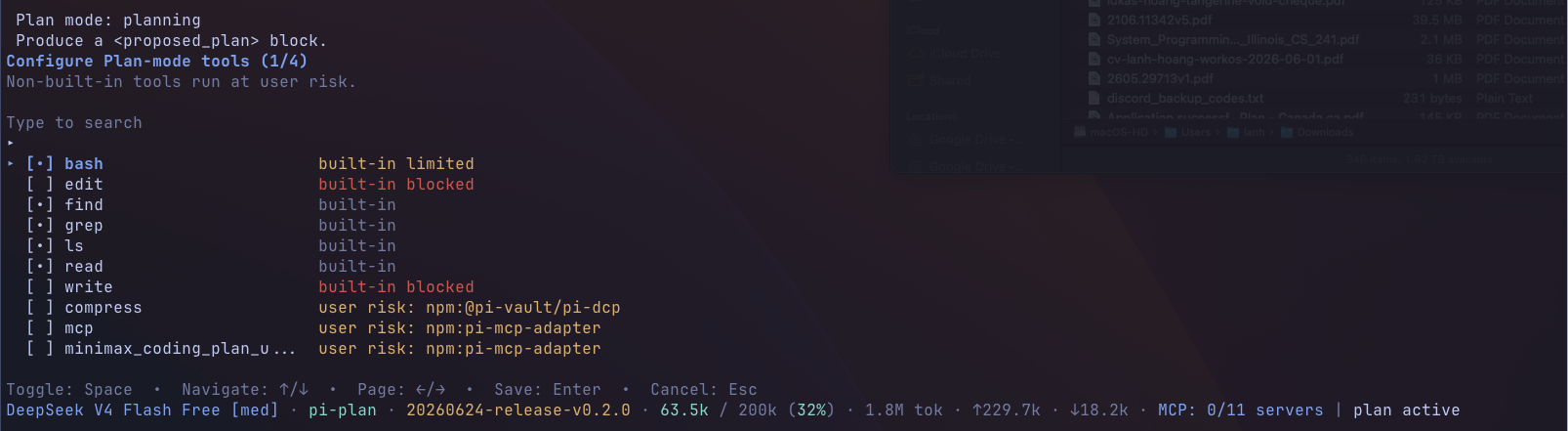
Install And Reload
Install or upgrade the extension:
pi install npm:@pi-vault/pi-plan
Reload Pi after installing or upgrading:
/reload
Use Plan Mode
Start planning
Start Plan mode:
/plan
Start Plan mode and send the planning prompt immediately:
/plan prepare the next release notes and docs
Start Pi directly in Plan mode:
pi --plan
Toggle Plan mode with the keyboard:
Ctrl+Alt+P
Ctrl+Alt+P works while the agent is idle and queues a pending toggle when Pi is busy. Shift+Tab remains Pi's reserved thinking-level shortcut.
Work through a plan
- Let the agent inspect the repo and ask clarifying questions.
- When the plan is ready, you receive exactly one
<proposed_plan>block. - While the agent is idle, choose what to do next:
- Implement this plan - turn Plan mode off, restore full tool access, and submit
Implement the plan.in the same conversation. - Save plan - keep Plan mode active and write the exact current plan to one new lowercase
.mdfile in the workspace root. The agent chooses the filename; you do not provide a path. - Stay in Plan mode - keep planning.
- Exit Plan mode - leave planning without removing prior user or assistant messages. The latest-plan menu cache remains available until the next turn starts.
- Show latest proposed plan - review the current plan again.
- Configure tools - change which optional tools are available during planning.
- Implement this plan - turn Plan mode off, restore full tool access, and submit
Save plan behavior
Save plan is available only while the agent is idle.
When you choose it:
- Plan mode stays enabled.
- Pi asks the agent to choose a new lowercase
.mdfilename in the workspace root, typically dated likeYYYY-MM-DD-<topic>.md. - For that save turn only, Pi temporarily allows built-in
writefor the exact captured plan. - If the write fails, the agent can retry during the same save turn.
- After a successful save, the save-only authorization ends, the user's selected Plan-mode tools are restored, and Plan mode remains active.
- Save-path validation rejects existing targets, broken symlinks, path traversal, and any path that resolves outside the current workspace.
Command Reference
| Command | Behavior |
|---|---|
/plan |
Turn on Plan mode, or open the Plan mode menu if it is already on. |
/plan <prompt> |
Turn on Plan mode and send <prompt> as the planning request. |
/plan:tools |
Open the optional tool selector. If Plan mode is not active yet, Pi enables it first. |
/plan:exit |
Turn off Plan mode and restore the previous tool set without removing conversation history. |
pi --plan |
Start Pi directly in Plan mode. |
If Pi is busy, mode-changing commands and actions from the /plan menu wait until the current turn settles. Only the latest queued switch is applied. An automatically opened plan-ready menu cannot queue a mode change until Pi is fully settled; retry with /plan if warned. Showing a plan and staying in Plan mode remain immediate; tool configuration requires Pi to be idle.
Configure Optional Tools
Safe built-in planning tools are available by default. Use /plan:tools to enable additional optional tools during planning.
Built-in edit and write are disabled by default. Use /plan:tools to opt edit, write, or both into the active Plan-mode tool set independently. Your selections persist across Pi sessions. When a mutation tool is selected, Plan mode limits it to file changes the user explicitly requests and keeps the unselected mutation tools blocked. Non-built-in tools may still expose broader capabilities through their own interfaces, so enable them deliberately.
Safety Boundaries
Plan mode keeps the default workflow read-only:
- built-in
editandwriteare blocked by default bashis limited to allowlisted read-only commands- mutating shell commands are blocked with a Plan-mode error
- safe built-in planning tools remain available:
read,bash,grep,find, andls
When you opt edit and/or write into the Plan-mode tool set through /plan:tools, the selected mutation tools are authorized only for file changes the user explicitly requests during the current Plan-mode session. The unselected mutation tools stay blocked. Both selections persist across sessions and can be reverted through /plan:tools.
Save plan uses separate authorization. During a save turn, Pi narrows active tools back to the safe built-ins and temporarily adds built-in write for the exact captured plan only, regardless of any persisted write selection. After a successful save, the save-only authorization ends and the persisted ordinary Plan-mode selections are restored.
Save-path preflight rejects:
- existing files or directories at the target path
- broken symlinks
- path traversal or absolute paths
- paths that resolve outside the current workspace
This preflight is a guardrail, not an atomic no-clobber guarantee against a concurrent filesystem race.
Development And Verification
pnpm install
pnpm check
pnpm run pack:dry-run
pnpm run release:check
Changelog
See CHANGELOG.md for release notes.
License
MIT. See LICENSE.