@shiina18/pi-ask-user-question
Claude Code-like ask_user_question tool for Pi
Package details
Install @shiina18/pi-ask-user-question from npm and Pi will load the resources declared by the package manifest.
$ pi install npm:@shiina18/pi-ask-user-question- Package
@shiina18/pi-ask-user-question- Version
0.1.1- Published
- May 2, 2026
- Downloads
- not available
- Author
- shiina18
- License
- MIT
- Types
- extension
- Size
- 52.7 KB
- Dependencies
- 0 dependencies · 3 peers
Pi manifest JSON
{
  "extensions": [
    "./src/index.ts"
  ],
  "image": "https://raw.githubusercontent.com/Shiina18/pi-ask-user-question/main/docs/images/preview.jpg"
}Security note
Pi packages can execute code and influence agent behavior. Review the source before installing third-party packages.
README
pi-ask-user-question
Claude Code-like ask_user_question tool for Pi.
This README records the current UI and interaction contract implemented by the extension.
Install
pi install npm:@shiina18/pi-ask-user-question
Preview
Tool Contract
The extension registers one tool:
ask_user_question
Input shape:
questions: 1-4 questions.question: full question text. It should be clear, specific, and end with?.header: short tab label, 12 characters or fewer.options: 2-4 configured options.options[].label: concise option label.options[].description: explanatory text rendered under the option.options[].preview: optional markdown preview content. Preview mode is enabled only for single-select questions when at least one option has preview content.multiSelect: optional boolean. Defaults tofalse.
Question texts must be unique. Option labels must be unique within each question.
The UI adds one inline custom input row after the configured options for standard questions. Preview-mode questions omit that custom input row. The caller should not add an extra option for the custom row.
Page Layout
Every question page uses the same top-to-bottom structure:
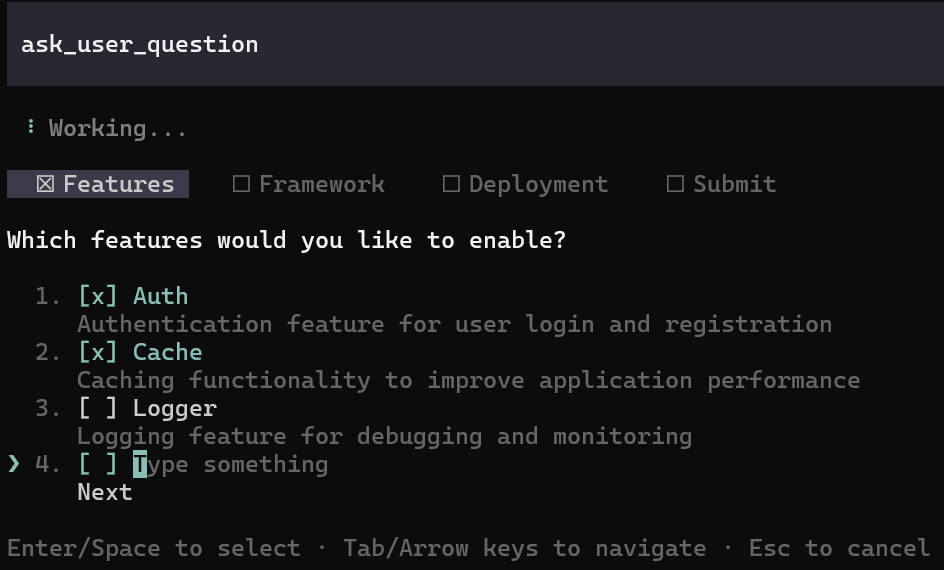
[ ] HeaderA  [ ] HeaderB

Question text?

> 1. [ ] Option A
     Description for option A
  2. [ ] Option B
     Description for option B
  3. [ ] Type something
     Submit

Enter/Space to select · Tab/Arrow keys to navigate · Esc to cancel
Single-select questions omit the checkbox column and submit row:
[Header]

Question text?

> 1. Option A
     Description for option A
  2. Option B
     Description for option B
  3. Type something

Enter/Space to select · ↑/↓ to navigate · Esc to cancel
Current visual rules:
- Every question page renders header tabs.
- A single question renders one selected header tab.
- Multiple questions render all question tabs side by side, followed by a
Submittab. - Single-question multi-select pages also render a trailing
Submittab. - The active tab uses selected background styling and text foreground styling.
- Answered question tabs and ready submit tabs show
☒; unanswered or not-ready tabs show☐. - Inactive answered tabs and ready submit tabs use success styling; inactive unanswered tabs use dim styling.
- Header tabs include leading padding before the box marker and trailing padding inside the selected background.
- The question text is rendered through the same
Text(theme.bold(question))path used by the reference implementation. - Every selectable option row is numbered, and the number prefix uses dim styling.
- The focus marker is at the left edge of the component line and uses accent styling.
- The custom input row displays
Type something; it does not displayOther. Type somethingis dim text, not a highlighted background.- Option descriptions stay dim in every state.
- Selected or checked options use accent styling for the checkbox/label/content; the number prefix remains dim.
- Description text is indented to align with the option content column.
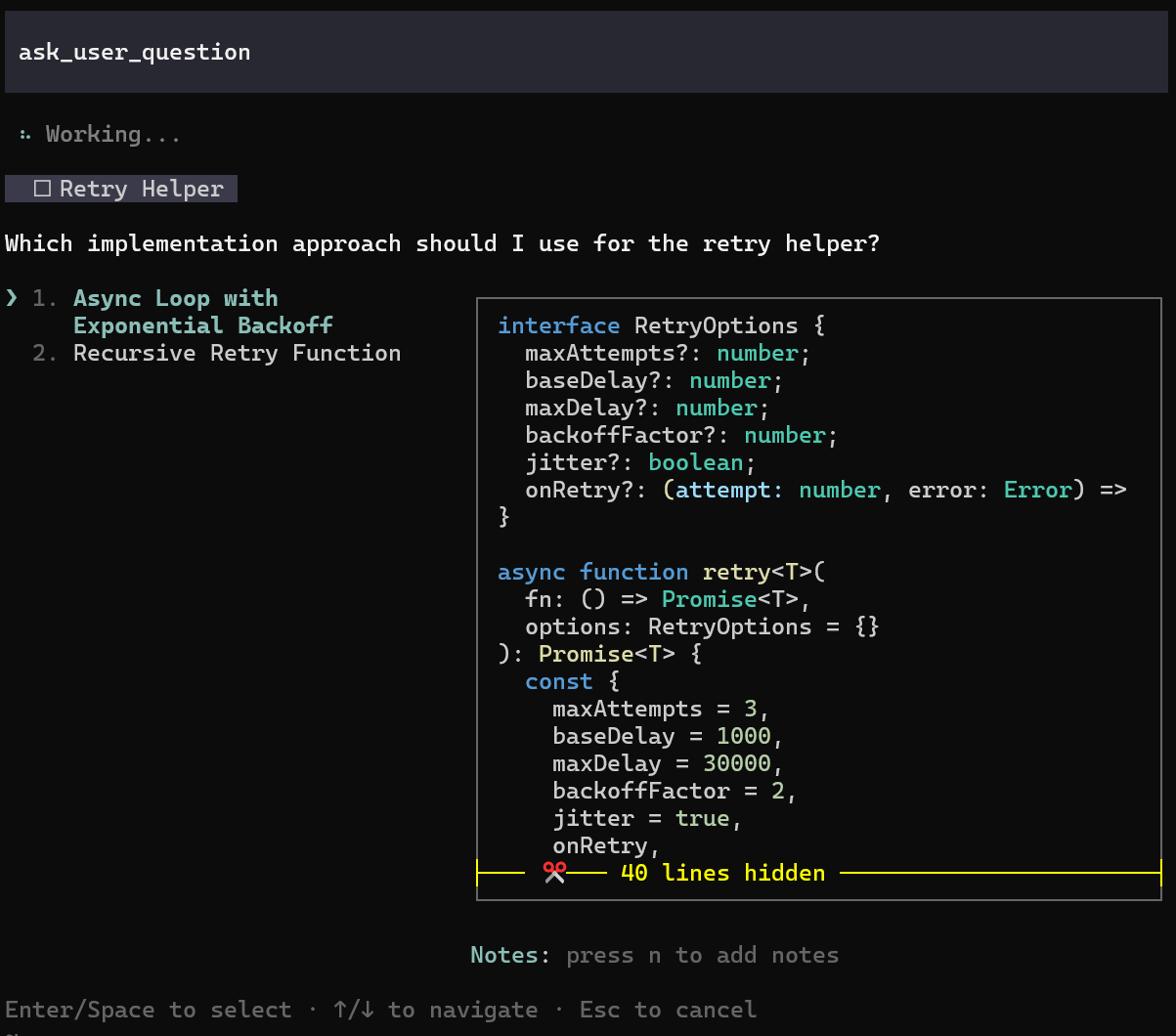
Preview-mode visual rules:
- The left panel renders the numbered configured options only.
- Long option labels wrap within the left panel when space allows.
- The right panel renders the focused option preview in a bordered markdown box.
- Preview content is rendered from a wide source layout and clipped to the live preview box width when the terminal becomes narrow.
- The custom input row is omitted in preview mode.
- A notes row appears under the preview box.
- The notes row starts at the same column as the preview box left border.
- The
Noteslabel uses accent styling. - Empty notes show
press n to add notesin dim styling when notes are not focused. - Pressing
nfocuses notes and changes the empty inline placeholder toAdd notes on this design..., with the cursor onA. - Preview layout recomputes on terminal resize instead of reusing a stale width cache.
Single Question
For a single-question single-select page, the footer is:
Enter/Space to select · ↑/↓ to navigate · Esc to cancel
For a single-question multi-select page, the footer matches the multi-question navigation model because the page includes a Submit tab:
Enter/Space to select · Tab/Arrow keys to navigate · Esc to cancel
Single-select behavior:
↑/↓moves focus through configured options and the custom input row.EnterorSpaceon a configured option submits that answer immediately.Enteron the custom input row submits only when text has been typed.- Empty custom input does not submit.
Esccancels the request, unless it first clears typed custom input.
Multi-select behavior:
↑/↓moves focus through configured options, the custom input row, andSubmit.TaborRightmoves focus from the question toSubmit.Shift+TaborLeftreturns fromSubmitto the question.Enteron a configured option toggles it.EnteronSubmitsubmits selected answers.Submitdoes nothing when no answer is selected.- Typing custom input automatically includes the custom row in the selected answers.
- Clearing custom input removes that row from the selected answers.
Preview-mode behavior:
- Preview mode applies only to single-select questions with at least one option preview.
Up/Downmoves focus through configured options and updates the preview, including while notes are focused.1-9moves focus to the numbered option without submitting.nfocuses the inline notes entry.- While notes are focused, printable keys, spaces, and number keys type into notes.
Left/Rightmoves the notes cursor while notes are focused.Backspacedeletes the character before the notes cursor.Enterwhile notes are focused submits the currently focused option with the typed notes.Escwhile notes are focused exits notes entry; a laterEsccancels.EnterorSpaceoutside notes submits the focused option.
Multiple Questions
Question pages in a multi-question flow use this footer:
Enter/Space to select · Tab/Arrow keys to navigate · Esc to cancel
Navigation behavior:
TaborRightmoves to the next question. On the last question it opens review.Shift+TaborLeftmoves to the previous question.- Entering a question resets the focus cursor to the first option while preserving any recorded answer.
- Left/right arrows move the text cursor while the custom input row or preview notes are focused.
- Single-select
EnterorSpaceconfirms the focused row and advances to the next question or review. - Multi-select
Submitadvances to the next question or review. - Multi-question navigation can move forward before every question has an answer; review warns when answers are missing.
The review page is still separate from question pages. It uses the same header tab row with the Submit tab active, then shows collected answers plus:
Submit answers
Cancel

Enter/Space to select · ↑/↓ to navigate · ← to go back · Esc to cancel
The review page does not render a synthetic progress line such as Question 4 of 4.
Custom Input
The custom input row is inline.
Unfocused and empty:
3. Type something
Focused and empty:
> 3. Type something
The cursor is rendered brightly on the T cell itself, so the placeholder text does not shift to the right.
Focused with typed text:
> 3. custom text▌
For multi-select, the same row keeps the checkbox column:
> 3. [ ] Type something
The placeholder text remains dim, except for the focused cursor cell.
Keyboard Shortcuts
Supported keys on question pages:
↑/↓: move focus within the current question.Enter: select, toggle, submit, or advance depending on the focused row.Space: selects regular single-select rows, toggles multi-select option rows, confirms focused submit/review rows, and types a space inside non-empty custom input.Esc: clears typed custom input when that input is focused and non-empty; otherwise cancels.1-9: direct action for the visible numbered row.Tab/Right: next question in multi-question flows when text input is not focused.Shift+Tab/Left: previous question in multi-question flows when text input is not focused.
Cursor behavior:
Left/Rightmoves the text cursor inType somethingand preview notes.- Printable characters insert at the cursor.
Backspacedeletes the character before the cursor.
Number key behavior:
- On a configured option, the number performs the same action as focusing that row and pressing
Enter. - In preview mode, the number focuses the numbered option and updates the preview without submitting.
- On the custom input row, the number focuses the input row without submitting.
- While the custom input row is focused, number keys type digits instead of acting as shortcuts.
- While preview notes are focused, number keys type digits instead of acting as shortcuts.
Space behavior:
Spaceon an empty custom input row is ignored.- While the custom input row is focused,
Spacetypes a space after text has started instead of toggling selection.
Result Format
On success, the tool returns text content like:
User has answered your questions: "Question text?"="Selected answer". You can now continue with the user's answers in mind.
For preview answers with notes, text content includes the selected preview and notes:
User has answered your questions: "Question text?"="Selected answer" selected preview:
Preview markdown
 user notes: User note. You can now continue with the user's answers in mind.
It also returns structured details:
{
  "questions": [
    {
      "question": "Question text?",
      "header": "Header",
      "options": [
        {
          "label": "Option A",
          "description": "Description"
        }
      ],
      "multiSelect": false
    }
  ],
  "answers": {
    "Question text?": "Selected answer"
  },
  "annotations": {
    "Question text?": {
      "preview": "Preview markdown",
      "notes": "User note"
    }
  }
}
For multi-select answers, the display answer is a comma-separated string in selection order. The component internally tracks selected labels and indices, but the registered tool currently exposes the formatted answer map in details.answers.
details.annotations is present only when at least one answer has preview metadata or notes.
If the user cancels, the tool throws User cancelled.
Deferred Or Unsupported
The current UI does not implement or display:
ctrl+g/ Notepad editing.- A
Chat about thisaction.
Unsupported actions are omitted from the footer so the UI only advertises working behavior.