@tmustier/pi-nes
NES emulator extension for pi
Package details
Install @tmustier/pi-nes from npm and Pi will load the resources declared by the package manifest.
$ pi install npm:@tmustier/pi-nes- Package
@tmustier/pi-nes- Version
0.2.41- Published
- Apr 7, 2026
- Downloads
- 662/mo · 110/wk
- Author
- tmustier
- License
- MIT
- Types
- extension
- Size
- 918.1 KB
- Dependencies
- 1 dependency · 2 peers
Pi manifest JSON
{
  "extensions": [
    "./extensions/nes"
  ],
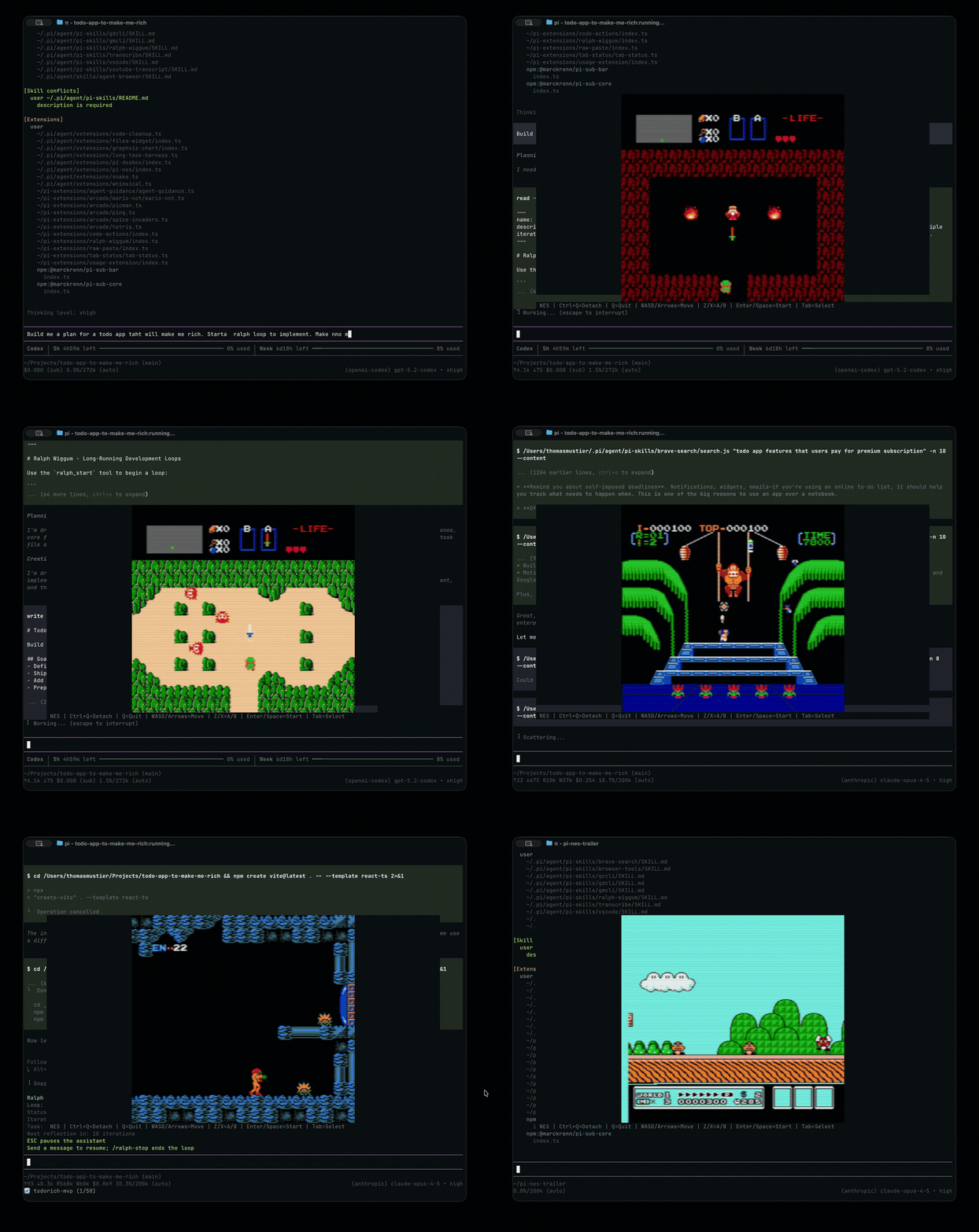
  "image": "https://raw.githubusercontent.com/tmustier/pi-nes/main/assets/demo.gif"
}
Security note
Pi packages can execute code and influence agent behavior. Review the source before installing third-party packages.
README
pi-nes
Play NES games in your terminal. A Pi extension that runs a full NES emulator with Kitty graphics support.

Installation
pi install npm:@tmustier/pi-nes
Or from git:
pi install git:github.com/tmustier/pi-nes
Updating
If you installed from npm:
pi update npm:@tmustier/pi-nes
Then fully restart pi.
Updating from older versions
- No config migration is required.
- On Kitty-compatible terminals (Ghostty, Kitty, WezTerm), image mode now opens in pi's main custom UI instead of an overlay.
- Text mode still uses the classic overlay experience.
Quick Start
/nes              # Pick a ROM from your library
/nes ~/roms/smb.nes   # Load a specific ROM
On first run, you'll be prompted to set your ROM directory and display quality. When launching /nes without a path, type to filter the ROM list while you navigate.
Controls
Game Controls
| Action | Keys |
|---|---|
| D-pad | Arrow keys or WASD |
| A button | Z |
| B button | X |
| Start | Enter or Space |
| Select | Tab |
Emulator Controls
| Action | Key |
|---|---|
| Detach (keep running) | Ctrl+Q |
| Quit | Q |
Tip: Detach with Ctrl+Q to return to pi, then run /nes to reattach to your game.
Commands
| Command | Description |
|---|---|
/nes |
Pick a ROM or reattach to running session |
/nes <path> |
Load a specific ROM file |
/nes config |
Quick setup (ROM directory + audio) |
/nes-config |
Toggle audio, quality, and display style + advanced options |
/nes debug |
Show FPS and memory stats |
Configuration
Config is stored at ~/.pi/nes/config.json. Use /nes config for quick setup (ROM dir + audio), or /nes-config to toggle audio/quality/style inline and access advanced options.
{
  "romDir": "/roms/nes",
  "saveDir": "/roms/nes/saves",
  "renderer": "image",
  "imageQuality": "balanced",
  "videoFilter": "ntsc-composite",
  "enableAudio": false,
  "pixelScale": 1.0,
  "keybindings": {
    "up": ["up", "w"],
    "down": ["down", "s"],
    "left": ["left", "a"],
    "right": ["right", "d"],
    "a": ["z"],
    "b": ["x"],
    "start": ["enter", "space"],
    "select": ["tab"]
  }
}
Options
| Option | Default | Description |
|---|---|---|
romDir |
/roms/nes |
Where to look for ROM files |
saveDir |
/roms/nes/saves |
Where to store battery saves (defaults to <romDir>/saves) |
renderer |
"image" |
"image" (Kitty graphics) or "text" (ANSI) |
imageQuality |
"balanced" |
"balanced" (30 fps) or "high" (60 fps) |
videoFilter |
"ntsc-composite" |
"off", "ntsc-composite", "ntsc-svideo", "ntsc-rgb" |
enableAudio |
false |
Enable audio output (requires native core built with audio-cpal) |
pixelScale |
1.0 |
Display scale (0.5–4.0) |
videoFilter applies a lightweight CRT/NTSC-inspired pass (horizontal bleed + scanlines). It runs in the native core and is optional.
Saves
Battery-backed SRAM is saved to <saveDir>/<rom-name>-<hash>.sav where the hash is derived from the full ROM path to avoid collisions. Old <rom-name>.sav files are ignored.
Saves are flushed on quit and periodically during play.
Terminal Support
Best experience: a Kitty-protocol terminal like Ghostty, Kitty, or WezTerm (image protocol + key-up events).
- Kitty-protocol terminals — Full graphics via image protocol (shared memory or file transport). Image mode opens in pi's main custom UI instead of an overlay to avoid Ghostty black-screen rendering issues.
- Other terminals — Falls back to ANSI half-block characters (
▀▄)
Set "renderer": "text" if you prefer the ANSI renderer or want the classic overlay experience.
Audio after npm install or update
The published package works without audio by default. To enable audio, rebuild the native core with the audio-cpal feature.
First, find the installed @tmustier/pi-nes path:
pi list
Then cd into the printed install path plus extensions/nes/native/nes-core, and rebuild:
npm install
npm run build:audio
For a standard global npm install, that path is typically:
cd "$(npm root -g)/@tmustier/pi-nes/extensions/nes/native/nes-core"
Then enable audio in /nes-config.
If you update @tmustier/pi-nes later, run build:audio again because the native binary may be replaced during the update.
Limitations
- Audio is opt-in — Requires building the native core with
audio-cpaland settingenableAudio: true - No auto-save — Save manually just like you would with the original NES (battery-backed SRAM)
Vendored Dependencies
nes_rustis vendored underextensions/nes/native/nes-core/vendor/nes_rust.- Fork: https://github.com/tmustier/nes-rust (upstream: https://github.com/takahirox/nes-rust)
- Update helper:
scripts/update-vendor-nes-rust.sh
Building from Source
Requires Rust toolchain (cargo + rustc).
git clone https://github.com/tmustier/pi-nes
cd pi-nes
npm install

# Build the NES core (required)
cd extensions/nes/native/nes-core
npm install && npm run build

# Build the NES core with audio (optional)
npm run build:audio

# Build shared memory renderer (optional, faster on Kitty)
cd ../kitty-shm
npm install && npm run build
Run locally:
pi --extension /path/to/pi-nes
Troubleshooting
/nes or /nes-config shows up twice
You likely have both an npm install and a local/path install enabled.
Check installed packages:
pi list
Then remove the extra one:
pi remove <source>      # for entries under "User packages"
pi remove -l <source>   # for entries under "Project packages"