@wishx127/pi-tokyo-night
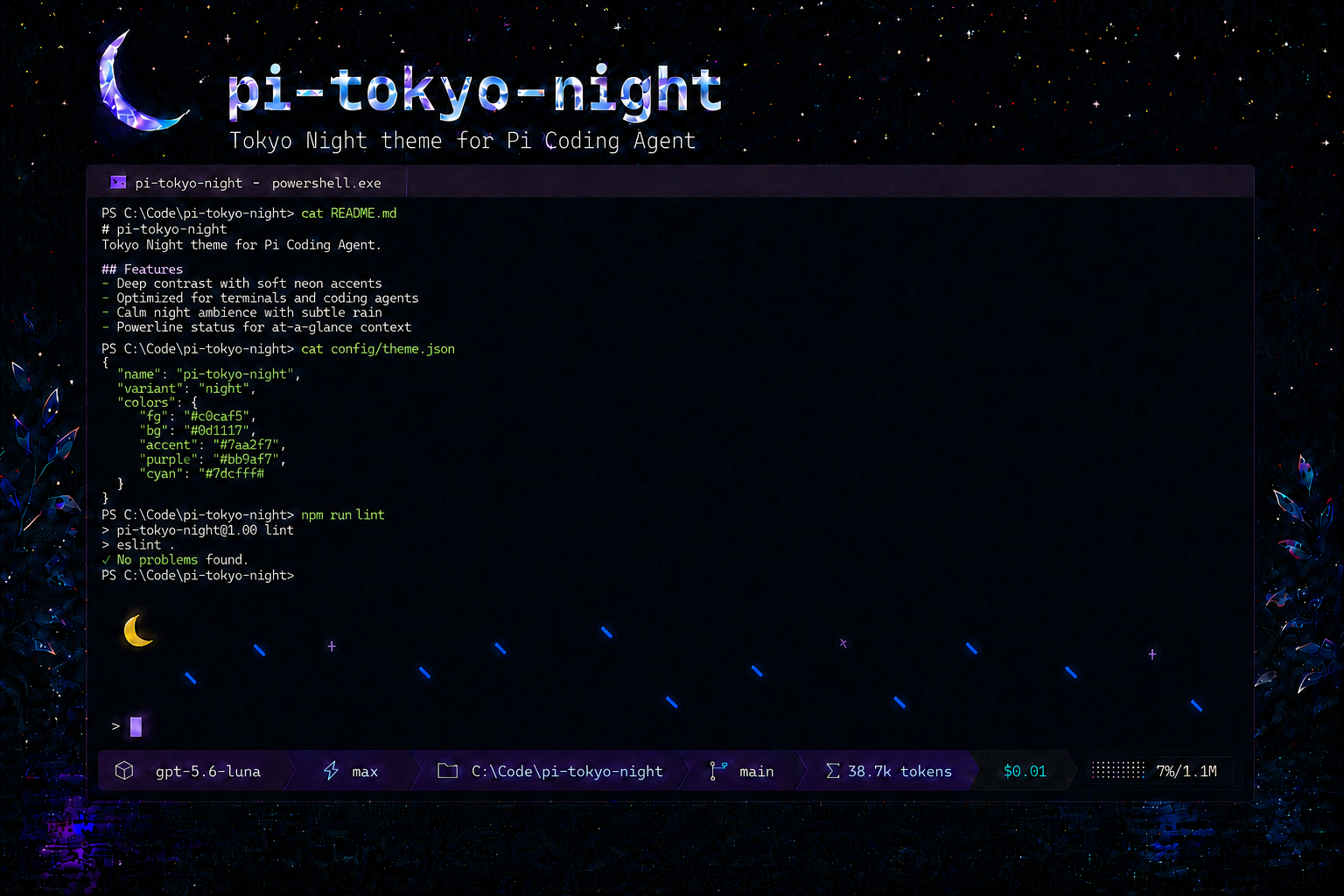
Animated Tokyo Night theme + extension for Pi with dynamic rain, a Powerline status bar, switchable light/dark themes, and live settings.
Package details
Install @wishx127/pi-tokyo-night from npm and Pi will load the resources declared by the package manifest.
$ pi install npm:@wishx127/pi-tokyo-night- Package
@wishx127/pi-tokyo-night- Version
1.1.9- Published
- Sep 3, 2026
- Downloads
- 2,275/mo · 329/wk
- Author
- ny9u
- License
- MIT
- Types
- extension, theme
- Size
- 215.8 KB
- Dependencies
- 0 dependencies · 3 peers
Pi manifest JSON
{
  "themes": [
    "./themes/tokyo-night-dark.json",
    "./themes/tokyo-night-light.json"
  ],
  "extensions": [
    "./extensions/pi-tokyo-night"
  ],
  "video": "https://cdn.jsdelivr.net/gh/wishx127/pi-tokyo-night@main/assets/showcase.mp4",
  "image": "https://raw.githubusercontent.com/wishx127/pi-tokyo-night/main/assets/thumbnail.png"
}
Security note
Pi packages can execute code and influence agent behavior. Review the source before installing third-party packages.
README
pi-tokyo-night
An animated Pi theme + extension that brings Tokyo Night to your terminal with dynamic rain, a Powerline status bar, switchable themes, and live customization.



📦 Install
Try it for one Pi run without installing it permanently:
pi -e npm:@wishx127/pi-tokyo-night
To install it permanently:
pi install npm:@wishx127/pi-tokyo-night
Restart Pi, then open /tokyo-night to choose Dark, Light, or Automatic and customize the interface.
✨ Highlights
Tokyo Night theme + extension — Complete dark/light colors for Pi plus a framed editor and an activity-aware working indicator.
Animated rain panel — Cyan raindrops drift beneath a crescent moon and purple stars, with speed and density responding to Pi activity.
Powerline status bar — See the model, thinking level, path, Git branch, provider limits, tokens, cost, and context progress at a glance.
Neon Studio — Open /tokyo-night to preview Dark and Light themes. Automatic immediately follows the current IDE terminal background and saves the light/dark pair for the next Pi start. You can also customize the frame, rain, quota, icons, and status modules live.
🛠 Usage
After restarting Pi, the extension loads automatically. Use /tokyo-night to control it:
/tokyo-night          # open Neon Studio
/tokyo-night on       # enable the rain panel
/tokyo-night off      # disable the rain panel
Codex usage is shown in the status bar only when codexQuota is enabled and the session is using a Codex-compatible model over transport=sse.
Kimi Code usage (5-hour rolling window + weekly quota) is shown only when kimiQuota is enabled and the active kimi-coding model uses Kimi's official https://api.kimi.com endpoint.
Status bar modules
| Position | Module | Description |
|---|---|---|
| Left | Model | Current AI model name |
| Left | Thinking | Thinking level (off / minimal / low / medium / high / xhigh / max) |
| Left | Path | Shortened working directory |
| Left | Branch | Current Git branch (hidden when not in a repo) |
| Right | Codex Limit | Codex quota / reset status (SSE + Codex-compatible models only) |
| Right | Kimi Limit | Kimi Code 5h window + weekly quota with reset countdown (kimi-coding models only) |
| Right | Tokens | Pi-native ↑ input / ↓ output / R cache-read / W cache-write session totals and latest-request CH |
| Right | Cost | Session cost |
| Right | Progress | Context window usage bar with percentage (? while Pi reports usage as unknown) |
Neon Studio
Open with /tokyo-night. Neon Studio uses Pi's standard custom UI area—not an overlay—so the Rain and Status widgets remain visible while settings are previewed. Rain, Neon Studio, and Status share one continuous outer frame instead of stacking nested cards.
| Section | Settings |
|---|---|
| Appearance | Automatic/Dark/Light Theme, Top Panel, Interface Frame, Status Icons |
| Status | Model, Thinking, Path, Git Branch, Provider Limit, Tokens, Cost, Context |
| Usage | Codex Limit, Kimi Limit |
| Rain | Rain Mode, Rain Rows; Manual also exposes Rain Tick and Max Rain Drops |
Extension settings are persisted in an extension-owned file:
- Windows:
%USERPROFILE%\.pi\agent\extensions\pi-tokyo-night.json - macOS / Linux:
~/.pi/agent/extensions/pi-tokyo-night.json
Existing settings are copied here automatically on first run. Neon Studio applies extension settings and pinned Dark/Light themes live; The file remains available for manual editing, with unspecified status modules enabled by default. Manually edited values are loaded on the next Pi start:
{
  "panel": true,
  "editorFrame": true,
  "codexQuota": false,
  "kimiQuota": true,
  "iconMode": "nerd",
  "statusModules": {
    "model": true,
    "thinking": true,
    "path": true,
    "git": true,
    "quota": true,
    "tokens": true,
    "cost": true,
    "context": true
  },
  "rainMode": "auto",
  "rainRows": 3,
  "rainTickMs": 130,
  "maxRainDrops": 25
}
🌗 Light / Dark auto-switching
The package ships two themes: tokyo-night-dark and tokyo-night-light.
You can also configure both variants through Pi's /settings screen. For manual configuration, set Pi's own theme setting—not the Tokyo Night extension config—in ~/.pi/agent/settings.json using <light-theme>/<dark-theme> order:
{
  "theme": "tokyo-night-light/tokyo-night-dark"
}
The first name is used for light terminals and the second for dark terminals. Pi detects the terminal background on startup. Select either theme by itself in /settings if you prefer to pin one variant.
Customizing colors
Edit the theme file to change any color. All color variables are defined in the vars block:
{
  "vars": {
    "cyan": "#7dcfff",
    "blue": "#7aa2f7",
    "green": "#9ece6a",
    ...
  }
}
Theme location:
- Windows:
%USERPROFILE%\.pi\agent\npm\node_modules\@wishx127\pi-tokyo-night\themes\tokyo-night-dark.json - macOS / Linux:
~/.pi/agent/npm/node_modules/@wishx127/pi-tokyo-night/themes/tokyo-night-dark.json
📌 Requirements
- Pi Coding Agent
>=0.80.5 - Terminal with 24-bit true color support
- Nerd Font for icons (optional)
🤝 Contributing
Contributions are welcome! Please feel free to submit a Pull Request.
For bug reports and feature requests, open an issue.
License
MIT