lune-shell-inspector
Shell dock and /shell inspector for pi's background bash jobs
Package details
Install lune-shell-inspector from npm and Pi will load the resources declared by the package manifest.
$ pi install npm:lune-shell-inspector- Package
lune-shell-inspector- Version
1.2.0- Published
- Oct 5, 2026
- Downloads
- 836/mo · 398/wk
- Author
- lune_99
- License
- MIT
- Types
- extension
- Size
- 381.7 KB
- Dependencies
- 1 dependency · 3 peers
Pi manifest JSON
{
  "image": "./assets/preview.png",
  "extensions": [
    "./src/index.ts"
  ]
}
Security note
Pi packages can execute code and influence agent behavior. Review the source before installing third-party packages.
README
Lune Shell Inspector



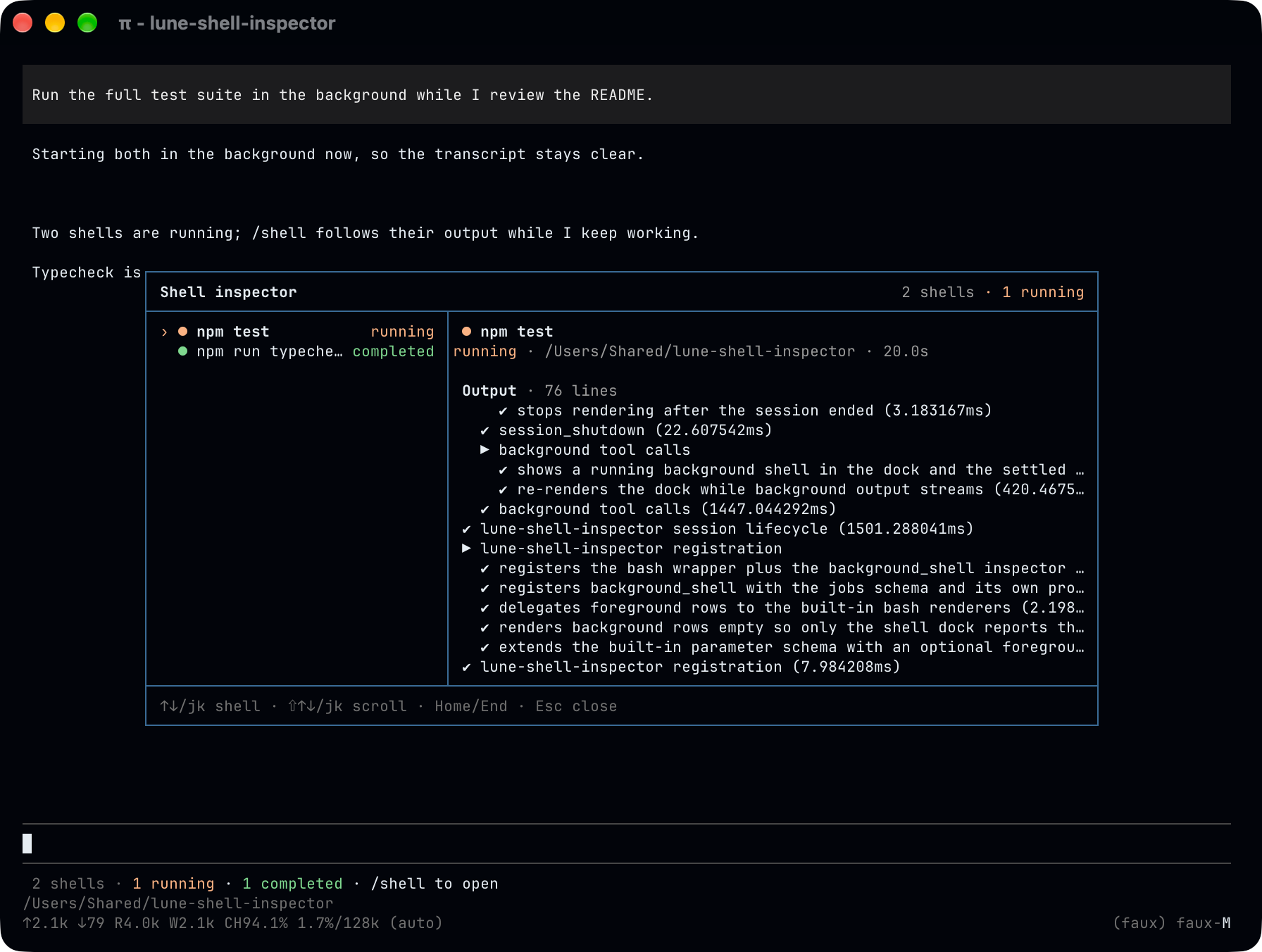
Managed background shells for Pi, with a live dock and an interactive /shell inspector.
Lune Shell Inspector lets Pi keep long-running commands visible and manageable without changing the normal foreground bash experience. Commands that need an immediate result stay in the foreground; independent work can run in the background while the agent continues.
Quick start
Install from npm:
pi install npm:lune-shell-inspectoror straight from GitHub:
pi install git:github.com/Nouvelle-Lune/lune-shell-inspectorThen start Pi normally:
piThere is no separate shell mode to enter. The extension augments Pi's existing bash tool with foreground and background execution.
For example:
Start the dev server in the background, then keep working on the feature.or:
Run this command in the foreground because I need the result before continuing.What it does
- Keeps foreground bash native. Normal commands continue to use Pi's standard foreground behavior and transcript rendering.
- Runs independent work in the background. Background shell jobs return immediately so the agent can continue with other work.
- Shows live shell status below the editor. The dock summarizes running and settled jobs without taking over the transcript.
- Adds an interactive
/shellinspector. Browse jobs, inspect status and metadata, follow or scroll their terminal output, stop a running job, and clear settled ones from the list. - Makes terminal output readable. Progress bars, redraws, spinners, and other terminal-style output are rendered as a screen instead of raw escape sequences.
- Lets the agent inspect background jobs. The
background_shelltool can query job status and, when needed, current output. - Lets the agent stop a job it no longer needs. A running background shell can be cancelled on request, and it stays in the list with its output, so nothing has to be read before the job is stopped.
- Returns completion to the agent. When a background job finishes, fails, or is killed, the result is delivered back to the agent so it can react without constant polling, and the same batch appears in the transcript as a status band with the command, outcome and output tail (
ctrl+oexpands it). - Follows the Pi session. Shell state is restored with the active session branch, and running jobs are stopped when their owning Pi session shuts down.
Shell dock
Background jobs appear in a compact status dock below the editor.
Examples:
1 running shell · npm test · 12s · /shell to open5 shells · 3 running · 1 completed · 1 failed · /shell to openThe dock updates while jobs are running and disappears when there are no shell jobs to show.
/shell inspector
Run:
/shellto open the shell inspector.
The job list stays on the left, showing a job's label when it has one and its command otherwise; the selected shell's command, status, working directory, duration, exit information, and terminal output appear on the right.
Keyboard controls:
| Action | Keys |
|---|---|
| Select shell | ↑ / ↓ or k / j |
| Scroll output | Shift+↑ / Shift+↓ or Shift+k / Shift+j |
| Jump to oldest output | Home |
| Follow newest output | End |
| Kill selected shell | x |
| Clear selected shell | c |
| Close inspector | Esc |
Killing a running shell stops its process tree but keeps it in the list, with its output still readable. Clearing a completed, failed, or killed shell removes it from the list once you are done with it.
The inspector remembers which shell you were viewing: close it and reopen /shell and the selection is where you left it. That position lives in memory only, so a reloaded or resumed session opens on the first shell again.
In pi's fullscreen mode (the default since pi 1.0.0), the mouse works too: the wheel scrolls the output pane or moves the selection over the job list, and clicking a job selects it. Regular mode leaves the mouse to the terminal, so every action keeps its key.
Each pane has an automatically hidden scrollbar on its right edge when its content exceeds the viewport. Scrolling output reveals the output scrollbar; selecting a shell in an overflowing list reveals the list scrollbar. Each hides independently after one second without further interaction. The bars show the current position and visible proportion without covering text or changing wrapping.
Output follows the newest lines by default. Scrolling upward pauses that follow behavior so new output does not pull the viewport away from what you are reading. While paused, a [ ↓ Back to bottom · End ] label appears on the separator below the output; click it or press End to follow the newest lines again.
Agent-facing tools
bash
Foreground is the default. Background execution is intended for commands that can safely continue independently while the agent does other work. A background call may carry an optional label, which the /shell job list shows in place of the command.
background_shell
The companion tool lets the agent:
- list managed background shells;
- query selected shell IDs;
- inspect status without loading output;
- request current output when it is actually needed.
kill_background_shell
Cancels a running background shell when its work is no longer wanted: a dev server you are done with, a watcher left behind by a re-run, a test run that is clearly redundant. The agent stops the job it already knows about, so only that one shell goes away.
Cancelling is not deleting. The shell stays in /shell with its output, so you can still read what it printed before it stopped.
Development
npm install
npm test
npm run typecheck
npm run tui:demo@earendil-works/pi-coding-agent, @earendil-works/pi-tui, and typebox are supplied by the Pi host at runtime, so the package declares them as peerDependencies with a "*" range and never bundles them. They are repeated in devDependencies so local typecheck and tests resolve the same modules Pi injects.
License
MIT