pi-aftc-toolset
Stats bar. Isolated SSH. Documentation generation (docx). Persistent self-educating cache-aware skills on demand (codex). Usage reports. Audio notifications. Shortcuts. Skills. Themes ++
Package details
Install pi-aftc-toolset from npm and Pi will load the resources declared by the package manifest.
$ pi install npm:pi-aftc-toolset- Package
pi-aftc-toolset- Version
1.22.0- Published
- Aug 19, 2026
- Downloads
- 3,514/mo · 85/wk
- Author
- darceylloyd
- License
- Elastic-2.0
- Types
- extension, skill, theme
- Size
- 7 MB
- Dependencies
- 2 dependencies · 4 peers
Pi manifest JSON
{
  "extensions": [
    "./extensions"
  ],
  "skills": [
    "./skills"
  ],
  "themes": [
    "./themes"
  ]
}
Security note
Pi packages can execute code and influence agent behavior. Review the source before installing third-party packages.
README
pi-aftc-toolset




Install
pi install npm:pi-aftc-toolset
Then in pi:
/aftc-install     # installs better-sqlite3 + packaged SSH carrier deps (python)
/reload
Runtime dependencies:
pi installdoes not install all the required runtime deps. Run/aftc-installafter extension installation.
Footer widget

A themed dashboard bar below the editor (/aftc-footer to configure:
enable, averages line, timeframe). Lines 1-4 always available; line 5 only
for supported subscription providers; line 6 only while Sub Agents (/007)
is enabled.
Line 1 - what's happening right now
Model name + thinking level, context window size with pi's own context-use %, last-turn cache hit vs session average (with trend arrow), and the session's cached vs new token split.
Line 2 - your money and prompts
User vs AI prompt counts, last turn cost, live Task Time, Session Time (wall-clock since your first prompt) and Session Time Cost.
Line 3 - speed and tools
Turn thinking time and response time (last + averages), active tool count with estimated schema tokens, and skills used/available.
Line 4 - long-term averages
Prefixed with the chosen window (eg 3 Day Averages:), from the persistent
usage DB: total cost, window prompt sums (User/AI), average cache hit %,
and Avg Task Time (completed tasks only). 19 windows via /aftc-footer →
Set averages timeframe: ten rolling "Last …" windows (1h-72h) and nine
calendar-anchored windows (1 Day → 1 Year).
Line 5 - subscription quota (some providers only)
5-hour rolling + weekly allowance usage with live reset countdowns. Supported: ChatGPT/Codex (OAuth), Anthropic (OAuth subscription headers), MiniMax Token Plan, ZAI/GLM Coding Plan, Kimi for Coding. All other providers: the line stays hidden — and it hides immediately when you switch to a model whose provider reports no allowance. The numbers refresh after every prompt, on model changes, and on a gentle 60-second background poll, so you can check what you have left BEFORE starting a big task (the poll backs off automatically if the provider's usage endpoint is failing or has no credentials).
Line 6 - sub agents (only while /007 is enabled)
Always visible while the Sub Agents feature is on: runs active vs max concurrent, this session's total sub-agent cost, the average task time of completed runs, and which agents are running right now (each with its context-window %).
SSH
Operate remote servers from pi - model tools for the AI, slash commands for you, a full-screen interactive terminal for hands-on work. Everything runs through a packaged Python (Paramiko) carrier over local stdio - it opens no listening socket.
Ensure dependencies are installed
/aftc-install
Installs/verifies the carrier environment: Python 3 + uv + uv sync --locked of the packaged sidecar.
SSH commands
| Command | What it does |
|---|---|
/ssh-cm (alias /ssh-connection-manager) |
Full-screen connection manager: add / edit / delete saved connections |
/ssh-connect [name] |
Connect a saved connection (quotes for names with spaces; no name → picker) |
/ssh-connections |
List saved connection names |
/ssh-status |
Show connection status |
/ssh-select [id] |
Select the active session for local commands |
/ssh-disconnect [id] |
Disconnect a session |
/ssh-shell |
Open the full-screen interactive terminal on the selected session |
/ssh-close-shell <id> |
Close an interactive shell |
/ssh-interrupt <id> |
Send Ctrl+C + Ctrl+D recovery keys to a shell |
/ssh-upload <local> <remote> [--preserve] |
Upload a file (overwrite confirmation; --preserve keeps attrs) |
/ssh-download <remote> <local> [--preserve] |
Download a file (overwrite confirmation) |
/ssh-rename <from> <to> |
Rename a remote path after confirmation |
/ssh-auto-accept-session-on / -off |
Trust NEW host keys without asking / restore the prompt (changed keys are always rejected) |
/ssh-help |
SSH workflow guidance |
How to manage connections
/ssh-cm opens the connection manager: [ Add new connection ],
[ Edit ], [ Delete ]. The add dialog collects name, username, host,
port (22), timeout (30 s), optional key path and optional password (saved
locally, never exposed to the model).
How to connect
/ssh-connect [name] - or just ask the model, which uses ssh_connect.
New host keys ask for approval (or auto-accept when enabled).
How to disconnect
/ssh-disconnect [id] - or the model's ssh_disconnect. Idle carriers are
reaped automatically and re-spawned on demand.
Run commands and pick a session
/ssh-select chooses the session the local commands act on. For driven
work, the model uses ssh_run (bounded, 120 s max timeout, optional
bounded stdin - never for credentials).
Interactive shells
/ssh-shell opens a full-screen terminal (nano, vim, htop, top, less all
render properly). All keys go to the remote program - including Esc;
Ctrl+] exits locally. The model drives programs through
ssh_open_shell + ssh_send_keys / ssh_paste / ssh_peek /
ssh_resize / ssh_interrupt / ssh_close.
Transfer files
/ssh-upload + /ssh-download (or the model's ssh_upload /
ssh_download): files or whole directory trees, symlinks never followed,
cancellable, --preserve restores timestamps/permissions.
Manage remote files
Model tools: ssh_list_dir, ssh_read_file, ssh_stat, ssh_write_file,
ssh_mkdir, ssh_rename, ssh_remove - every mutation needs local-user
approval.
Model tools
20 tools: ssh_status, ssh_connect, ssh_disconnect, ssh_run,
ssh_open_shell, ssh_send_keys, ssh_paste, ssh_resize, ssh_close,
ssh_peek, ssh_interrupt, ssh_upload, ssh_download, ssh_list_dir,
ssh_read_file, ssh_stat, ssh_write_file, ssh_mkdir, ssh_rename,
ssh_remove. A bundled ssh skill teaches the model the workflow.
Credential isolation
Connections are saved in your local ssh.json; the model only ever sees
saved NAMES and opaque session/shell ids. Credentials are collected by
local prompts, all model-facing output is redacted, and errors are mapped
to safe categories (timeout, cancelled, not connected, unavailable) - no
host/port/key diagnostics ever reach the model.
aftc-codex (PI skills on steroids - codex knowledge base)
An OPT-IN, self-educating knowledge base: the core rules + thinking
guidance + a generated resource list ride your system prompt, and the model
fetches topic docs on demand with codex_load (aliases: ts, py, js;
specials: rules, guidance, list, markdown). It ships with only the core
rules and guidance - no ready-made topic docs. The knowledge base is yours
to build: as you work it learns your usage patterns and the kinds of
projects you build, so it adapts to you rather than inheriting the
extension author's habits and AI-usage style.
Context cost - what you should know before enabling:
Just turning it on costs nothing - in a normal (TUI) session the codex only loads once you run
/codex-init; the fresh-session "AFTC CODEX" banner is display-only and never reaches the model. (Print/headless mode auto-preps, so the cost starts there without any command.)After
/codex-init(prepped), the rules + thought guidance + resource list ride the cached system prompt prefix: roughly 50 KB (~12-13K tokens) on every turn, plus the AI loads the detected project topics' docs into the chat. It is cache-friendly (byte-stable - cache-hits after the first turn) but it occupies window space and counts toward your usage every turn.Loading 1 to 5 resources is light; loading 20 can be costly - load what the current task needs, not everything at once.
Tip: create a
plan.mdand atasks.mdfirst so you can maximise your use of the codex skills./codex- settings menu (enable, guidance inject, auto-detect & load, auto insert of the codex stack into AGENTS.md, resources & updates)./codex-enable//codex-disable- turn the knowledge base on/off./codex-init//codex-refresh- prep the session (auto-detects your project's stack and loads the relevant docs) / strip + re-prep./codex-status- state and resource counts./codex-list- scrollable full-screen list of every available codex resource (first item highlighted, ↑/↓ to move, type to filter; the Documentation & Planning guide is pinned at the top; headless prints)./codex-load- pick one codex resource to load from a menu (type to filter); Enter picks it and the menu closes - the AI loads it right away - works even in rules-only / un-prepped sessions (it's the same as telling the AI "codex load ")./codex-install- wipe the codex and restore the shipped basics (rules- guidance; your resources folder starts empty).
/codex-learn- record durable lessons via thecodex_add_entry/codex_edit_entry/codex_remove_entrytools (IDs generated, formats validated, generality + secrets guards enforced)./codex-inject-rules- session-only critical-rules injection (works even when disabled; cleared by/new).
Your live copy lives in your data dir (aftc-codex/). It ships with only
the core rules + guidance - the topic docs are yours to build with
/codex-learn (or codex_add_entry), and your resources are never touched
by an update.
Usage report
/usage-report seeds a small report web app into your data dir
(usage-report/), generates a fresh data.json from your recorded
usage, and starts a bundled local server in its own terminal window -
your browser opens automatically. No internet needed: Chart.js ships
with the app. Close the server window (or Ctrl+C) to stop it; it also
shuts itself down after 30 minutes idle. Requires Node.js (you have it
if pi runs). Every assistant turn is recorded as metrics only -
never prompt or response text. /usage-clear wipes the database
behind a confirmation.
Overview
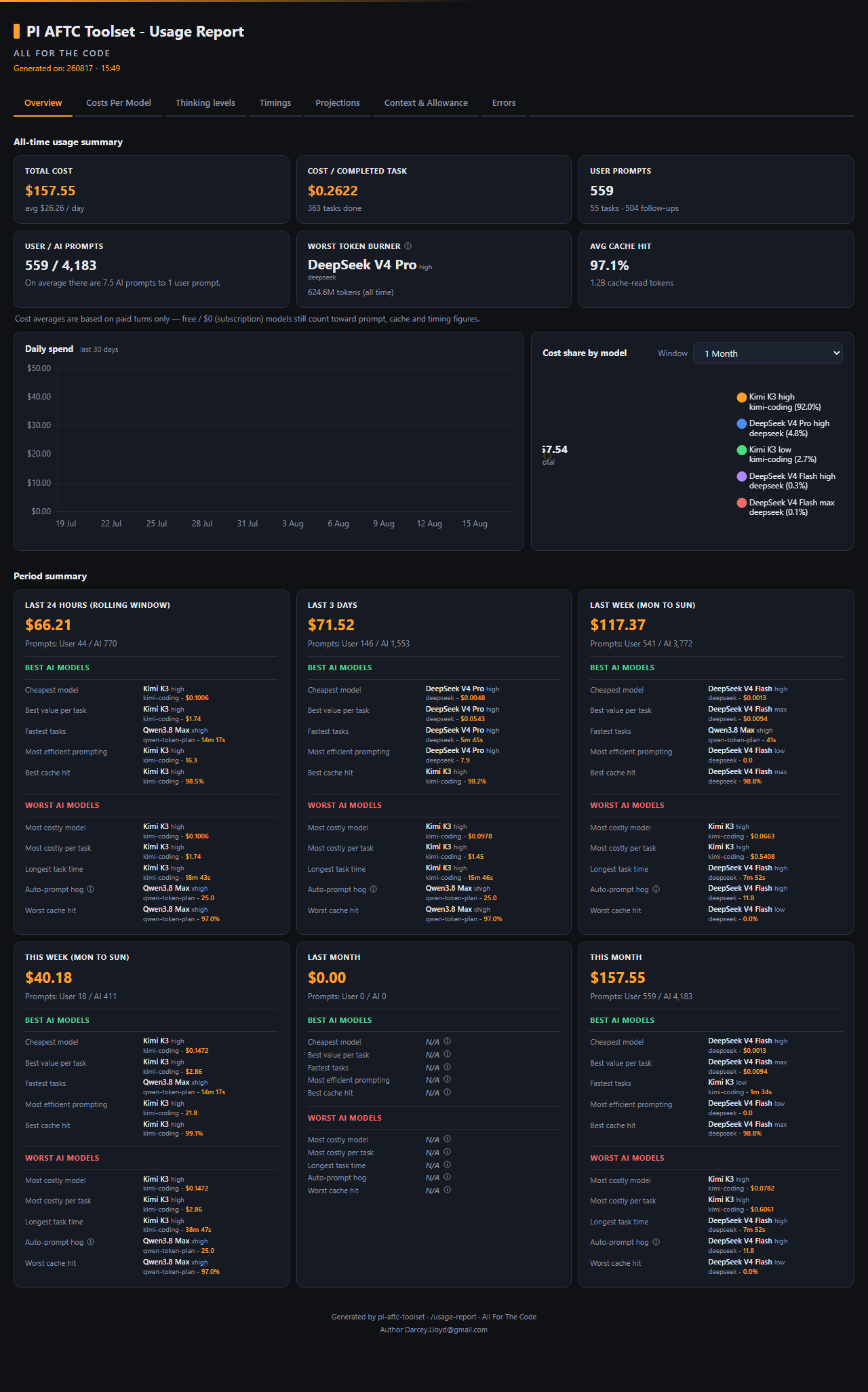
Six headline cards (all-time totals and averages): total cost, cost per completed task, user prompts, the User/AI prompt ratio, the worst token burner and average cache hit — followed by a 30-day spend chart, a cost-share doughnut with a window selector, and a six-pane period summary (last 24 hours / last 3 days / last week / this week / this month / last month), each pane naming the best and worst models for cost, task time, prompting efficiency and cache.
Costs Per Model

The hero/shame ranking: a per-model sortable table with a period selector showing average cost per turn, average task cost, User/AI prompts, cache, context use, errors and task time — with verdict badges that call out the best and worst model per metric ("why" tooltips on hover).
Thinking levels
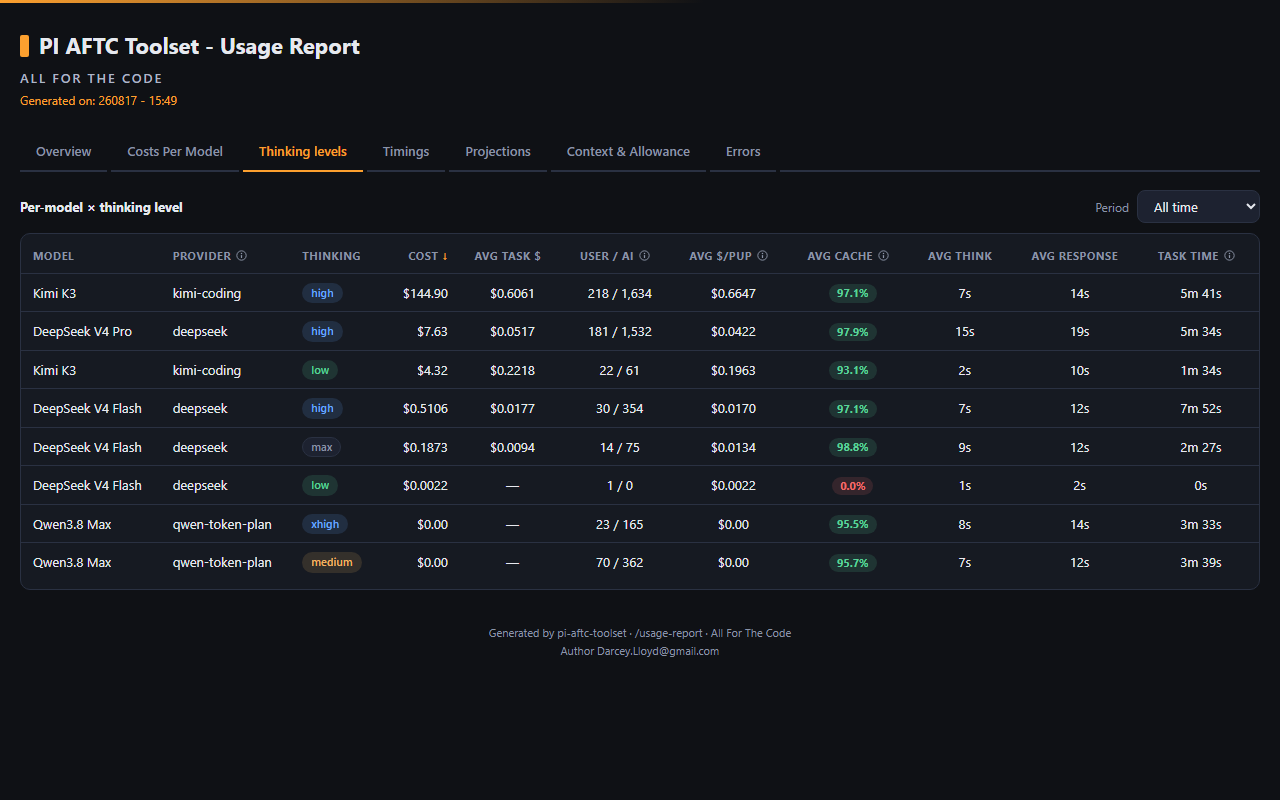
The same per-model table broken down by thinking level (one row per model × thinking-level combination): cost, task cost, User/AI prompts, cache, think and response times, and task time — sortable, with a period selector.
Timings

Task Time analysis: average and longest task, turns per task, error and abort counts, task time by model, a daily average chart, where the time goes (thinking vs responding), user- vs AI-turn timings, and the top-10 longest completed tasks.
Projections

Usage-rate cost projections: average $/turn and $/task, tasks per active day, and projected 7/30/90/365-day spend built from your own pace — per model and overall, with a period selector. Zero-cost models are excluded.
Context & Allowance
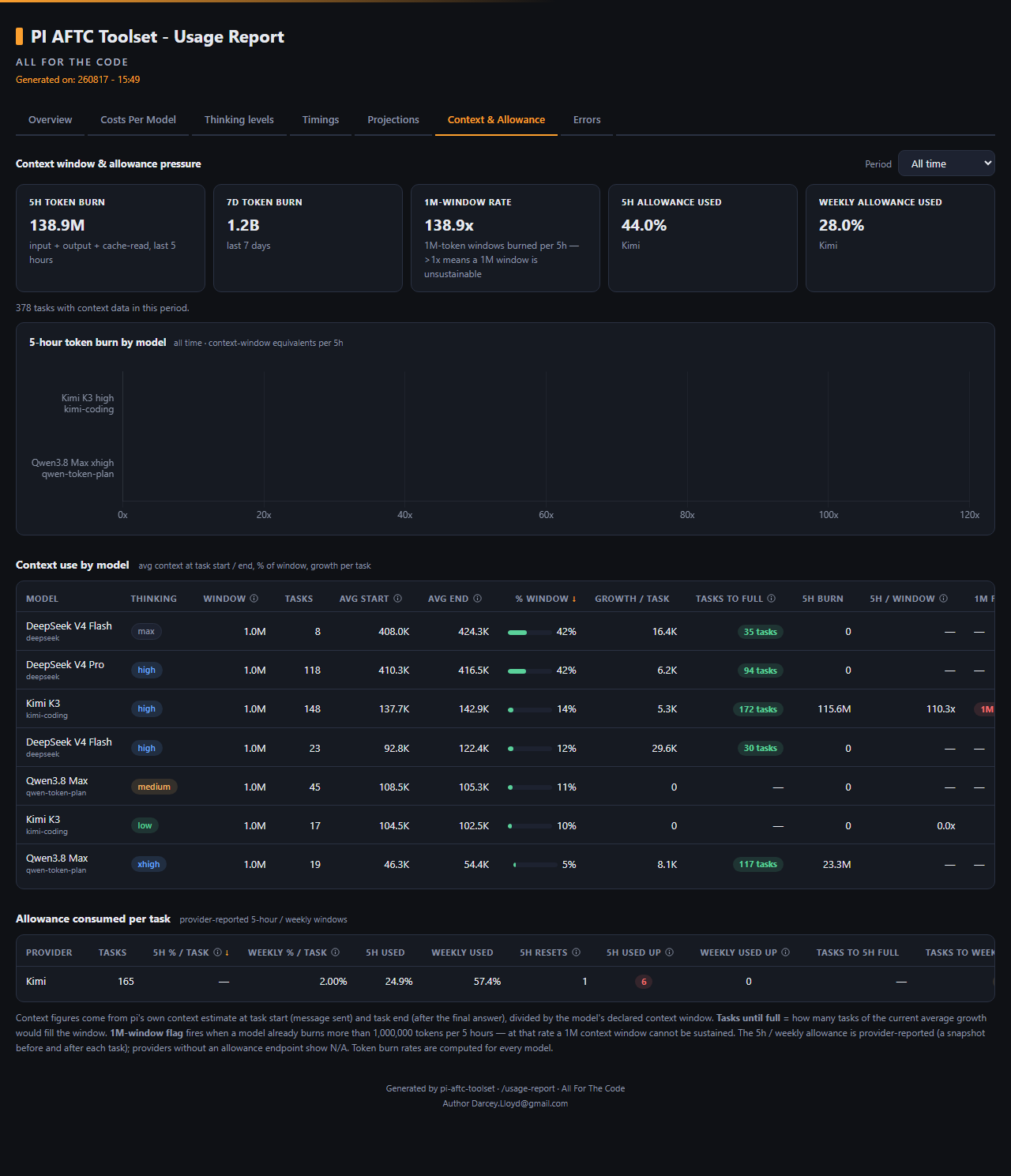
Context-window pressure: 5h/7d token burn, the 1M-window rate, context used before and after each task, % of window, tasks until the window fills — plus the provider-reported 5h / weekly allowance consumed per task (Codex, Claude, MiniMax, Z.ai GLM and Kimi only; other providers show N/A).
Errors
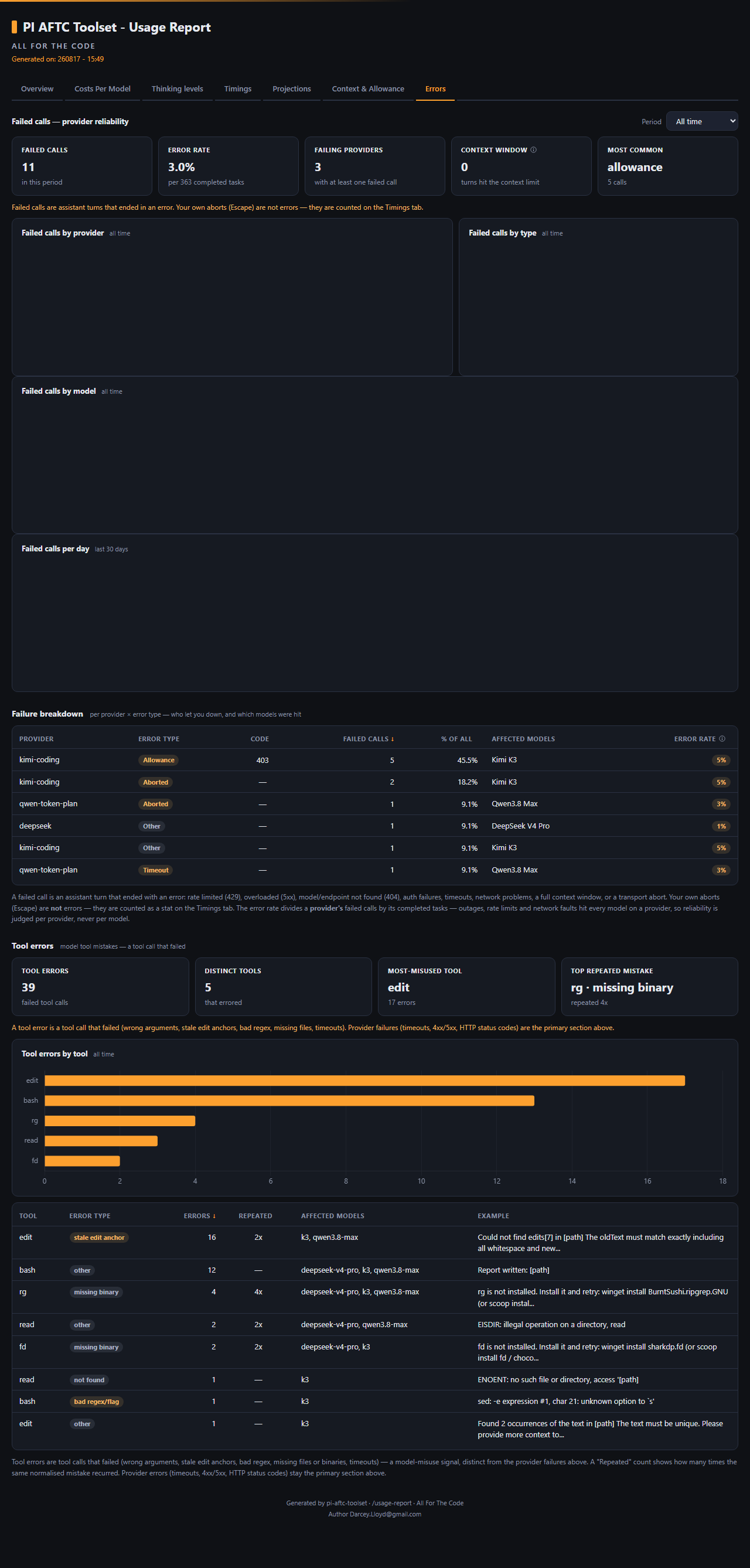
Failed calls per model × error type (rate limit, overloaded, not found, auth, timeout, network) with a fair error rate over completed tasks — your own aborts are a stat on Timings, not errors. The failed-calls-by-model chart reports model + provider (thinking levels are merged — a failed call is a provider issue). Below that, a Tool errors section lists failed tool calls (wrong args, stale edit anchors, bad regex, missing files, timeouts) with repeat-mistake highlighting; the example column is sanitized before it reaches the report — no file paths, URLs or project code, capped at 100 characters.
/docx project documentation generator
Regenerates a project's full documentation set: a fresh GitHub README
(written last), plus ./docx/ - master document, structure map, and a
mirrored tree of ID-prefixed deep docs - per the shipped documentation
guide. Before anything is generated, existing documentation is moved to
./docx/old_docs/ (zipped into ./docx/backups/ as a timestamped backup
at the end); AGENTS.md is edited in place, never replaced.
WARNING: this will re-write readme.md (AGENTS.md is edited in place, never replaced) and move all existing documentation - your docs folder moves to
./docx/old_docs/, zipped into./docx/backups/when the run completes. Run/newfirst, then/docx- a fresh session means no compaction risk mid-generation and no prior conversation steering the docs. Expect a LONG wait on larger projects: measured runs used only 5-8% of a 1M-token window and even large projects stayed under 20%, but the bigger and more complex the project, the longer it takes.
/docx                # confirmations + project-type picker (auto-detect pre-selected)
/docx --yes          # headless: skip confirmations
/docx --type <key>   # headless: pick the prompt pack
Already have a ./docx/ set? /docx-update reconciles it with the source
instead of regenerating: new files get docs, removed files lose theirs,
drifted docs are corrected in place, and your README is fact-checked
WITHOUT being rewritten (same gates, confirmations and backup).
Safeguards: refuses at ≥25% context use (compaction-corruption risk),
advises /new at ≥20%, verified backup counts, sub-project folders stay
read-only.
Think-tag processing
Models that emit thinking as inline <think>…</think> text tags (the
DeepSeek/Qwen convention) get those tags converted into pi's native
collapsible thinking blocks at message-finalize time. Off by default:
/aftc-enable-think-processing / /aftc-disable-think-processing. Safe by
construction: skips messages that already have thinking blocks, errored /
aborted turns, and provider-signed text.
Cache diagnostics
Everything the footer shows, on demand:
/cache-profile- per-tool schema token costs, skills loaded, cache prefix shape (system/tools/prefix hashes), churn analysis./cache-stats- session cache statistics, cache-write ROI (net saved, payback turns), cost burn rate./cache-reset- zero the accumulators (debugging)./cls- clear the terminal screen.
Hit-rate formula: cacheRead / (cacheRead + input) - pi's input is NEW
prompt tokens only. Prefix churn (system prompt or tool schema changes
breaking the cache) is detected per turn and warned.
run_script (reliable large scripts)
The run_script model tool writes the script body to a temp file and runs
bash <file> - no inline-size limit, working around pi's bash-tool
truncation bug (a few KB+ inline commands get silently cut). Bash-only
(git-bash on Windows); default timeout 120 s, max 1800 s. Toggle:
/run-script-on / /run-script-off (default on).
Background Terminals (/bt)
Start long-running shell commands in the background and keep working while
they run. The model uses bg_start / bg_status / bg_list / bg_kill;
you use /bt — a scrollable list of the running terminals: Enter on a row
asks "yes/no" and stops that terminal, the TERMINATE ALL row at the top
stops everything at once, Esc closes. No stdin,
session-scoped (killed on /new or /reload), max 8 at once, off by default
(/bt-on then /reload). A one-line widget shows how many are running.
Copy All (/copy-all)
/copy-all copies every previous user and assistant message in the current
thread to the clipboard, joined with --- separators (thinking excluded,
bounded to 2 MB).
File Search
First-class file finding and content search. fd finds files/directories
by name, extension, glob, type and depth; rg searches file contents with
regex or literal text, smart-case, gitignore-aware. Both shell out to the
Rust fd / ripgrep binaries (fast, accurate, cross-platform) - install
them via your package manager and the tools just work (a missing binary
gives a clear install hint). Toggle: /file-search-on / /file-search-off
(default on). Every failed run lands in the report's Tool-errors section.
Sub Agents (/007)
Delegate focused work to isolated child pi processes. Each sub-agent runs in its own fresh context window with a profile-locked toolset and hands back a bounded report - your main session stays clean. Nine built-in agents ship (worker, planner, researcher, reviewer, explorer, advisor, documenter, designer, tester); make your own in your agents folder (a guide file lives there too).
- Off by default - enable and configure via
/007- Settings. /007is the main menu: browse agents, active work, settings, guide./007-statusshows a live table of running agents.- The footer (line 6) shows what sub-agents are running while /007 is enabled.
- Your agents live in your data dir (
subagents/);/007-edittweaks them.
AFTC Resume (/aftc-resume-save /aftc-resume)
Hand work off between context windows. As you work, when you want a clean
handoff point - or before the context window gets unwieldy - run
/aftc-resume-save:
- An existing
aftc-resume.mdis renamed to a timestamped snapshot (aftc-resume-<last-modified>.md) so old states are never lost. - The model stops and writes the handoff file (
./aftc-resume.md): Goal, Current State, Decisions Made, Knowledge Learned, Key Files, Tasks & Progress (referencingtasks.mdwhen you follow one), Next Steps, Open Questions. - The toolset merges a
## Resume metadatablock (project, saved time, codex resources loaded, status) and verifies the save.
Then /new, and run /aftc-resume to restore your knowledge in the fresh
window:
- The model reads
aftc-resume.mdfirst. - Codex resources listed in the handoff are re-loaded via
codex_load(only when codex is enabled - the flow works with it on or off; key files are always the fallback). - It reads BOTH docx docs (
docx/project_documentation.mdanddocx/project_map.md- each only when present) and re-reads AGENTS.md. - It confirms it is up to speed in a few short lines and then waits for your direction — it does NOT continue the saved task on its own. The handoff's Next Steps are reference; say something like "continue the saved work" when you want it to pick the task back up.
Notes:
- The
/newis always yours - the toolset never starts a session on its own. - When the work described in the handoff is complete, the model flips its
status:line tocompleted, so a stale handoff is recognisable. - The handoff + snapshots are transient work state - add
aftc-resume.md(andaftc-resume-*.md) to.gitignore,.npmignoreand.dockerignoreif you commit or publish the project (this package's own repo ships these rules in all three).
Audio notifications
Play event sounds as pi works - enabled via the /aftc-audio-notifications
settings hub, which also has per-category sound pickers and an "open sounds
dir" option. Off by default (fresh installs are silent).
- Sounds fire for: startup, when the agent asks a question, task complete, error, aborted, and when context-window usage crosses 25% / 50% / 75%.
/aftc-notify-time [sec]sets the minimum task duration before the completion sound plays (0 disables it).- Context-window alerts fire on the way UP past a threshold and stay quiet until usage genuinely drops back below it - reloading or resuming never replays them.
Keyboard shortcuts
| Shortcut | Action |
|---|---|
Alt+C |
Clear the input editor |
Alt+N |
Insert a newline at the cursor |
Alt+X |
Cut all input text to the clipboard |
Ctrl+T |
Toggle thinking blocks (pi built-in) |
Bundled themes
- aftc-orange-viz - orange-accented variant of the sea-shells palette (the AFTC default, recommended).
- cache-viz - cache-focused green/cyan colour scheme.
- aftc-black-n-blue - dark blue accents on black.
Switch themes with /theme.
Bundled skills
34 skills ship with the package - activate with /skill:<name>:
- Workflows:
cache-audit,bulk-read,aftc-codex,ssh,tmux - Languages:
typescript,javascript-mjs,javascript-transpiled,python,go,php,pinescript,bash,bat,ps1,markdown,csharp - Frameworks/runtimes:
react,vue,angular,web-frontend,bun,deno,nodejs - Styling/markup:
html,css,scss - Ops:
docker,devops,nginx,linux,godot - Media:
ffmpeg
Slash Commands
Run /aftc-help inside pi for the same list grouped by category.
General
| Command | What it does |
|---|---|
/aftc-help |
Grouped command/shortcut reference |
/tools |
Scrollable list of every tool available to pi (built-in + extensions) |
/aftc-install |
Install runtime deps (SQLite + packaged SSH carrier) |
/aftc-response-divider |
Toggle the themed divider above each assistant reply |
/aftc-intro-off |
Disable the AFTC text startup animation |
/aftc-intro-on |
Enable and play the AFTC text startup animation |
/cls |
Clear the terminal |
/theme |
Open a theme picker (arrow keys, page jumps, live preview, pre-selects active theme) |
/run-script-on |
Enable the run_script tool (reliable large-script execution); /reload to apply |
/run-script-off |
Disable the run_script tool (eg once pi fixes its bash truncation); /reload to apply |
/aftc-debug-log-on |
Turn on [aftc-toolset] diagnostic console output (off by default; errors always print) |
/aftc-debug-log-off |
Turn diagnostic console output back off |
/aftc-cut-input |
Cut all input-editor text to the clipboard (same as Alt+X) |
/docx [--yes] [--type <key>] |
Regenerate the project's full documentation set into ./docx/; old docs zipped into docx/backups/ (--yes skips the confirmations, --type picks the prompt pack) |
/docx-update [--yes] [--type <key>] |
Reconcile an existing ./docx/ set with the source: mint/retire docs, fix drift, fact-check the README without rewriting it |
/aftc-resume-save |
Stop current work and write ./aftc-resume.md (handoff file: goal, current state, knowledge learned, key files, next steps). An existing handoff is kept as a timestamped snapshot - nothing is overwritten. Then /new + /aftc-resume to continue in a fresh window |
/aftc-resume |
Restore the saved knowledge: the model reads ./aftc-resume.md, re-loads its codex resources (codex on) and key files, reads the project's docx docs and AGENTS.md, confirms it is up to speed, then waits for your direction |
/copy-all |
Copy all user/assistant messages in the thread to the clipboard |
/file-search-on |
Enable the fd + rg search tools (/reload to apply) |
/file-search-off |
Disable the fd + rg search tools (/reload to apply) |
Interrupt
| Command | What it does |
|---|---|
/aftc-stop |
Abort the current agent operation |
/stfu |
Short alias for /aftc-stop |
Navigation
| Command | What it does |
|---|---|
/dir (alias /ls) |
Show the current directory name + platform-native listing |
/cwd |
Show the current working directory as an inline card |
/qd |
Quick dir access menu: open the users data dir or the .pi dir |
Footer, cache, timing
| Command | What it does |
|---|---|
/aftc-footer |
Open the footer dashboard menu: Enable footer (ON/OFF), Show recorded averages (ON/OFF - the line-4 averages), Set averages timeframe (19 rolling / calendar windows) |
/cache-profile |
Per-tool token costs, prefix shape, churn analysis |
/cache-stats |
Current-context cache diagnostics + cost rate |
/cache-reset |
Zero accumulators and timer (debugging) |
SSH
See the SSH section for the full command reference, model tools, and workflows.
Usage
| Command | What it does |
|---|---|
/usage-report |
Seed the report web app, generate a fresh data.json, start the local server (browser opens) |
/usage-clear |
Delete all SQLite rows (with confirmation) |
Replay
| Command | What it does |
|---|---|
/save-replay-prompt <text> |
Save <text> as a replay prompt (persists across reload/sessions) and add a visual save confirmation to conversation history |
/replay |
Re-execute the saved prompt as a fresh user message (queued as follow-up when busy) |
/r |
Short alias for /replay - same action, fewer keystrokes |
Model behaviour
| Command | What it does |
|---|---|
/keep-it-short |
Send a fixed "be concise" instruction prompt to the active model (queued as follow-up when busy) |
/kis |
Short alias for /keep-it-short - same action, fewer keystrokes |
Thinking
| Command | What it does |
|---|---|
/aftc-enable-think-processing |
Turn on inline <think>…</think> tag parsing (off by default; /reload to apply) |
/aftc-disable-think-processing |
Turn off inline <think>…</think> tag parsing (/reload to apply) |
Background terminals
| Command | What it does |
|---|---|
/bt |
List running background terminals (scrollable); Enter stops one after a yes/no confirm, TERMINATE ALL stops them all |
/bt-on |
Enable the background terminals feature (/reload to apply) |
/bt-off |
Disable the background terminals feature (/reload to apply) |
Sub Agents
| Command | What it does |
|---|---|
/007 |
Main menu: browse agents, active work, settings, guide, enable/disable |
/007-status |
Live table of running agents (state, elapsed, context %) |
/007-kill [id] |
Kill running agents (multi-select, or a single run id) |
/007-edit [name] |
Agent picker → options menu (feature toggles, edit raw file, reset to default) |
/007-reset <name> |
Reset an agent to the shipped default (with confirmation) |
/007-install |
Seed the built-in agents into your agents folder |
/007-sync |
Merge improved shipped agents in without touching your edits |
/007-open-agent-dir |
Open your agents folder in the OS file manager |
/007-guide |
The sub-agents walkthrough |
/007-settings |
Presets, concurrency, budgets, watchdogs, footer line |
/007-doctor |
Check your sub-agents setup |
Audio notification
| Command | What it does |
|---|---|
/aftc-audio-notifications (alias /aftc-notifications) |
Settings hub: enable toggle + per-category sound pickers (startup, question, task-complete, error, aborted, context 25/50/75%) + open the sounds dir |
/aftc-notify-time [sec] |
Show or set the minimum task duration before the completion sound (0 disables) |
aftc-codex
See the aftc-codex section - /codex,
/codex-enable, /codex-disable, /codex-init, /codex-refresh,
/codex-status, /codex-list, /codex-load, /codex-install,
/codex-learn, /codex-inject-rules (+ /aftc-codex-* full names).
Providers
Currently disabled - pi now registers providers natively. The module stays in the package and can be re-enabled in a future release.
PI AFTC Toolset Defaults
| Feature | Default state |
|---|---|
| Footer widget | Enabled |
| Footer averages line (line 4) | Enabled |
| Footer timeframe | 3 Days |
| SSH | Available (command-driven) |
| Usage recording | Enabled (when SQLite installed) |
| aftc-codex knowledge base | Disabled |
| Codex guidance inject / auto-load | Enabled (once codex is on) |
| Audio notifications | Disabled (fresh installs silent) |
| run_script tool | Enabled |
| Background terminals | Disabled |
| File search (fd + rg) | Enabled |
| Think-tag processing | Disabled |
| Sub Agents (/007) | Disabled |
| Response divider | Enabled |
| AFTC text intro | Enabled |
| Debug logging (stdout chatter) | Disabled (errors always print) |
Data location
The toolset stores its runtime data - usage history (turns.db), preferences (config.json), saved SSH connections (ssh.json), the live codex (aftc-codex/), sub-agent config and agents (subagents-config.json, subagents/), the debug log (debug.log) and the report web app (usage-report/ with its generated data.json) - in a per-user folder outside the installed package, so it survives pi update. Location per operating system:
| OS | Data folder |
|---|---|
| Windows | %APPDATA%\pi-aftc-toolset\data\ (eg C:\Users\<you>\AppData\Roaming\pi-aftc-toolset\data\) |
| Linux | $XDG_DATA_HOME/pi-aftc-toolset/data/, falling back to ~/.local/share/pi-aftc-toolset/data/ |
| macOS | ~/Library/Application Support/pi-aftc-toolset/data/ |
Set the AFTC_TOOLSET_DATA_ROOT environment variable to override the location (used by tests and power users). /qd opens the folder in your file manager.
Uninstall note: this folder lives outside the package, so
pi removedoes not delete it - your usage history and preferences remain after uninstall. Delete the folder above manually for a full clean-up.
Updating
pi update npm:pi-aftc-toolset
or install a pinned GitHub release:
pi install git:github.com/DarceyLloyd/pi-aftc-toolset@v<version>
Then /reload in pi. When an update ships new codex rules or guidance, the
shipped copy is refreshed in your live codex automatically on startup - your
own codex resources are never touched.
Uninstall
pi remove npm:pi-aftc-toolset          # global
pi remove npm:pi-aftc-toolset -l       # project-local
or if you installed via GitHub:
pi remove git:github.com/DarceyLloyd/pi-aftc-toolset
Then /reload or restart pi.
Advanced installation
npm variants
pi install npm:pi-aftc-toolset          # global
pi install npm:pi-aftc-toolset -l       # project-local
pi -e npm:pi-aftc-toolset               # ephemeral (current session only)
GitHub variants
pi install git:github.com/DarceyLloyd/pi-aftc-toolset         # latest main
pi install git:github.com/DarceyLloyd/pi-aftc-toolset@v1.6.0  # pinned release
pi install git:github.com/DarceyLloyd/pi-aftc-toolset -l      # project-local
GitHub installs skip npm post-install hooks - run
/aftc-installonce after the first install.
Local clone
git clone https://github.com/DarceyLloyd/pi-aftc-toolset.git
pi install /path/to/pi-aftc-toolset -l
Dependency installer
/aftc-install (see Slash Commands) installs and verifies:
better-sqlite3vianpm install- Packaged SSH carrier dependencies via
uv sync --locked - The platform-native
uvexecutable, usinguv.exeon Windows anduvon Linux and macOS - A Python 3 interpreter (
py/pythonon Windows,python3/pythonelsewhere)
If Node, Python, or uv is missing it reports platform-specific recovery guidance without exposing saved connection data.
Reload pi afterwards. The footer works without SQLite, but usage recording, reporting, and SSH require /aftc-install.
Requirements
- pi CLI (developed against 0.83.0)
- Node.js / npm
- Providers that expose
usage.cacheReadandusage.cacheWritefor full cache metrics (other providers may show zero / incomplete cache values) - Python 3.10+ and uv for the packaged SSH carrier.
/aftc-installverifies the carrier environment.
Development
Install from a clone:
pi install /path/to/pi-aftc-toolset -l
After edits, reload pi with /reload. Full developer documentation
(workflow, release discipline, architecture) lives in ./docx/; how to
run the tests (which suites, timeouts, the full-suite policy) is in
AGENTS.md.
Project map (lite)
pi-aftc-toolset
|- 1 Extension source (extensions/aftc-toolset)   all feature modules
|    UI framework · Footer/cache/usage · Feature modules
|    SSH (+ Python carrier) · aftc-codex · docx generator · Sub Agents (007)
|- 2 Packaging & shipped assets (data, skills, themes, release scripts)
\- 3 Project website & feedback (dev.aftc.uk/)
Persistent files
Runtime data lives in a per-user folder outside the installed package
(see Data location), so it survives pi update. Every
file is created lazily from built-in defaults - none of it is shipped or
committed, and the whole data dir is excluded from git and npm publishing.
| File | Purpose |
|---|---|
config.json |
Cross-session user preferences: footer (on/off, averages line on/off, timeframe window), response divider, think-tag processing, intro animation, audio notifications, replay prompt, run_script tool and aftc-codex switches. Created with defaults on first access; only re-written when a value actually changes. |
ssh.json |
Local SSH connection metadata (name, username, host, port, timeout, optional key path, optional saved password) + new-host-key auto-accept flag. Local-only, never shipped. |
turns.db |
SQLite usage database (turns + tasks tables - metrics only, never prompt text) |
usage-report/ |
Seeded report web app + freshly generated data.json (your recorded usage) |
debug.log |
Rotating [aftc-toolset] diagnostic log (5 MB cap + one .old generation) |
aftc-codex/ |
Your live codex knowledge base (ships the core rules + guidance; the topic docs are yours to build) |
subagents-config.json |
Sub Agents (/007) preferences: presets, concurrency, budgets, watchdogs |
subagents/ |
Your live sub-agents (seeded built-ins you can edit) + per-run records |
Your data survives updates. Because the data dir is outside the
package, pi update no longer wipes it. Upgrading from a version that
stored data inside the install folder moves any still-present files over
automatically on first run (data already lost to an older update can't be
recovered).
In-memory only (per-session, not persisted): cache accumulators, model info, per-turn timings, context-window clock start time.
SSH sessions, shell buffers, credentials, and carrier processes are in-memory only and are cleared during shutdown.
Project documentation
For more details please see docx/project_documentation.md and docx/project_map.md.
License
Elastic License 2.0 - Author Darcey.Lloyd@gmail.com
Source-available: you may use, modify and build on this software freely, but you may not resell it or provide it to third parties as a hosted or managed service.