pi-atelier
A responsive status rail and live activity sidebar for Pi
Package details
Install pi-atelier from npm and Pi will load the resources declared by the package manifest.
$ pi install npm:pi-atelier- Package
pi-atelier- Version
0.18.0- Published
- Oct 31, 2026
- Downloads
- 2,593/mo · 1,114/wk
- Author
- michaelmjhhh
- License
- MIT
- Types
- extension
- Size
- 1.1 MB
- Dependencies
- 0 dependencies · 2 peers
Pi manifest JSON
{
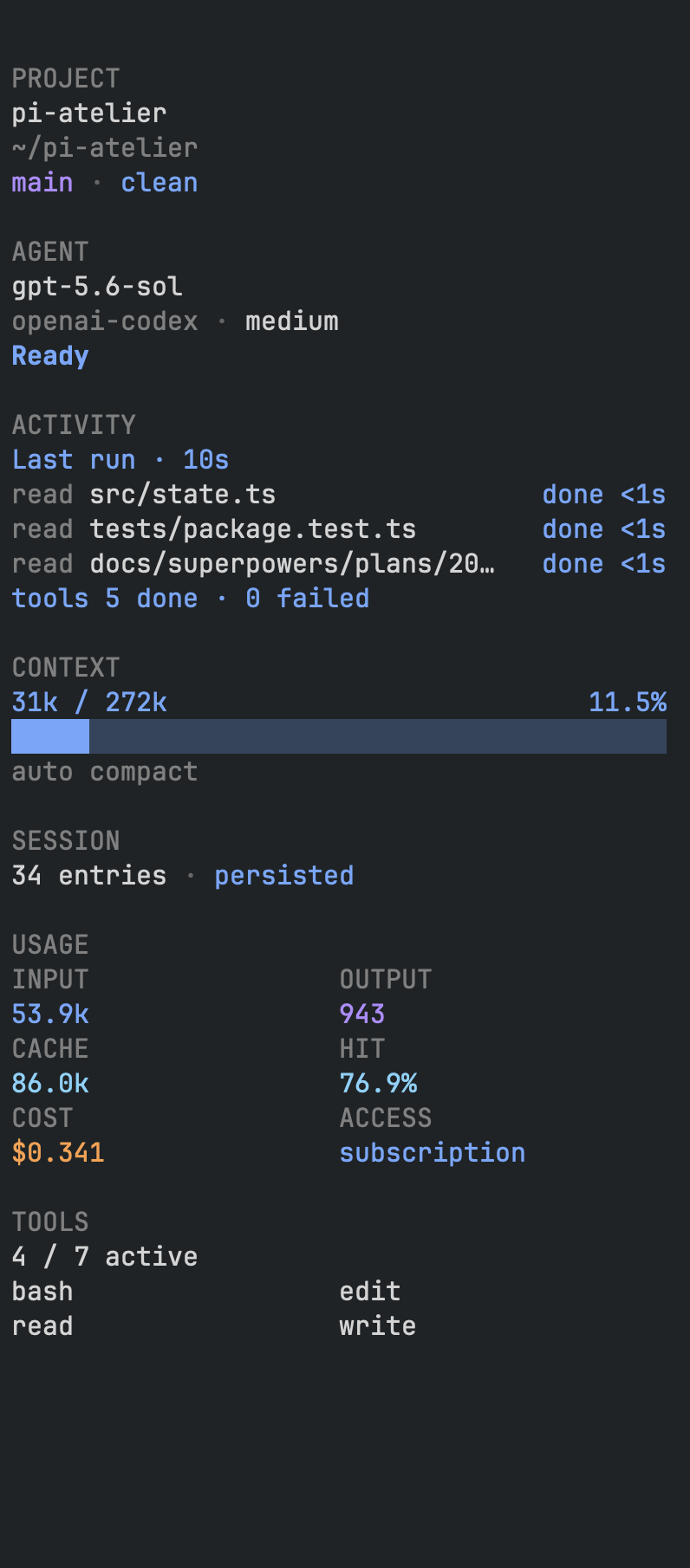
  "image": "https://raw.githubusercontent.com/michaelmjhhhh/pi-atelier/main/assets/preview.png",
  "extensions": [
    "./extensions/index.ts"
  ]
}
Security note
Pi packages can execute code and influence agent behavior. Review the source before installing third-party packages.
README
Pi Atelier
A responsive status rail and live activity sidebar for Pi.
Keep model, context, Git status, usage, and tool activity in view while you work.




Quick start · Features · Usage · Configuration · Troubleshooting · Privacy
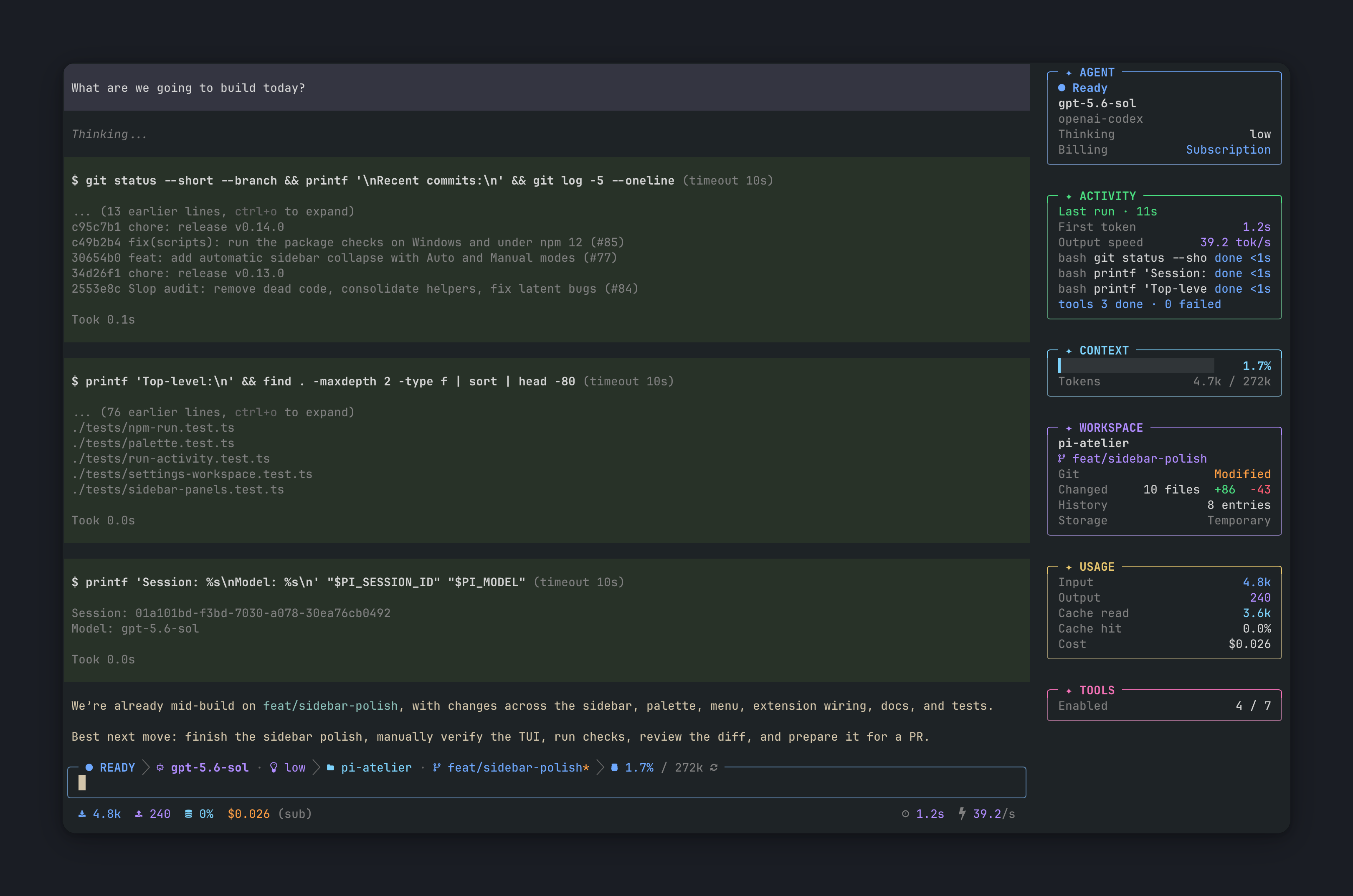
▶ Watch the demo (v0.10.0)
Quick start
pi install npm:pi-atelierStart Pi and open the control center with /atelier or F6 (Fn+F6 on keyboards with media keys).
[!TIP] If icons render as boxes, choose Settings → Font mode → Plain text, or select a Nerd Font in your terminal. See Terminal font.
[!NOTE] Atelier uses the core packages of the running Pi host. Its npm peers are optional so installing it never pulls in a second copy of Pi; update Pi itself separately. Pi packages run with your system permissions, so review third-party source before installing.
Requirements
| Pi | 0.84.0 or newer |
| Node.js | 22.19.0 or newer |
| Mode | Interactive TUI |
| Font | Any monospace font (Plain text mode) or a Nerd Font (icons) |
Terminal font
Plain text mode works with any monospace font and keeps colors, metrics, and the responsive layout. The default Nerd Font mode needs a Nerd Font, such as one from nerdfonts.com, selected in your terminal. Switch in Settings → Font mode.
Features
| Session visibility | Model, thinking level, context, token usage, cost, and session details in a compact status rail and sidebar. |
| Live activity | Agent and tool activity, TODOs, response timing, and completion notifications on macOS and Windows. |
| Workspace context | Workspace identity and read-only Git status next to your session. |
| Subagent costs | Colored per-child cost curves from pi-subagents accounting events, with matching legends and real observation markers. /atelier usage opens a larger framed graph with keyboard focus and per-reply costs. Kitty-compatible terminals get native graphics; others get text strokes. |
| Prefill progress | While a local model is still reading a long prompt, a temporary sidebar panel shows how far through the prompt it is, how fast it is reading, and how long until the first token. |
| Personalization | Display presets, configurable segments and panels, optional Nerd Font icons, and model and tool controls. |
| Extensible sidebar | Other extensions can add their own panels. See Sidebar panels from other extensions. |
No telemetry and no external network requests. See Privacy.
Usage
Open /atelier or press F6 to change display settings, control the sidebar, select models and tools, or view subagent usage.
/atelier display              display settings
/atelier usage                subagent cost graph
/atelier sidebar              toggle sidebar visibility
/atelier sidebar auto|manual  choose sidebar mode
/atelier sidebar on|off       show or hide without changing mode
/atelier sidebar tools        toggle tool names
/atelier enable|disable       set extension state
Sidebar
| Mode | Behavior |
|---|---|
| Manual (default) | Resize with Ctrl+Shift+R, then the arrow keys or by dragging the divider. Enter or mouse release confirms; Escape cancels. Hides below 92 columns and returns at 92. |
| Auto | Collapses when space is tight and reopens when there is room. At the default width it collapses below 124 columns and reopens at 132. Manual resizing is disabled. |
- Showing or hiding is independent of the mode. A manually hidden sidebar stays hidden when the terminal grows.
- The preferred width survives terminal resizes and mode changes.
- A confirmed resize is saved as
sidebarWidthand becomes the starting width for new sessions. Escape keeps the saved width. - Mode and visibility are session-scoped. The startup visibility preference is set in Settings.
- The TODO panel supports Pi
todoresults and the optional@juicesharp/rpiv-todoextension. Atelier does not changetodoresults, so the agent keeps task ids andlistoutput.
Prefill progress
A long prompt against a local model looks exactly like a hang. When a request streams to an allow-listed provider, Pi Atelier asks it for prefill progress and shows a temporary Prefill panel between Context and Workspace: a bar over the uncached prompt tokens, the token counts, the reading speed, and an estimate of how long until the first token.
- Present only while prefilling: it appears above 1024 uncached tokens or 300ms of reading, and is dropped when generation starts, so it reserves nothing when it is absent. Hide the sidebar and there is no prefill UI.
- Only
openai-completionsendpoints are asked. Servers ignore request fields they do not know, so a provider that cannot report progress never draws the panel, and no request error turns it off for the rest of the session. - The field is added only when the request body names the allow-listed model, so a Pi virtual model or a redirected request is left alone.
- An allow-list entry is a provider id:
llama.cppfor Pi's built-in llama extension, or the llama-swap instance id for pi-llama-swap. A proxy forwards the field to whatever server runs behind it, so progress appears only when that upstream reports it. - Percent counts uncached tokens, so a prompt already in the cache shows little or nothing.
- Speed is measured between progress chunks, and the first sample counts only uncached tokens, so a warm prompt does not report a false speed.
{
  "prefillEnabled": true,
  "prefillViews": ["percent", "tokens", "eta", "rate"],
  "prefillProviders": ["llama.cpp"]
}
prefillViews accepts percent, tokens, eta, and rate. prefillProviders is user-only and
read at session start; [] asks no provider. Each entry must equal the provider id of the model you
run, so the default llama.cpp covers only Pi's built-in llama extension: a pi-llama-swap model uses
its instance id, such as llama-swap-tre. Matching ignores case and surrounding spaces. Progress
reporting needs Pi 0.99 or newer.
Status rail presets
| Preset | Layout |
|---|---|
| editorial | Default layout |
| minimal | Compact layout |
| classic | Detailed telemetry |
Pi supports one custom footer and one custom editor at a time. Extension load order decides which one is visible. To keep another extension's footer and use only the Atelier sidebar, choose Settings → Atelier footer → Off or set "showFooter": false. This also leaves Pi's composer unchanged. The sidebar does not show extension statuses while the Atelier footer is off.
Configuration
| Scope | Path |
|---|---|
| User | ~/.pi/agent/pi-atelier.json |
| Project (trusted only) | <project>/.pi/pi-atelier.json |
Project settings override user settings, and session changes override both. Font mode, footer, sidebar startup, sidebar width, notification preferences, and the prefill provider allow-list are user-only.
{
  "preset": "editorial",
  "nerdFont": true,
  "shortcut": "f6",
  "toggleShortcut": "",
  "density": "comfortable",
  "contextWarning": 70,
  "contextDanger": 90,
  "showFooter": true,
  "showSidebarOnStartup": true,
  "sidebarWidth": 44,
  "showSidebarToolNames": false,
  "completionNotifications": true,
  "prefillEnabled": true,
  "prefillViews": ["percent", "tokens", "eta", "rate"],
  "prefillProviders": ["llama.cpp"]
}
toggleShortcut binds a key that shows or hides the Sidebar directly, like /atelier sidebar. It is empty (no binding) by default; set a key such as "ctrl+shift+b" and run /reload.
sidebarWidth is the sidebar width in columns when a session starts, from 28 through 72. The sidebar still narrows when the terminal leaves less than 64 columns for the main pane.
Use Settings → Display to reorder or hide status rail segments and sidebar panels. Undo restores the latest Display or Sidebar edit, including a Display Revert. The legacy user settings showSidebarAgent and showSidebarTodos still apply when sidebarPanelLayout is absent. A layout you saved before Prefill existed gains that panel next to Context on the next start.
Sidebar panels from other extensions
Another extension can add a panel through Pi's event bus. registerSidebarPanel publishes the panel and answers discovery requests, so either extension may load first:
import { registerSidebarPanel } from "pi-atelier/extensions/index.ts";

const panel = registerSidebarPanel(pi, {
	id: "vendor:queue",
	title: "Queue",
	rows: ["2 queued", { text: "1 failed", role: "error" }],
});
panel.update({ id: "vendor:queue", title: "Queue", rows: ["idle"] });
panel.dispose();
For responsive label/value columns like the built-in Usage panel, supply optional
keyValues alongside the mandatory plain-text rows fallback:
registerSidebarPanel(pi, {
	id: "vendor:limits",
	title: "Subscription",
	rows: ["Used 32.2%", "Time 50.0%"],
	keyValues: [
		{ label: "Used", value: "32.2%", progress: 0.322, valueRole: "success" },
		{ label: "Time", value: "50.0%", valueRole: "muted" },
	],
});
Atelier places labels on the left and values on the right at the current panel
width, recalculating on resize and truncating long fields like its built-in rows.
Labels default to muted; values default to the panel role or primary.
labelRole and valueRole accept the same semantic roles as plain rows,
including success (green), caution (yellow), warning (orange), and error (red).
A valid, nonempty keyValues list replaces the fallback rows on supporting hosts.
Empty, malformed or oversized lists fall back to rows; older Atelier versions
ignore the optional representation. The existing row count and text size limits
apply to both fields. This is a two-column presentation, not a general table.
Optional progress adds a bar between the label and value, using the value role.
It is a finite fraction from 0 (empty) to 1 (full), inclusive. Invalid fractions
are ignored without dropping the row. Producers should cap over-limit fractions at
1 while retaining accurate value text such as 110%. The bar disappears when
fewer than four bar columns fit; label/value rendering is retained. Older hosts
ignore progress. No-color mode uses plain filled/empty blocks.
- Panel IDs are namespaced (
vendor:name). - New panels start hidden; enable them in Settings → Display.
- Titles and rows are plain text. Terminal sequences are stripped and oversized payloads are rejected (see the exported
SIDEBAR_PANEL_MAX_*limits). - Extensions that cannot import the helper can emit the exported
SidebarPanelEventtypes on thepi-atelier:sidebar-panelschannel directly.
Troubleshooting
| Problem | Fix |
|---|---|
| Shortcut does nothing | Use /atelier, change shortcut, then run /reload. The default is f6 on macOS and Windows; media-key keyboards may need Fn+F6. Saved alt+a settings resolve to f6 and Alt+A is no longer registered. Other custom shortcuts add a binding alongside F6. Other extensions or terminal key mappings can still intercept F6. |
| Editor key stops working | Extension shortcuts take precedence over Pi's built-in keybindings. A shortcut or toggleShortcut such as ctrl+b shadows the editor's cursor-left action. Choose a key Pi does not use, then run /reload. |
| Status rail missing | Use TUI mode, check Settings → Atelier footer, and check for another extension's custom footer. |
| Icons render as boxes | Choose Settings → Font mode → Plain text, or select a Nerd Font in your terminal. |
| Metrics disagree | Token and cost totals cover the session; context usage covers the current model context. |
Privacy
Pi Atelier:
- Collects no telemetry or analytics.
- Does not store prompts, responses, or credentials, and keeps them out of notifications.
- Inspects Git read-only, and only after the project is trusted. Never reads untracked file contents.
- Reads project configuration only for trusted projects.
- For subagent usage, reads local metadata and owner-validated diagnostic event logs. It keeps only numeric cost and time projections in memory and saves only run IDs and artifact paths in the Pi session. Prompt and reply content in those logs is discarded. Active background runs refresh until they settle.
Development
git clone https://github.com/michaelmjhhhh/pi-atelier.git
cd pi-atelier
npm ci
npm run check
./node_modules/.bin/pi --no-session --no-extensions -e ./extensions/index.ts
The last command opens a temporary session with only the checkout's extension loaded, so it does not conflict with an installed copy. See CONTRIBUTING.md.
npm run check includes a dependency audit and a clean install of the packed extension, so it needs npm registry access. The install check verifies that Atelier adds no runtime dependencies and loads through the development Pi host. Run npm run check:audit or npm run check:install on their own to investigate dependency warnings. Warnings in an existing Pi installation can also come from the host or other installed packages; Atelier's checks cover only its own dependency trees.
Development stays on Pi 0.84.0 to check the minimum supported API. A scoped npm override patches that host's pinned undici dependency to 8.10.2. Remove the override when the development baseline moves to a compatible Pi release with patched undici. Root overrides do not apply to consumers or update their Pi hosts.