pi-autodesk-fusion
Pi package that bridges the Autodesk Fusion Desktop MCP server into pi as native tools — real-time modeling and design edits in a live Fusion session.
Package details
Install pi-autodesk-fusion from npm and Pi will load the resources declared by the package manifest.
$ pi install npm:pi-autodesk-fusion- Package
pi-autodesk-fusion- Version
0.2.1- Published
- Jun 13, 2026
- Downloads
- 432/mo · 188/wk
- Author
- porameht
- License
- MIT
- Types
- extension, skill
- Size
- 24 KB
- Dependencies
- 1 dependency · 2 peers
Pi manifest JSON
{
  "extensions": [
    "./extensions"
  ],
  "skills": [
    "./skills"
  ],
  "image": "https://raw.githubusercontent.com/porameht/pi-autodesk-fusion/main/assets/preview.png"
}Security note
Pi packages can execute code and influence agent behavior. Review the source before installing third-party packages.
README
pi-autodesk-fusion
A pi package that bridges the Autodesk Fusion Desktop MCP server into pi as native tools. Lets your agent perform real-time modeling and design edits in a live Autodesk Fusion session — create sketches, extrude, modify features, and run command-based operations directly from pi.
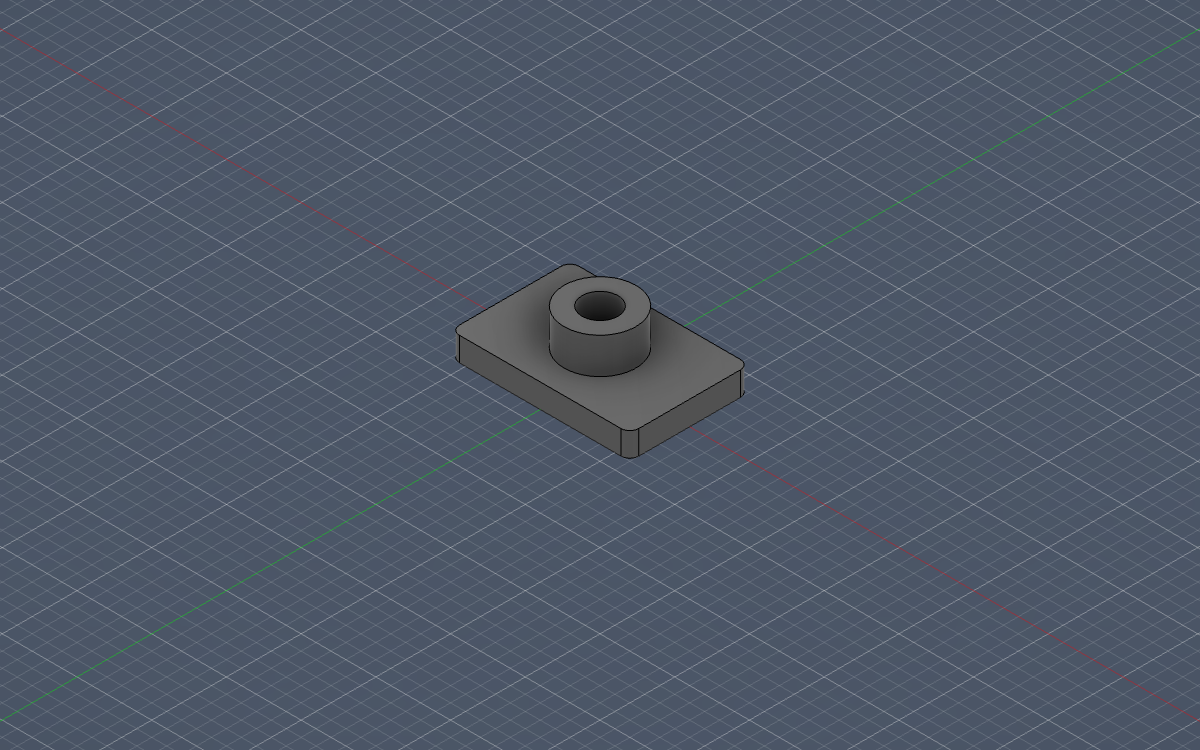
- Server:
http://127.0.0.1:27182/mcp(Streamable HTTP, local-only, no auth) - Official docs: Autodesk Fusion MCP server · Connecting
Requirements
- Autodesk Fusion installed and running locally (desktop only — not the web client)
- Fusion MCP server enabled: Preferences > General > API > "Fusion MCP Server (runs locally on this device)"
Install
pi install npm:pi-autodesk-fusion
Or try it without installing:
pi -e npm:pi-autodesk-fusion
What you get
- Extension — connects to the local Fusion MCP endpoint, discovers the server's tools dynamically, and registers each as a pi tool with a
fusion_prefix. Tool calls execute against your live Fusion session. fusion_screenshottool — captures the Fusion viewport and renders it inline in your terminal (Kitty, iTerm2, Ghostty, WezTerm). The model sees the image too, so the agent can visually verify its own modeling work.- Image results — any image content the MCP server returns is passed through as a real image (visible to both you and the model), not stringified JSON.
fusion_connecttool — always available, so the agent can connect (or reconnect) mid-session, e.g. right after you start Fusion. Newly discovered tools become callable immediately.- Safety gate — scripts that delete, save, or close documents pop a confirmation dialog before touching your live design (disable with
FUSION_CONFIRM=off). - Clean tool rendering — compact ✓/✗ rows with operation summaries instead of raw JSON; expand for full output.
- Skill —
autodesk-fusion, teaching the agent the connect → discover → model → screenshot-verify workflow. - Command —
/fusionshows connection status and registered tools;/fusion reconnectforces a reconnect and re-discovery.
Example prompts
- "Create a 10 mm cube in Fusion."
- "Sketch a 40×20 mm rectangle on the XY plane and extrude it 5 mm."
- "Add a 2 mm fillet to the top edges of the current body."
- "Show me a screenshot of the current design."
- "What Fusion tools are available right now?"
Configuration
| Environment variable | Default | Purpose |
|---|---|---|
FUSION_MCP_URL |
http://127.0.0.1:27182/mcp |
Override the endpoint (e.g. if you changed the port in Fusion preferences) |
FUSION_CONFIRM |
on |
Set to off to skip the confirmation dialog for destructive operations |
Notes
- Tools are discovered dynamically at connection time; the set may change as Fusion's AI capabilities evolve.
- If Fusion isn't running when pi starts, pi still starts normally — start Fusion, then run
/fusion reconnector just ask the agent to connect. - Edits are applied to your open design in real time. Destructive scripts require your confirmation by default, but keep undo (Ctrl/Cmd+Z) handy.
- Inline screenshot rendering requires a terminal with image support (Kitty, iTerm2, Ghostty, WezTerm); other terminals still pass the image to the model.
License
MIT