pi-claude-code-ui
Claude Code style UI for pi: one-line tool groups, syntax-highlighted diffs, an activity spinner, and colors from your terminal theme
Package details
Install pi-claude-code-ui from npm and Pi will load the resources declared by the package manifest.
$ pi install npm:pi-claude-code-ui- Package
pi-claude-code-ui- Version
1.0.109- Published
- Nov 4, 2026
- Downloads
- 4,679/mo · 1,780/wk
- Author
- leftwinglautus
- License
- MIT
- Types
- extension
- Size
- 519.6 KB
- Dependencies
- 2 dependencies · 3 peers
Pi manifest JSON
{
  "extensions": [
    "./extensions/index.ts",
    "./extensions/spinner.ts"
  ]
}
Security note
Pi packages can execute code and influence agent behavior. Review the source before installing third-party packages.
README
pi-claude-code-ui


A Claude Code style interface for pi. Tool calls fold into one-line summaries, every edit shows a syntax-highlighted diff, the spinner says what pi is doing, and the colors come from your terminal theme.
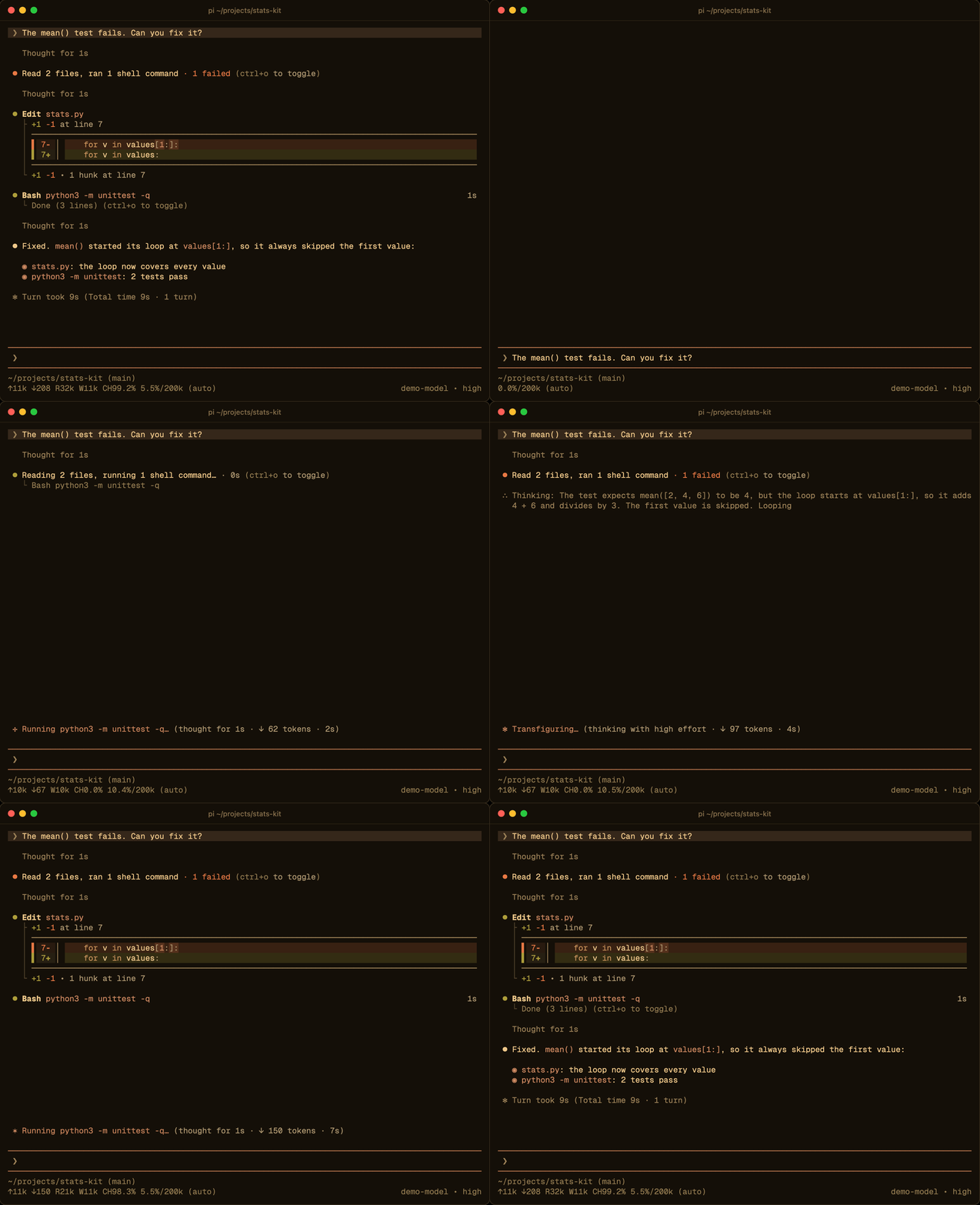
pi install npm:pi-claude-code-uiTerminal colors need pi 1.4 or newer. The package was called pi-claude-style-tools before 1.0.69.
Tool calls
Consecutive tool calls collapse into one sentence, such as Read 2 files, ran 1 shell command. While they run, the row reads Reading 2 files, running 1 shell command… · 3s and shows the call in progress below it. A failed call turns the dot red and adds · 1 failed.
Click a row (in pi's fullscreen mode) or press Ctrl+O to see every call and its output. Ctrl+Shift+O raises the preview limits for long outputs. A row stays where you clicked it, and the view scrolls only as far as needed to show what opened.
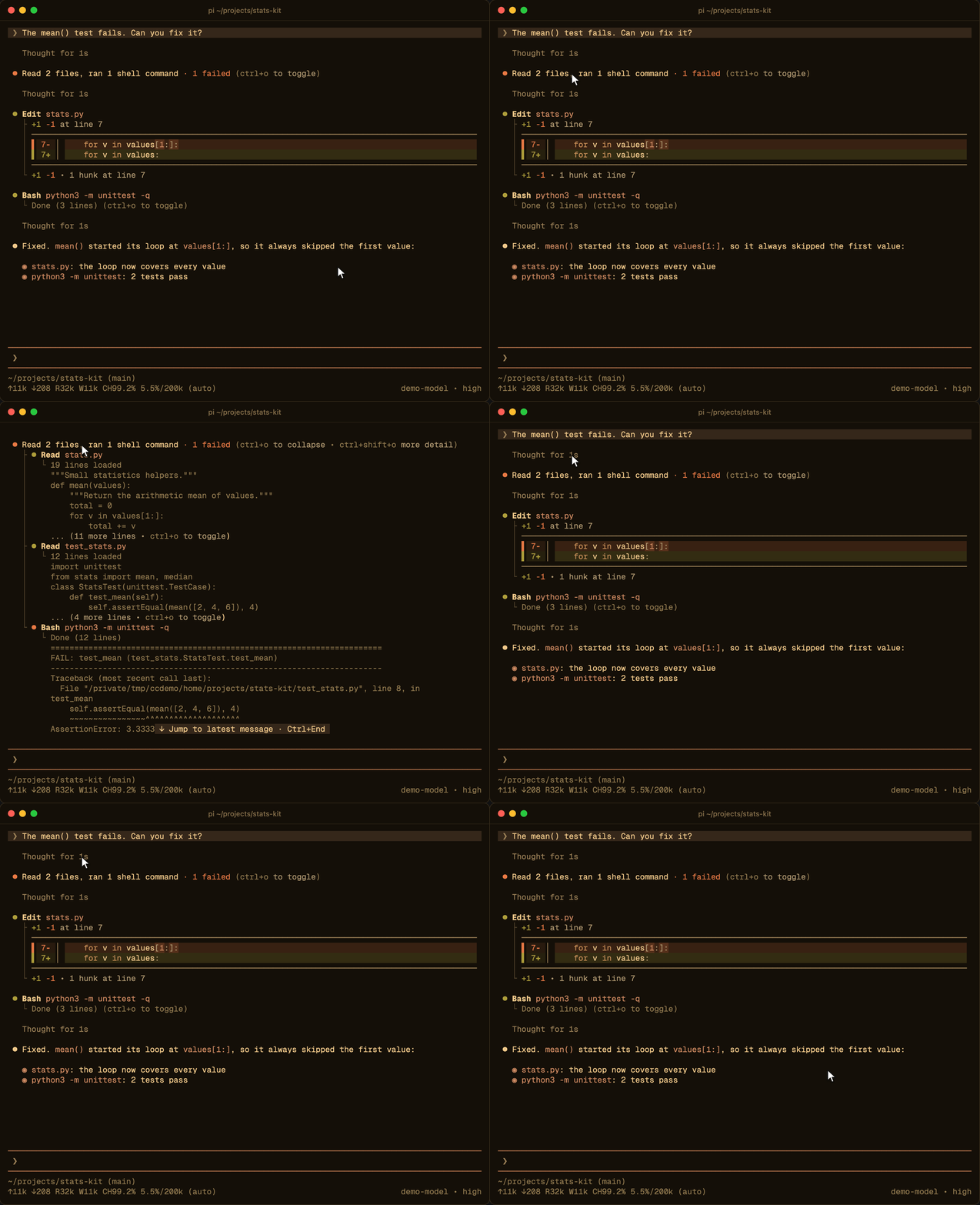
Built-in tools (read, bash, grep, find, ls, edit, write), MCP tools, OpenAI-style tools such as apply_patch, webfetch and web_search, and any custom tool all use the same row layout.
Diffs
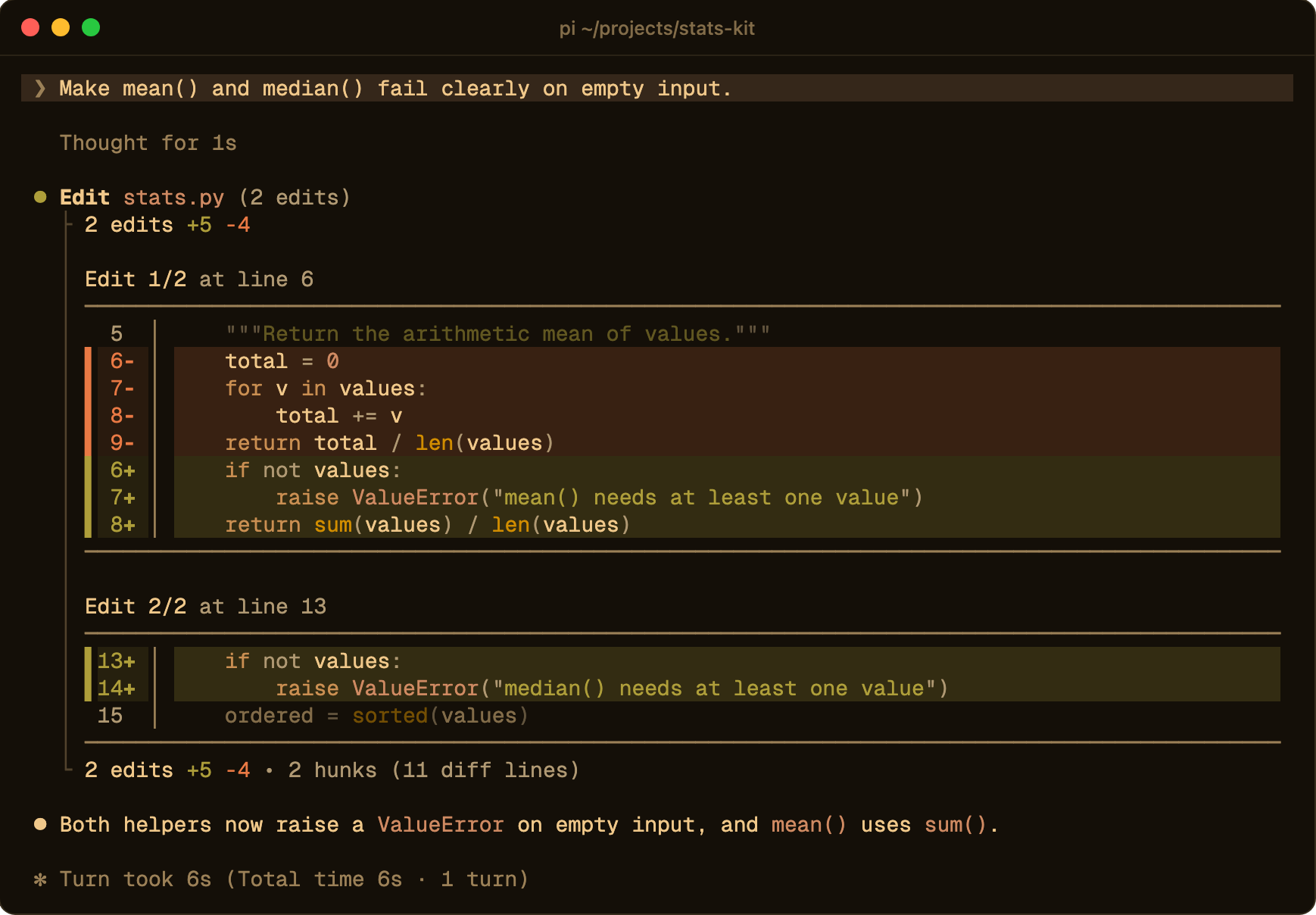
edit and write show the change as a diff with syntax highlighting and word-level marks. Several edits to one file are listed one after the other. On wide terminals the diff can also use a side-by-side layout.
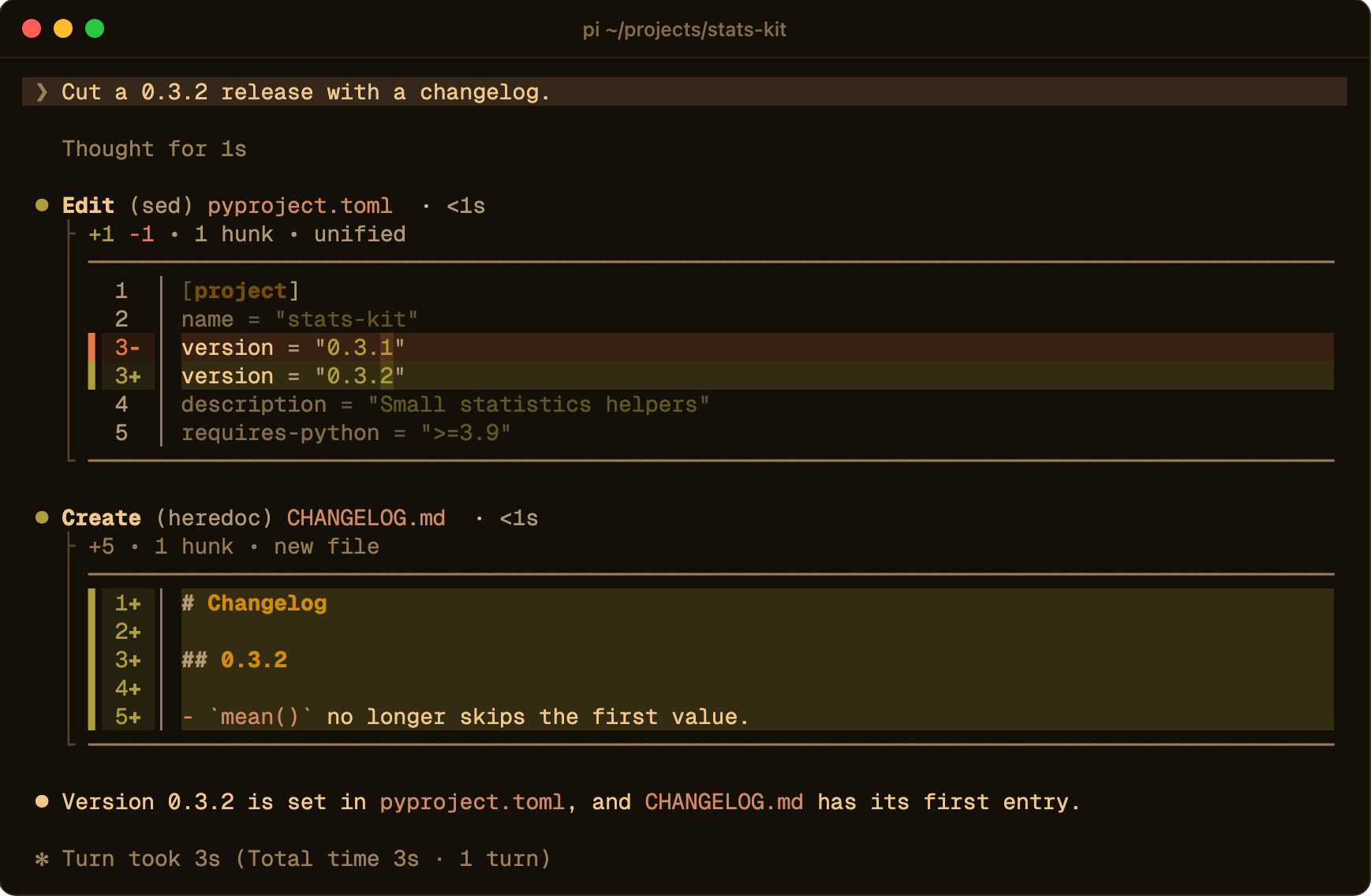
Shell commands that only change files are drawn the same way. sed -i, perl -pi, heredocs (cat > file <<EOF, tee) and echo … > file show up as Edit (sed) pyproject.toml or Create (heredoc) CHANGELOG.md, with a diff of what actually changed on disk. The command runs unchanged and the model sees its normal output. Anything ambiguous, like a pipe or a variable, stays a regular bash row.
Spinner
While a tool runs, the working line names it: Running npm test…, Reading stats.py…, Searching for TODO…, Waiting for agent: Find edge cases…. While the model thinks, it shows a playful verb instead. The token count covers everything the model writes for the request, including thinking and tool arguments, and counts up smoothly as text streams in.

Bash labels
With labels on, a bash row shows what the command is for instead of the command itself: Bash Run the test suite rather than Bash python3 -m unittest -q 2>&1 | tail -4. The label is plain text, so it reads differently from a command. Click the row or press Ctrl+O to see the full command and its output.
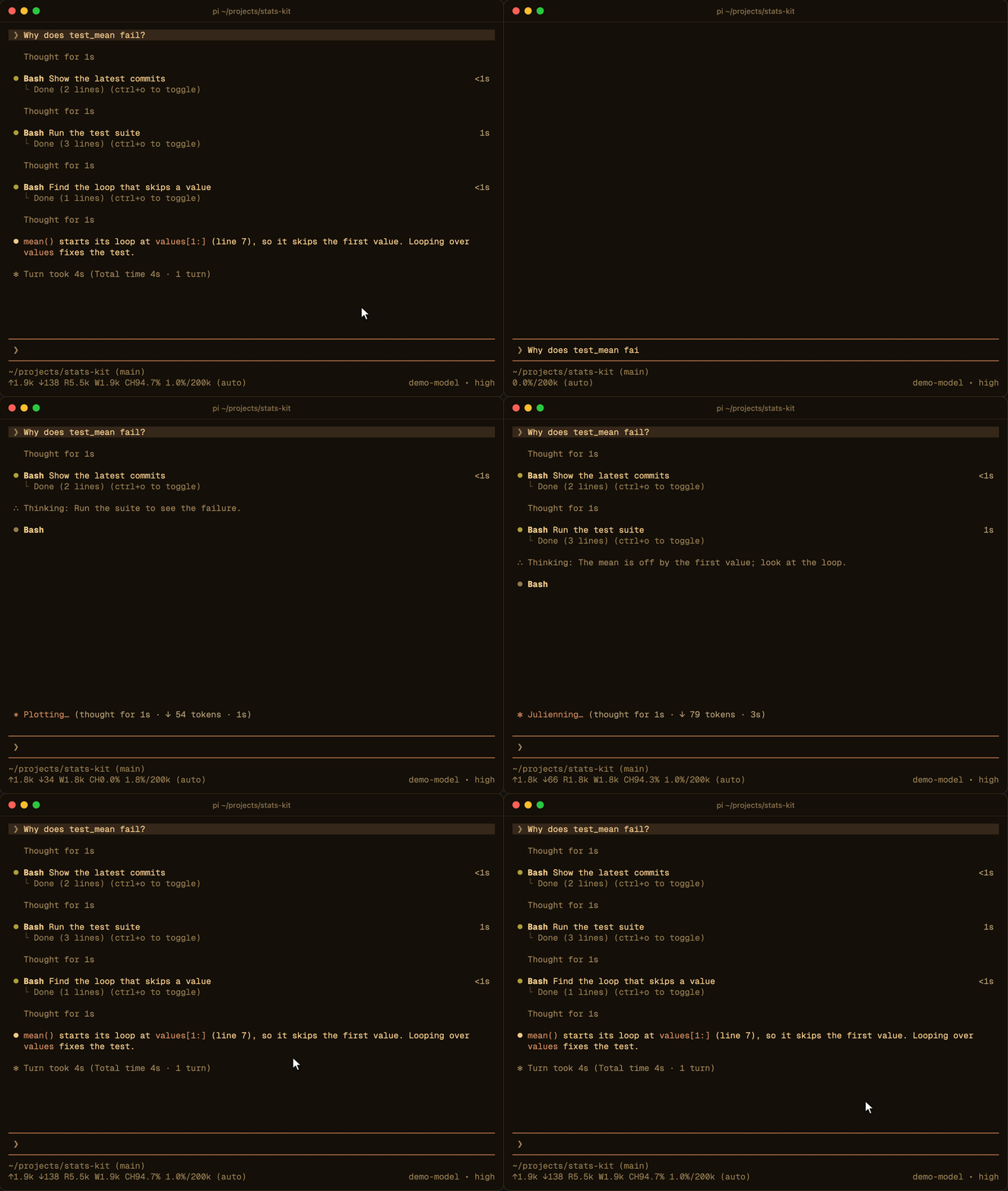
/cc-tools intent picks where labels come from:
off(default): no labels; rows show the command.model: the model writes the label as an extra argument of each bash call. This adds a field to the bash tool and a line to the model's instructions. There is no extra request; the label costs a few output tokens on each call.local: Apple's on-device model writes the label on your Mac, so nothing the model sees changes. It needs macOS 26 or newer on Apple silicon with Apple Intelligence turned on, and the Xcode command line tools for a one-time build of a small helper. The row shows the command until the label arrives, about 0.3 to 0.6 seconds after the command starts. Labels are cached, so a resumed session shows them without asking again.
The choice applies on the next start or after /reload, because the model mode changes the bash tool itself. Collapsed groups show only the sentence summary; expand a group to see each command's label.
Thinking
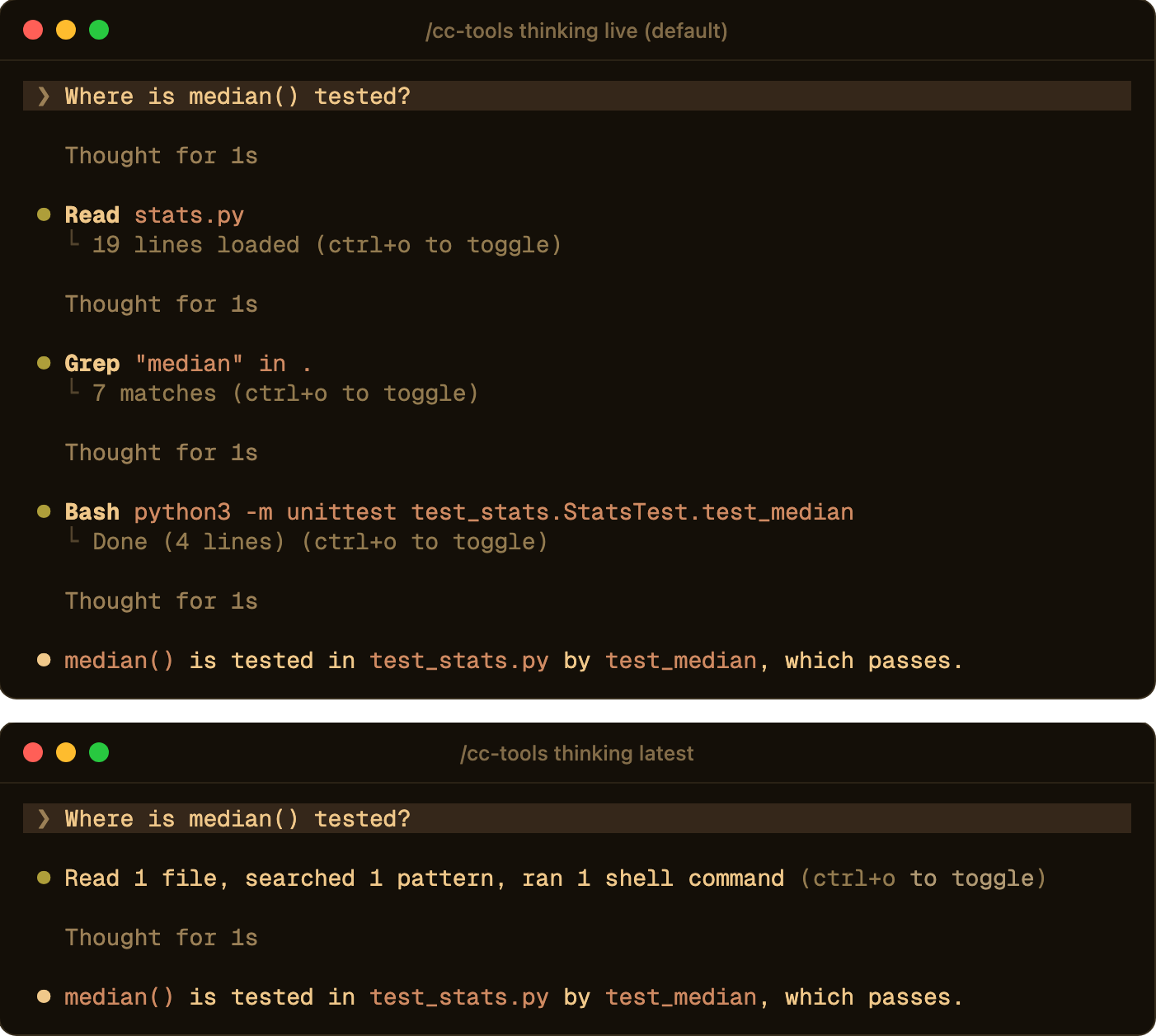
By default (live), thinking is shown while it streams and then collapses to Thought for 3s. Click the row to read it again.
/cc-tools thinking latest goes further: only the latest message keeps its thinking. Earlier messages drop it, so the tool calls that thinking used to separate merge into one row. This changes only what is drawn; the thinking stays in the session and in the model's context. /cc-tools thinking full keeps every thinking block expanded, as stock pi does.
Colors from your terminal
On pi 1.4 and newer the extension switches pi to its built-in system theme, which builds all of pi's colors from the palette your terminal reports. It works in Ghostty, Rex, kitty, WezTerm and other terminals that answer color queries. pi follows light and dark switches on its own. Terminals send nothing when you switch between two dark themes (or two light ones), so the extension also re-reads the palette whenever the terminal window regains focus.
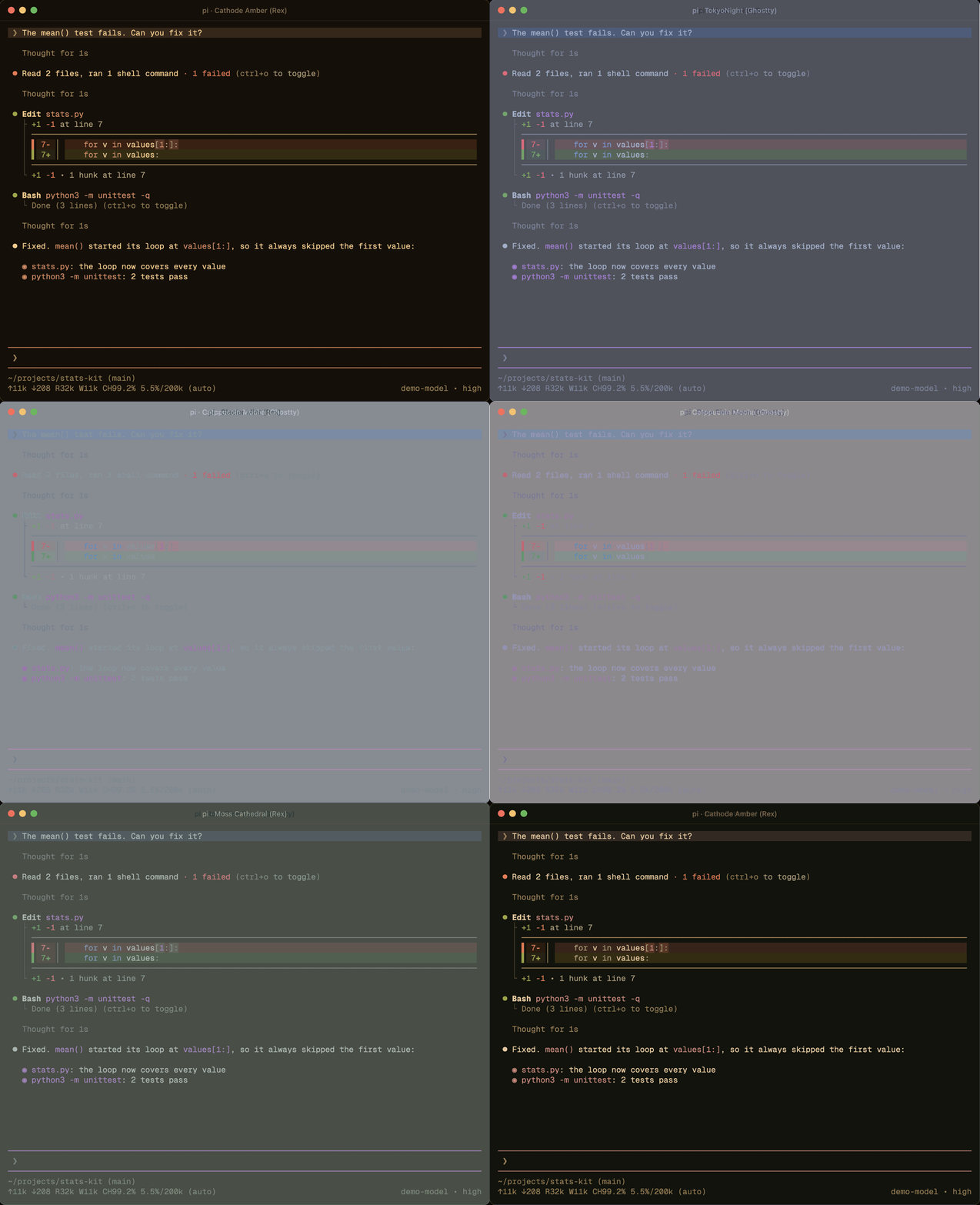
The extension's own colors follow the active theme as well. Diff code uses the theme's syntax colors, diff backgrounds are tinted from the theme's added and removed colors, and connectors keep the same faint contrast on any background.
Your previous theme is saved when the extension switches. /cc-theme terminal off restores it and keeps it, and pi --use-theme <name> still picks the theme for a single run.
Subagents
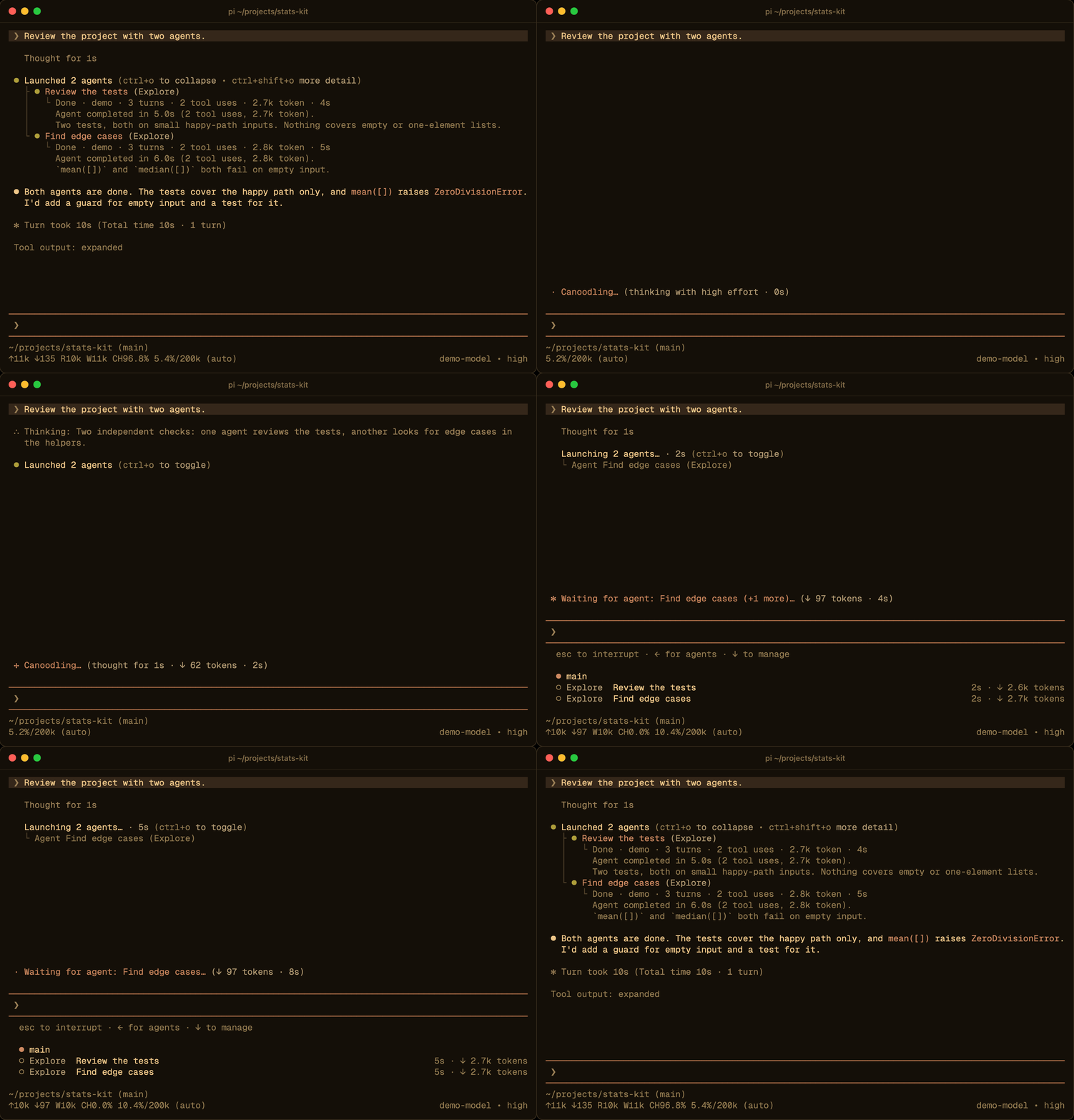
With pi-subagents, Agent calls get the same treatment. Parallel agents fold into Launching 2 agents…, the spinner names the agent it is waiting for, and the expanded row shows each agent's tool uses, tokens, time and result. Completion notices and the Agents panel use the same dots and connectors as tool rows.
Smaller things
- Past prompts are a single highlighted line starting with
❯, and the input line gets the same marker. - In pi's fullscreen mode, selecting text copies only the text: code box borders, the indent pi adds to code, and the
●,❯and∴markers in front of replies, prompts and thinking stay out of the clipboard. In regular mode the terminal does the copying, so it copies what is on screen. - LaTeX math in replies is shown with Unicode symbols.
- RTK command rewrites appear as a muted
(RTK)badge on the bash row. apply_patchcalls show their parsed patch as a diff before they run.
Commands
| Command | What it does |
|---|---|
/cc-tools |
Show the current tool settings |
/cc-tools outlines, transparent, default |
Tool row style: rules around each tool (default), no rules, or pi's own backgrounds |
/cc-tools group on, off, toggle |
Fold consecutive tool calls into one row |
/cc-tools thinking live, full, latest |
How finished thinking is shown |
/cc-tools intent off, model, local, status |
Where bash labels come from; applies after /reload |
/cc-tools detail on, off, toggle |
Higher preview limits, same as Ctrl+Shift+O |
/cc-theme terminal on, off, status |
Follow the terminal's colors, or go back to your previous theme |
/cc-theme on, off, toggle, status |
Derive the extension's colors from the pi theme, or use a fixed Claude palette |
/cc-spinner preview |
Show the theme colors available for the spinner |
/cc-spinner verb <key>, status <key>, reset |
Recolor the spinner's verb or its status text |
Commands that change a setting save it to the settings file, and the change applies right away.
Settings
Settings are read from .pi/settings.json in the project and from the agent settings file, $PI_CODING_AGENT_DIR/settings.json (by default ~/.pi/settings.json). The values below are the defaults.
{
  "toolBackground": "outlines",
  "groupToolCalls": true,
  "thinkingMode": "live",
  "terminalTheme": true,
  "themeAdaptive": true,
  "readOutputMode": "preview",
  "searchOutputMode": "preview",
  "mcpOutputMode": "preview",
  "bashOutputMode": "opencode",
  "bashIntent": "off",
  "previewLines": 8,
  "expandedPreviewMaxLines": 4000,
  "extraExpandedPreviewMaxLines": 12000,
  "extraToolOutputExpanded": false,
  "bashCollapsedLines": 10,
  "bashCommandPreviewLines": 0,
  "liveToolPreview": false,
  "liveToolPreviewLines": 5,
  "diffCollapsedLines": 24,
  "diffLayout": "auto"
}
The screenshots on this page use "toolBackground": "transparent".
Layout
| Setting | Default | Description |
|---|---|---|
toolBackground |
outlines |
outlines draws a rule above and below each tool (border also works), transparent draws none, default keeps pi's tool backgrounds |
groupToolCalls |
true |
Fold consecutive tool calls into one row |
thinkingMode |
live |
live collapses finished thinking to Thought for Xs, full keeps it expanded, latest hides it in all but the latest message |
previewLines |
8 |
Lines in a collapsed preview |
expandedPreviewMaxLines |
4000 |
Line limit when a row is expanded |
extraExpandedPreviewMaxLines |
12000 |
Line limit in Ctrl+Shift+O mode |
extraToolOutputExpanded |
false |
Start in Ctrl+Shift+O mode |
Tool output
| Setting | Values | Default |
|---|---|---|
readOutputMode |
hidden, summary, preview |
preview |
searchOutputMode |
hidden, count, preview |
preview |
mcpOutputMode |
hidden, summary, preview |
preview |
bashOutputMode |
opencode, summary, preview |
opencode |
| Setting | Default | Description |
|---|---|---|
bashIntent |
off |
Labels on bash rows in place of the command: off, model (the model writes them; changes the bash tool and its instructions) or local (Apple's on-device model writes them on this Mac). true means model. Applies on the next start or /reload |
bashCollapsedLines |
10 |
Output lines shown for a collapsed bash row |
bashCommandPreviewLines |
0 |
Lines of a multi-line command shown under a running or failed bash row. Ctrl+O always shows the whole command |
liveToolPreview |
false |
Show the latest output lines under a running tool |
liveToolPreviewLines |
5 |
Lines in that live preview |
diffCollapsedLines |
24 |
Diff lines shown before a diff collapses |
diffLayout |
auto |
auto uses the side-by-side layout only when it fits, split uses it whenever both sides fit, unified always stacks |
Colors
| Setting | Default | Description |
|---|---|---|
terminalTheme |
true |
Use pi's system theme, built from the terminal's palette (pi 1.4+) |
themeAdaptive |
true |
Derive diff colors, connectors and the spinner from the active pi theme. false keeps a fixed Claude palette |
diffTheme |
unset | A Shiki theme for diff code, such as github-dark. Unset uses the pi theme's syntax colors |
diffColors |
unset | Override individual diff colors |
spinnerVerbColor |
borderAccent |
Theme color of the spinner's verb |
spinnerStatusColor |
muted |
Theme color of the spinner's status text |
With themeAdaptive on, colors come from these pi theme tokens:
| Element | Source |
|---|---|
| Diff code | the theme's syntax* colors, the same ones pi uses for code blocks |
| Diff markers and backgrounds | toolDiffAdded and toolDiffRemoved, tinted over the terminal background |
Connectors (├ └ │) and outlines |
the terminal background blended toward its text color, to a 2:1 and a 5.1:1 contrast |
| Light or dark variants | pi's own theme.appearance |
Thought for Xs, Turn took Ns |
muted |
pi before 1.4 does not expose concrete theme colors. There, diffs fall back to github-dark or github-light, and connectors keep the same contrasts measured against black or white.
Notes
The extension targets recent pi versions, where tool renderers receive renderCall(args, theme, context) and renderResult(result, { expanded, isPartial }, theme, context). pi has no public hook for restyling tools that other extensions register, so the extension patches pi's container rendering to give every tool row the same frame.
Credits
This project builds on the work of:
- @heyhuynhgiabuu/pi-pretty by huynhgiabuu: syntax-highlighted file reads, colored bash output and tree-view directory listings
- @heyhuynhgiabuu/pi-diff by huynhgiabuu: the Shiki diff renderer with word-level changes in split and unified views
- pi-tool-display by MasuRii: compact tool rows, diff display and output truncation
- pi-polish by Thomas van Dongen: the one-sentence tool groups, the activity spinner and the
❯prompt markers follow its design