pi-compact-display
Compact display extension for Pi tools.
Package details
Install pi-compact-display from npm and Pi will load the resources declared by the package manifest.
$ pi install npm:pi-compact-display- Package
pi-compact-display- Version
1.3.0- Published
- Aug 27, 2026
- Downloads
- 677/mo · 38/wk
- Author
- masterisk_f
- License
- ISC
- Types
- extension
- Size
- 99.7 KB
- Dependencies
- 0 dependencies · 2 peers
Pi manifest JSON
{
  "extensions": [
    "./dist/index.js"
  ],
  "image": "https://raw.githubusercontent.com/Masterisk-F/pi-compact-display/master/screenshot1.png"
}Security note
Pi packages can execute code and influence agent behavior. Review the source before installing third-party packages.
README
pi-compact-display
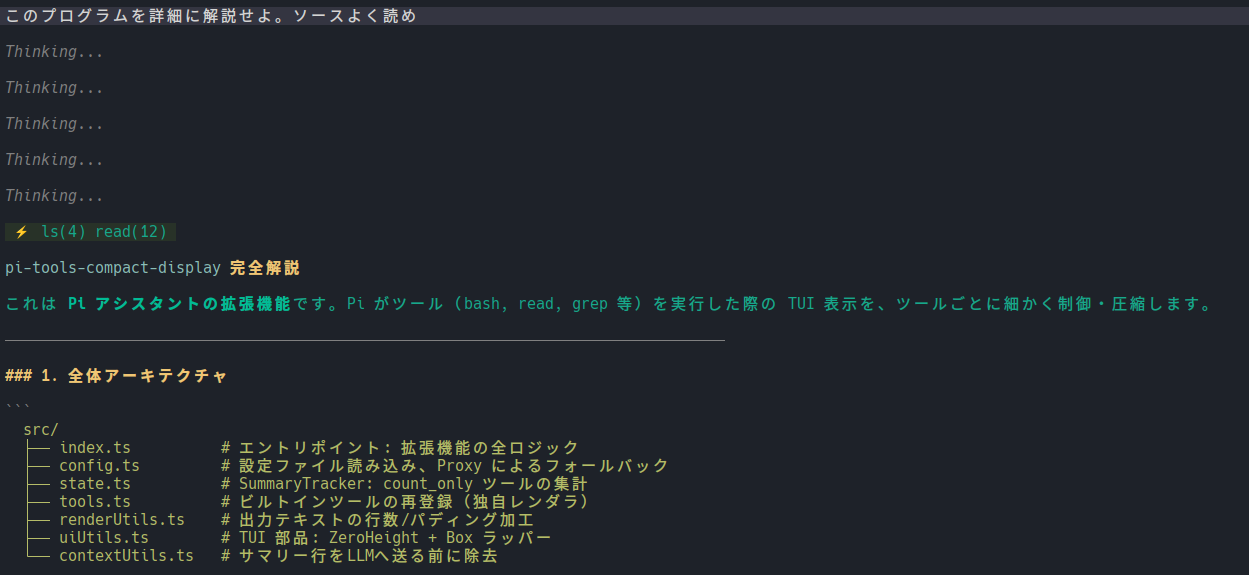
An extension for the Pi Assistant that allows you to finely customize the terminal (TUI) output for various tools (e.g., bash, read, ls, edit) on a per-tool basis.
It helps keep your context and screen clean by limiting overly long tool outputs or hiding unnecessary tool calls, summarizing them instead.
Features
- Per-Tool Configuration: Set different display modes for each tool.
- Summary Display: Hide execution details and output only a summary like
⚡ read(1) ls(2)at the top of the assistant's response. - Line Limit & Padding Removal: Limit the number of output lines and automatically strip empty padding lines.
- Grouped Tool Results: With
groupingenabled, alllines-mode calls in one user turn are combined into a single aggregation line (e.g.⚡ bash ×3). - Suppress Thinking Indicator: With
hideThinkingenabled, the "Thinking..." indicator (and full thinking blocks) shown for thinking models are hidden from the assistant messages. - Support for External Tools: Override the display settings not only for Pi's built-in tools but also for any custom tools added by other extensions.
- Expandable Details: Fully supports Pi's native expand feature (e.g., pressing
Ctrl+Oin the TUI), overriding the limits to show the full output.
Installation & Build
From npm (Recommended)
You can install the extension directly from npm:
pi install npm:pi-compact-display
From Source (Local Development)
# Clone or navigate to the repository
cd pi-compact-display

# Install dependencies
npm install

# Build the TypeScript code
npm run build

# Install the extension using the Pi CLI
pi install .
Configuration
Create a configuration file named config.json at the following location:
File Path:
~/.pi/agent/extensions/pi-compact-display/config.json
Configuration Structure
The configuration is in JSON format, where the key is the "tool name" and the value is its "display settings (options)".
{
  "tool_name": {
    "mode": "display_mode",
    "outputLines": number,
    "noPadding": true or false
  }
}
Available Properties
| Property | Type | Description |
|---|---|---|
mode |
string |
The display mode for the tool. Must be "count_only", "lines", or "default". (Required) |
outputLines |
number |
The maximum number of lines to display. Only effective when mode is "lines". (Optional) |
noPadding |
boolean |
Whether to remove leading, trailing, and consecutive empty lines from the output. Set to true to omit empty lines. Only effective when mode is "lines". When grouped, the overall padding of the group card follows the noPadding setting of the leader (the first tool in the group). (Optional) |
grouping |
boolean |
Whether to include this tool in the group card when the global grouping setting is enabled. Set to false to exclude it from grouping and display it as a separate card. Default is true. (Optional) |
Display Modes (mode)
"count_only"- Behavior: The tool execution and its output are completely hidden from the screen. Instead, the number of executions is summarized at the top of the assistant's message (e.g.,
⚡ read(1)). - Use Case: Best for tools like
read,ls,find, orgrep, where the LLM gathers information autonomously and humans do not need to read the raw output.
- Behavior: The tool execution and its output are completely hidden from the screen. Instead, the number of executions is summarized at the top of the assistant's message (e.g.,
"lines"- Behavior: Displays the tool execution command and a truncated portion of its result. It limits the output to the specified
outputLines. - Use Case: Ideal for tools like
bash,edit, orwrite, where humans want to quickly check the executed command and whether it resulted in an error.
- Behavior: Displays the tool execution command and a truncated portion of its result. It limits the output to the specified
"default"- Behavior: Bypasses this extension's rendering overrides and falls back to Pi's default rendering logic (or logic defined by other extensions).
- Note: Any tool not specified in the configuration file, or if
config.jsonis missing entirely, will automatically default todefault.
Example Configuration
{
  "grouping": true,
  "hideThinking": true,
  "user": {
    "noPadding": true
  },
  "skill": {
    "noPadding": true
  },
  "read": { "mode": "count_only" },
  "ls": { "mode": "count_only" },
  "find": { "mode": "count_only" },
  "grep": { "mode": "count_only" },

  "bash": {
    "mode": "lines",
    "outputLines": 3,
    "noPadding": true
  },
  "write": {
    "mode": "lines",
    "outputLines": 1,
    "noPadding": true
  },

  "mcp:tavily_tavily_search": { "mode": "count_only" },
  "mcp:list": { "mode": "lines", "outputLines": 10 },
  "mcp": { "mode": "default" },
  "default": { "mode": "count_only" },

  "my_custom_tool": {
    "mode": "count_only"
  }
}
Note: You can specify any tool name, including custom tools added by other extensions like my_custom_tool.
Sub-tool and Action-Specific Configuration (Gateway Tools like MCP)
For "gateway tools" that call other tools or actions internally (such as the mcp tool), you can configure them specifically based on their arguments (like tool or action).
The configuration priority is evaluated in a cascading fallback:
Specific Sub-tool Configuration > General Tool Configuration > default Key Configuration > System Default.
This mechanism applies to all tools, not just MCP.
Example for MCP tools:
mcp:<tool_name>: When a specific MCP tool is called (e.g.,"mcp:tavily_tavily_search": { "mode": "count_only" }).mcp:list: When listing available tools on a server (e.g.,"mcp:list": { "mode": "lines", "outputLines": 10 }).mcp:connect: When connecting to a server.mcp: The general fallback for MCP calls that don't match any specific configuration.
Note: The same priority (specific setting > "default" setting) applies to built-in tools like read and bash as well.
User Prompt Padding Configuration
If you want to remove the vertical empty lines (vertical padding) that appear above and below the prompt messages you enter, you can configure them specifically using the "user" key. This configuration is not affected by other configurations like "default" and is only applied if explicitly defined.
Configuration Example:
{
  "user": {
    "noPadding": true
  }
}
noPadding(boolean): Set totrueto remove the empty lines (padding) inserted above and below your prompt input, making the UI extremely compact.
Skill Invocation Padding Configuration
If you want to remove the vertical empty lines (vertical padding) that appear above and below the [skill] display (rendered when you invoke a skill via /skill:... or a <skill> block), you can configure them specifically using the "skill" key. Like "user", this configuration is not affected by other configurations such as "default" and is only applied if explicitly defined.
Configuration Example:
{
  "skill": {
    "noPadding": true
  }
}
noPadding(boolean): Set totrueto remove the empty lines (padding) inserted above and below the[skill]block, making the UI extremely compact.
Global Setting: Grouping Tool Results (grouping)
lines-mode tools normally render one tool card per call. When this is enabled, all lines-mode calls within one user turn are combined into a single card that shows only the aggregation header, greatly reducing the vertical space used on screen. Even if the assistant splits its work into multiple thinking passes (multiple assistant messages), everything in the same user turn stays in one card.
Configuration Example:
{
  "grouping": true,
  "bash": { "mode": "lines", "outputLines": 3, "grouping": false },
  "write": { "mode": "lines", "outputLines": 1 }
}
grouping(boolean): Set totrueto combine alllines-mode calls in one user turn (regardless of tool name) into a single card. The card shows only the count header such as⚡ bash ×3 edit ×1(even a single call is shown as⚡ bash ×1). Like"user", this setting is not affected by other configurations such as"default"and is only applied if explicitly defined. You can exclude specific tools from the group by setting"grouping": falsein their individual tool configuration.- Command lines and outputs are hidden by default; press
Ctrl+O(expand) to show every call's command line and full, untruncated output for all tools in the group. - Calls in different turns (separated by a user message) are rendered as separate cards.
Global Setting: Suppress Thinking Indicator (hideThinking)
Thinking-capable models may emit thinking content blocks, which Pi renders as a "Thinking..." label (or as the full thinking text when thinking display is toggled on). When this setting is enabled, those thinking blocks are filtered out of the assistant message entirely, so no "Thinking..." indicator (and no thinking content) appears on screen.
Configuration Example:
{
  "hideThinking": true
}
hideThinking(boolean): Set totrueto suppress the"Thinking..."indicator and all thinking content in assistant messages. Like"user"and"grouping", this setting is not affected by other configurations such as"default"and is only applied if explicitly defined.
Usage & Shortcuts
After setting up the configuration, simply start the Pi assistant.
- Context Cleanup: Tools set to
count_onlywill display summaries like⚡ read(1)on the screen. However, this summary text is automatically stripped from the conversation history (context) sent to the LLM behind the scenes, so it won't pollute the LLM's context window. - Full Output (Expanded): If the output is truncated in
linesmode, you can use Pi's native expand shortcut (typicallyCtrl+O) to bypass the line limits and view the full output.