pi-discord-remote
Control your Pi coding-agent session from Discord — each session gets its own auto-created channel
Package details
Install pi-discord-remote from npm and Pi will load the resources declared by the package manifest.
$ pi install npm:pi-discord-remote- Package
pi-discord-remote- Version
0.2.4- Published
- May 20, 2026
- Downloads
- 276/mo · 56/wk
- Author
- t2o2
- License
- MIT
- Types
- extension
- Size
- 1.2 MB
- Dependencies
- 1 dependency · 1 peer
Pi manifest JSON
{
  "extensions": [
    "./dist"
  ],
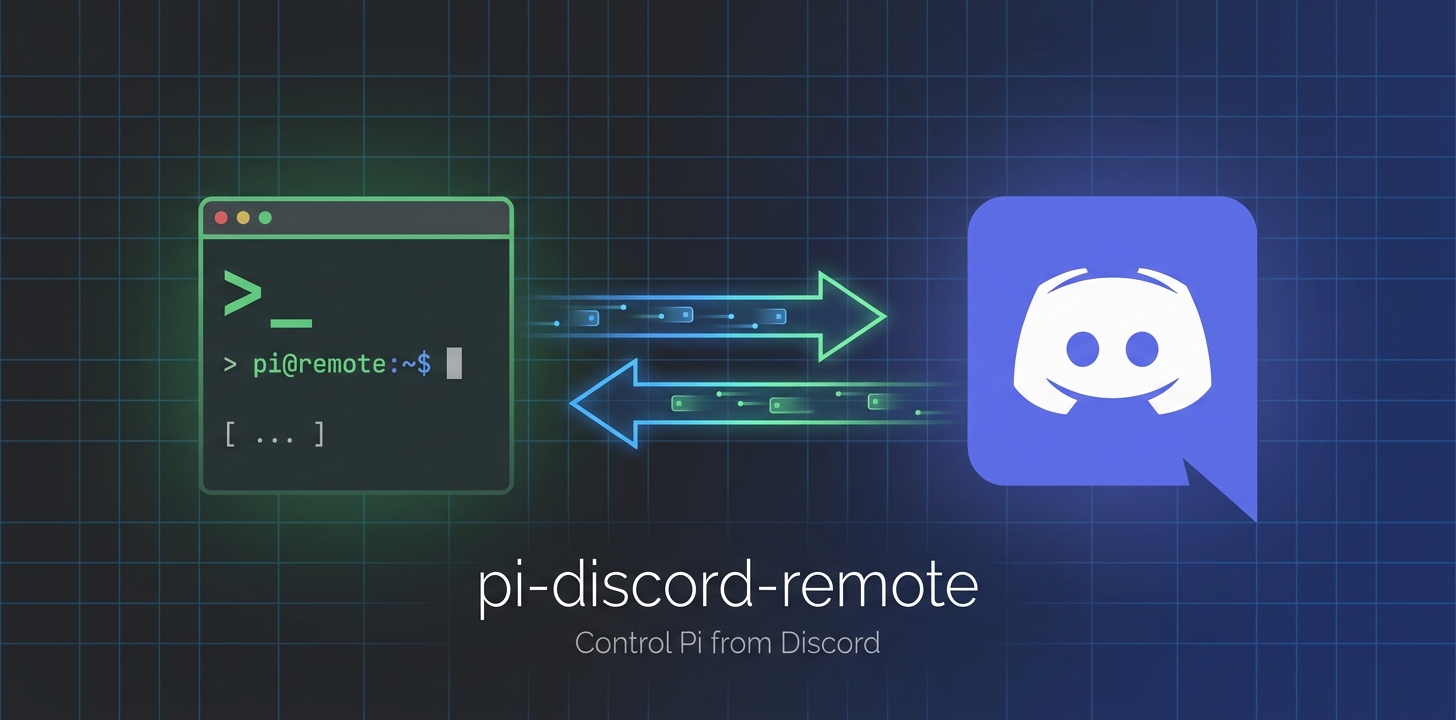
  "image": "https://raw.githubusercontent.com/t2o2/pi-discord-remote/main/assets/banner.jpeg"
}
Security note
Pi packages can execute code and influence agent behavior. Review the source before installing third-party packages.
README
pi-discord-remote
Control your Pi coding-agent session from Discord.
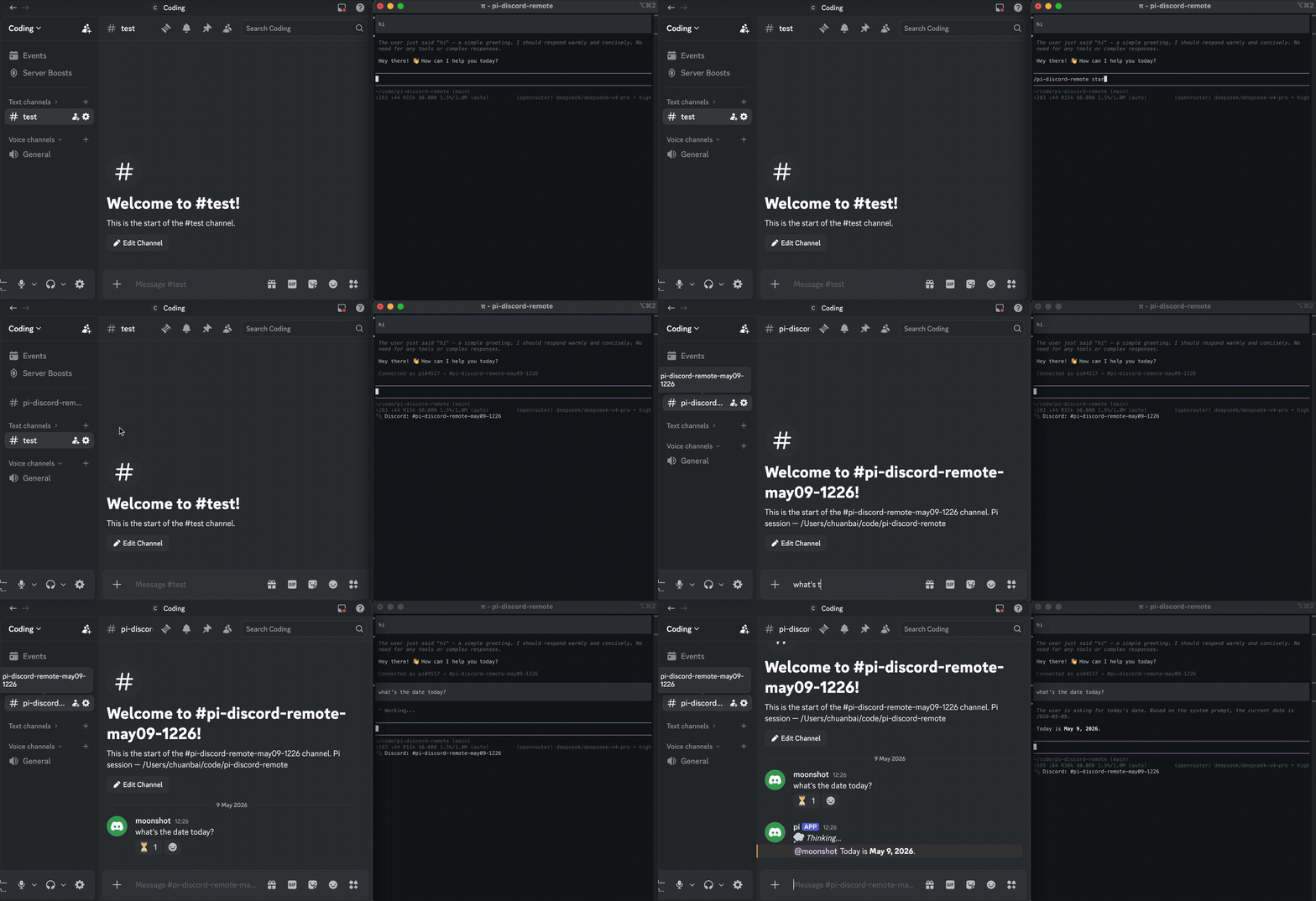
Each time you run /pi-discord-remote start, the extension automatically creates a new Discord text channel named after your current project + date (e.g. kaleidoscope-may09). Messages sent in that channel are injected into Pi as user prompts; Pi's responses are posted back. When you stop, the channel is deleted — keeping your server clean within Discord's channel limit.
Install
pi install npm:pi-discord-remote
Bot setup
- Create a bot at discord.com/developers/applications
- Under Bot → Privileged Gateway Intents, enable Message Content
- Invite the bot to your server with these permissions:
- Read Messages / View Channels
- Send Messages
- Add Reactions
- Manage Channels ← required for auto-create/delete
Usage
/pi-discord-remote setup        — configure token, server ID, optional category
/pi-discord-remote start        — create channel + connect
/pi-discord-remote stop         — delete channel + disconnect
/pi-discord-remote status       — show connection state
/pi-discord-remote open-config  — edit config JSON in Pi's editor
Setup prompts
| Field | Where to find it |
|---|---|
| Bot token | Discord Developer Portal → Bot → Token |
| Guild (Server) ID | Right-click server → Copy Server ID (needs Developer Mode) |
| Category ID | Right-click a category → Copy Category ID (optional — channels go to server root otherwise) |
| Allowed user IDs | Right-click a user → Copy User ID (leave empty to allow everyone) |
| Tool responses | Send tool outputs (results/errors) to Discord alongside tool-call labels? (y/n, default: no) |
Config is stored at ~/.pi/agent/pi-discord-remote/config.json.
Environment variables (alternative to config file)
For CI or headless setups, you can skip setup entirely and set these env vars:
| Variable | Description |
|---|---|
DISCORD_TOKEN |
Bot token (overrides config file) |
DISCORD_GUILD_ID |
Guild (server) ID |
DISCORD_CATEGORY_ID |
Optional category ID |
Config reference
| Key | Type | Default | Description |
|---|---|---|---|
token |
string | — | Discord bot token |
guildId |
string | — | Discord guild (server) ID |
categoryId |
string | — | Optional category for auto-created channels |
allowedUserIds |
string[] | [] |
Allow-list of Discord user IDs (empty = everyone) |
reactions |
boolean | true |
React with ⏳ while processing |
toolResponses |
boolean | false |
Also post tool outputs/results alongside tool-call labels (truncated to ≤400 chars) |
Edit config with /pi-discord-remote open-config.
How it works
The extension loads silently on Pi startup — no channel is created until you explicitly run the command.
/pi-discord-remote start— bot logs in, creates a text channel named<project>-<mon><dd>-<HHMM>, and starts listening there only- Incoming message — injected as a user prompt into the active Pi session; bot reacts ⏳ while Pi works, then posts the full response back
- Tool calls — each tool invocation is labeled (🔧 bash, 📄 read, ✏️ edit, etc.) with a detail line; if
toolResponsesis on, results follow as ↩️/❌ code blocks /pi-discord-remote stop(or Pi exit) — channel is deleted, bot disconnects
Optional image skill tool
Image forwarding is not automatic in pi-discord-remote.
If you want to send an image, use the explicit discord_send_image tool (opt-in):
- optional
channelId(recommended for deterministic targeting) - source by local
path - or source by
url - or source by
base64(+ optionalmediaType)
Exactly one source should be provided per call. If omitted, the tool falls back to the latest agent_browser image artifact path.
/pi-discord-remote status now shows the active Channel ID so you can pass it directly to discord_send_image.
The tool returns explicit send errors (for example unknown_channel:<id> or timeout/HTTP errors) instead of silently forwarding images.
ask_user_question → Discord
Pi's TUI-only ask_user_question dialog (from @juicesharp/rpiv-ask-user-question) is invisible over Discord remote. When Discord is connected, pi-discord-remote:
- Blocks the original
ask_user_questionviatool_callevent interception — the TUI dialog never appears - Registers
discord_ask_user_question— a drop-in replacement that formats questions as Discord messages and collects answers from the channel - Hints the LLM via
before_agent_startto preferdiscord_ask_user_questionwhen Discord is connected
When Discord is not connected, the original ask_user_question (TUI dialog) works normally as a fallback. No need to uninstall @juicesharp/rpiv-ask-user-question — the two extensions coexist gracefully.
License
MIT