pi-hud
Persistent HUD extension for Pi showing project, context, MCP, git, and subagent status.
Package details
Install pi-hud from npm and Pi will load the resources declared by the package manifest.
$ pi install npm:pi-hud- Package
pi-hud- Version
0.9.3- Published
- Jun 11, 2026
- Downloads
- 2,484/mo · 473/wk
- Author
- ludevdot
- License
- MIT
- Types
- extension, skill
- Size
- 445.1 KB
- Dependencies
- 0 dependencies · 3 peers
Pi manifest JSON
{
  "extensions": [
    "./extensions"
  ],
  "skills": [
    "./skills"
  ],
  "image": "https://cdn.jsdelivr.net/npm/pi-hud/assets/pi-hud.jpeg"
}
Security note
Pi packages can execute code and influence agent behavior. Review the source before installing third-party packages.
README

pi-hud


Persistent HUD for Pi, published as a Pi package at pi.dev/packages/pi-hud.
It can run as the default right-side overlay or as an opt-in footer replacement. It shows the current session, model/context usage, subagent activity, project path, git branch, worktrees, and MCP configuration without stealing focus from the editor.

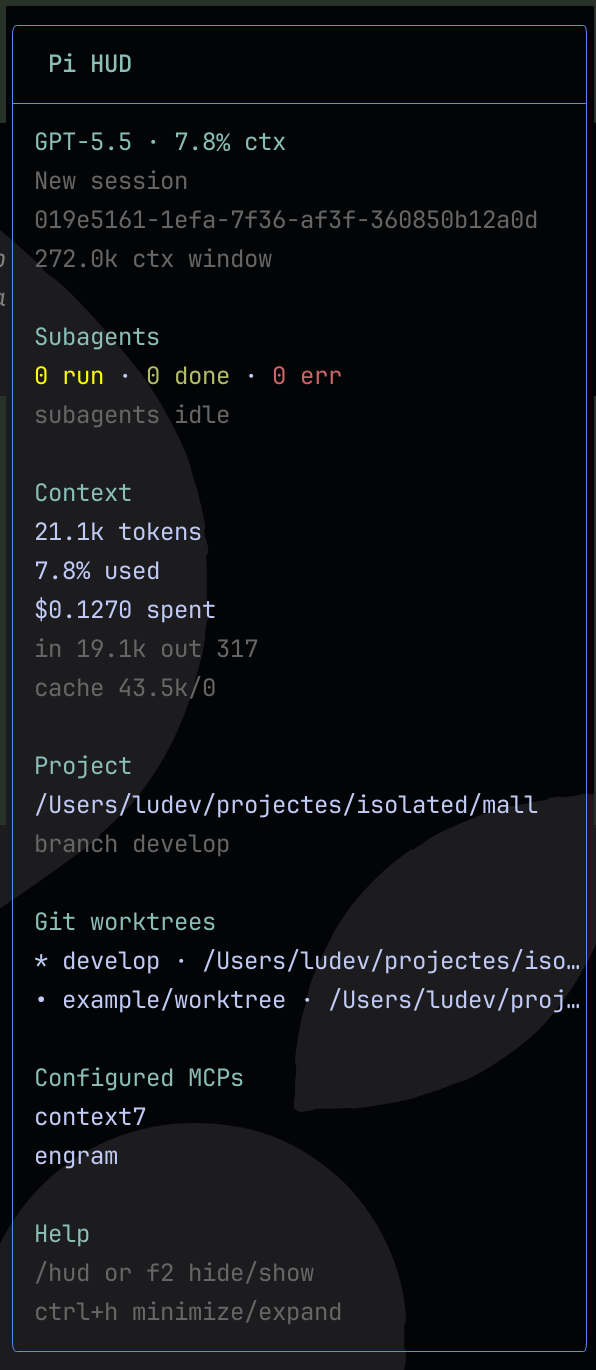
Features
- Starts visible by default when the extension is installed.
- Shows a startup notice with the loaded HUD entry, toggle shortcut, and once-per-version packaged release notes.
/hudtoggle command./hud-modecommand to switch between overlay and footer mode./hud-settingsconfiguration command.- Default hide/show keyboard shortcut:
ctrl+shift+h. - Default overlay/footer switch shortcut:
ctrl+.. - Default minimize/expand keyboard shortcut:
ctrl+h. - Non-blocking TUI overlay: keep typing while the hud is visible.
- Live subagent status:
- running/done/error counts;
- active task label;
- elapsed time;
- token/context count when available.
- Session context usage, cost, active model, and reasoning/thinking level when the selected model supports it.
- Project path, current git branch, and git status indicators.
- Registered git worktrees when the repository has more than one worktree.
- Configured MCP server names when
pi-mcp-adapteris installed. - Opt-in footer mode with compact multi-line status, full-line background styling, and emoji indicators for project, context, MCP, help, git status, and context pressure.
Install
pi install npm:pi-hud
For project-local install:
pi install -l npm:pi-hud
First 60 seconds
Use this quick path to confirm pi-hud is installed and responding:
Install it globally or for the current project:
pi install npm:pi-hud
# or: pi install -l npm:pi-hud
Start a new Pi session, or reload the current one:
/reloadConfirm the HUD appears on the right side. If it is hidden, toggle it:
/hudTry footer mode, then switch back if you prefer the overlay:
/hud-mode footer
/hud-mode overlay
Try one safe setting change:
/hud-settings position bottom-right
Global settings are stored in ~/.pi/agent/settings.json; project-local settings live in .pi/settings.json and override global values.
Try locally
From this repository, isolate the development extension from any globally installed pi-hud package:
pi --no-extensions -e .
To load only the HUD extension file while iterating:
pi --no-extensions -e ./extensions/hud.ts
From the Pi monorepo checkout during development:
./pi-test.sh --no-env -e /path/to/pi-hud
The HUD opens automatically on session start. Inside Pi, run:
/hud
Run /hud again, or press ctrl+shift+h, to hide or show the overlay. Press ctrl+. to switch between overlay and footer mode. Press ctrl+h to minimize or expand the overlay. To replace Pi's built-in footer with the HUD footer, run /hud-mode footer.
Commands
| Command | Description |
|---|---|
/hud |
Toggle the overlay HUD. |
/hud-mode |
Toggle between overlay and footer, or set one explicitly with /hud-mode footer and /hud-mode overlay. |
/hud-settings |
Open the HUD Settings modal for mode, position, shortcuts, startup notification, auto-compact, sizing, Modules visibility, current settings, and defaults. |
Settings
pi-hud reads a hud object from Pi settings. Global settings live in ~/.pi/agent/settings.json; project settings in .pi/settings.json override them.
Defaults:
{
  "hud": {
    "mode": "overlay",
    "position": "top-right",
    "shortcut": "ctrl+shift+h",
    "switchShortcut": "ctrl+.",
    "minimizeShortcut": "ctrl+h",
    "autoCompactWhileStreaming": true,
    "startupNotification": true,
    "expandedWidth": 42,
    "compactWidth": 26,
    "minTerminalWidth": 90,
    "margin": { "top": 1, "right": 1, "bottom": 1 },
    "visibility": {
      "context": true,
      "project": true,
      "worktrees": true,
      "mcps": true
    }
  }
}
Supported position values are center, top-left, top-right, bottom-left, bottom-right, top-center, bottom-center, left-center, and right-center.
mode controls where Pi HUD renders. overlay is the default right-side HUD. footer replaces Pi's built-in footer with Pi HUD's compact multi-line footer. You can persist it in settings, switch immediately with /hud-mode footer and /hud-mode overlay, or press the configured switchShortcut.
Run /hud-settings with no arguments to open the centered HUD Settings modal. The modal shows current values, lets you edit settings, shows the current serialized configuration, and can restore defaults. Argument-based commands such as /hud-settings mode footer and /hud-settings visibility context off remain available for direct updates.
startupNotification controls the UI-only startup notification shown when pi-hud loads in an interactive session. It defaults to true, skips /reload, and can be disabled when you want a quieter startup. The notice is rendered with Pi's notification UI instead of a session message, so it does not add HUD text to the agent prompt context. When packaged release metadata is available, the startup notice includes the latest release commits once per version and records that marker in Pi's user state directory. The footer mode discovery tip is also shown once per packaged version and stored in the same state file.
visibility controls optional HUD modules from the /hud-settings → Modules visibility toggle list. All visibility items default to true; set an item to false to hide it in expanded HUD and any compact equivalent. The toggle list includes Default settings to restore every configurable module to visible. Supported keys are context, project (project path + branches), worktrees, and mcps. Subagents is intentionally not toggleable and remains visible when applicable. After changing module visibility, run /reload for the change to take effect.
Examples:
/hud-mode footer
/hud-mode overlay
/hud-settings mode footer
/hud-settings position bottom-right
/hud-settings shortcut ctrl+shift+h
/hud-settings switchShortcut ctrl+.
/hud-settings minimizeShortcut ctrl+h
/hud-settings autoCompactWhileStreaming off
/hud-settings startupNotification off
/hud-settings visibility worktrees off
/hud-settings visibility context on
Footer mode
Footer mode is opt-in because it replaces Pi's built-in footer. Use it when you want a fixed, compact status surface instead of the floating overlay. It avoids visually covering session text and makes terminal selection cleaner, so you can copy visible content without accidentally copying Pi HUD's overlay text.
/hud-mode footer   # switch immediately and persist footer mode
/hud-mode overlay  # restore Pi's built-in footer and persist overlay mode
/hud-mode          # toggle between the two modes
The footer renders five compact lines:
▏ 📁 Project  Pi-hud /Users/ludev/projectes/pi-hud 🟢 (main)
▏ 🧠 Context  12.0k tokens │ 🟢 6.0% used/200.0k ctx │ Claude Sonnet │ thinking: medium │ $0.01000 spent
▏ 🔌 MCP      2/4 servers │ Worktree: No worktrees
▏ ❔ Help     /hud-mode │ /hud-settings │ 🔗 docs │ Status: LSP Inactive
▏ 🔁 Session  resume: pi --session 019e9925-92bb-78d7-aa4a-44ef32c10fcc
When the project has exactly one active OpenSpec change, the help line becomes a short workflow hint instead of listing full SDD details:
▏ 🧭 Flow 📐 SDD improve-footer · tasks 3/8 · next: apply │ 🔗 docs
The SDD hint appears only when openspec/config.yaml and a single openspec/changes/<change-id> directory are present. It stays one line, shortens before truncation in narrow terminals, and omits itself rather than guessing when multiple active changes exist.
Git status indicators:
| Indicator | Meaning | Branch suffix |
|---|---|---|
🟢 |
Clean working tree | none |
🟡 |
Uncommitted changes | * |
🔴 |
Merge/conflict state | ! |
The context line includes the current model. If the selected model supports reasoning, it also shows the active Pi thinking level such as thinking: medium; non-reasoning models omit that segment.
Context pressure uses the same thresholds as the overlay HUD:
| Context used | Footer indicator |
|---|---|
<50% |
🟢 accent |
50–84% |
🟡 warning |
85–94% |
🟡 bold warning |
>=95% |
🔴 bold error |
Worktrees show No worktrees when Git only reports the current checkout. When linked worktrees exist, the footer shows the current worktree path. Footer mode also preserves non-duplicated extension statuses, such as LSP, but hides MCP status from the final line because Pi HUD already renders MCP in its own line. When Pi exposes live MCP status, the MCP count can start at 0/N servers and increase as servers connect or are used. The final session line shows the exact pi --session <id> command to resume the current session later.
Shortcut format
Write shortcuts as modifier+key, using lowercase names. Multiple modifiers can be combined with +.
| User-facing keys | Write in settings | macOS equivalent | Example |
|---|---|---|---|
| Control + key | ctrl+key |
Control (⌃) + key |
ctrl+h |
| Alt + key | alt+key |
Option (⌥) + key |
alt+h |
| Shift + key | shift+key |
Shift (⇧) + key |
shift+f2 |
| Control + Shift + key | ctrl+shift+key |
Control (⌃) + Shift (⇧) + key |
ctrl+shift+h |
| Alt + Shift + key | alt+shift+key |
Option (⌥) + Shift (⇧) + key |
alt+shift+h |
| Function key | f1-f12 |
Function key, sometimes fn + key |
f2 |
| Command + key | Not recommended for terminal shortcuts | Command (⌘) + key |
Prefer ctrl+key or alt+key |
For macOS users, write Option shortcuts as alt+key, not option+key. Command shortcuts are usually reserved by macOS or the terminal app, so they are not portable for HUD bindings.
macOS note: Function keys such as
f2can be intercepted by macOS, terminal emulators, keyboard settings, or multiplexers before Pi receives them. The defaultctrl+shift+havoids function keys and is usually more portable. The default switch shortcut isctrl+.because it is short and avoids Pi's built-in bindings.ctrl+sis reserved by Pi for model saving and may also be captured by terminals with software flow control enabled, so Pi HUD rejects it. If your terminal does not emitctrl+.or collapsesctrl+shift+hintoctrl+h, use another shortcut such asctrl+alt+sorctrl+alt+hand run/reload.
Recommended profiles
These profiles are copy-paste examples for your Pi settings file. They are documented examples, not built-in runtime presets. Each snippet is a partial override; unspecified HUD settings keep their default or previously configured values.
Minimal / low-noise HUD
Use this when screen space matters but you still want the HUD available.
{
  "hud": {
    "expandedWidth": 32,
    "compactWidth": 20,
    "autoCompactWhileStreaming": true,
    "minTerminalWidth": 80
  }
}
Small terminal
Use this for narrow terminals. The HUD is still hidden when the terminal is narrower than minTerminalWidth.
{
  "hud": {
    "expandedWidth": 30,
    "compactWidth": 18,
    "minTerminalWidth": 60,
    "margin": { "top": 0, "right": 0, "bottom": 0 }
  }
}
Bottom-right placement
Use this when top-right content conflicts with the HUD.
{
  "hud": {
    "position": "bottom-right",
    "margin": { "right": 1, "bottom": 1 }
  }
}
Footer mode
Use this when you want Pi HUD to live in the bottom footer instead of the overlay.
{
  "hud": {
    "mode": "footer"
  }
}
No auto-compact
Use this if layout changes during assistant turns are distracting. Manual minimize/expand still works with minimizeShortcut.
{
  "hud": {
    "autoCompactWhileStreaming": false
  }
}
Wider expanded panel
Use this on wide monitors to reduce truncation in the expanded HUD.
{
  "hud": {
    "expandedWidth": 56,
    "compactWidth": 26,
    "minTerminalWidth": 110
  }
}
Shortcut changes require /reload because shortcuts are registered when the extension loads. Do not bind HUD shortcuts to enter, return, alt+m, ctrl+m, ctrl+shift+m, ctrl+j, ctrl+shift+j, or ctrl+s; those conflict with Pi or terminal input keys.
Notes
- Configured MCP servers are shown only when Pi has
pi-mcp-adapterinstalled; config files alone do not enable the section. - Footer mode prefers Pi's live
MCP:extension status when available, so the dedicated MCP line shows connected/total counts such as0/4 serversor2/4 servers. - When no live
MCP:extension status is available, footer mode falls back to the configured MCP server count inN/N serversform. - Subagent status is based on Pi extension events and
pi-subagentstool/result shapes when available. - The overlay auto-compacts for the full assistant turn and expands when the turn ends, instead of changing state on each reasoning update.
- Model and thinking-level changes trigger a HUD re-render so footer and overlay context status stay current.
- The overlay is hidden on narrow terminals under the configured
minTerminalWidth.
Known limitations
MCP connection status
The overlay HUD shows configured MCP server names, not live connection status. It prefers Pi's active agent MCP config at ~/.pi/agent/mcp.json (or $PI_CODING_AGENT_DIR/mcp.json) so enable/disable changes followed by /reload do not get mixed with stale project-local configs. If that Pi agent config is absent, it falls back to legacy global/project MCP config paths.
Footer mode can also receive Pi's live MCP: footer extension status. When that status is present, footer mode shows the live connected/total value on the dedicated MCP line, suppresses the configured fallback count, and filters MCP out of the Help/Flow Status: segment.
| Situation | What the HUD shows | Where to check live status |
|---|---|---|
pi-mcp-adapter is not installed |
No configured MCP section | Install the adapter before checking MCP state in Pi. |
| Pi agent MCP config exists | Servers from Pi's agent MCP config | Use mcp({}) or /mcp. |
| Pi agent config missing, legacy configs exist | Configured server names | Use mcp({}) or /mcp. |
Footer live MCP: status exists |
Dedicated MCP line shows live count, e.g. 1/5 servers |
Use mcp({}) or /mcp for details. |
| Server configured but not connected | The server name can still appear outside live footer status | Use mcp({}) or /mcp. |
| Connected, failed, cached, or auth state | Detailed per-server states are not shown directly | Use mcp({}) or /mcp. |
pi-mcp-adapter does not currently expose a public cross-extension status API for pi-hud to consume. Footer mode can only show live MCP counts when Pi provides them through footer extension statuses.
Release notes
User-facing changes are tracked in CHANGELOG.md. Maintainer release steps are documented in RELEASING.md.
The package also ships a pi-hud-release skill so installed Pi agents can follow the project release workflow with the same checklist without colliding with generic release skills.
Inspiration
pi-hud is inspired by sub-agent-statusline.
License
MIT