pi-session-peek
Pi extension: search session history in a two-pane picker with full conversation preview, then resume or fork.
Package details
Install pi-session-peek from npm and Pi will load the resources declared by the package manifest.
$ pi install npm:pi-session-peek- Package
pi-session-peek- Version
0.5.2- Published
- Sep 21, 2026
- Downloads
- 1,161/mo · 1,161/wk
- Author
- ennac
- License
- MIT
- Types
- extension
- Size
- 335.7 KB
- Dependencies
- 0 dependencies · 2 peers
Pi manifest JSON
{
  "image": "https://raw.githubusercontent.com/Jeffropz/pi-session-peek/main/docs/screenshot.png",
  "extensions": [
    "./index.ts"
  ]
}Security note
Pi packages can execute code and influence agent behavior. Review the source before installing third-party packages.
README
🔍 pi-session-peek — Find That Old Conversation and Jump Back In


Search your pi session history by what was actually said, read the whole conversation in a side pane, then resume it or fork it.
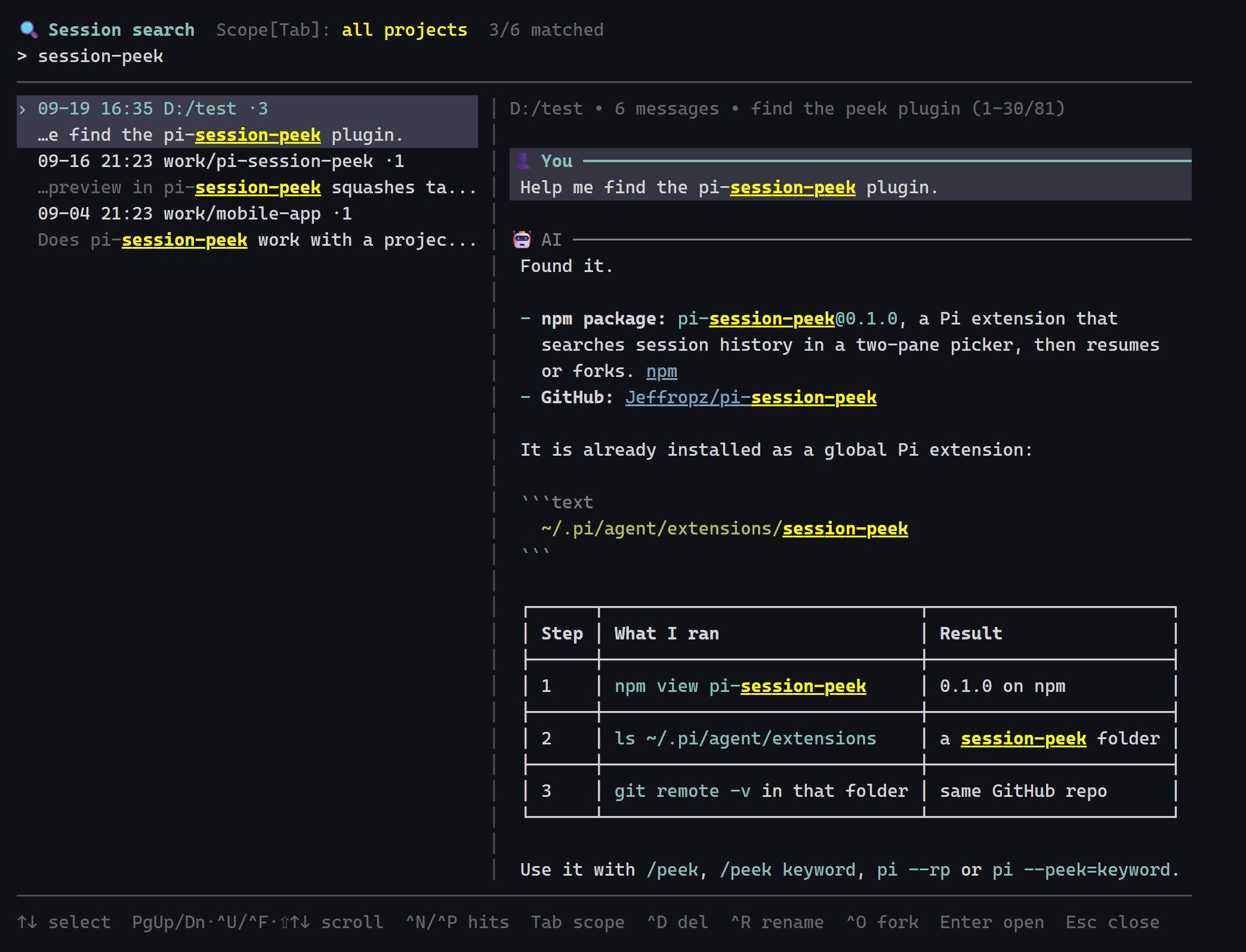
✨ Features
- Opens a two-pane picker with
/peekor/peek <keyword>: sessions on the left, the full conversation on the right. - Renders the conversation with pi's own Markdown renderer, so headings, code blocks with syntax highlighting, tables and lists look the same as in the main transcript.
- Filters as you type across conversation text and session name. The working directory is searched only with an explicit
dir:, so a word from a project path does not match every session in that project. Tool call arguments and results are excluded from the search, so a keyword only matches sessions that actually discussed it. - Requires every space-separated keyword to match, and shows a snippet around the first hit in the list.
- Understands
"exact phrases",either|or,-exclude,name:/dir:/user:/ai:prefixes and/regex/. - Limits results to recently active sessions with
@7d,@24h,@2wor@1m. - Highlights every hit in the preview and jumps between them with
Ctrl+N/Ctrl+P. - Shows what the assistant actually did with
Ctrl+T: one dim line per tool call (⚙ bash git status,⚙ edit src/query.ts) under the reply that made it. Off by default. - Resumes with
Enter, forks into a new session withCtrl+O, renames withCtrl+R, deletes withCtrl+D. - Toggles between the current directory tree and all projects with
Tab. - Starts straight into the picker with
pi --rporpi --peek=<keyword>. - Parses each session file once and caches it by mtime, so reopening is instant.
📦 Install
pi install npm:pi-session-peek
Try it without installing permanently:
pi -e npm:pi-session-peek
Install from GitHub instead of npm:
pi install git:github.com/Jeffropz/pi-session-peek
Pi extensions run with the Pi process's user permissions, so install only trusted packages.
🚀 Quick start
In TUI mode, run /peek and start typing. Press Enter on a session to continue it, or Ctrl+O to continue in a fresh fork and leave the original untouched.
💬 Commands
| Command | Purpose |
|---|---|
/peek |
Open the picker. The previous keyword is remembered for the process. |
/peek <keyword> |
Open the picker with the keyword filled in. |
pi --rp |
Start pi and open the picker. Takes no argument. |
pi --peek=<keyword> |
Start pi and open the picker with the keyword filled in. --peek requires a value. |
⌨️ Keys
| Key | Action |
|---|---|
| type | Filter. Space-separated words must all match; see Search syntax for phrases, -exclude, prefixes, regex and @7d. |
Tab |
Current directory tree ↔ all projects |
↑ ↓ |
Select session |
PgUp PgDn |
Scroll preview by a page |
Ctrl+U Ctrl+F |
Scroll preview by half a page |
Shift+↑ Shift+↓ |
Scroll preview by three lines |
Ctrl+N Ctrl+P |
Next / previous hit line outside the current view; the top-right corner shows hit k/n |
Ctrl+T |
Show / hide tool calls in the preview. Each call is one line with the tool name and its main argument (command, path, URL, query). Results are never shown. |
Enter |
Resume the session |
Ctrl+O |
Fork the session and open the fork |
Ctrl+R |
Rename. Writes the same session_info entry as /name. |
Ctrl+D |
Delete, confirmed with y or Enter. Moves the file to the system trash whenever one is available (trash CLI, then the Windows Recycle Bin via PowerShell, Finder on macOS, gio trash / trash-put on Linux). Deletes permanently only if none of those work. |
Esc Ctrl+C |
Close |
🖱️ Mouse
| Action | Effect |
|---|---|
| Click a session in the list | Select it |
| Double-click a session | Resume it (same as Enter) |
| Wheel over the list | Scroll the list like a scrollbar; the selection stays where it is. ↑ ↓, a click or a new filter bring it back into view. |
| Wheel over the preview | Scroll the preview three lines per notch (Alt for five times faster) |
| Click the scope label in the header | Toggle current directory tree ↔ all projects (same as Tab) |
| Click the search box or the rename line | Move the cursor |
| Drag inside a pane | Select text in that pane only. Dragging across the divider or past the edge keeps the selection in the pane where it started, and lines wrap within that pane. |
Ctrl+C with a selection |
Copy it to the clipboard. Nothing is copied on release. Without a selection Ctrl+C closes as before; a click anywhere clears the selection. |
Mouse reporting is switched on only while the picker is open and switched off when it closes, so the rest of pi is unaffected. While it is on, the terminal's own text selection and scrollback are unavailable; most terminals give them back while Shift is held, but that selection is the terminal's and spans both panes. Set PI_SESSION_PEEK_MOUSE=0 to keep the mouse off. In pi's fullscreen mode the picker uses pi's own mouse handling and the variable is ignored.
🔎 Search syntax
The filter is case-insensitive and matches anywhere in the text. Whitespace separates terms, and every term must be satisfied.
| Input | Meaning |
|---|---|
token undefined |
Sessions containing both token and undefined, in any order and any message |
"token undefined" |
The exact phrase. Whitespace inside the quotes matches any run of whitespace, including a line break. |
vue|react |
Sessions containing vue or react |
-draft |
Sessions that do not contain draft in any message or in the session name |
name:auth |
Session name only. dir: or cwd: for the working directory. |
user:deploy |
Only the messages you wrote. ai: or assistant: for the replies. |
/\bfoo\d+\b/ |
JavaScript regular expression, case-insensitive, ^ and $ match line boundaries. Use \s instead of a space. |
@7d |
Sessions active in the last 7 days. Units: h, d, w, m (30 days). |
-user:"not now" ai:/todo|fixme/ @2w |
Prefixes stack, and everything combines |
Quotes are the escape hatch: "-foo", "a|b", "name:x" and "/x/" search for those characters literally. A regex that fails to compile is searched as plain text. Only positive terms are highlighted in the preview, and name: / dir: terms never touch the conversation, so name:auth alone shows the full conversation with no highlights.
The search index holds user and assistant messages and the session name. The working directory is matched only by dir: / cwd: terms: with the current-directory scope every session shares the same path prefix, so a plain word from the path would match all of them. The index does not hold tool call arguments or tool results, and the tool lines shown by Ctrl+T are never matched or highlighted.
🌐 Language
The interface follows your system language: Chinese on zh-* locales, English everywhere else. Detection order is PI_SESSION_PEEK_LANG, then LC_ALL / LC_MESSAGES / LANG, then the OS locale.
Force a language:
PI_SESSION_PEEK_LANG=en pi
PI_SESSION_PEEK_LANG=zh pi
On Windows PowerShell: $env:PI_SESSION_PEEK_LANG = "en" before starting pi. The language is read once when the extension loads, so change it before starting pi or run /reload.
🚧 Limitations
- TUI mode only.
- The mouse needs a terminal that supports SGR mouse reporting and the cursor position report (
CSI 6 n). Windows Terminal, iTerm2, kitty, WezTerm, Alacritty, GNOME Terminal and VS Code all do; the legacy Windows console does not. - The preview shows the last 500 messages of very long sessions. Hits in earlier messages are still counted and announced.
pi --peekwithout a value is rejected by pi at startup. Usepi --rpto open without a keyword.- With the default layout every project under
~/.pi/agent/sessions(or$PI_CODING_AGENT_DIR/sessions) is scanned. If pi runs with a custom session directory (--session-dir,$PI_CODING_AGENT_SESSION_DIRorsessionDirin settings), only that directory is scanned and forks are written there.
🗂️ Package layout
pi-session-peek/
├── index.ts                 # Registers /peek and the startup flags, injects delete / rename / fork / copy
├── src/
│   ├── peek-component.ts    # The two-pane component: state, key and mouse routing, header / footer, pane composition
│   ├── preview.ts           # Right pane: preview lines and hit lines for a session, initial offset, Ctrl+N/P targets
│   ├── list.ts              # Left pane: two rows per session, viewport following
│   ├── drag-select.ts       # Drag-selection state machine: press / drag / release / auto-scroll
│   ├── selection.ts         # Selection geometry: ranges, inverse-video highlight, text extraction
│   ├── layout.ts            # Pane widths and body height
│   ├── sessions.ts          # Scans and parses session JSONL, rename / delete helpers
│   ├── query.ts             # Query parsing, matching, highlighting, hit snippets
│   ├── mouse.ts             # Mouse reporting for pi's regular (non-fullscreen) mode
│   ├── ansi.ts              # Escape-sequence tokenising, SGR tracking, input sanitising
│   ├── theme.ts             # The subset of pi's Theme the picker uses
│   ├── i18n.ts              # Chinese / English UI strings and locale detection
│   └── text.ts              # Path, time and width helpers
├── scripts/screenshot.mjs   # Optional: renders a synthetic screenshot from component output
└── test/                    # node:test suites
🛠️ Development
npm install
npm test               # node:test via tsx
npm run typecheck      # tsc --noEmit
npm run screenshot     # optional: overwrite docs/screenshot.png with a synthetic render (needs Chrome)
To load a local checkout, add its path under extensions in ~/.pi/agent/settings.json or drop the folder into ~/.pi/agent/extensions/, then /reload.
Releasing
Every push to main and every pull request runs npm run check on Ubuntu and Windows (.github/workflows/ci.yml). Pushing a vX.Y.Z tag runs .github/workflows/release.yml, which checks that the tag matches package.json, runs the checks again, publishes to npm through trusted publishing (no token needed, provenance attached automatically) and creates a GitHub Release from the matching CHANGELOG.md section.
One-time setup on npmjs.com: package settings → Trusted Publisher → GitHub Actions, with owner Jeffropz, repository pi-session-peek, workflow filename release.yml.
To cut a release:
# 1. write the release notes under "## Unreleased" in CHANGELOG.md and commit them
#    (npm version refuses to run with uncommitted changes to tracked files)
# 2. bump the version (patch / minor / major)
npm version patch
# 3. push the commit together with the tag; CI does the rest
git push --follow-tags
npm version first checks that the working tree is clean and stops with Git working directory not clean. otherwise, so everything, including CHANGELOG.md, has to be committed before the bump. Untracked files are fine. It then runs the hooks declared in package.json: preversion checks that CHANGELOG.md has a non-empty ## Unreleased section and runs npm run check, aborting the bump before anything is touched if either fails; version runs scripts/release-changelog.mjs, which renames ## Unreleased to the new version and stages the file. npm then commits package.json, the lockfile and CHANGELOG.md as chore: release X.Y.Z (message set in .npmrc) and tags it vX.Y.Z.
📄 License
MIT. See LICENSE.