pi-slack-bridge
Bridge Slack into pi - a pure Slack remote control surface for the pi coding agent
Package details
Install pi-slack-bridge from npm and Pi will load the resources declared by the package manifest.
$ pi install npm:pi-slack-bridge- Package
pi-slack-bridge- Version
0.3.0- Published
- Aug 18, 2026
- Downloads
- 235/mo · 36/wk
- Author
- thanhtientc
- License
- MIT
- Types
- extension
- Size
- 313 KB
- Dependencies
- 1 dependency · 3 peers
Pi manifest JSON
{
  "extensions": [
    "./dist/bridge/index.js"
  ],
  "image": "https://raw.githubusercontent.com/comsysto/pi-slack-bridge/main/media/markdown-formatting-screenshot.png"
}
Security note
Pi packages can execute code and influence agent behavior. Review the source before installing third-party packages.
README
pi-slack-bridge

A pi extension that connects your Pi agent harness terminal session to Slack via Socket Mode.
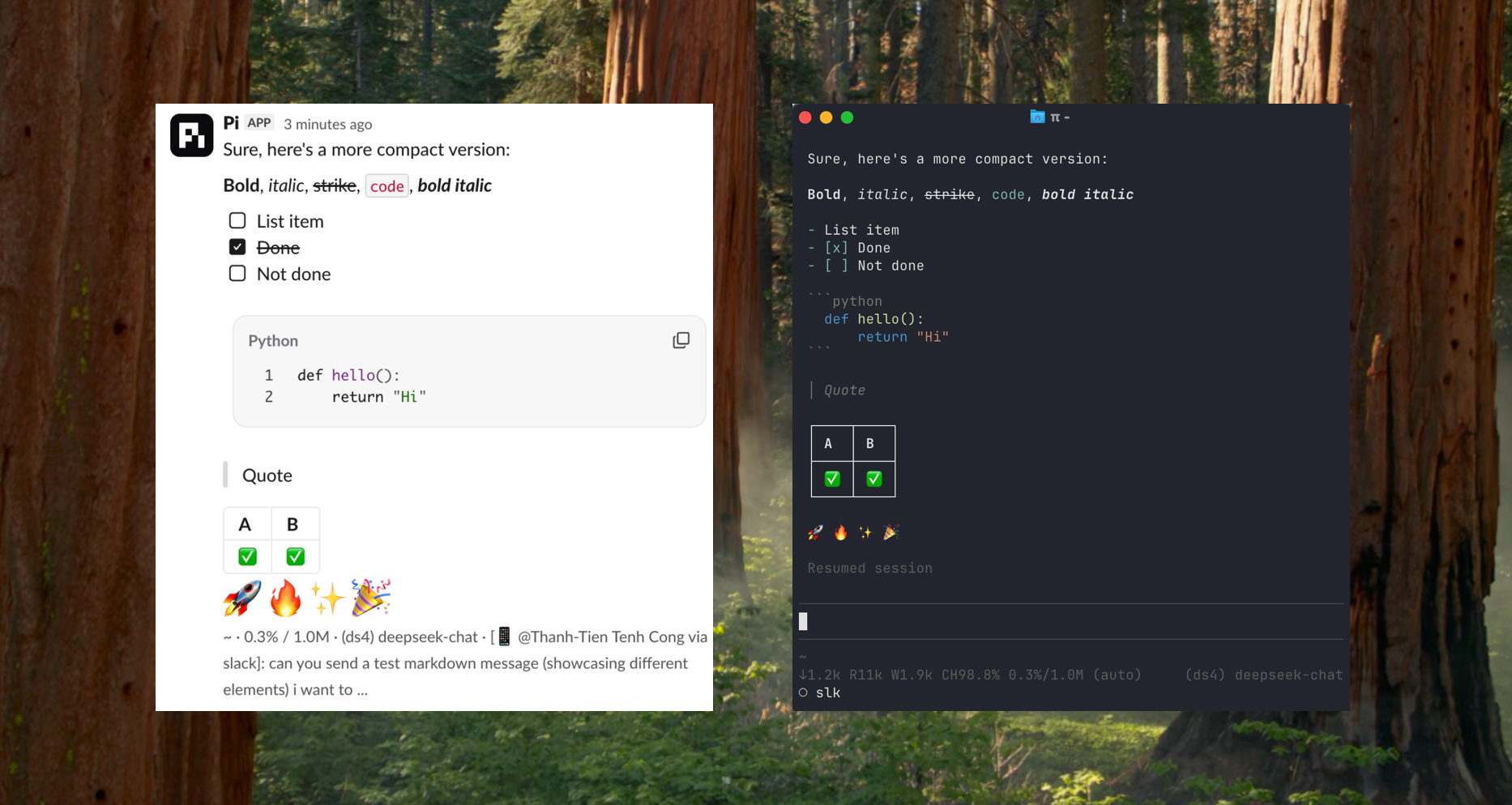
This is a fork of tintinweb/pi-messenger-bridge which purely focusses on the integration of Slack. It provides opinionated Quality-of-Life features like Markdown formatting via the Slack Block Kit API, tmux-backed Session Management (create new or switch to former Pi Session) and more.
Summarized featureset:
- Send messages, receive responses with pi from Slack
- Run deterministic remote commands (
/slk-bridge ...in pi's terminal,.bridge ...in Slack DMs) - Upload/download files between Slack and pi
- Manage multiple pi sessions per Slack thread (each session gets its own thread)
- Switch between sessions, spawn new ones, and hand over the active terminal session to Slack
- Session message replay - when resuming a session, prior conversation history is replayed into the Slack thread
- Opt sessions in/out of automatic bridge takeover
Currently only one terminal session at a time can be bridged to Slack. When another session connects, ownership of the Slack bridge is transferred to that session.
Setup
1. Install
pi install npm:pi-slack-bridge
Or install from local path:
pi install /path/to/pi-slack-bridge
2. Configure Slack
Create a Slack app with Socket Mode in Settings > Socket Mode enabled. You need both tokens:
- Bot Token (
xoxb-...) — in Settings > Install App - App-Level Token (
xapp-...) — create one in Settings > Basic Information > App-Level Tokens with theconnections:writescope
In Features > App Home enable Messages Tab so you can interface with the App via DMs.
Following Bot Token scopes (in Features > OAuth & Permissions) need to be enabled for the Slack Bridge to function fully:
chat:write- for exchanging Messages to/from Pifiles:read- for File sending to Pifiles:write- for File receiving from Piim:history- for viewing message history with Slack userim:read- for saving metadata for session managementreactions:write- to show the User via ⏳ reaction that prompt is processinguser:read- to correctly identify user for authentication
Configure the Slack Bridge via the interactive menu:
/slk-bridge
# Select "Configure"
# Enter bot token
# Enter app token
Or via CLI:
/slk-bridge configure <bot-token> <app-token>
Or set environment variables:
export PI_SLACK_BOT_TOKEN="xoxb-your-slack-bot-token"
export PI_SLACK_APP_TOKEN="xapp-your-slack-app-token"
3. Connect
/slk-bridge connect
The bridge automatically connects after token configuration or on next pi launch if autoConnect is set in the ~/.pi/slk-bridge.json.
4. Authenticate a Slack User
When a Slack user messages the bot for the first time, they receive a 6-digit challenge code. The code appears in their pi terminal.
The user then enters the code in the bot chat to become the trusted Slack user for this bridge.
Only one Slack user is trusted at a time. After the first successful claim, other users are ignored until claiming is manually re-opened with
/slk-bridge releaseclaimin a Pi terminal session.
Main deviations from pi-messenger-bridge
Slack as first-class transport
- Change of semantics -
msg-bridge->slk-bridge - File Upload and Receive - send and receive Files over Slack to/from your Pi Agent session
- Markdown Formatting - Slack messages are now properly formatted with Markdown Blocks
- stop - send
stopin Slack to abort an agent turn. Inspired by badlogic/pi-telegram - Reflect pi status in Slack message footer - each latest message has a Slack footer annotation which reflects the state of your Pi agent (current path, model, context window,...)
tmux-backed Session Management
The goal is to pick up your Pi session from Slack or from the terminal whenever you want.
For this, tmux is used as the backbone to create new Pi sessions, switch to older ones or list previous ones.
Only one tmux session can exist at time to function as a container for a newly created or switched-to Pi session.
There are several main commands introduced:
/slk-bridge new [path]- kill current Pi session and start a new one inside a tmux session. Includepathas an optional argument to start the session in a path on your OS/slk-bridge resume- list the recent 10 sessions of your Pi agent./slk-bridge resume list [number]- list the recentnumbersessions (default 10). Include an optionalnumberargument to list the lastnumbersessions./slk-bridge resume <number>- resume a session denoted by the number in theresume/resume listoutput. The old tmux session (if it exists) gets used for switching the Pi terminal session./slk-bridge handover- push the current terminal session into Slack so the conversation can continue there
Each command is implemented in a deterministic fashion inside the Pi Agent harness so that no LLM call is triggered.
To optout/optin a local terminal session being bridged to Slack, use /slk-bridge optout or /slk-bridge optin respectively.
Whenever a session is switched, it gets assigned its own new thread in the DM with the Slack App bridged to your Pi agent. A user can also switch to a session by continuing the respective thread in Slack. The same thread-based flow is used when explicitly pushing a terminal session to Slack via /slk-bridge handover. When a session is pushed to Slack (handover), the full conversation history plus the final response are replayed into the new thread so the Slack user can pick up where the terminal left off.
Deterministic Dot Commands
The user can use .bridge as a sort-of replacement to trigger some / commands to Pi. Currently only supports skills and prompt templates next to pi-slack-bridge native commands.
To list all available commands, send . in Slack.

Security
- Config file:
~/.pi/slk-bridge.json(chmod 600 — owner read/write only) - Config directory:
~/.pi/(chmod 700 — owner only) - Downloads:
~/.pi/slk-bridge-downloads/slack/ - Handoffs:
~/.pi/slk-bridge-handoffs/ - Environment variables take precedence over file config
- Challenge-based authentication (6-digit code, 3 attempts, 2-minute expiry)
- Transport-namespaced user IDs prevent impersonation
- Only one trusted Slack user is supported at a time; after the first successful claim, other users are ignored until claim is manually re-opened via
/slk-bridge releaseclaim
Troubleshooting
Enable debug mode to see detailed logs:
export SLK_BRIDGE_DEBUG=true
Or set in config:
{ "debug": true }
Common Issues
- "Another instance is connected" — the single-instance guard prevents duplicate Slack connections. Use
/slk-bridge connectin the active session or force-acquire by typing in the target session. - No Slack messages received — verify Socket Mode is enabled in your Slack app configuration and both tokens are correct.
- Handover not working — ensure a trusted Slack user has already claimed the bridge, since
/slk-bridge handoverneeds a remembered Slack DM target. - Handoff not working — ensure tmux is installed and
piis in your PATH. Handoff spawnspi --session <target>in tmux.
Development
git clone https://github.com/comsysto/pi-slack-bridge.git
cd pi-slack-bridge
npm install
npm run build        # compile TypeScript
npm run typecheck    # type-check without emitting
npm run test         # run vitest suite
npm run lint         # biome lint
npm run lint:fix     # biome lint with auto-fix
Load directly from source (faster for development)
pi -e src/bridge/index.ts
/slk-bridge connect
Test suite
npm run test
Covers config loading, lock acquisition, Slack block splitting, conversation history extraction, and formatting.
Acknowledgements
First of all, thanks to the tremendously useful Pi project by Earendil.
Thanks to @tintinweb for providing the pi-messenger-bridge extension this builds upon.
Furthermore thanks to @badlogic and @llblab for their pi-telegram-bridge implementations that inspired some features in this extension like Markdown formatting.
Finally, thanks to @antirez for providing the ds4 inference engine that enabled substantial development with a local deepseek-v4-flash.
Transparency about coding agent use
This project used the Pi Agent Harness with the gpt-5.4 model in the beginning to establish the Slack-only focus. Later, new features, refinements and refactors heavily took advantage of a locally hosted deepseek-v4-flash via antirez/ds4 on a Macbook Pro M3 Max.
License
MIT