pi-stereo-view
Keep Pi conversation separate from tool output and agent activity.
Package details
Install pi-stereo-view from npm and Pi will load the resources declared by the package manifest.
$ pi install npm:pi-stereo-view- Package
pi-stereo-view- Version
0.1.1- Published
- Oct 18, 2026
- Downloads
- not available
- Author
- alexshpunt
- License
- MIT
- Types
- extension
- Size
- 118.7 KB
- Dependencies
- 0 dependencies · 2 peers
Pi manifest JSON
{
  "image": "https://raw.githubusercontent.com/alexshpunt/pi-stereo-view/main/assets/logo-wordmark.png",
  "video": "https://github.com/alexshpunt/pi-stereo-view/releases/download/v0.1.0/demo.mp4",
  "extensions": [
    "./src/index.ts"
  ]
}
Security note
Pi packages can execute code and influence agent behavior. Review the source before installing third-party packages.
README
You come back to a chat and can't remember what you were talking about?
Split tool output from the agent's replies with pi-stereo-view.
The chat becomes two zones: your conversation with the agent, and the agent's work where it calls tools.
| Zone | What's in it |
|---|---|
| Conversation | Your messages, the LLM's replies, compaction summaries and compaction notices. |
| Activity | Tool calls and results, thinking, and other messages generated by Pi. |
Messages and tools keep their familiar appearance. The input stays full width below both panels.
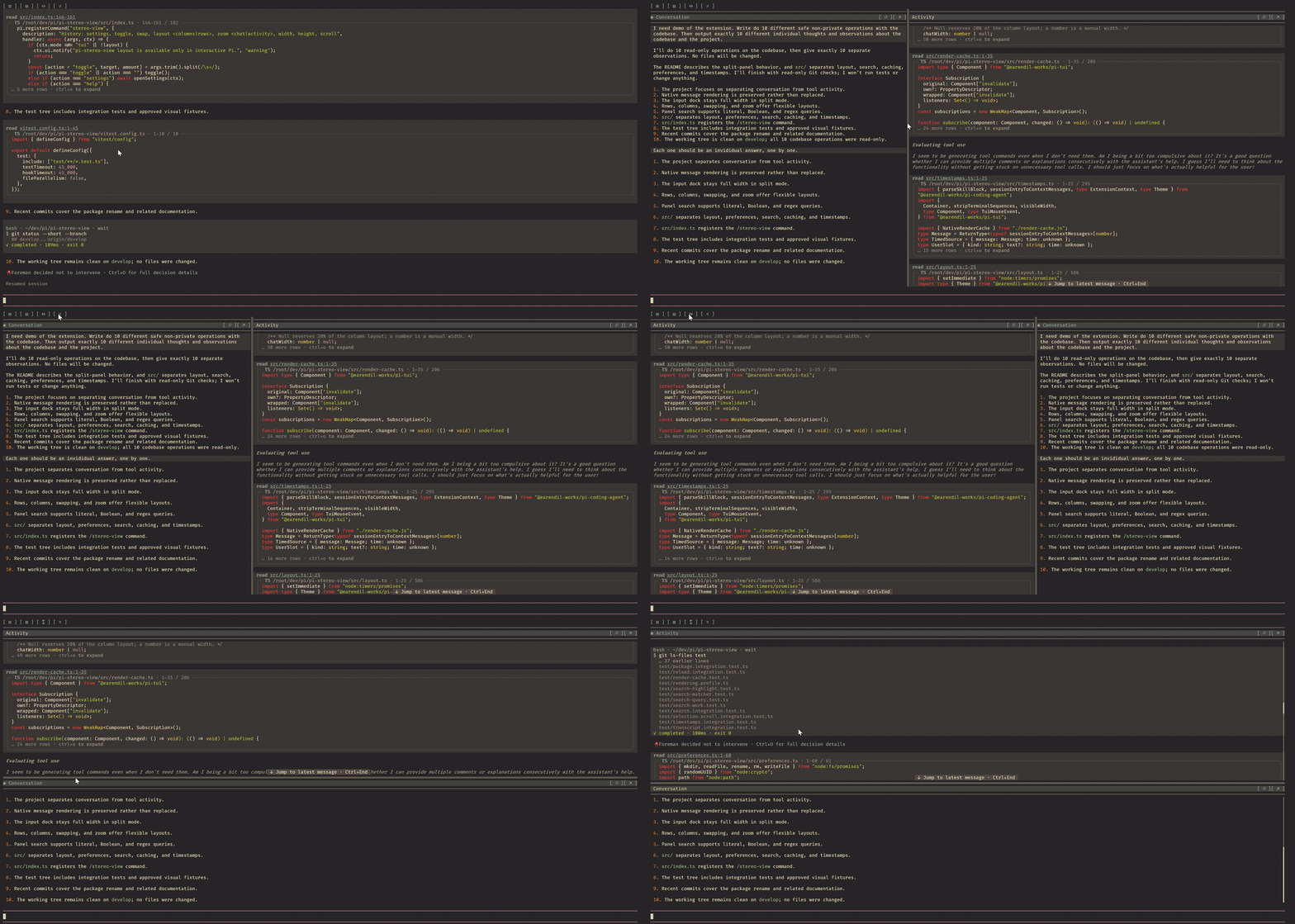
See it in action
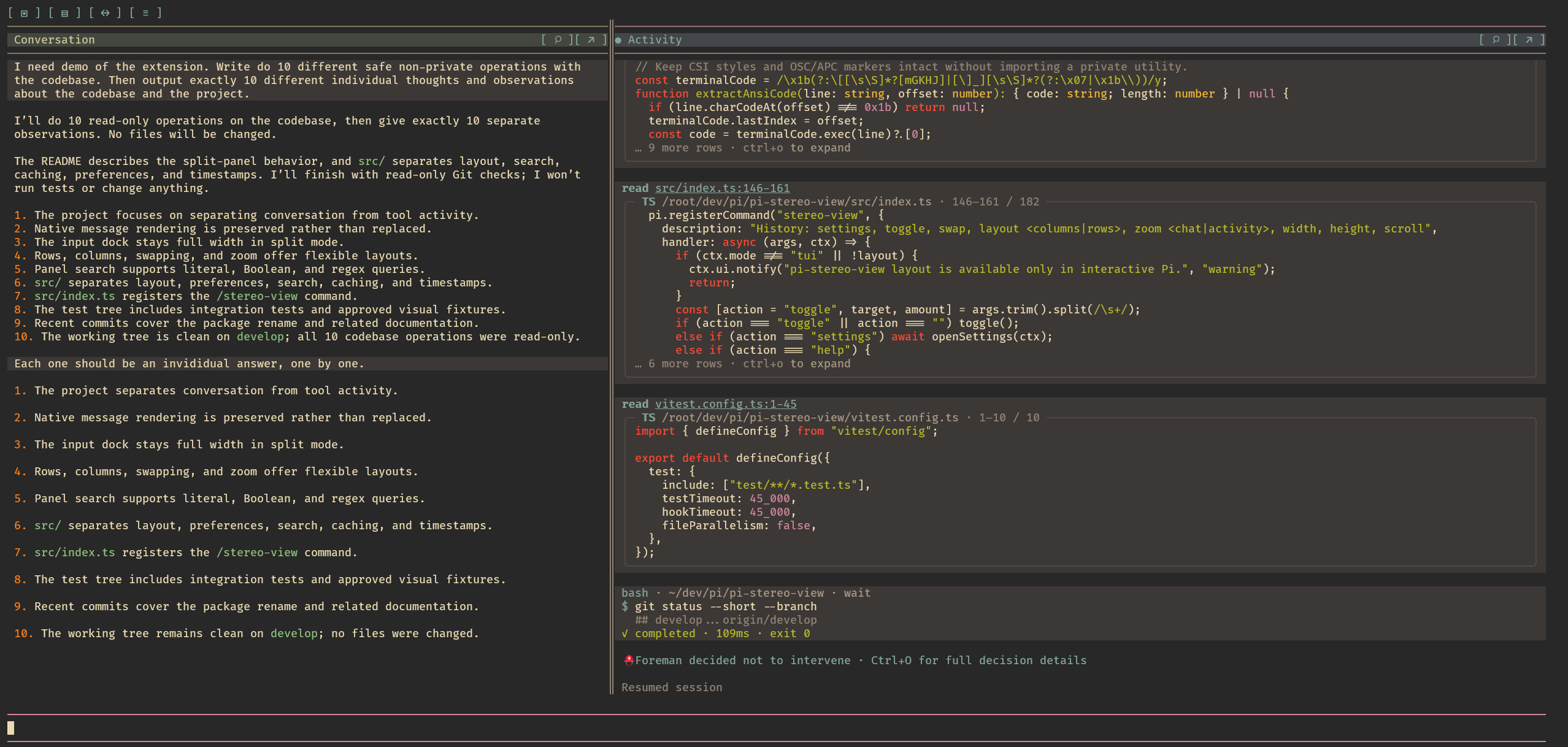
Columns
Conversation beside Activity, with a full-width input below both panels.
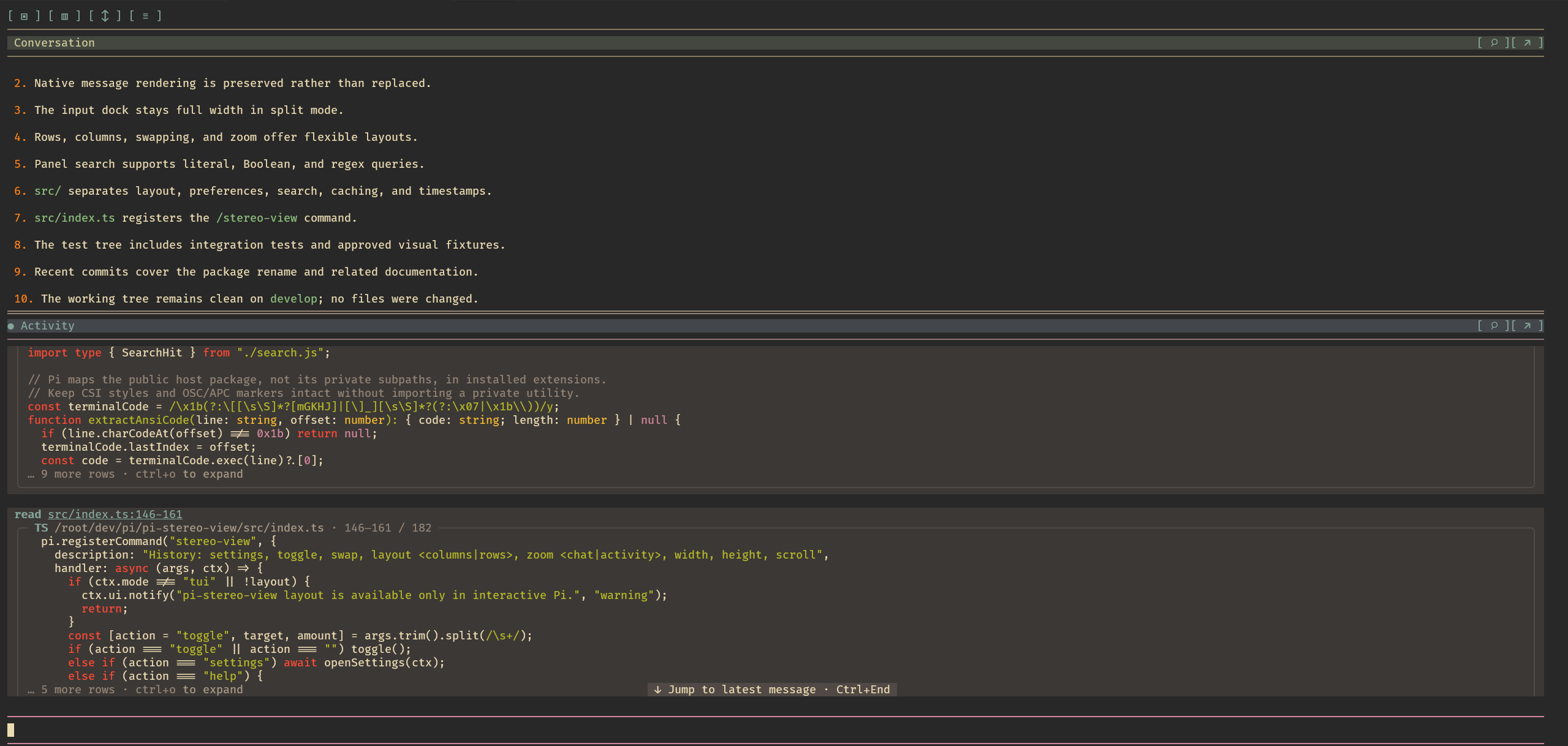
Rows
Conversation above Activity. Swap the panels whenever you need a different order.
Install
pi install npm:pi-stereo-viewSplit history needs Pi's fullscreen mode. Choose it in /settings, or start Pi with:
pi --tui-mode fullscreenUse it
Click the toolbar and the buttons in each panel's header:
| Button | Action |
|---|---|
[ ▣ ] / [ ◫ ] |
Turn split history off / on. |
[ ▤ ] / [ ▥ ] |
Switch between rows and columns. |
[ ↕ ] / [ ↔ ] |
Swap the panels. |
[ ↗ ] / [ ↙ ] |
Zoom a panel / restore the split. |
[ ≡ ] |
Open settings to show or hide timestamps. |
[ ⌕ ] |
Search this panel. |
Resize: drag the double line between the panels — ═ in rows, ║ in columns.
New installs start in Columns: Conversation gets 20% of the width on the left, and Activity gets 80% on the right. Drag the divider or use the size shortcuts to change this.
In Rows, Conversation grows with its messages up to half the available history area, then scrolls. Dragging the divider or setting a height changes that limit. Choose Conversation height: auto in ≡, or run /stereo-view height auto, to restore automatic sizing.
Panels fit short content and scroll when history fills up. Each panel has its own scrolling, text selection and copy.
Swap the panels whenever you want. Zoom a panel to give it the whole history area; the input stays visible. Restore it to return to your split. Turning split off returns to one combined history; the toolbar stays available to turn it back on.
Search history
Press Ctrl+F to search the last clicked or scrolled panel. A dot in the header marks the active panel; Conversation is active initially. The ⌕ button always searches its own panel.
Type a word or phrase to find it without case sensitivity. Combine terms with AND, OR, NOT and parentheses. Put phrases in quotes to keep them together, or start with regex: for a regular expression.
| Example | Finds |
|---|---|
worker ready |
The literal phrase “worker ready”. |
worker AND ready NOT failed |
Lines containing both “worker” and “ready”, but not “failed”. |
(worker OR server) AND "ready now" |
Lines containing either term and the phrase “ready now”. |
regex:worker_[0-9]+ |
Names such as worker_12. |
Press Enter or [↓] for the next match, and Shift+Enter for the previous one. The counter shows your position and the total matches. Ctrl+F returns to the search field without clearing your query.
Search covers the whole current conversation branch, including off-screen messages, hidden thinking and collapsed tool output. It does not search other branches, sessions, attachments or files. Russian and English queries work.
A match is revealed in its own panel without moving the other one. If matching text cannot be shown inside a tool result, a temporary Search match: fragment shows it. Copying keeps the original text, without highlight colours.
Regex search requires ripgrep (rg) to be installed. Invalid queries and search errors appear in the search field instead of showing incomplete results.
Press Escape or [×] to close search and restore your previous scroll position. Your message draft stays unchanged. Close other dialogs before searching. Search is available in split fullscreen history; combined history and regular mode keep Pi's usual keyboard behaviour.
Timestamps
Conversation and Activity can show a dim local HH:mm:ss clock beside messages and tool calls. New tool calls show their start time.
Older tool calls may show ~HH:mm:ss for an approximate time. --:--:-- means the time is unknown.
Use ≡ or /stereo-view settings to hide or show clocks. This setting survives restart. Clocks appear in split and zoomed panels, not in combined history. They are display-only and are not added to the conversation sent to the model.
Commands and shortcuts
The same controls are available without the mouse:
| Action | Command |
|---|---|
| Split off / on | /stereo-view |
| Swap panels | /stereo-view swap |
| Rows / columns | /stereo-view layout rows / /stereo-view layout columns |
| Conversation height / width | /stereo-view height 12 / /stereo-view width 40 |
| Automatic Conversation height | /stereo-view height auto |
| Scroll a panel | /stereo-view scroll chat -10 / /stereo-view scroll activity -10 |
| Zoom / restore Conversation | /stereo-view zoom chat |
| Zoom / restore Activity | /stereo-view zoom activity |
| Timestamp settings | /stereo-view settings |
| Button legend | /stereo-view help |
Ctrl+Alt+T toggles split, Ctrl+Alt+S swaps panels, and Ctrl+Alt+Left/Right resizes Conversation along the current split direction.
Settings and limits
Your layout, panel order, sizes, zoom, split on/off and timestamp settings are saved automatically and restored next time.
- Tested with Pi 1.1.0. Requires Node.js 22.19 or newer.
- Regular mode shows one combined history.
- If the terminal is too small, history temporarily combines without forgetting your split.
- If your Pi version cannot display the split, normal history stays visible and a warning explains the problem.