pi-terminal-notifier
macOS native notifications for pi — focus-aware, click-to-activate, with event bus
Package details
Install pi-terminal-notifier from npm and Pi will load the resources declared by the package manifest.
$ pi install npm:pi-terminal-notifier- Package
pi-terminal-notifier- Version
1.0.4- Published
- Oct 24, 2026
- Downloads
- 341/mo · 261/wk
- Author
- ouzhenkun
- License
- GPL-3.0-or-later
- Types
- extension
- Size
- 3.1 MB
- Dependencies
- 0 dependencies · 1 peer
Pi manifest JSON
{
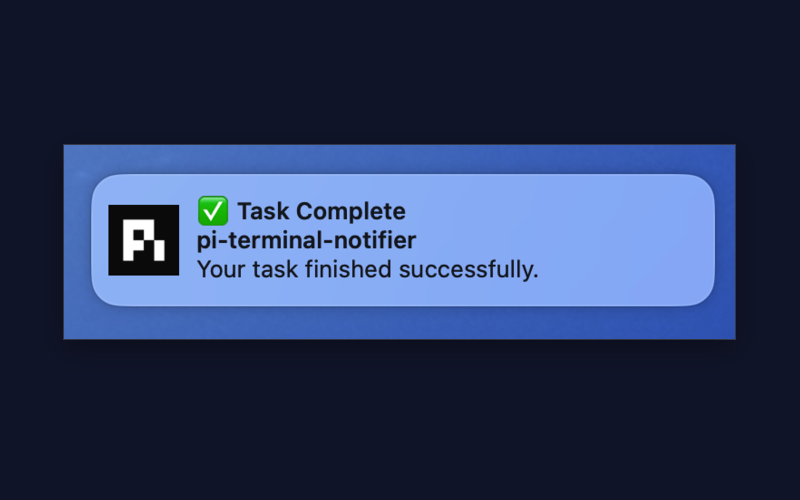
  "image": "https://raw.githubusercontent.com/ouzhenkun/pi-terminal-notifier/main/assets/cover.png",
  "extensions": [
    "./index.ts"
  ]
}
Security note
Pi packages can execute code and influence agent behavior. Review the source before installing third-party packages.
README
pi-terminal-notifier
macOS native notifications for pi — focus-aware, click-to-activate, with a namespaced event bus.


Why
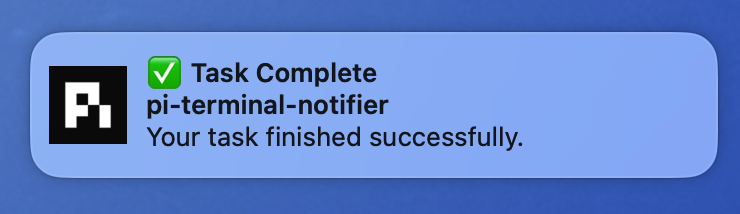
When pi finishes a long turn or needs input, you are often in another app. pi-terminal-notifier posts a native macOS banner with a short sound, skips noise while you are already looking at the terminal, and brings you back on click.
Install
pi install npm:pi-terminal-notifierHow it works
| Source | Behavior |
|---|---|
| agent_end | ✅ Task Complete / ❌ Task Failed from the last assistant text; suppressed when the pi terminal is frontmost |
| Event bus | Other extensions emit pi-terminal-notifier:notify for approvals, plan ready, etc. |
Foreground suppression is skipped when force: true (use when the user must act).
Click-to-activate focuses Ghostty, VS Code, Zed, Terminal, or iTerm2. Inside tmux, it also selects the originating window and pane.
Events
// Approval required
pi.events.emit("pi-terminal-notifier:notify", {
  title: "✏️ Approval Needed",
  body: "$ npm run deploy",
  sound: "question",
  force: true,
  group: "approval",
});

// Plan ready
pi.events.emit("pi-terminal-notifier:notify", {
  title: "📋 Plan Ready",
  body: "Review the implementation plan.",
  sound: "plan-ready",
  force: true,
  group: "plan-ready",
});
Tool Call Integration
Notify when ask_user_question is waiting for user input:
pi.on("tool_call", async (event) => {
  if (event.toolName !== "ask_user_question") return undefined;

  const input = event.input as {
    questions?: Array<{
      header?: string;
      question?: string;
    }>;
  };
  const first = input.questions?.[0];

  pi.events.emit("pi-terminal-notifier:notify", {
    title: "✋ Input Needed",
    body: [first?.header, first?.question]
      .filter(Boolean)
      .join("\n"),
    sound: "question",
  });

  return undefined;
});| Field | Description |
|---|---|
title |
Notification title |
body |
Message body |
subtitle |
Optional; defaults to the current directory basename |
sound |
Sound key (filename without extension) |
force |
Skip frontmost-terminal suppression |
group |
terminal-notifier group id (replace previous in same group) |
Sounds
| Key | File |
|---|---|
task-complete |
sounds/task-complete.aiff |
review-complete |
sounds/review-complete.aiff |
question |
sounds/question.aiff |
plan-ready |
sounds/plan-ready.aiff |
error |
sounds/error.aiff |
Played via afplay. Source MP3s and full attribution: NOTICE.
Compatibility
| Environment | Notifications | Foreground suppression | Click to activate |
|---|---|---|---|
| Ghostty | Supported | Supported | Supported |
| VS Code terminal | Supported | Workspace-aware | Supported |
| Zed terminal | Supported | Workspace-aware | Supported |
| Apple Terminal | Supported | Supported | Supported |
| iTerm2 | Supported | Supported | Supported |
| tmux | Supported | Active pane/window-aware | Returns to the originating pane |
| Other terminals | Supported | Not detected | Not available |
VS Code foreground detection checks the front window's workspace against the current working directory. Zed detection works the same way (its window title is <project> — <file>, the reverse of VS Code's order). In tmux, suppression checks whether the originating pane and window are active; clicking a notification selects that window and pane before focusing the terminal.
Zed and VS Code can focus the window that has the current project open, but neither exposes a way to select a specific terminal tab inside that window. When several tabs share one window, click-to-activate returns to the project window rather than the exact tab. Use tmux for pane-level targeting.
Tested
- Apple Silicon, macOS 15
- Ghostty running tmux
- Native notification delivery and sound playback
Ghostty + tmux is the environment tested by the author. VS Code, Zed, Apple Terminal, and iTerm2 integrations are implemented from their process and bundle identifiers but have not yet been independently verified.
macOS Setup
After the first notification is sent:
- Open System Settings → Notifications → pi-terminal-notifier.
- Turn on Allow Notifications.
- Enable Sounds and choose Banners or Alerts as the notification style.
- If notifications are still hidden, check that Focus or Do Not Disturb is not suppressing them.
Requirements / Notes
- macOS only
- Bundled notifier is Apple Silicon (arm64) only, ad-hoc signed, not notarized
- Browser/GitHub downloads may be Gatekeeper-quarantined; a local clone usually works as-is
- Child processes (
pi -p,--no-session) and subagent sessions do not register user-facing notifications
License
GPL-3.0-or-later — see LICENSE.
Third-party components, including the notifier binary and sound assets, are documented in NOTICE.