On this page
Quickstart
Pi runs in your terminal and works with files on your machine. To use it, you need access to a model through a supported provider. This can be a subscription, an API key, or a local model.
For native Windows setup, read Windows Setup. For Android, read Termux Setup.
1. Install Pi
CopiedOn macOS or Linux, you can use the installer:
curl -fsSL https://pi.dev/install.sh | shThe installer pins all dependencies and updates Pi with pi update. Alternatively, install Pi from npm, which does not pin transitive dependencies. This requires Node.js 22.19 or newer:
npm install -g --ignore-scripts @earendil-works/pi-coding-agentPi does not require dependency lifecycle scripts for a normal npm installation.
With Nix on macOS or Linux, install the latest release from Pi's flake. Nix builds Pi from source:
nix profile add github:earendil-works/pi/stableOlder Nix versions use nix profile install instead. Update with nix profile upgrade pi; pi update cannot update a Nix installation. To pin a release, use a tag such as github:earendil-works/pi/v1.0.0.
Verify the installation:
pi --version2. Start Pi
CopiedChange to the folder you want Pi to work with, then start it:
cd /path/to/folder
pi
The working folder helps Pi discover relevant files, instructions, and configuration. Pi also uses it to group saved sessions.
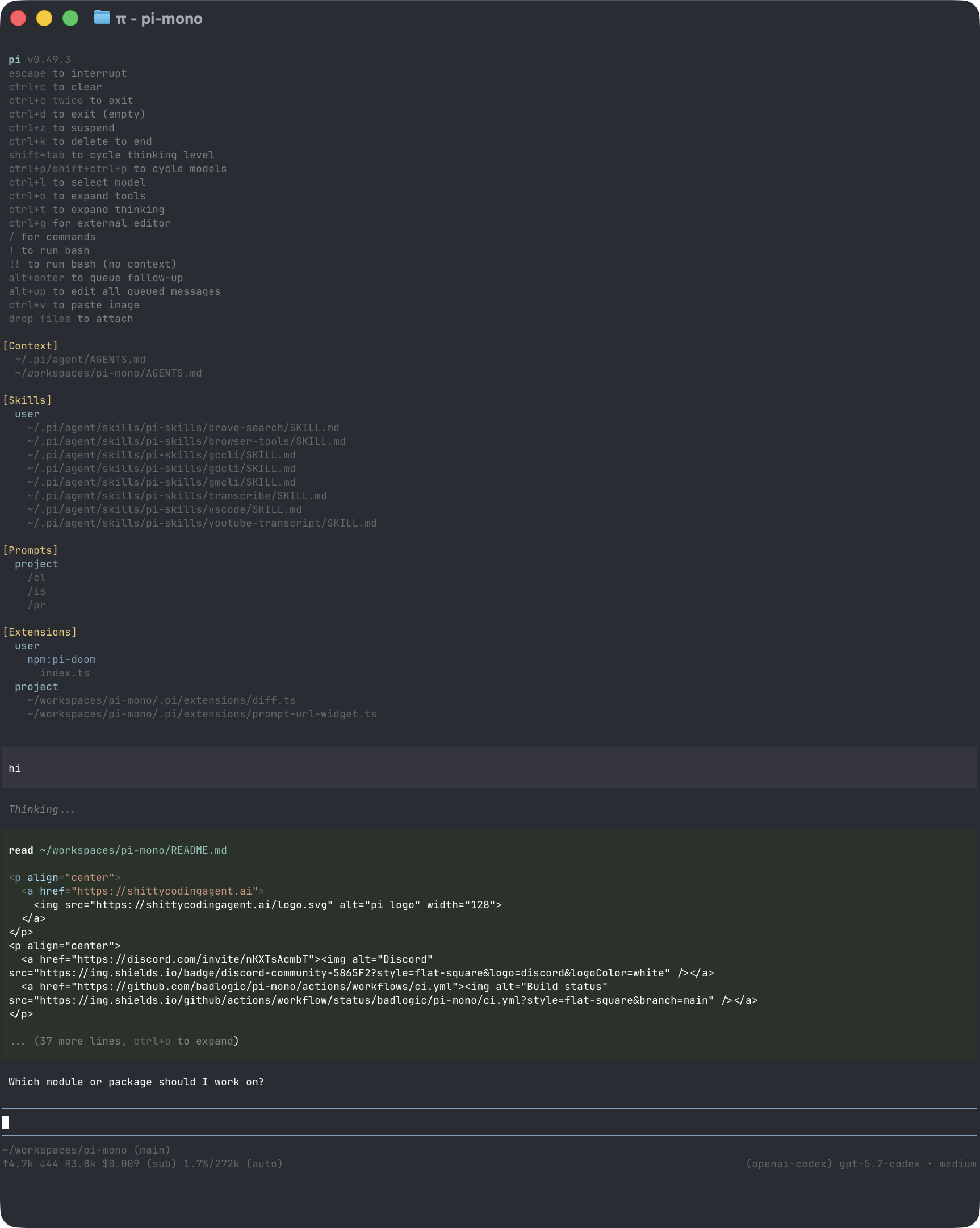
The interface shows your conversation, an editor for prompts and commands, and a footer with the current folder, model, and session status. See Use Pi in the terminal to learn how to add files, run commands, direct ongoing work, and manage results.
3. Choose a model
CopiedA model generates Pi's responses. A provider is the service or account Pi uses to access that model.
In Pi, run:
/loginChoose a provider, then follow the prompts to use a subscription or store an API key. Run /model afterward if you want to select a different available model.
See Choose a model and provider for supported providers, environment-variable authentication, local models, and custom endpoints.
4. Give Pi a task
CopiedPi shows each file read, search, command, and edit it performs. It does not ask before every tool call.
Enter a task that matches your work, for example:
Summarize @meeting-notes.md and save the action items to action-items.md.Explain how this repository is structured and how to run its checks.Compare @previous.csv with @current.csv and summarize the important changes.Type @ in the editor to search for a file instead of entering its full path. When Pi finishes, review its response and any changed files. Use version control or backups for important work. For untrusted or unattended work, use a container or another sandbox. See Security.
Continue later
CopiedPi saves sessions automatically. Exit Pi, then resume the most recent session for the same working folder with:
pi --continueUse /resume to choose another saved session. See Continue or branch a session for session naming, branching, compaction, export, and sharing.
Next steps
Copied- Use Pi interactively to learn input, commands, shortcuts, and queued messages.
- Add instructions that Pi should follow whenever it works in a folder.
- Choose a model and provider.
Choose how to customize Pi
CopiedStart with the least powerful mechanism that meets your need:
| Need | Start with |
|---|---|
| Give Pi persistent instructions for a folder | AGENTS.md |
Reuse a prompt from the / menu |
Prompt template |
| Add task-specific instructions and supporting files | Skill |
| Add executable tools, commands, or event handlers | Extension |
| Build a custom terminal component | Terminal UI |
| Connect an unsupported model service | Custom provider |
| Install or distribute several resources | Pi package |
Uninstall Pi
CopiedIf you installed Pi with npm, run:
npm uninstall -g @earendil-works/pi-coding-agentIf you used the installer, run it again and choose Uninstall Pi:
curl -fsSL https://pi.dev/install.sh | shIf you installed Pi with Nix, run:
nix profile remove piNone of these methods removes configuration, credentials, sessions, or installed Pi packages from ~/.pi/agent/.